Please make sure that both versions of PDF Reader are installed on your device. You will have several options to migrate your files from the iPad-only app to the universal app.
Get Prepared - Zip your files
To move multiple files to a new place, we recommend you compress these files into a single zip archive. It would make transfer multiple files across apps or devices easier.
Step-by-step guide:
1. Open the PDF Reader iPad app
2. In the Document tab, tap the “ " (New Folder) button to create a new folder
3. Select files (or select all files) and tap “Move” to move them into the target folder
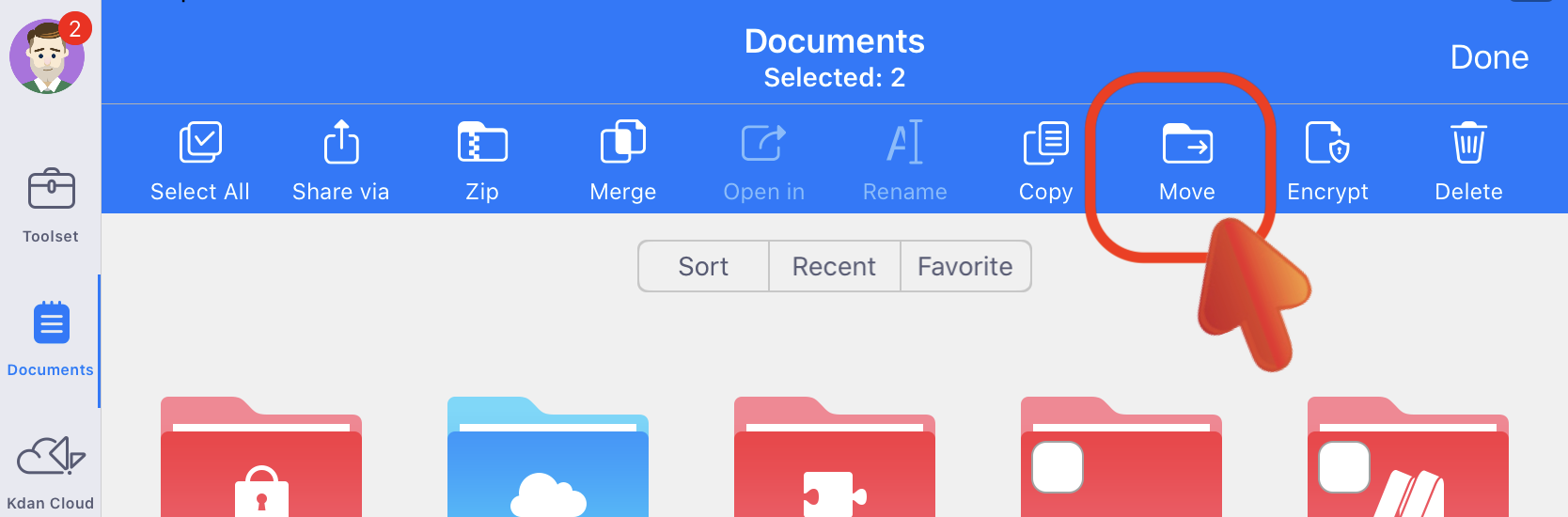
4. Tap "Edit" on top of the screen and then select the folder
5. Choose "Zip" to compress the folder into a zip file
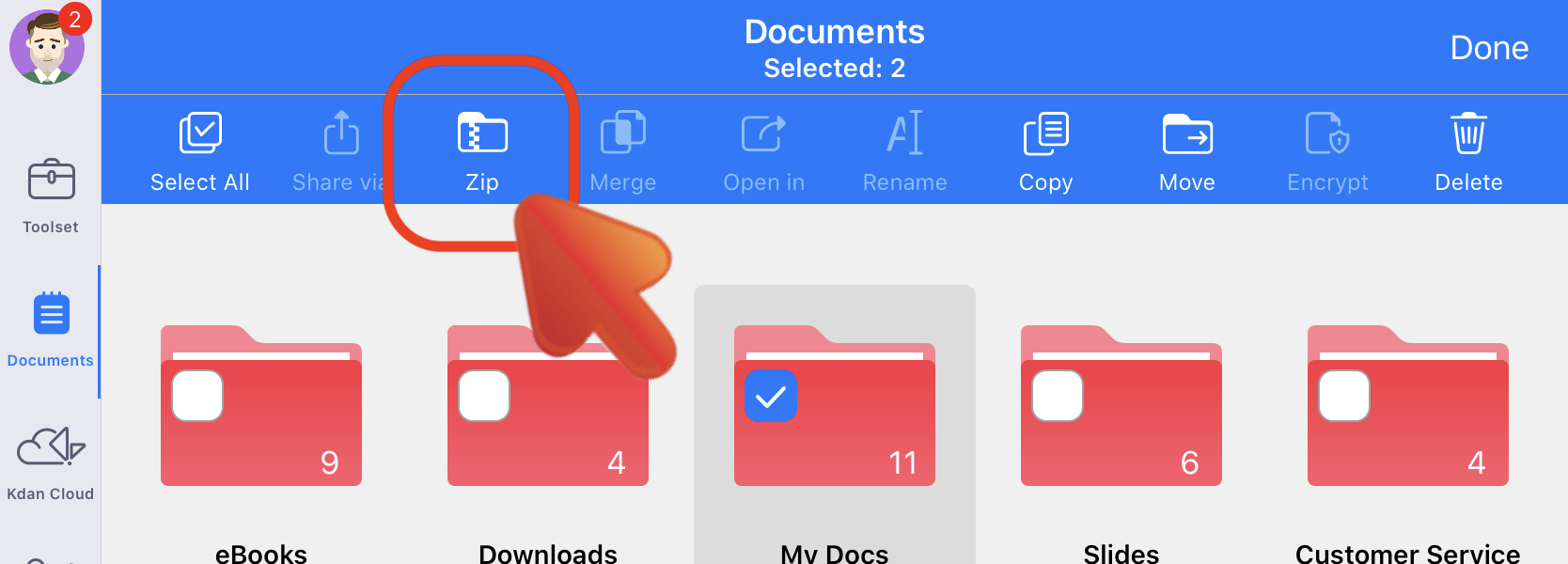
6. Then you could choose either of the following options to continue:
Option 1 - Open in (recommended, without Internet connection)
Launch both versions of PDF Reader and keep them open in the foreground during the migration process. Then sign in with your Kdan ID from the PDF Reader universal app and retrieve your access to all premium features if you’re using our subscription.
Step-by-step guide:
1. In the “Documents” tab, tap “Edit” in the top right corner
2. Select the zip file and tap the “Open-in” button from the menu
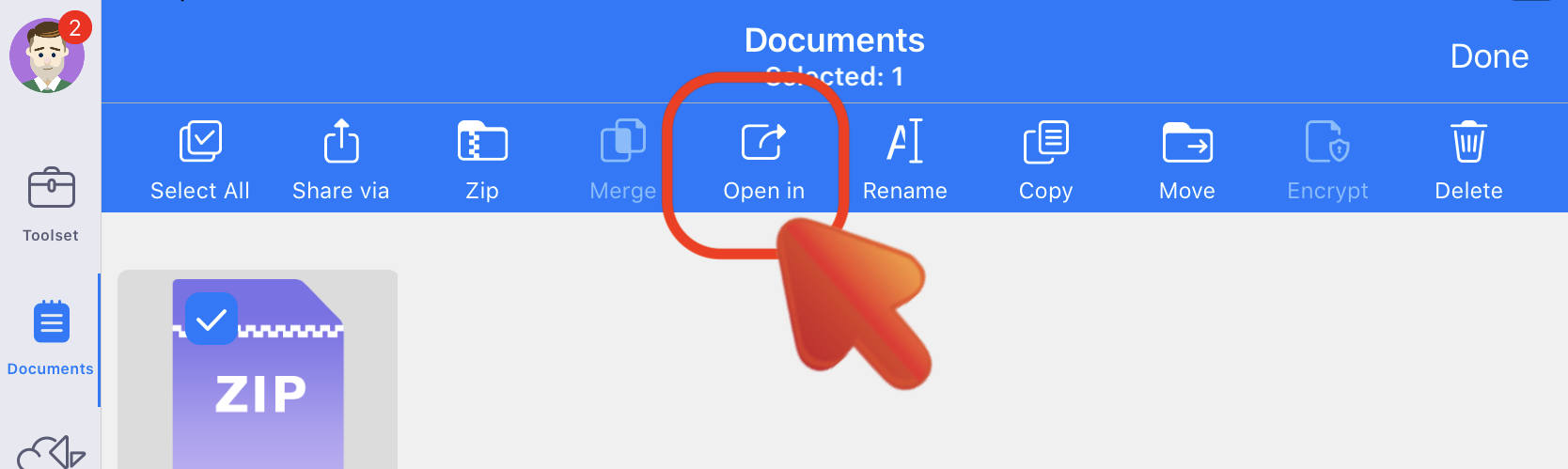
3. Choose to “Open in PDF Reader”
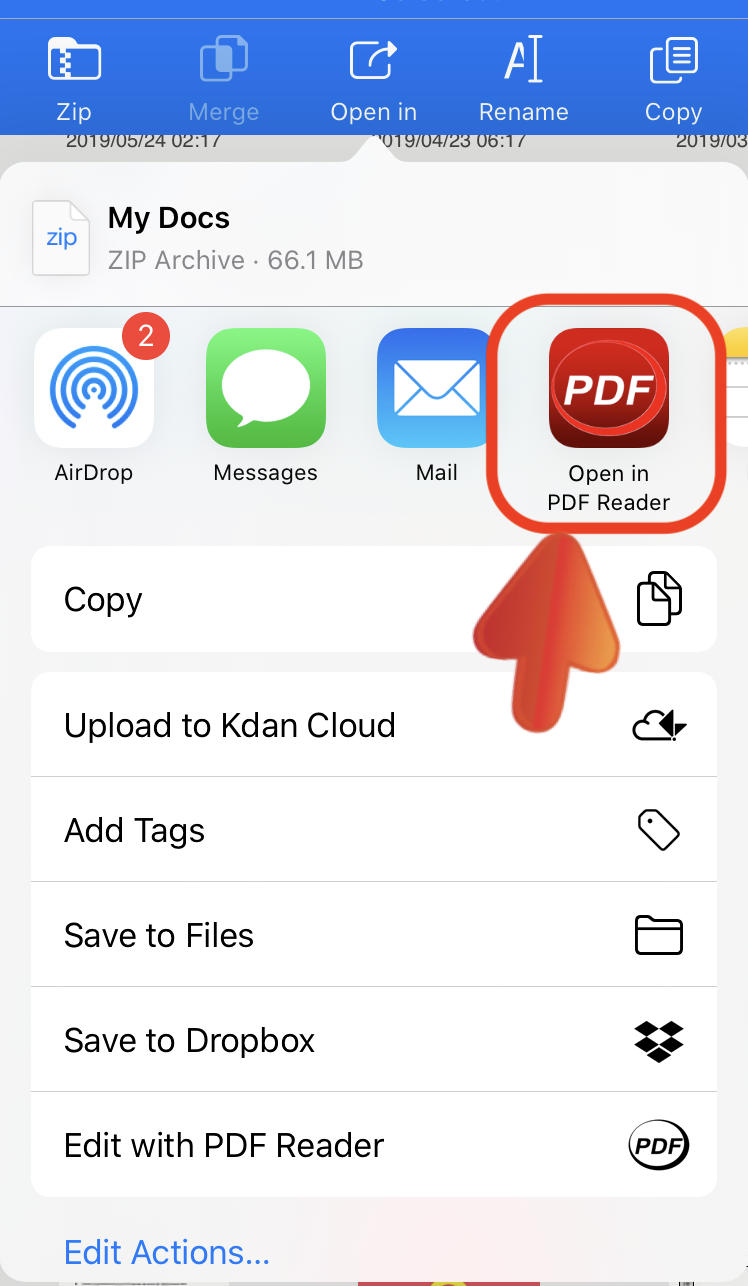
4. The system will automatically duplicate the zip file and save in the universal app
Option 2 - Upload to Kdan Cloud (internet connection required)
If you need to move the zip file onto another device, you could try to sync the file to your cloud. We’ll use Kdan Cloud as an example:
Step-by-step guide:
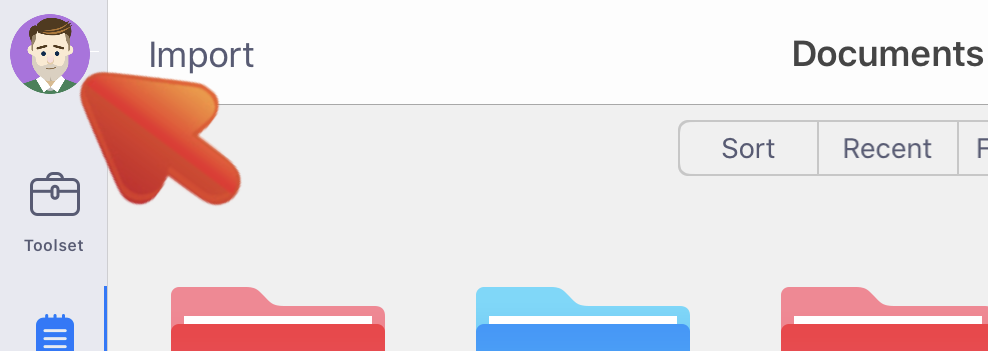
1. Make sure you’ve signed in with your Kdan ID in both versions of PDF Reader
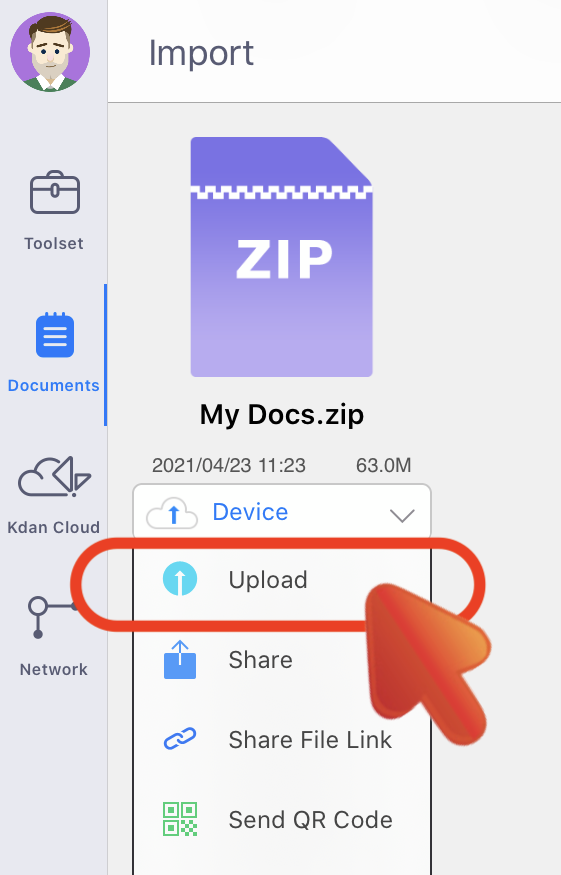
2. Upload the zip file to Kdan Cloud so it’s stored in your Kdan Cloud storage space successfully
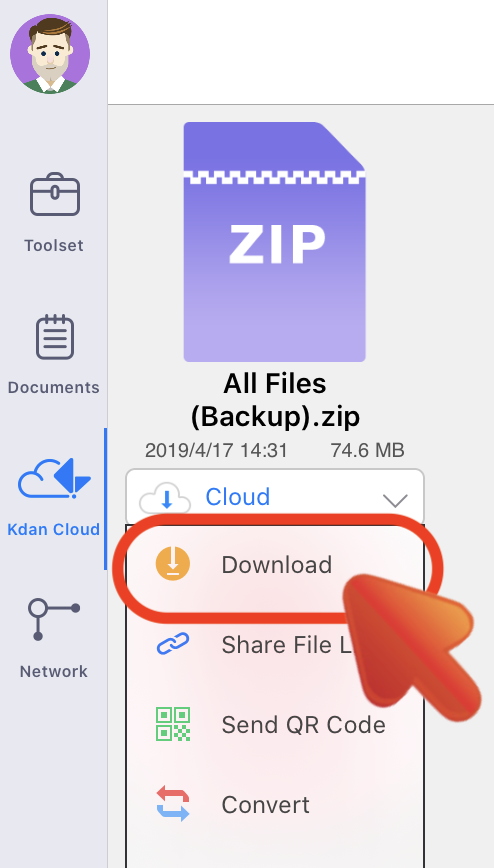
3. Launch the universal app and switch to the “Kdan Cloud” tab
4. Find the zip file and download it to the universal app
5. Then the file will be saved in the “Documents” tab
Note: Kdan Cloud allows you to use 500 MB of free online storage.
Option 3 - Using iTunes USB (backup option)
If you want to transfer/copy files from PDF Reader app to your PC/Mac, please connect your iOS device with your computer first.
Step-by-step guide (using Windows PC as an example):
1. Launch iTunes on your computer (For Mac users, you can directly transfer files from PDF Reader to your Mac using Finder.)
2. Connect your iOS device to the computer via USB cable

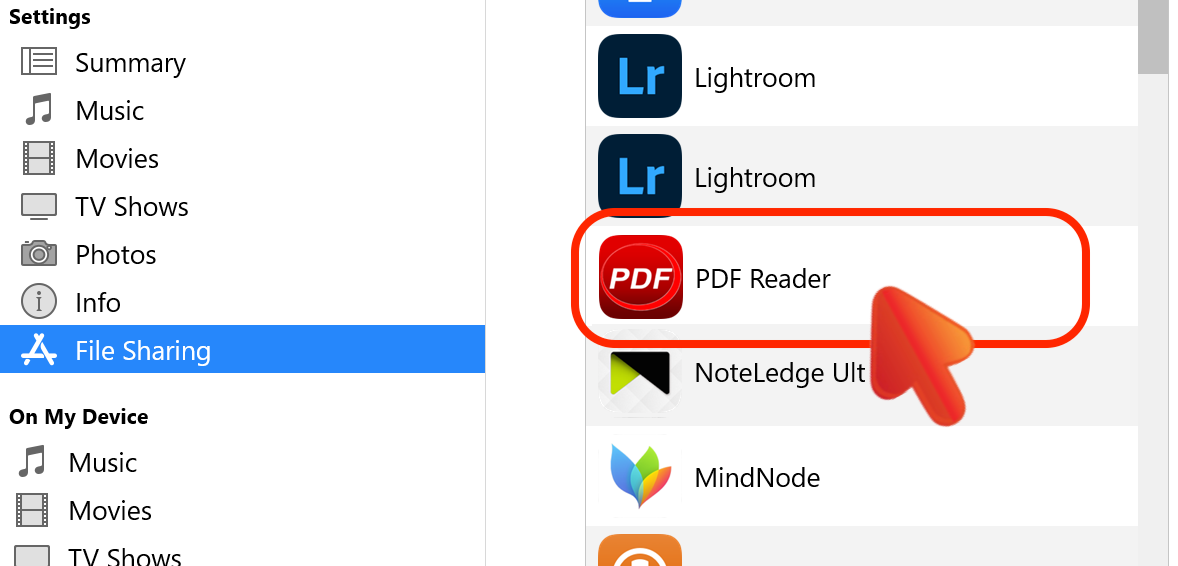
3. Scroll down to "File Sharing" section
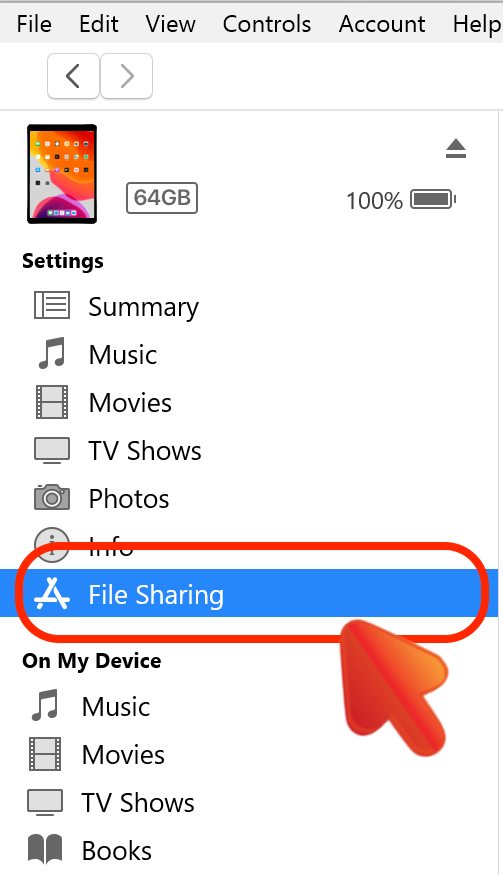
4. Then find the PDF Reader app in the app list in the File Sharing section. Tap the app icon, and you will see all the documents stored in this app
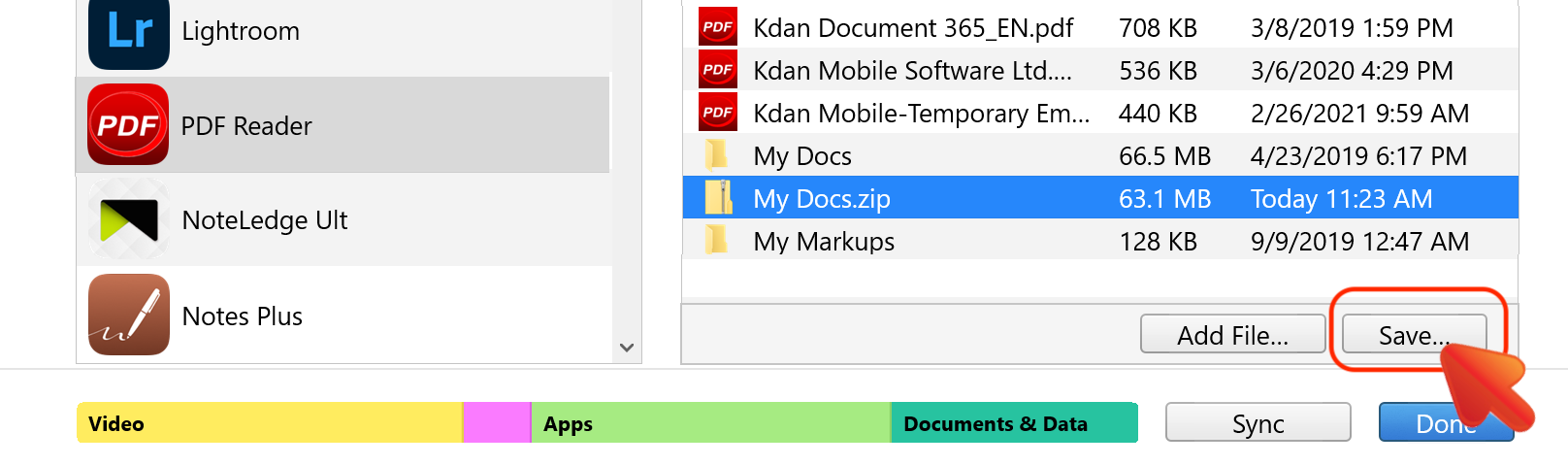
5. Click on the zip file and tap "Save" to export the file to your computer. Or you can drag the file from the Documents list to a folder or window on your computer to copy it to your computer
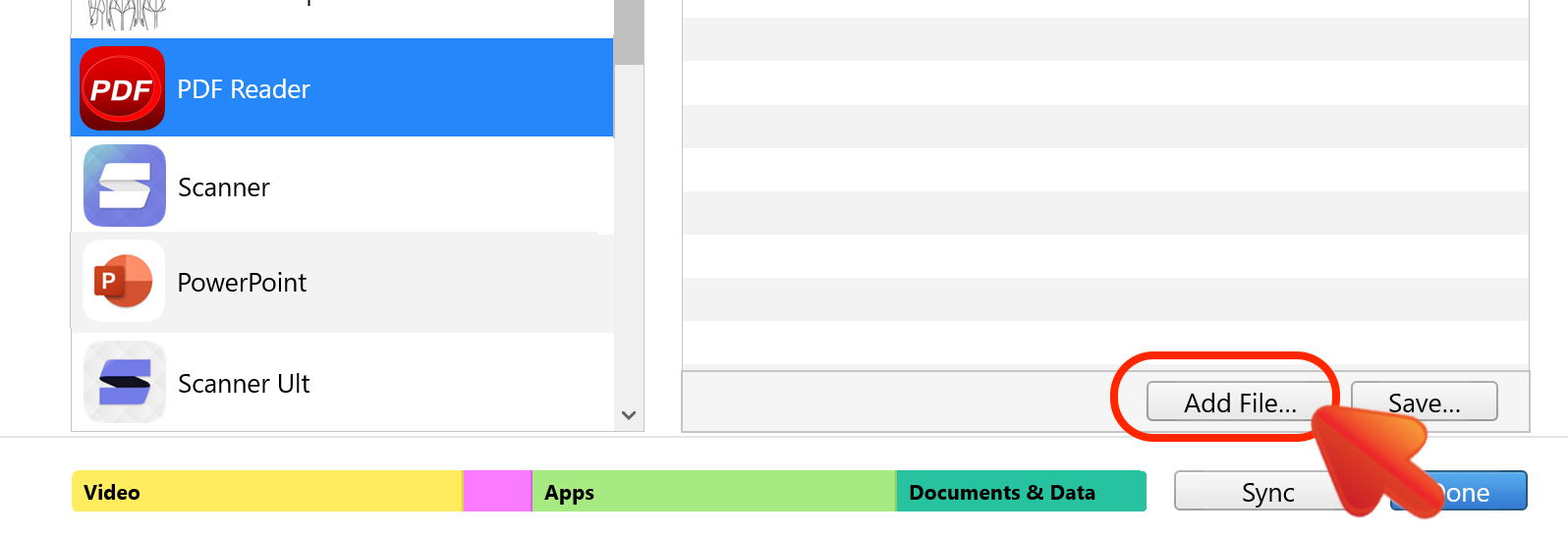
6. To transfer the file onto the universal app, find the app icon. Then click "Add" to import files from your PC to PDF Reader app
Updated
Comments
0 comments
Please sign in to leave a comment.