Note: Please make sure you've subscribed to Document 365 and signed in with your Kdan ID.
1. Open a PDF. Click "Security" from the main menu bar on top of the screen and then click "Watermark" on the toolbar.
2. Choose "Add Watermark" from the menu

3. PDF Reader provides 2 types of watermark for you to choose from, including text and image watermarks
Option 1 - Text Watermark
1. Click "Text" to start text watermark mode and enter text content in the text field
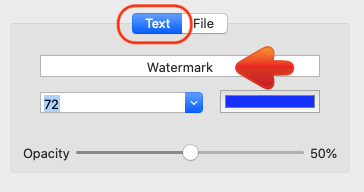
2. You can change the text color, opacity, position, and page range (where the watermark will be added)
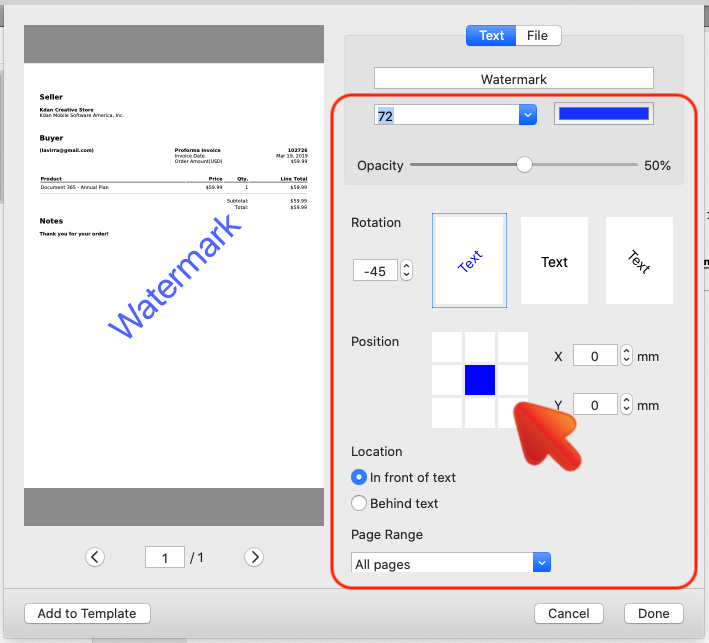
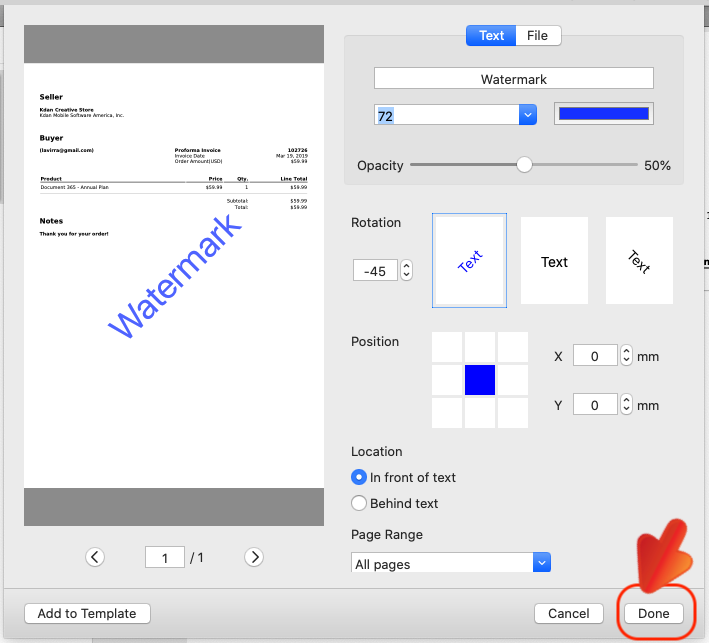
3. After setting up, click "Done", and a new copy with watermark will be created.
Options 2 - Image Watermark
1. Click "File" to start image watermark mode and choose an image file to add as an image watermark

2. Then adjust the opacity, position, and page range (where the watermark will be added)
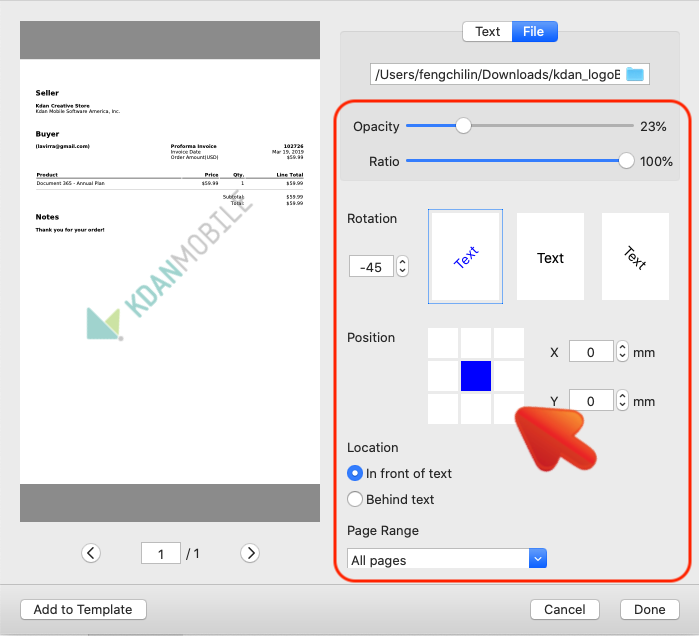
3. Click "Done" to add an image watermark to the PDF
We usually add watermarks to PDF to inform readers of where the document came from. To know more details, please refer to our pro-tips on how to secure PDFs using PDF Reader.
Updated
Comments
0 comments
Please sign in to leave a comment.