Getting rid of large binders and folders of documents is a good idea. Adding, removing, and extracting pages from a PDF is possible using PDF Reader. Learn how to edit and add parts to PDFs as needed.
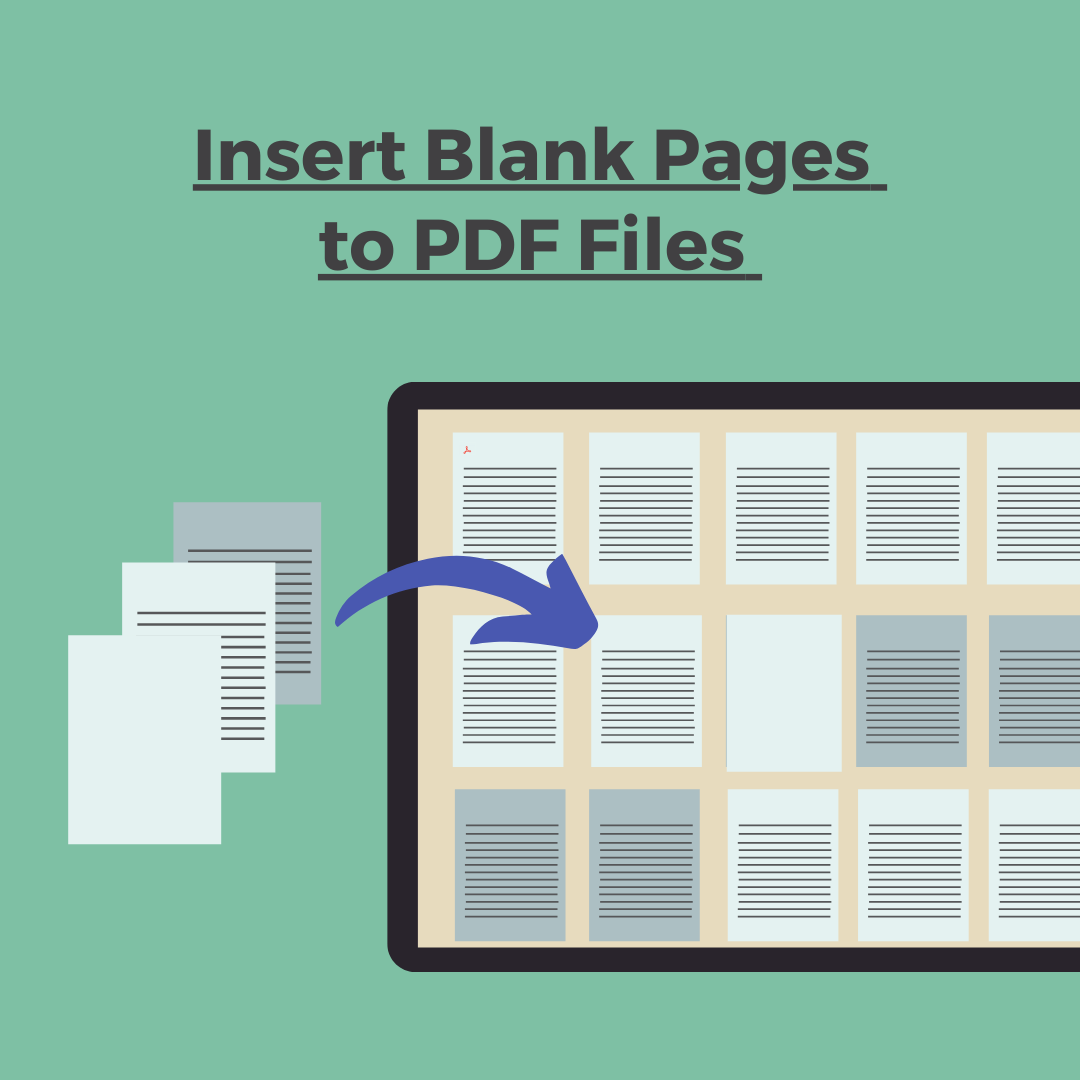
Add A New PDF Page
Instead of creating new PDF files every time you add new information, you can add new pages to your existing PDF files. You can then add handwriting, notes, and images afterwards.
- Tap “Page Edit” to view PDF pages in thumbnails
- Select a page and tap the ”Insert” button
- Choose one page template you’d like to insert
- Then a new blank page will be added to the PDF (See detailed tutorials)
Remove Unwanted Pages
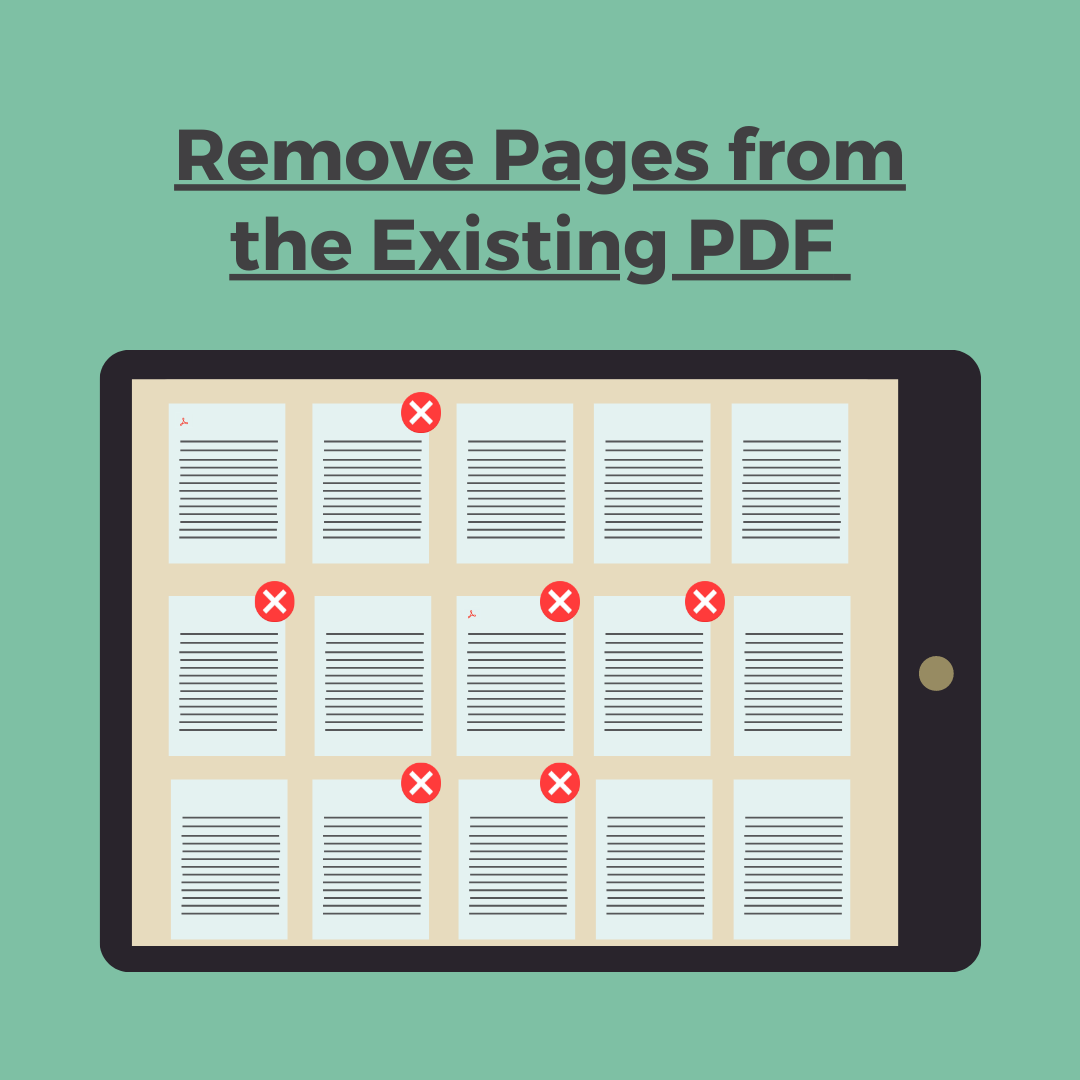
In dealing with digital documents, we all encounter unwanted pages. There is no simple solution for removing these pages from PDF files. With PDF Reader, you can delete the unwanted pages in a flash.
- Tap “Page Edit” to view PDF pages in thumbnails
- Select pages you’d like to remove
- Choose “Delete” to delete them (See detailed tutorials)
Export Selected Pages
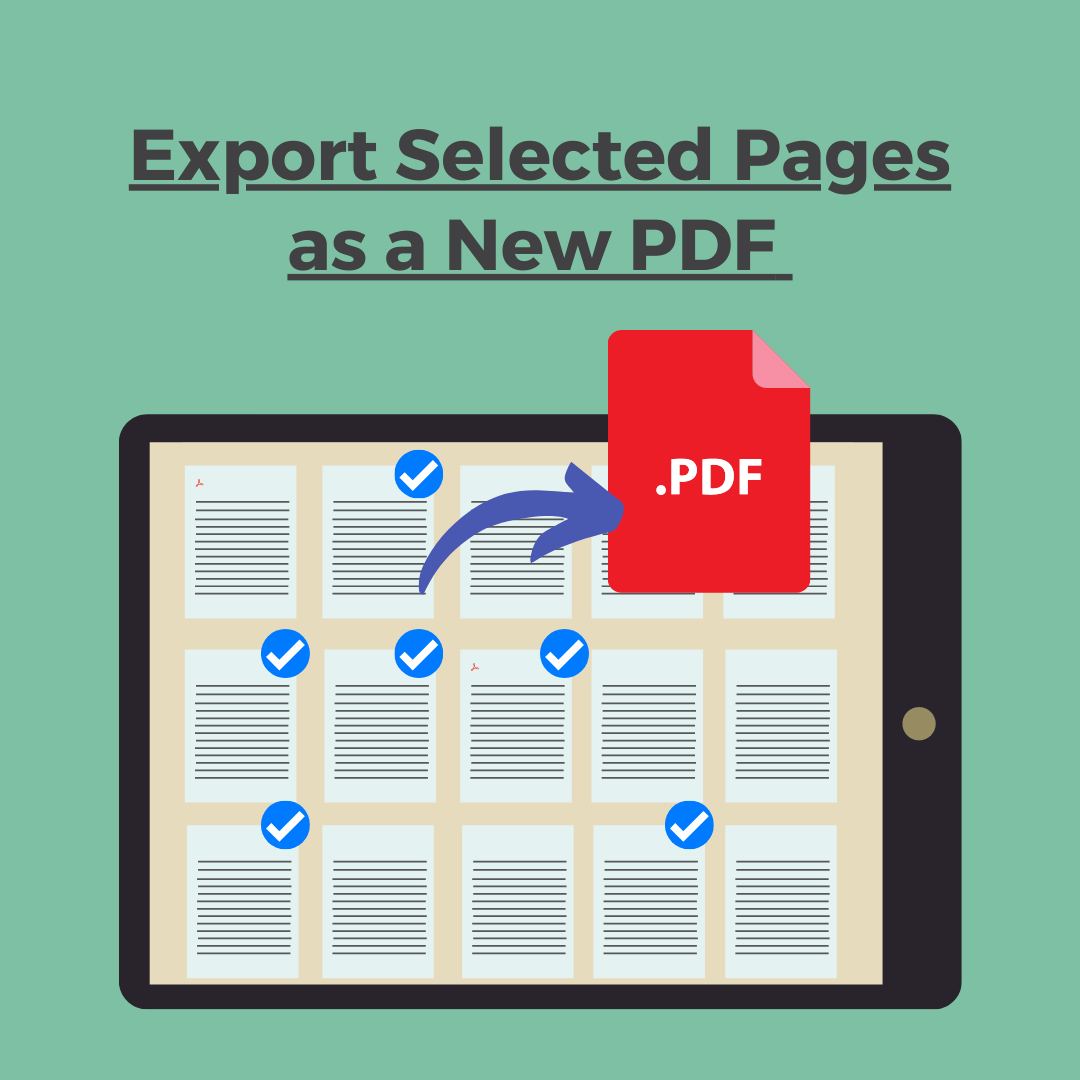
The Extract Page tool in PDF Reader provides a simple way to split a PDF document into two separate PDF files with the Extract Pages tool in PDF Reader. You can extract pages from an existing PDF document and use them in a new PDF.
- Tap “Page Edit” to view PDF pages in thumbnails
- Select pages you’d like to export and tap the “Extract” button on the top menu bar.
- Then the pages will be saved as a new PDF (See detailed tutorials)
Updated
Comments
0 comments
Please sign in to leave a comment.