The Extract Page tool in PDF Reader provides a simple way to split a PDF document into two separate PDF files with the Extract Pages tool in PDF Reader. You can extract pages from an existing PDF document and use them in a new PDF.
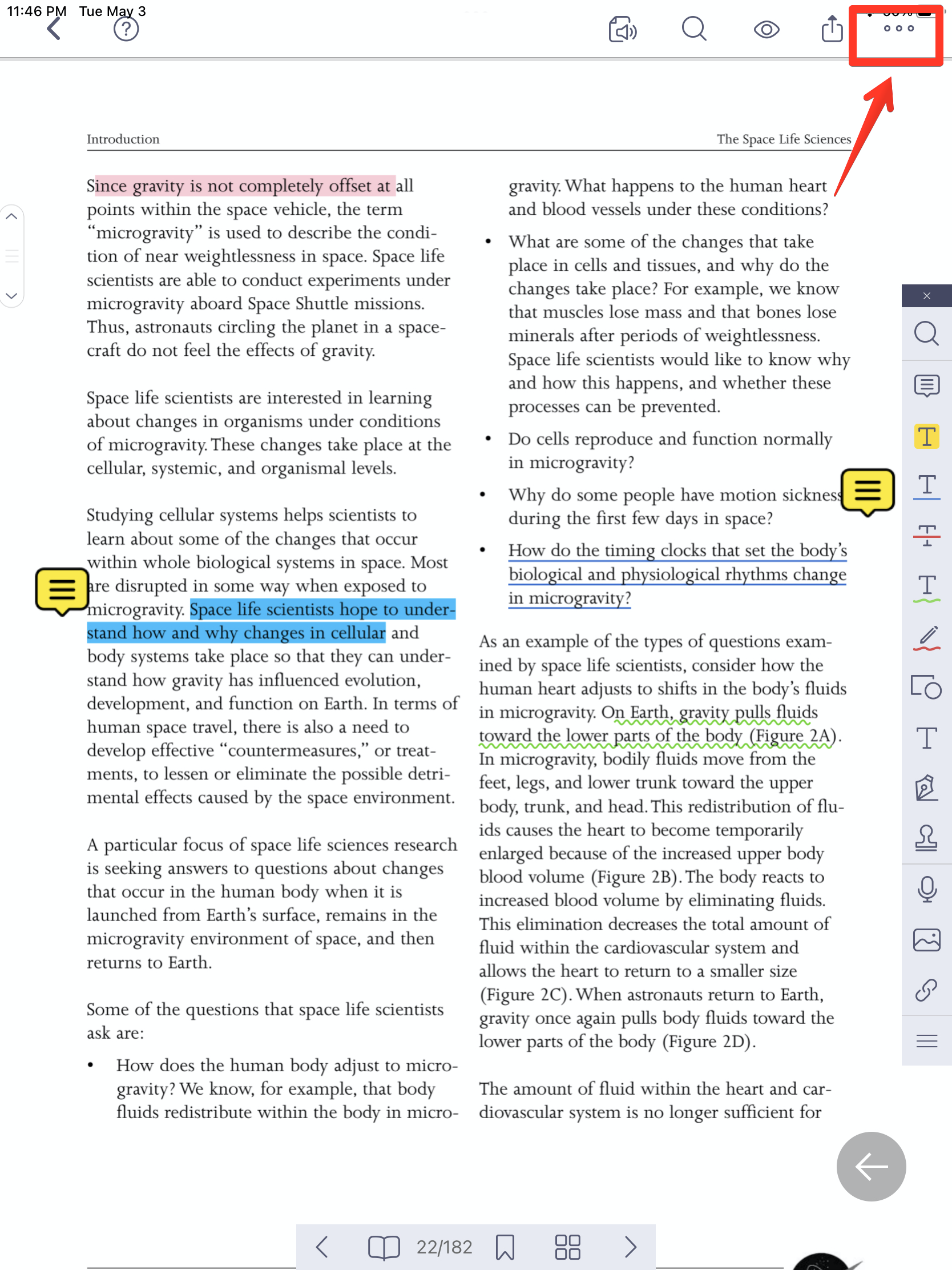
1. Open a PDF file and tap on the "more" button in the top right corner of the screen.
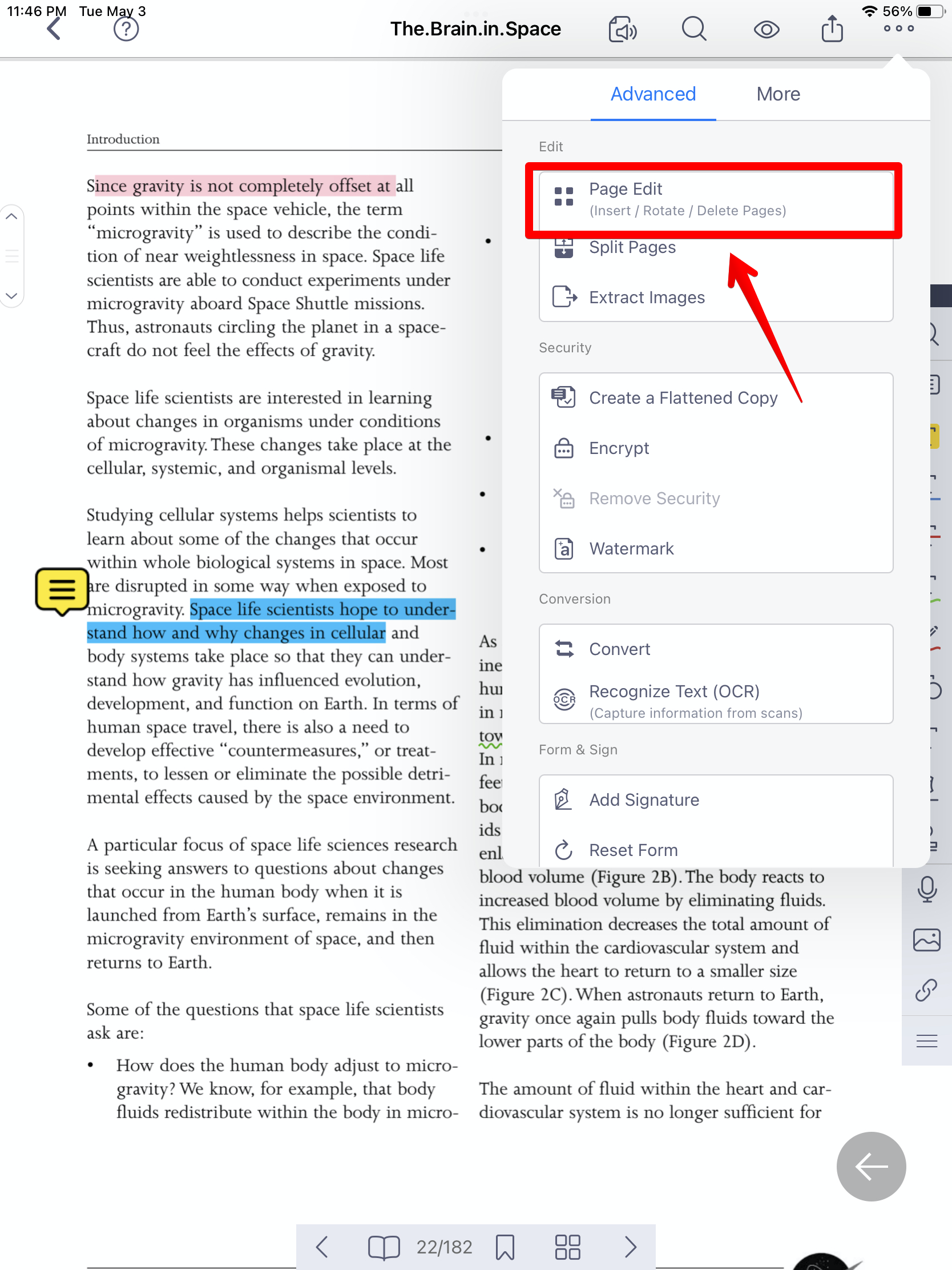
2. Select “Page Edit” under the Advanced section to enter page editing mode.
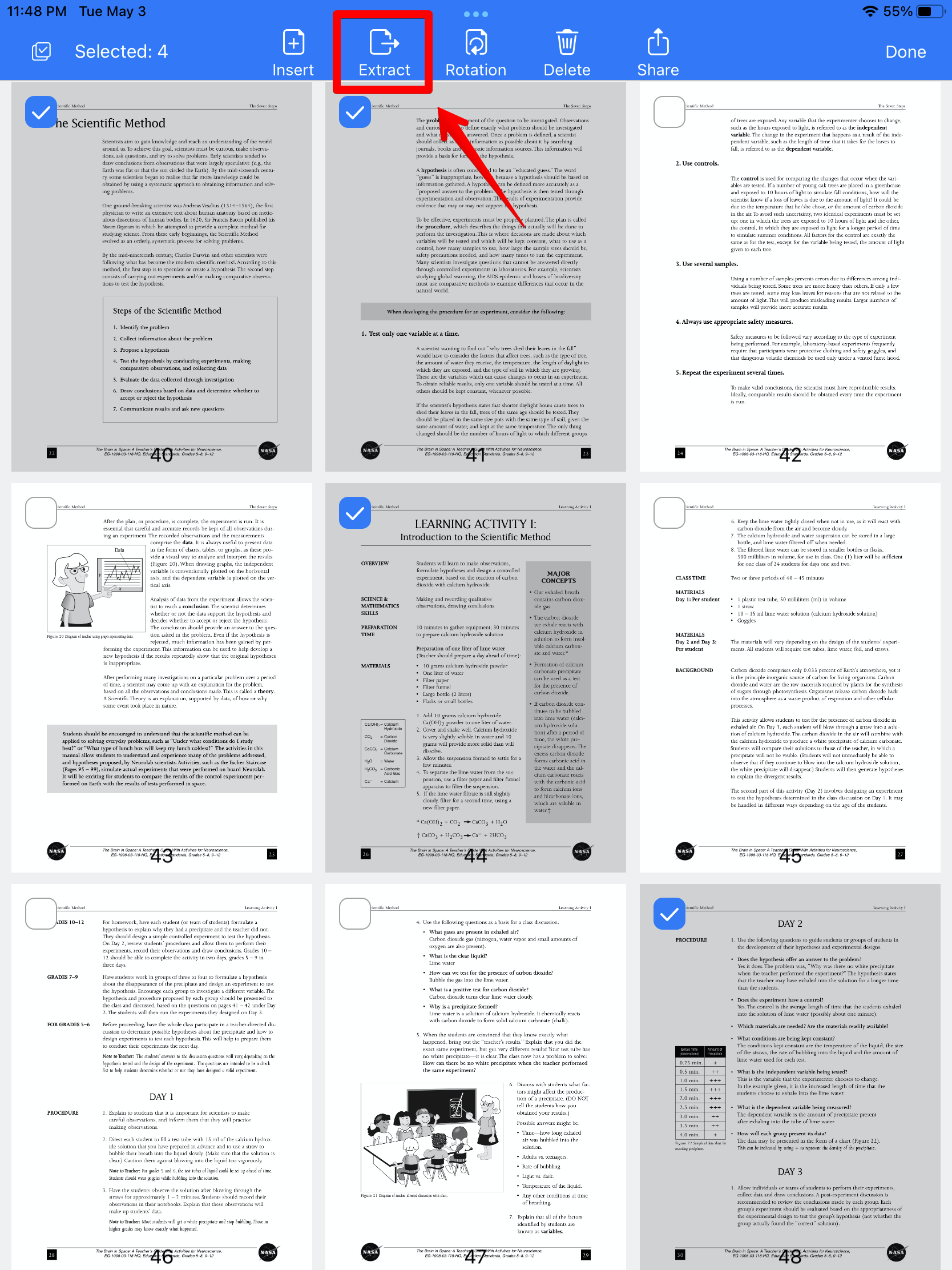
3. PDF pages will be displayed as thumbnails. Then select page(s) you would like to extract by tapping on the page(s). (Once you select a page, you will see a blue checkmark appear).
4. Tap on the "Extract" button to start extraction.
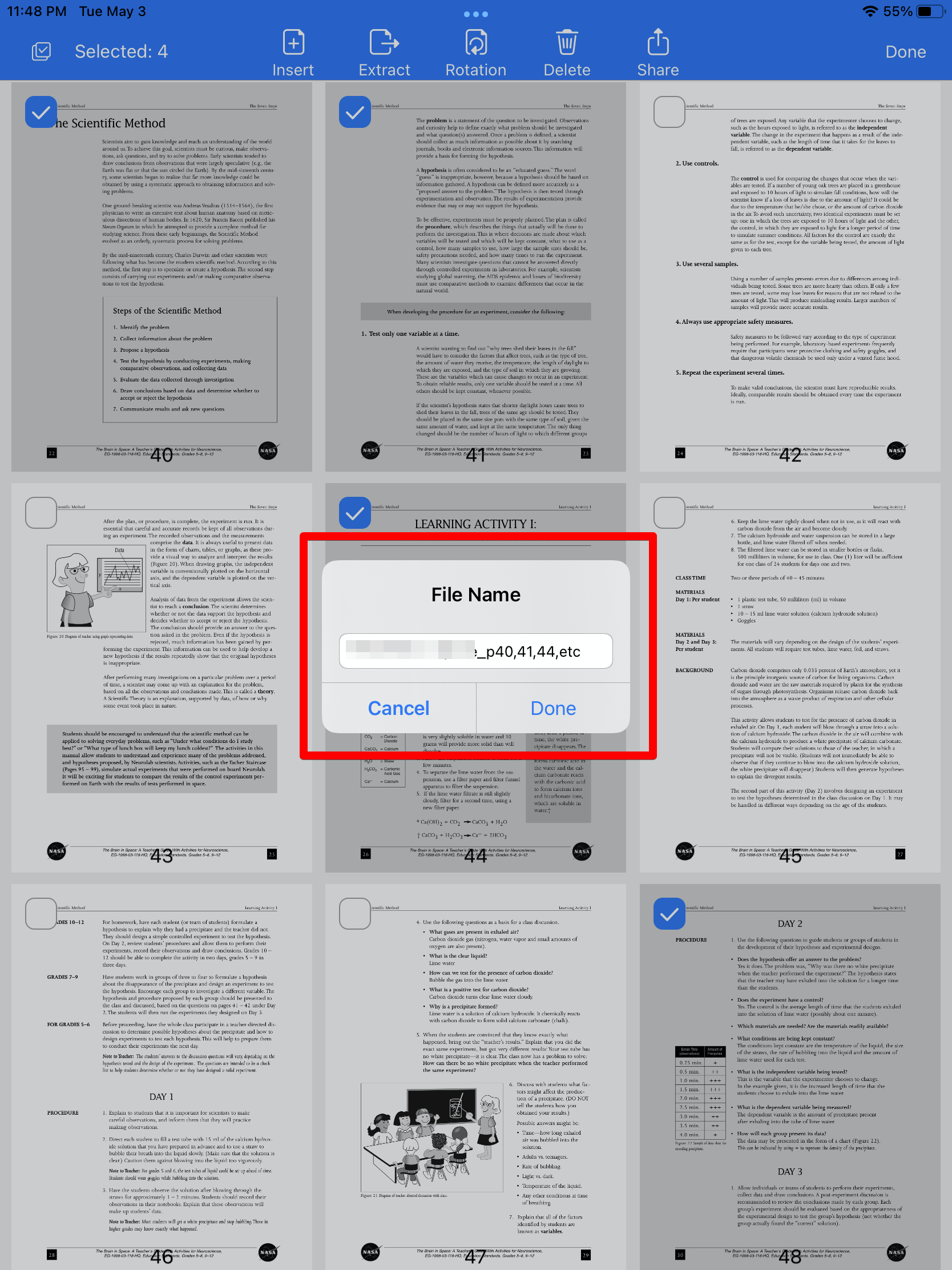
5. You can enter a new name for the new PDF
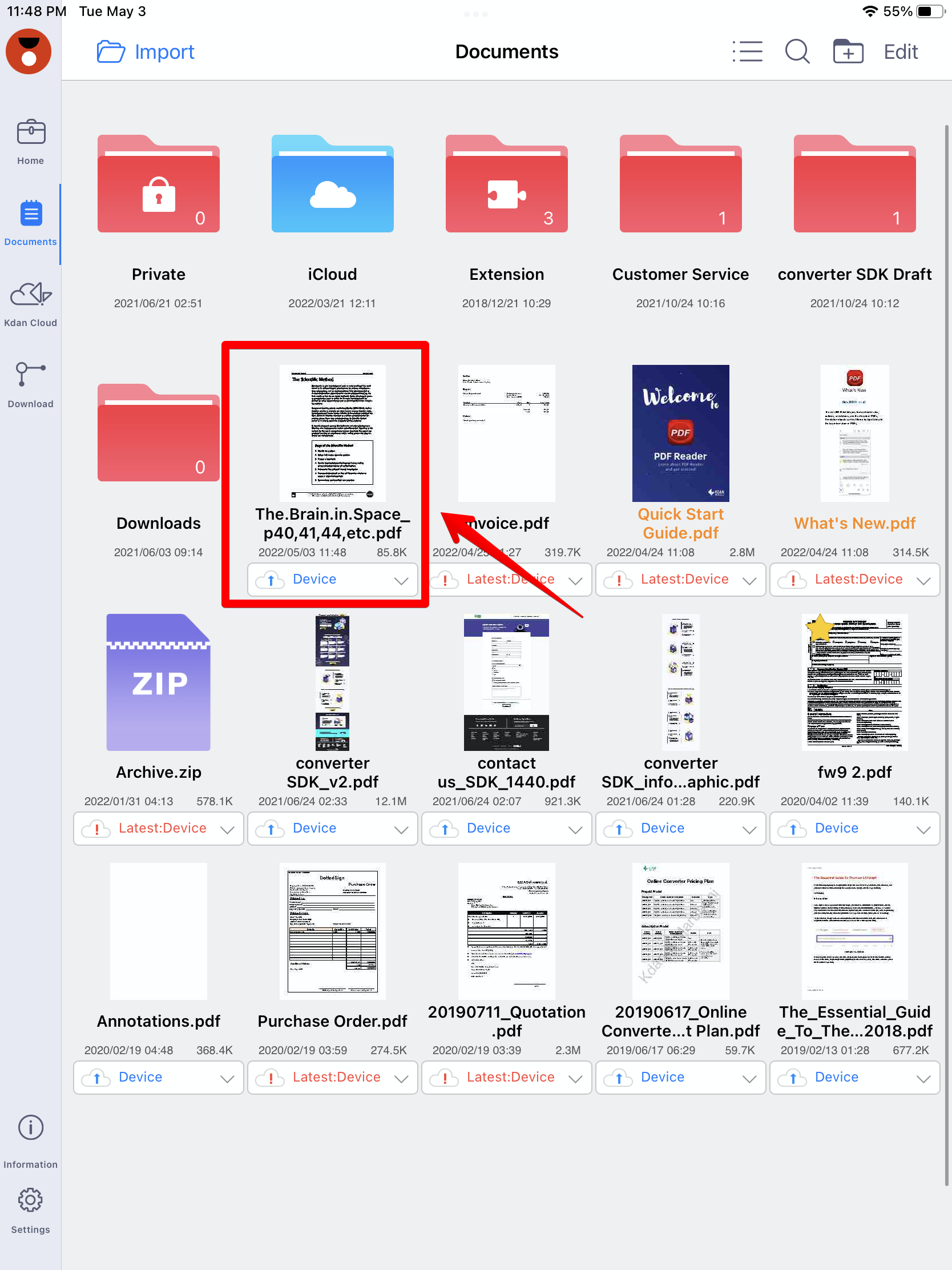
6. The extracted page(s) will be saved as a new PDF file in the “Documents" tab.
Updated
Comments
0 comments
Please sign in to leave a comment.