Do you collect new ideas from Pinterest? Do you save pins and boards that you'd like to use in your creative projects? If you do, read on and find out how to import images from Pinterest to NoteLedge.
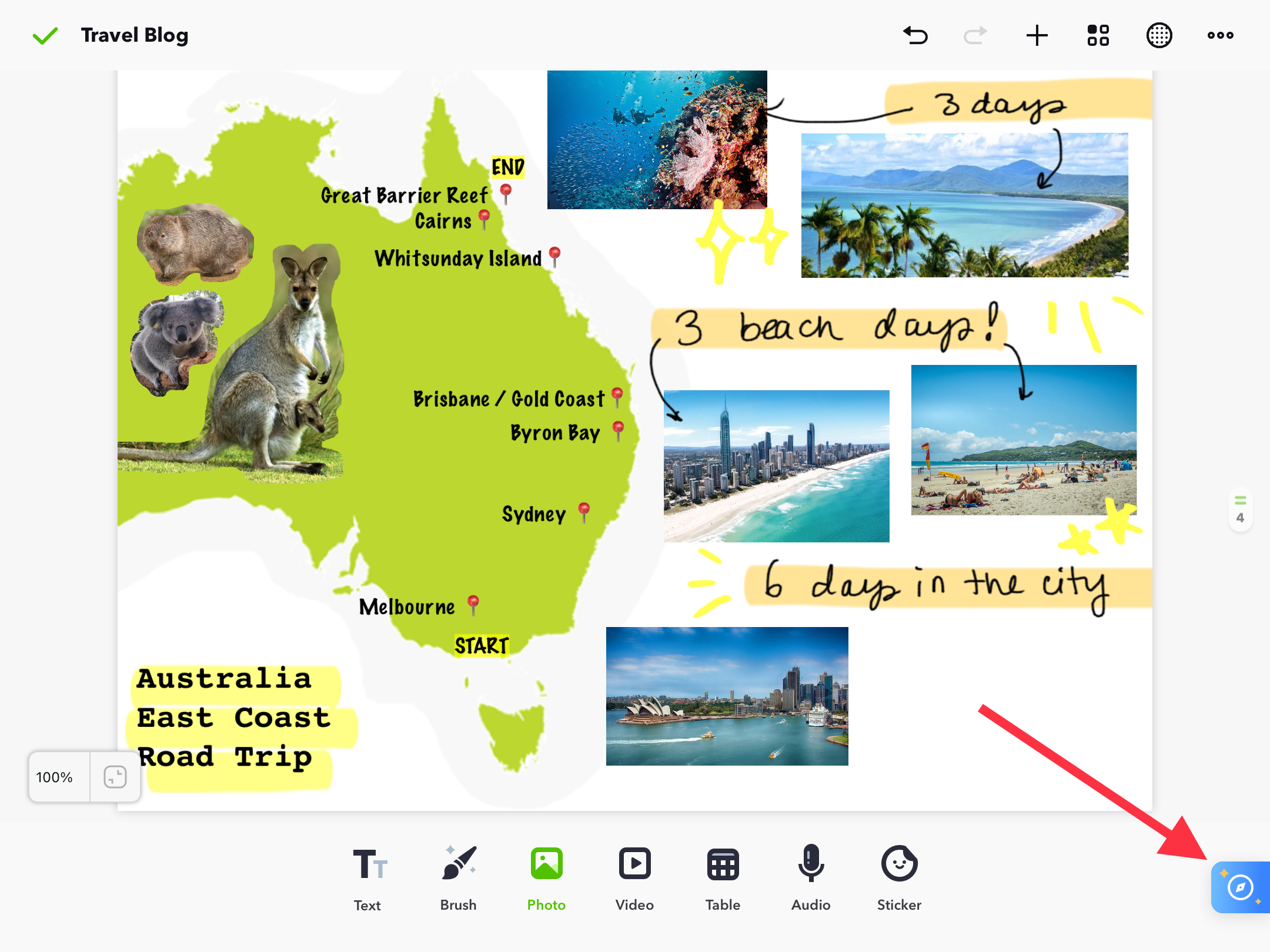
1. While viewing a note in NoteLedge, find the Web Clipper icon (blue compass) in the lower right corner.
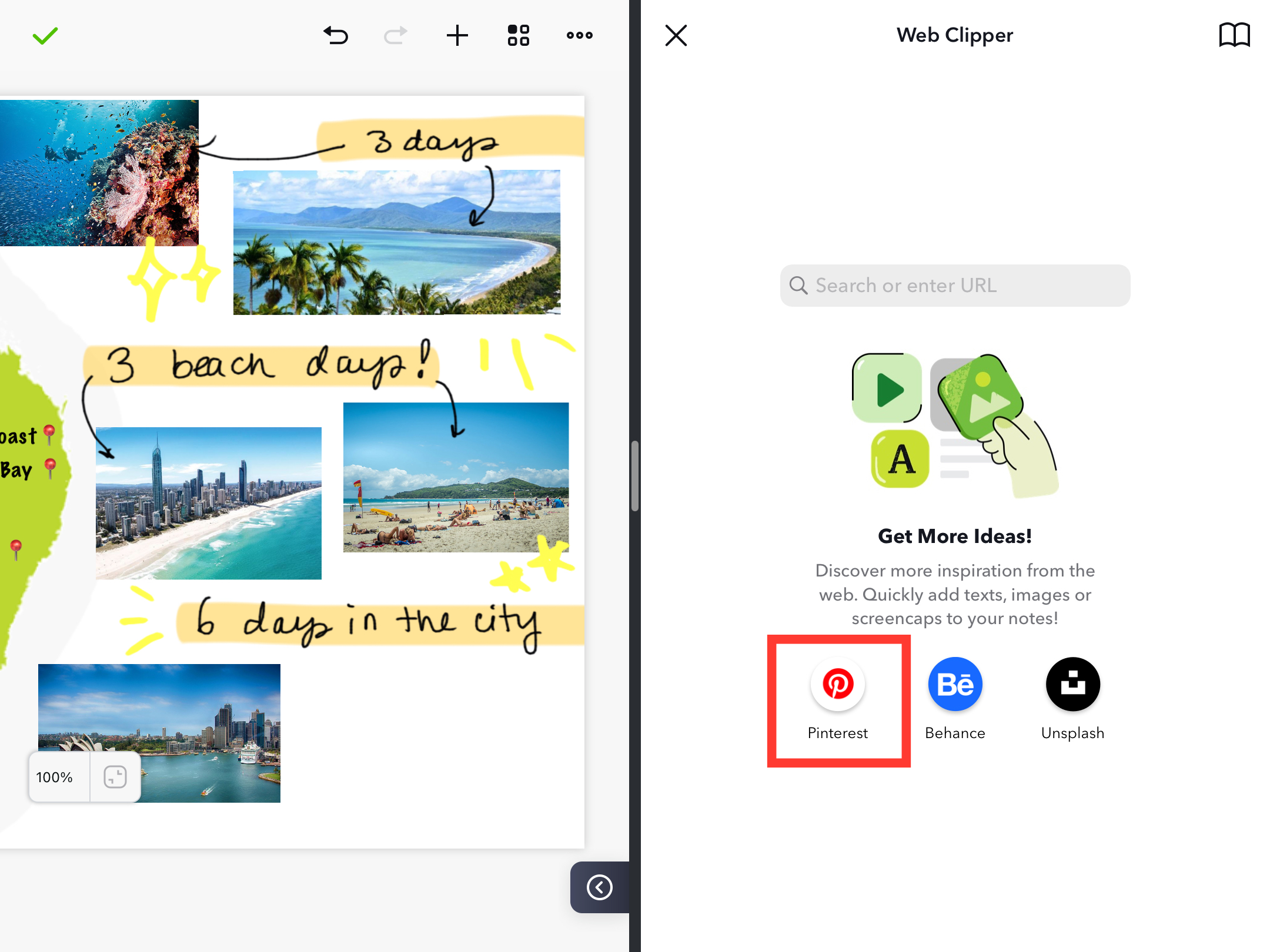
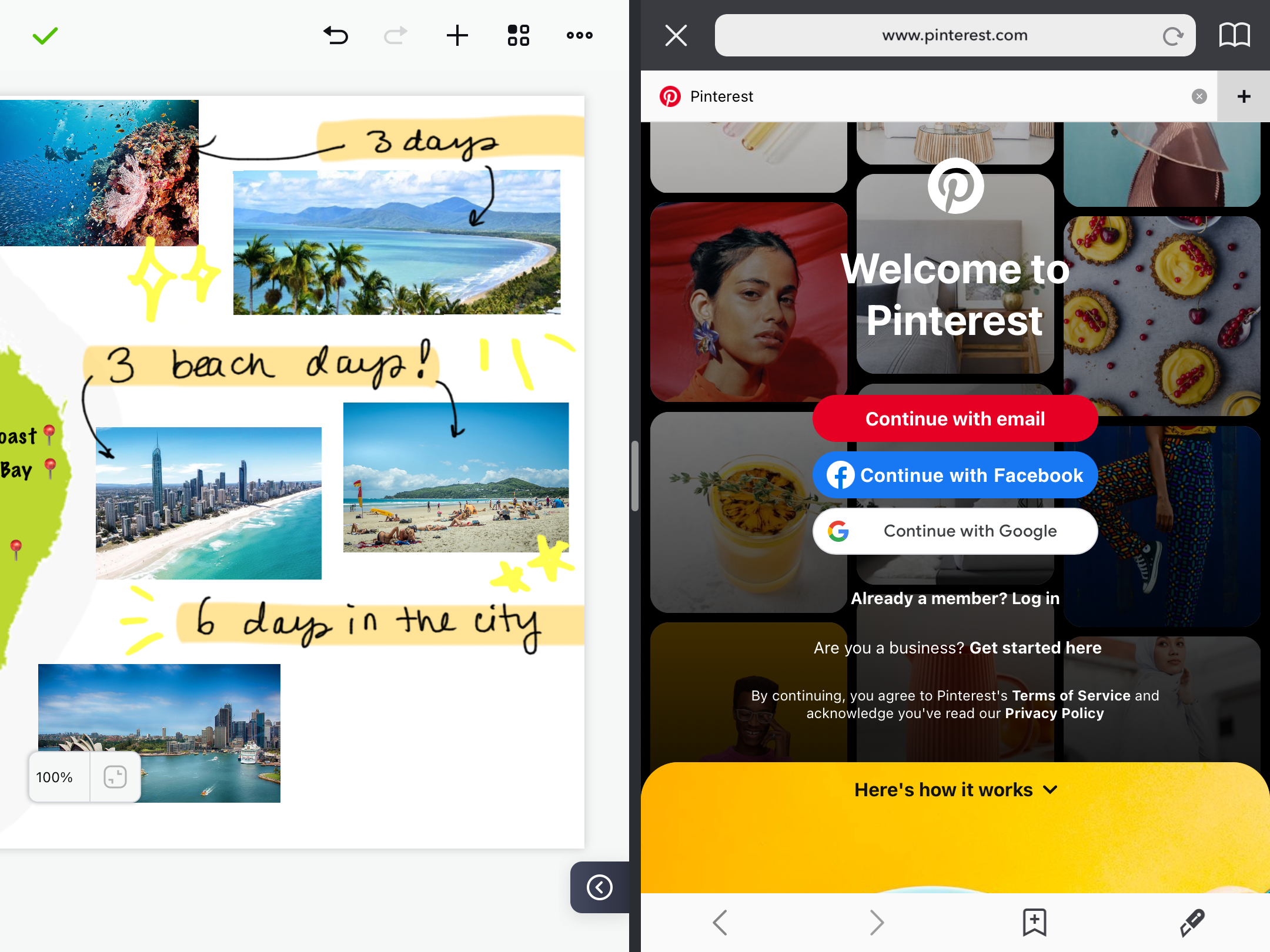
2. Click on the Pinterest icon and sign in to find amazing ideas, or enter a URL to a specific page.
3. Once you find the image you would like to add, directly drag and drop it to notes. 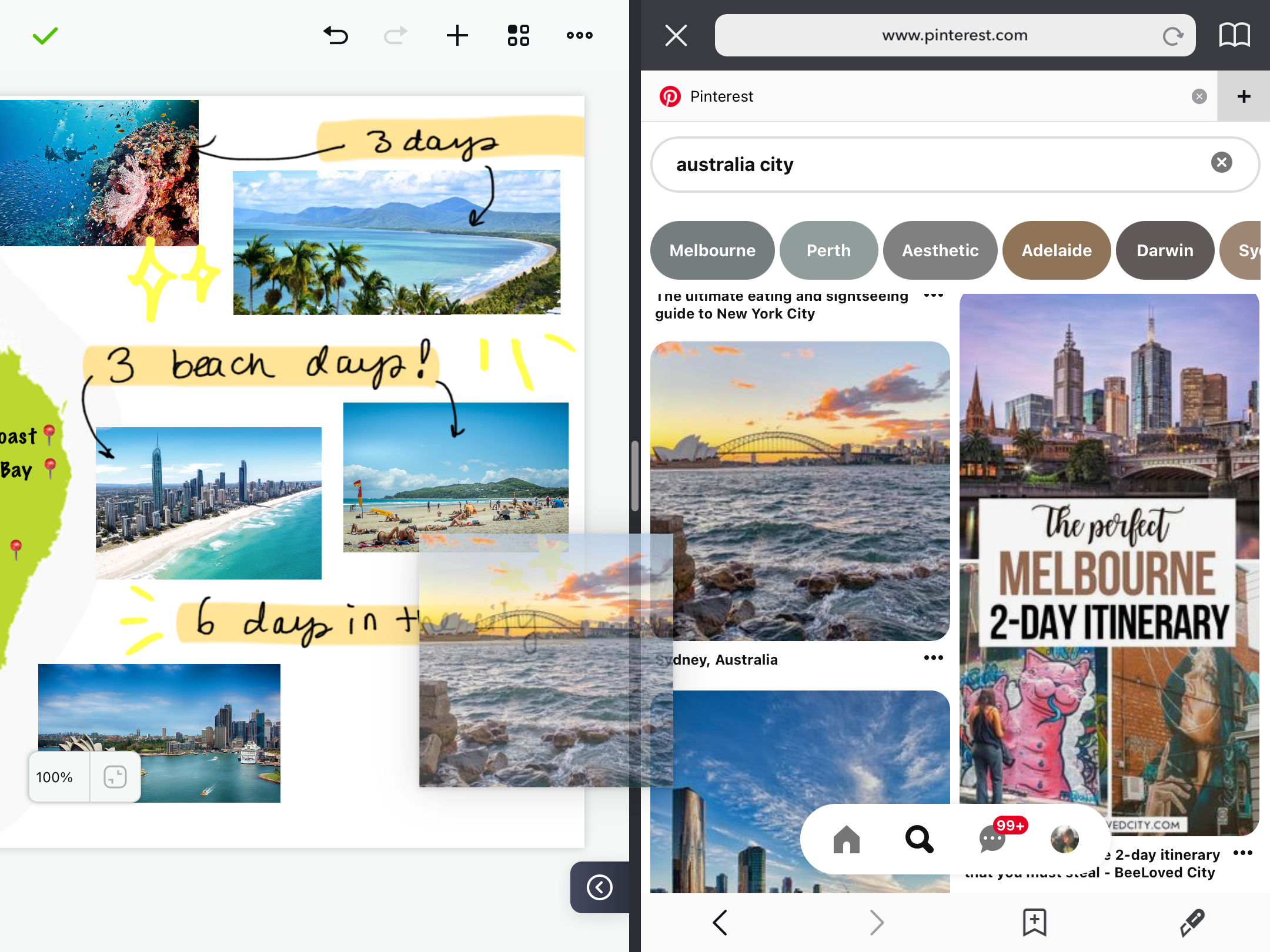
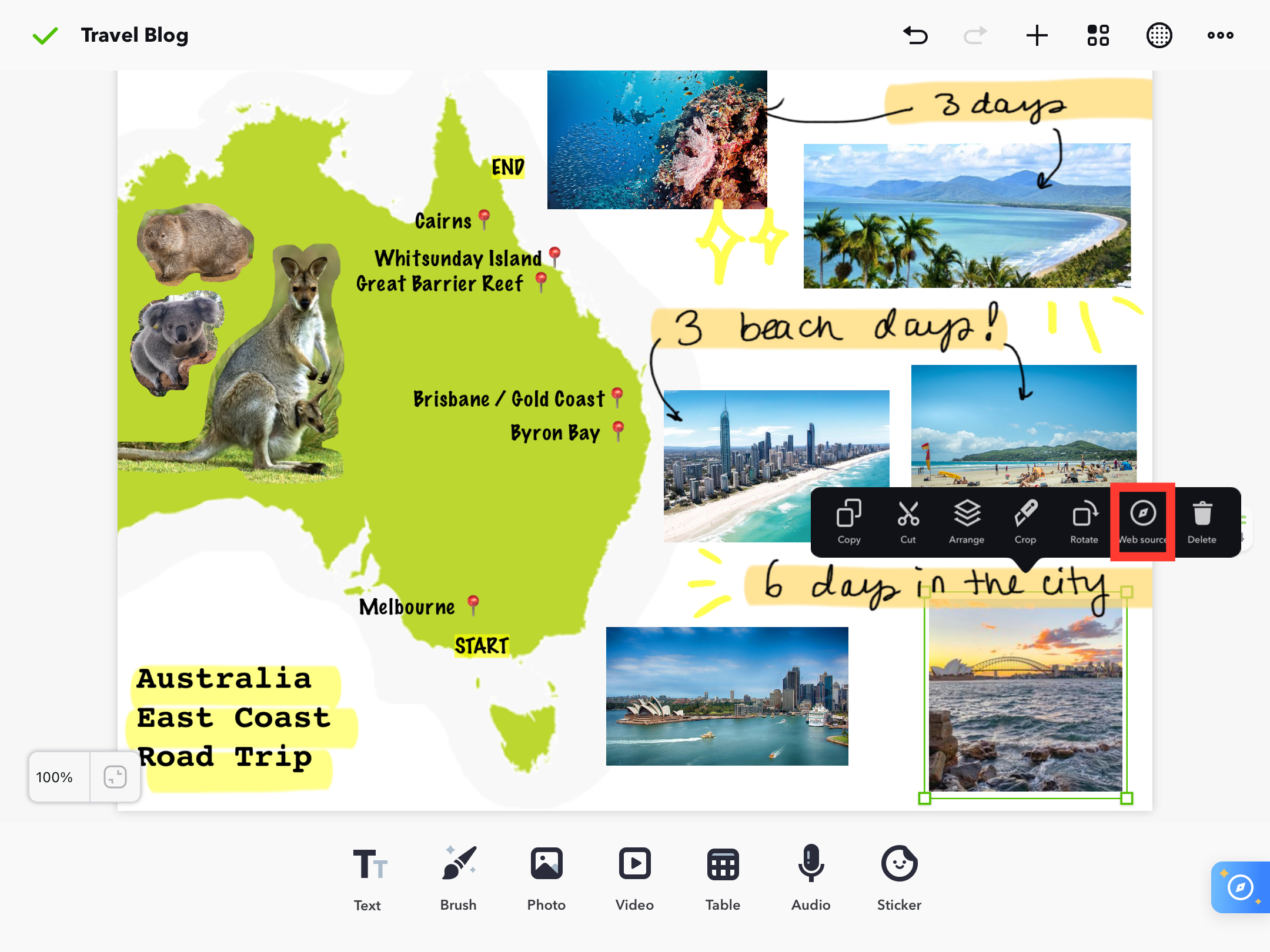
Pro Tip: You can tap the image once, then tap "Web Source" to trace the source of the Pin to view the original source of the image.
Do you find Pinterest clipping tips useful? Download NoteLedge and try it out for FREE.
For more web-clipping and organizing tips:
Updated
Comments
0 comments
Article is closed for comments.