Have the urge to make a mood board or creative vision for a project but are unable to find the perfect app? Visualize and connect your ideas with NoteLedge, a digital notepad equipped with powerful multimedia tools. Pinterest is just one of the many tools that work flawlessly with NoteLedge; simply take your pinned ideas and drag and drop to get inspired. Create easy digital mockups of your Pinterest boards!
For an in-depth tutorial of how to clip content on the web (including Behance and Unsplash), click here.
Tutorial:
1. Create a new note in NoteLedge.
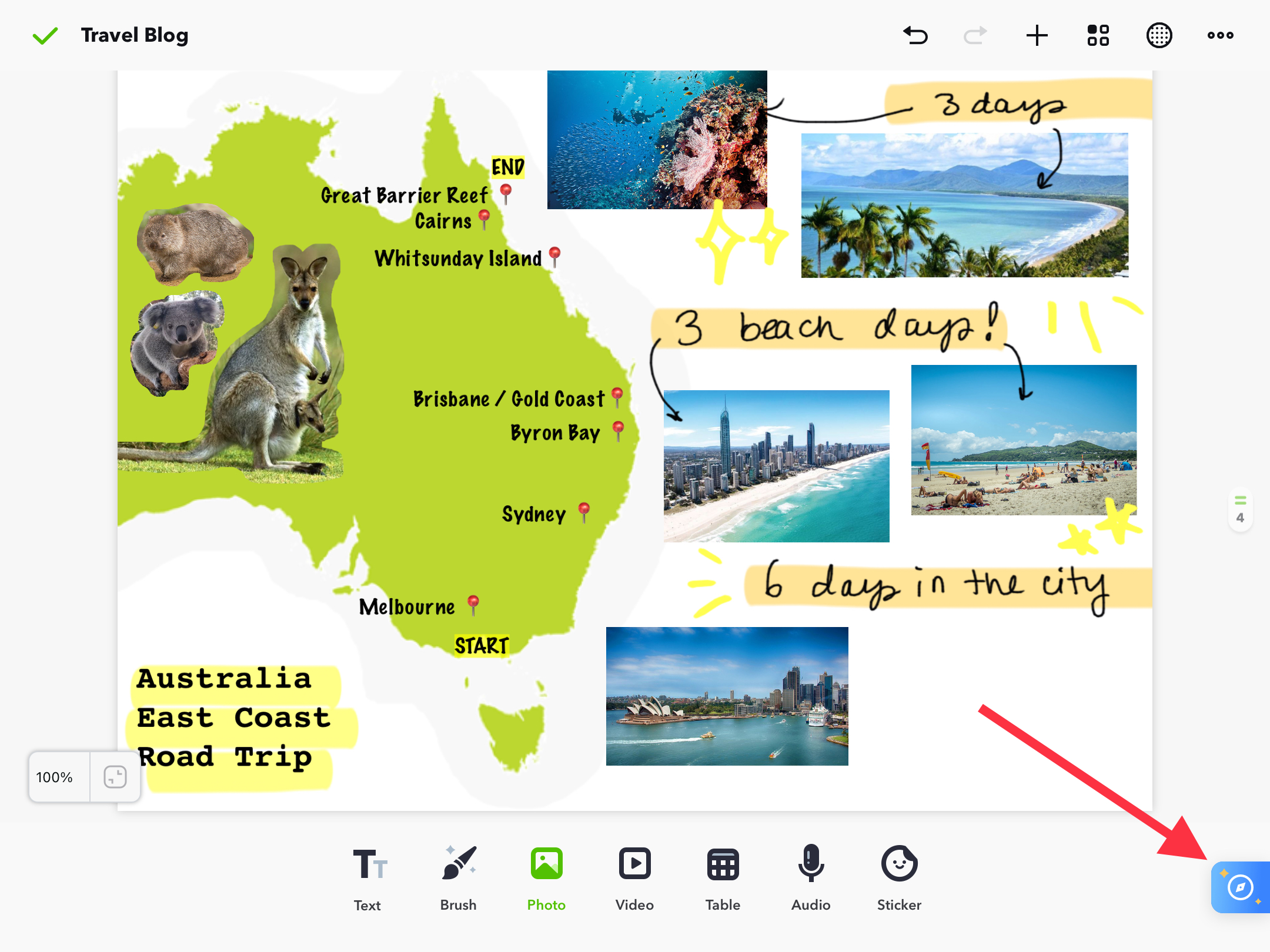
2. Open NoteLedge's built-in web browser by clicking the Explore icon in the lower right-hand corner.
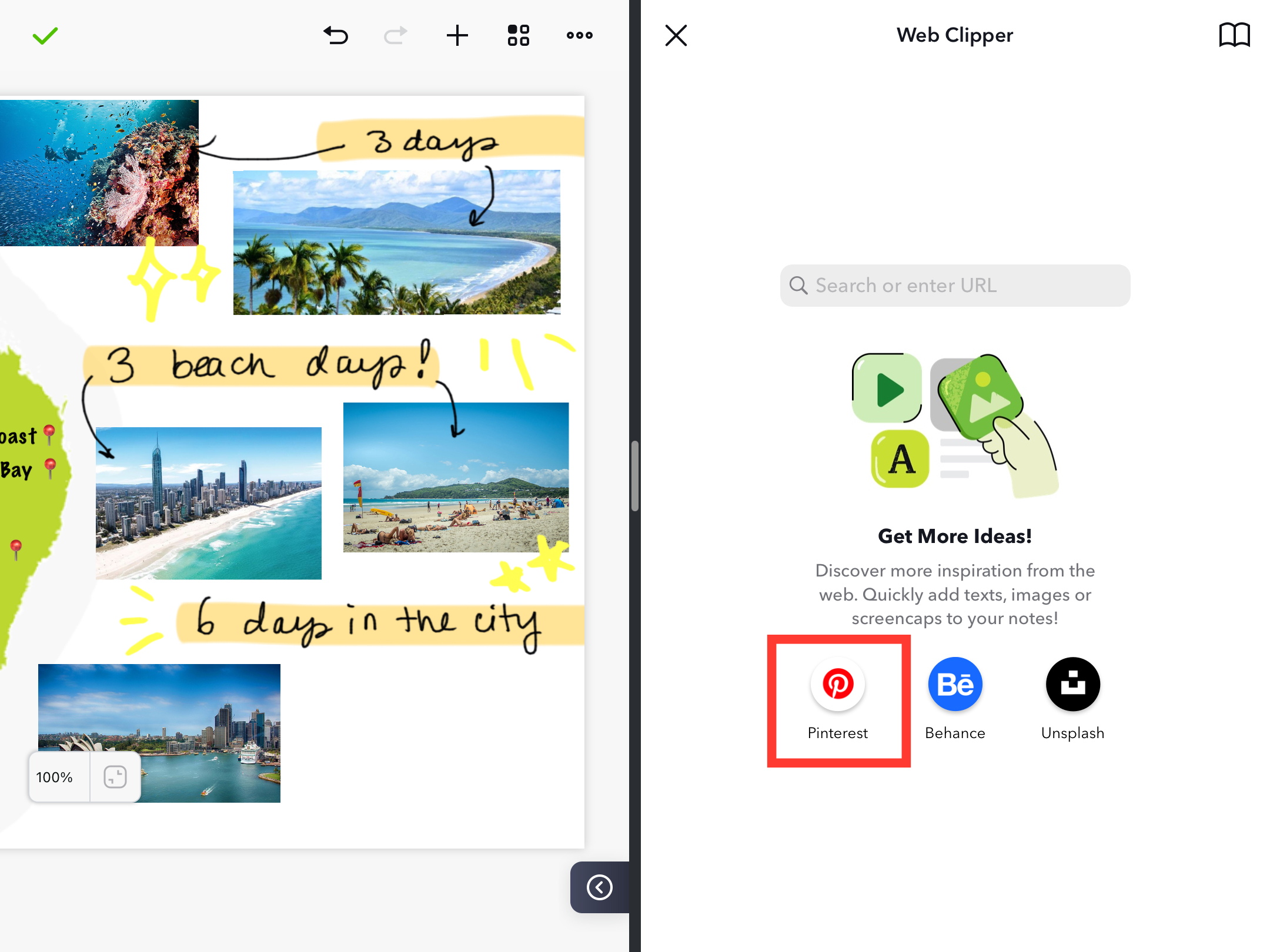
3. Click on Pinterest, and sign in. Search your desired pictures in Pinterest.
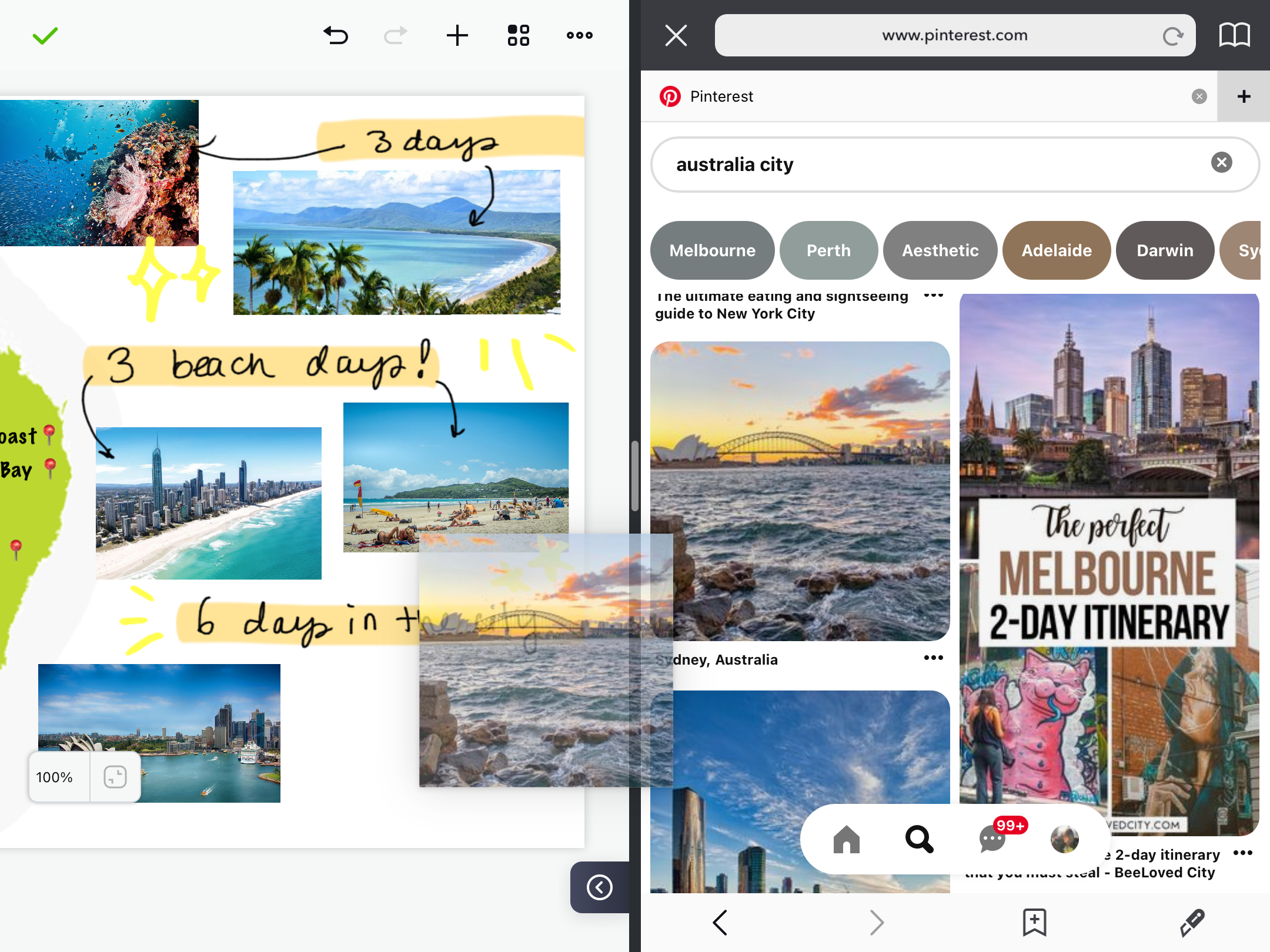
4. Hold, drag and drop the images from Pinterest into your note.
5. Organize everything.
6. You have easily completed a visual board!
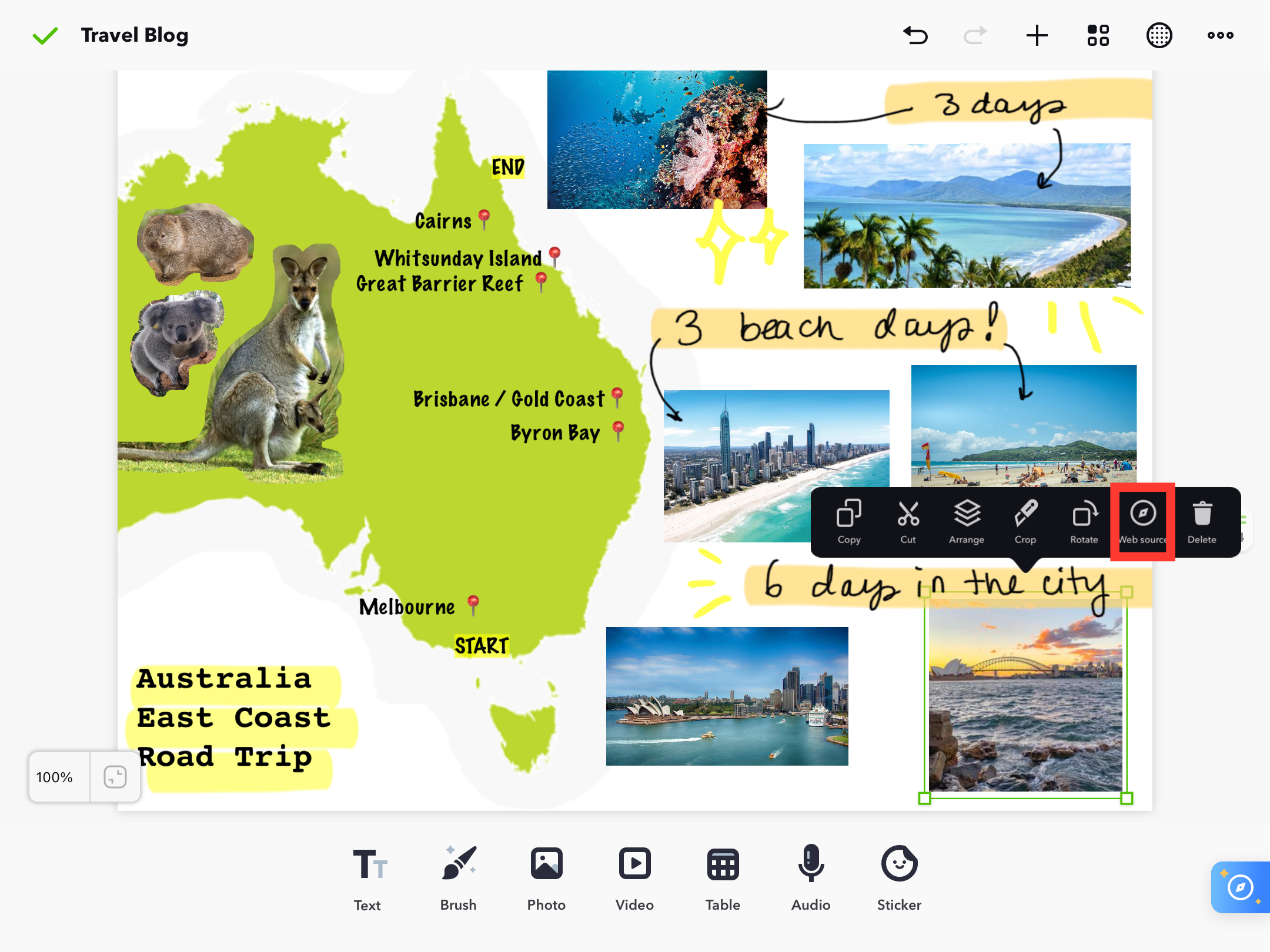
Pro Tip: You can trace the webpage and pin source by tapping the image on your canvas, then tapping the "Web Source" button to view more information.
Want to start creating today? Download NoteLedge and try it out!
Updated
Comments
0 comments
Article is closed for comments.