Whether it’s classes, projects, or sketches, organizing your notes is essential to keeping a tidy digital workspace. Categorize your notes how you’d like with NoteLedge Windows. Read on to learn how!
- On the home page, click the top left icon to reveal the menu details
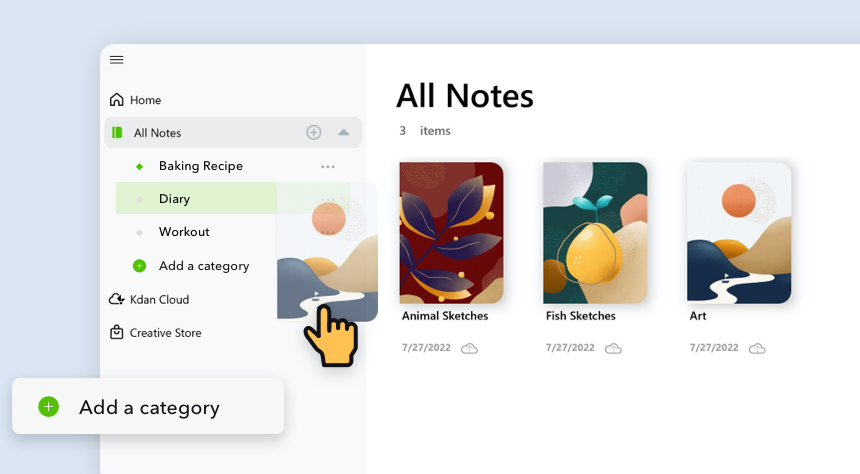
- Add a New Category: Under "All Notes", click the "+" icon to add a new category and give it a name. You can hide or reveal the list of categories with the triangle icon.
- Move a Notebook to a Category: Drag the notebook and drop it in the category. Alternatively, you can right-click the notebook, and select the category.
- Remove a Notebook from a Category: Simply right-click on the notebook and select "Remove from category"
Comments
0 comments
Please sign in to leave a comment.