View Sequences
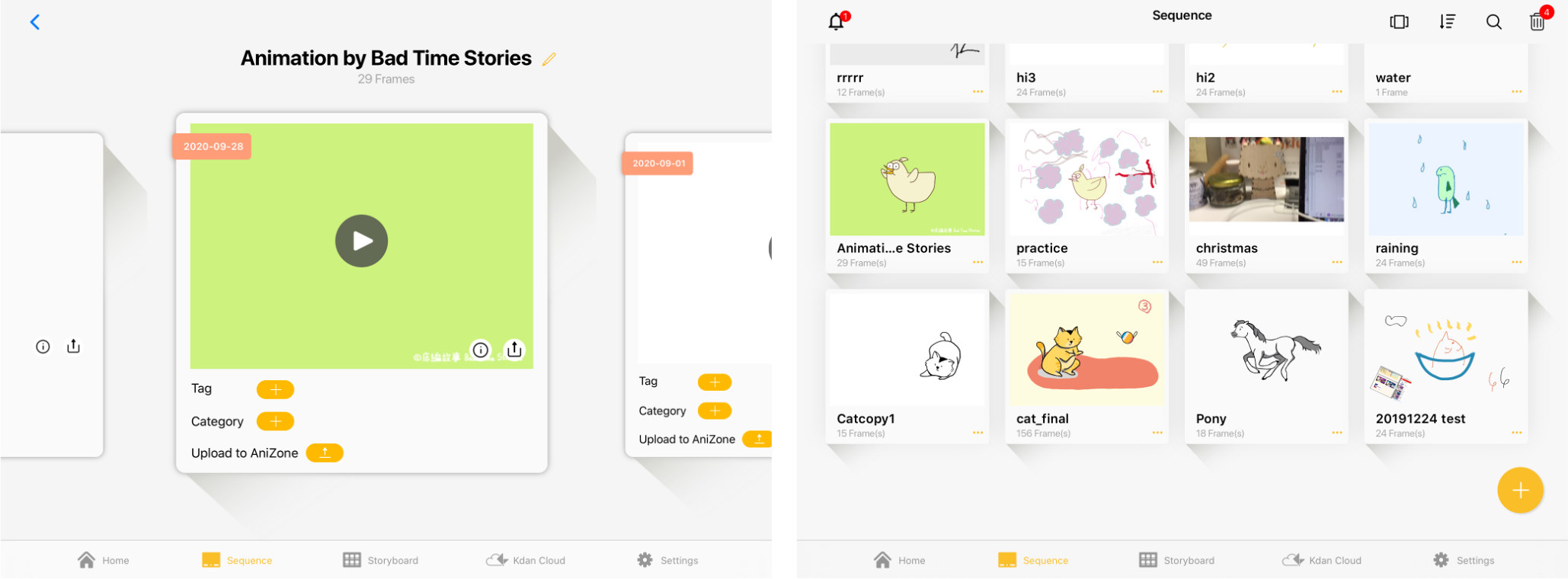
Animation Desk provides two ways to browse files: gallery mode and grid mode. You can switch between the two modes by clicking the button at the top right of the camera management page.
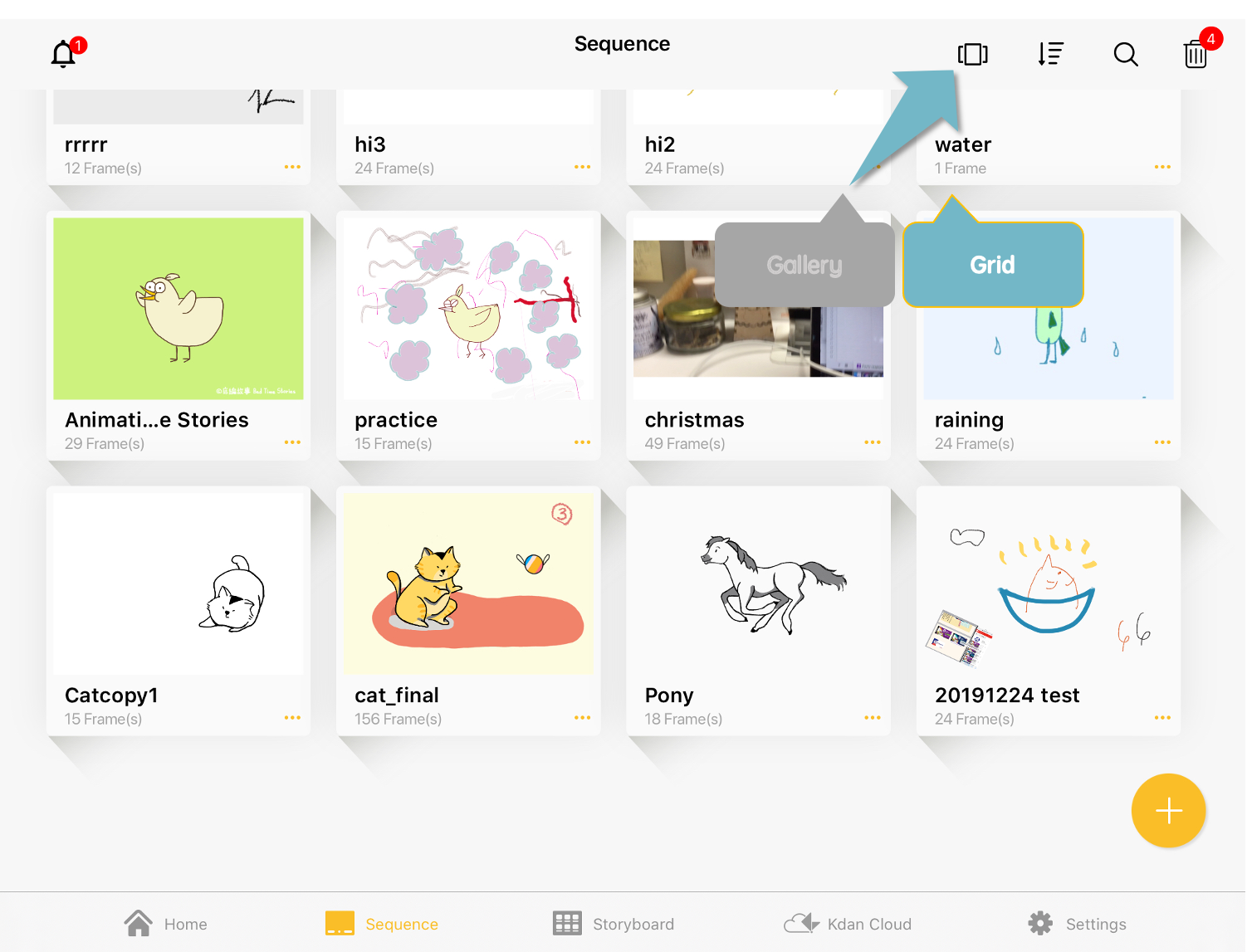
In the grid mode, you can browse the thumbnails of many animations at once; you can also copy, delete, name, and upload animations.
Gallery mode allows you to play animations; it also supports the functions of naming, uploading, and adding category tags to animations.
Add a Sequence
Click the "+" sign on the homepage or lens page to create a new lens.
Copy/Delete a Sequence
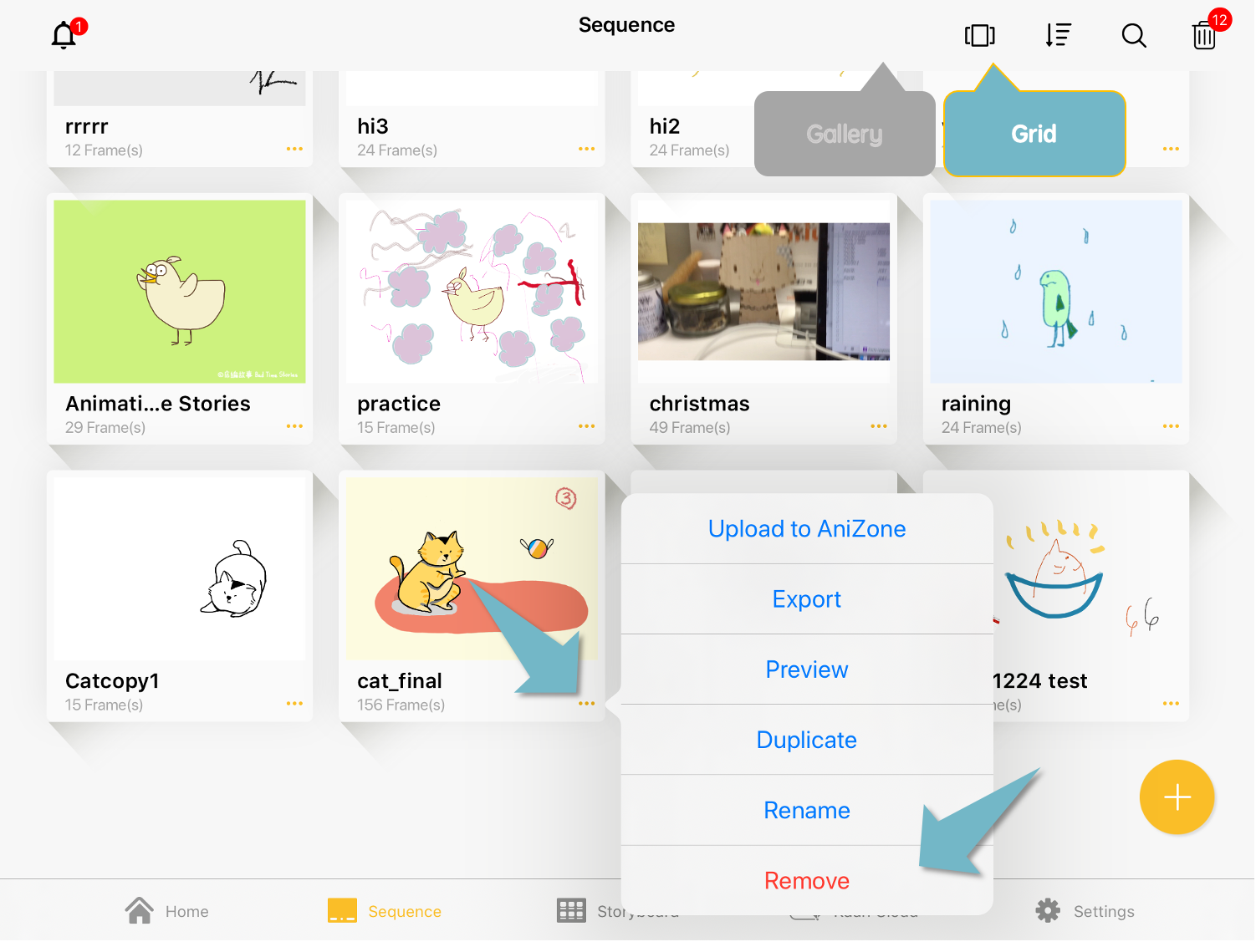
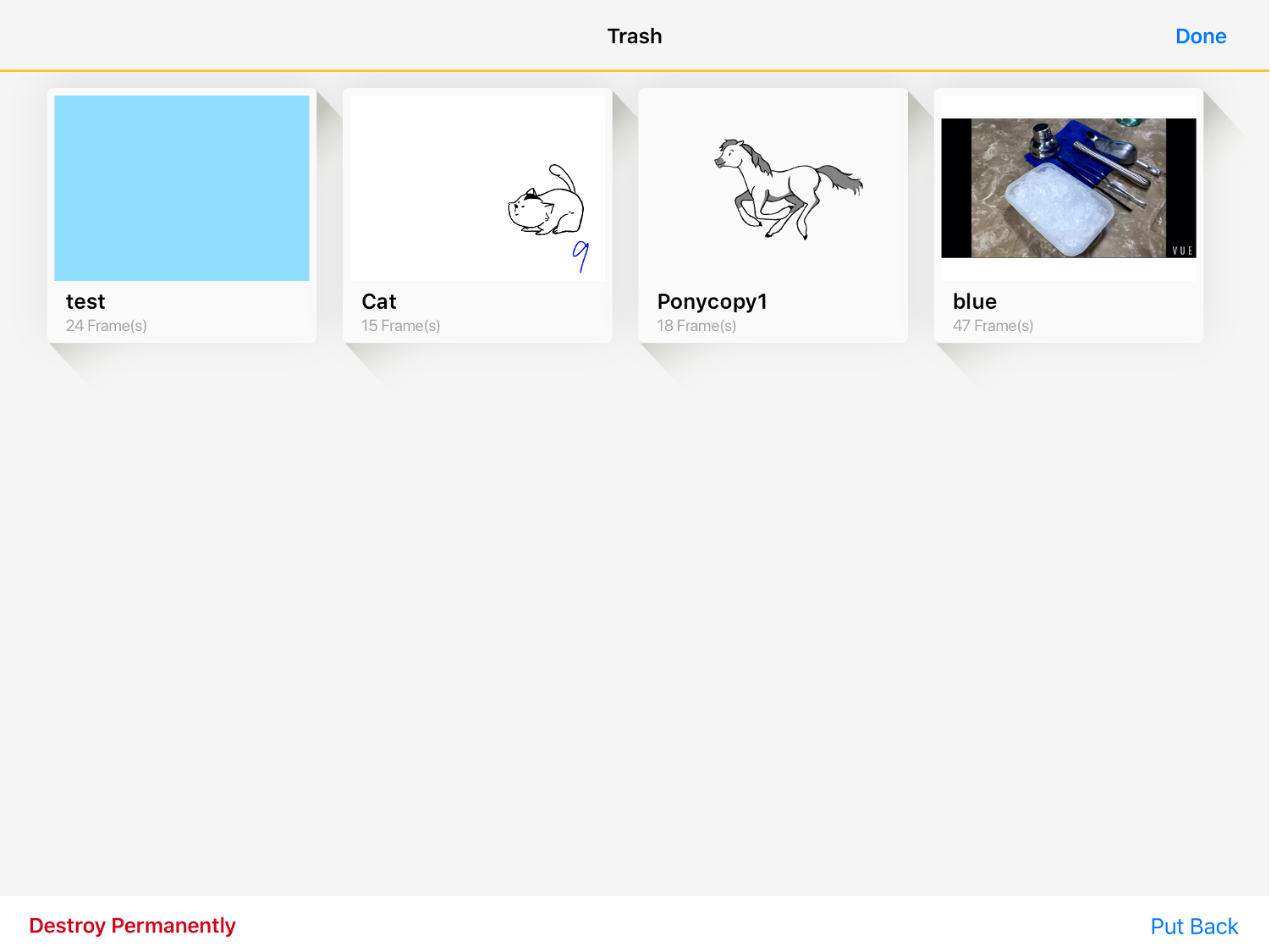
In grid mode, click the button at the bottom right corner of the file thumbnail to expand the menu. In the menu, you can find options for copy and delete. The deleted animation will be temporarily stored in the trash can, and you can restore it at any time.
Trash Function
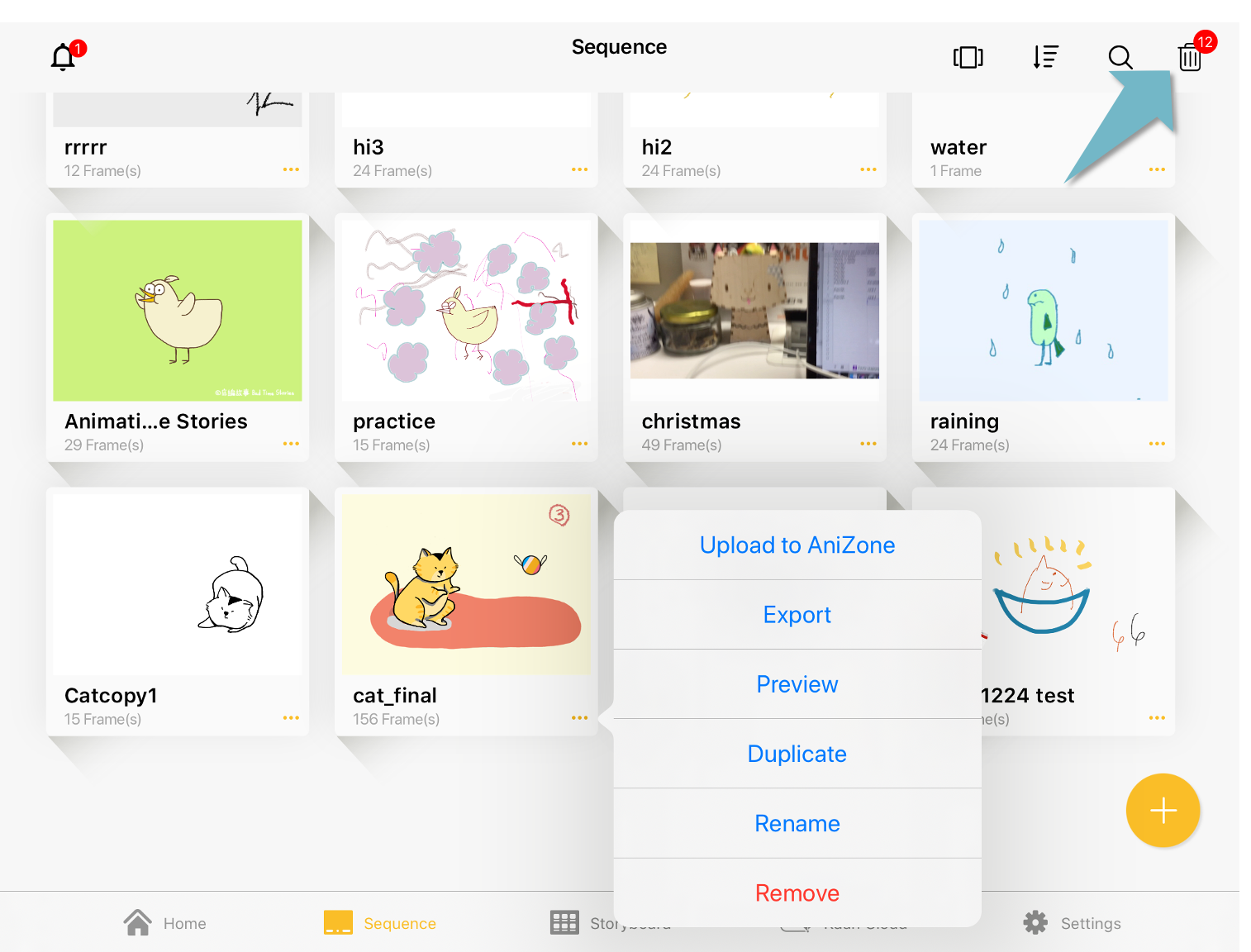
After clicking the trash can icon in the upper right corner of the sequence management page, you can see the files that have been removed. At the bottom of the screen, you can see two options, "Destroy Permanently" and "Put Back". Please select one or more sequences according to your needs, and then select an action to perform on the sequences.
Updated
Comments
0 comments
Please sign in to leave a comment.