You can insert multiple videos to any of the sketch layers. Select a layer and select a frame as the starting point of the video. Open the expanded menu and tap "Import Video".
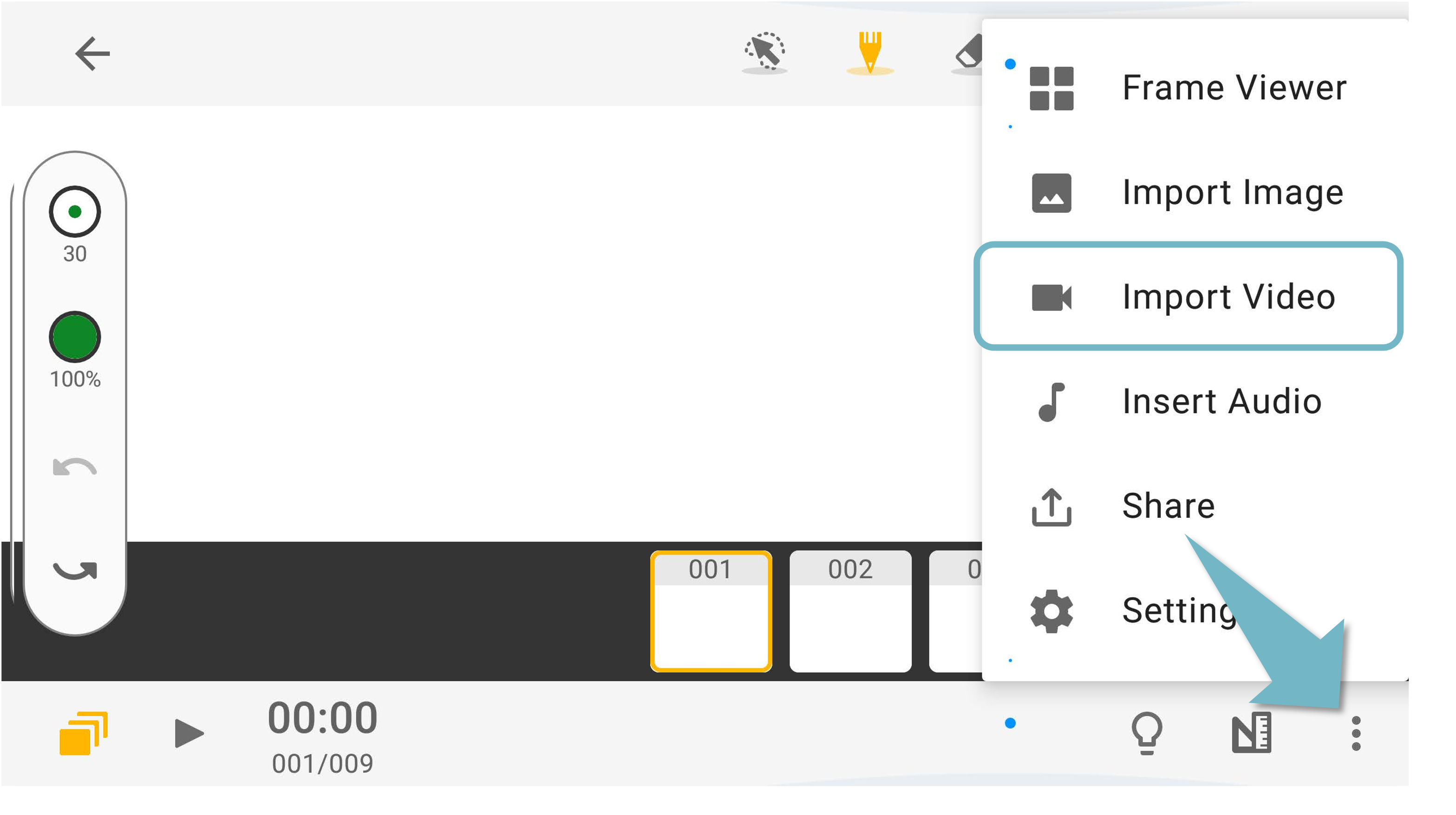
If you can find the layer panel, please tap the button at the top-right corner to expand the layer panel.
Trim the Video
If you wish the trim the video, please select the clip by dragging the arrows at the two ends of the video clip and tap the "Scissors" to trim the video.
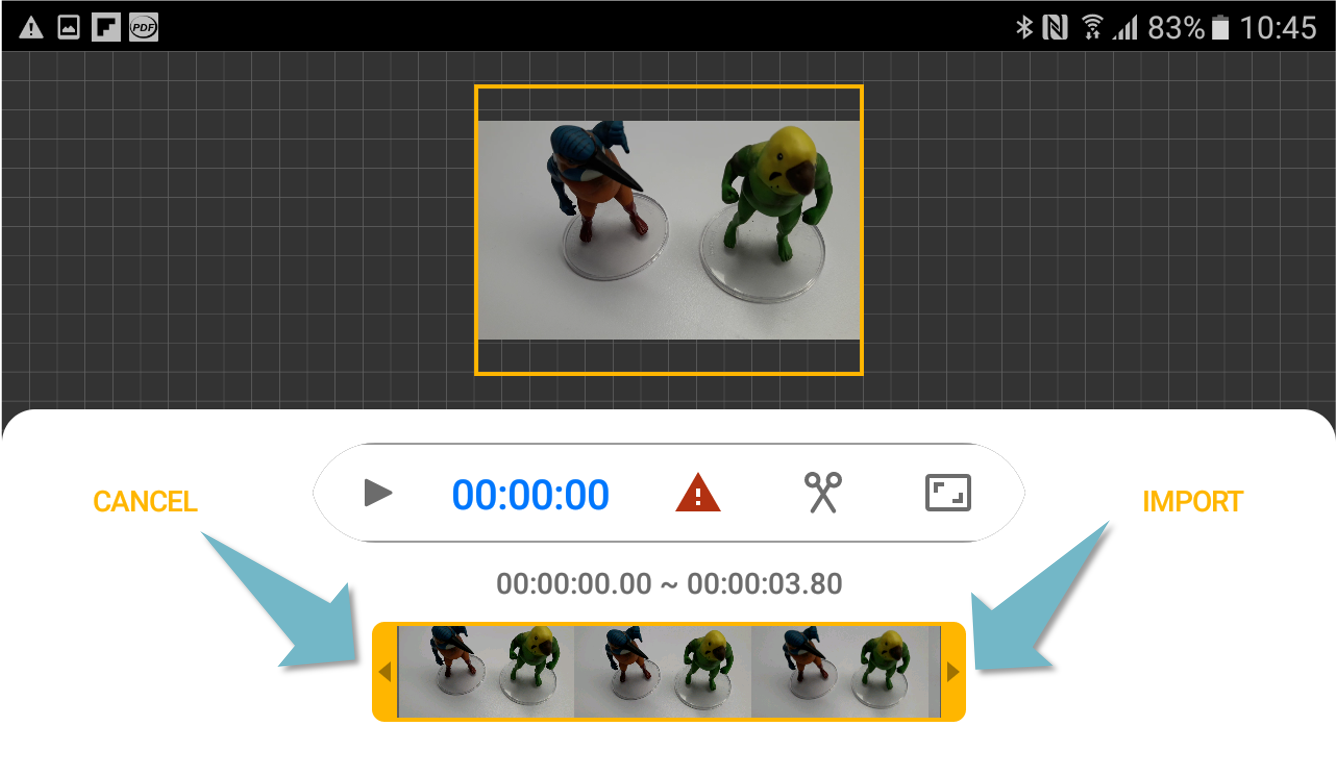
Video Display
Videos might be in different sizes, you can transform the video to fit in the canvas size.
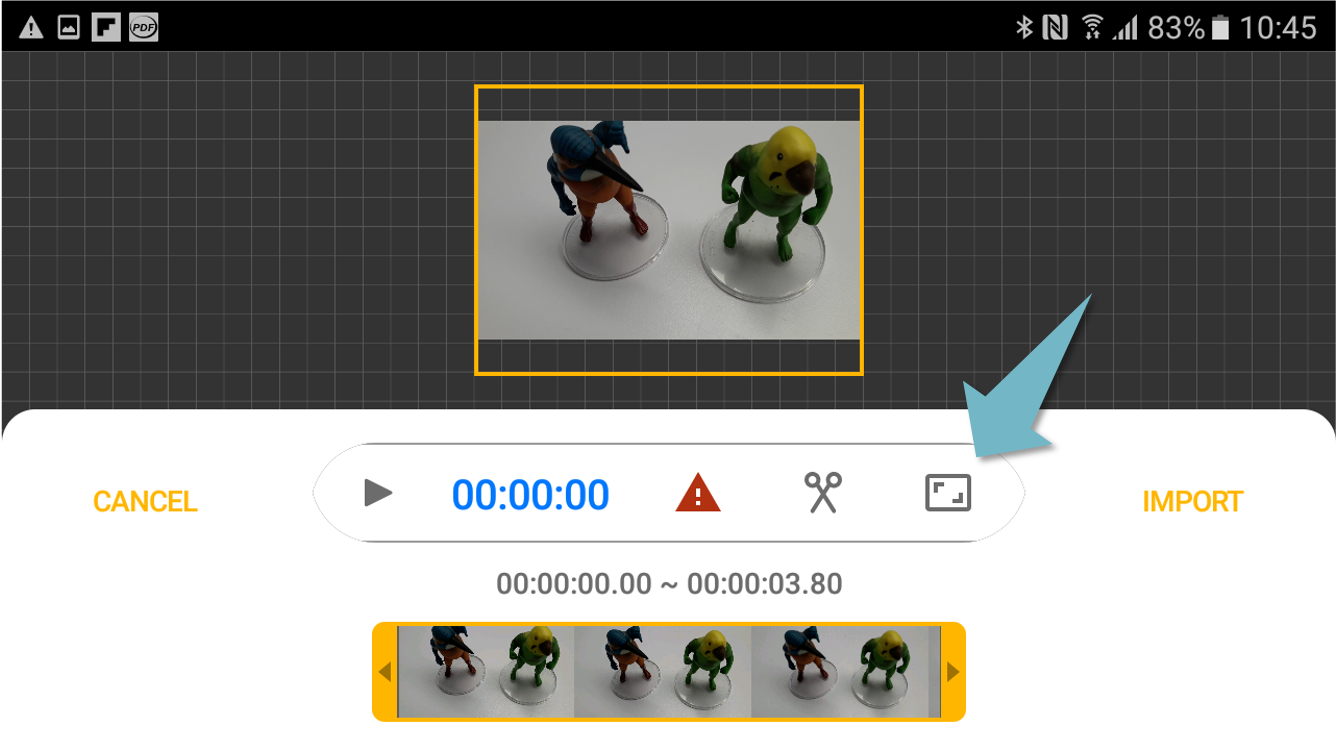
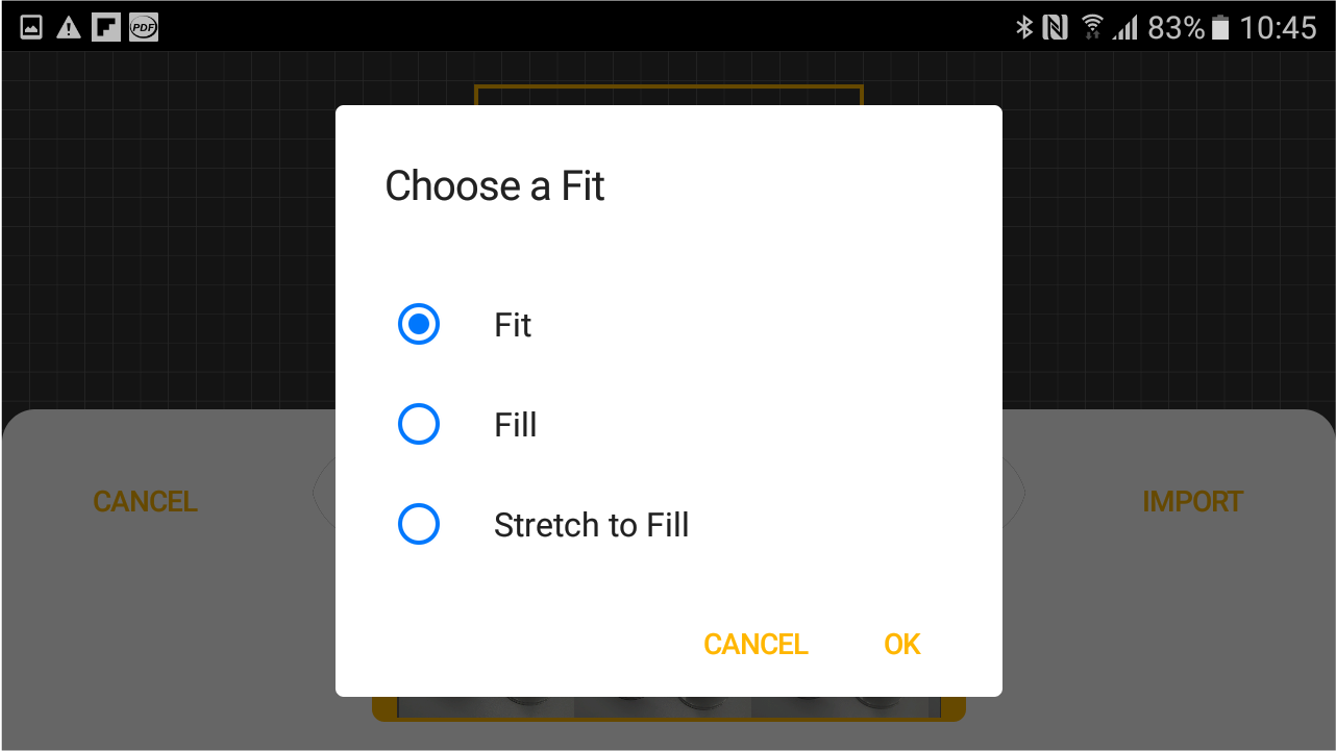
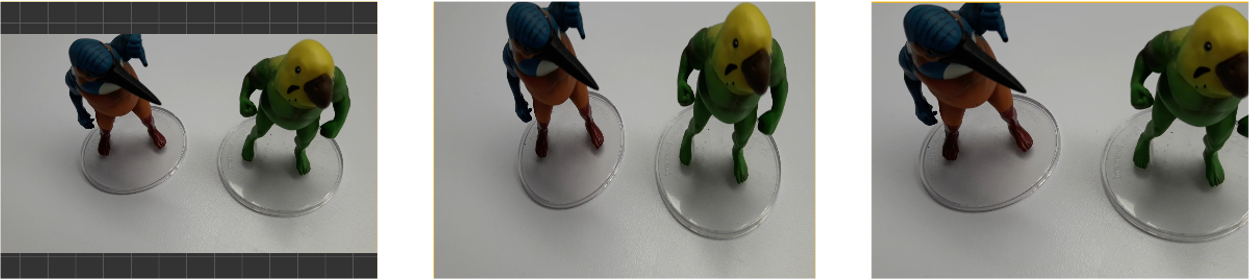
Left to Right: Fit, Fill, Stretch to Fit
About the Alert
The red alert icon shows in most cases but it's usually fine. This is because a live-action video usually uses a higher FPS than a hand-drawn animation in the app. The app will analyze the video and remove some frames to solve this issue.
Fail to Import the Video
Here are some reasons that might cause video import to fail,
1. Video Quality
The app might take too much time to analyze a high-quality video. Please try to down-grade the video and try again.
2. Video File Damage
There might be some broken data in the video that make Animation Desk unable to analyze the video imported.
Updated
Comments
0 comments
Please sign in to leave a comment.