Brushstrokes are composed of many shapes. In Animation Desk, you can control the size, spacing, rotation of these shapes to create different brush tips and experience different brush effects.
Screentone is also composed of texture. We call the aggregation of these “texture” screentone. You can adjust the alignment of the texture to create different screentone.
There are a lot of settings in the brush library. In this post, we will go through the settings to help you make your brushes.
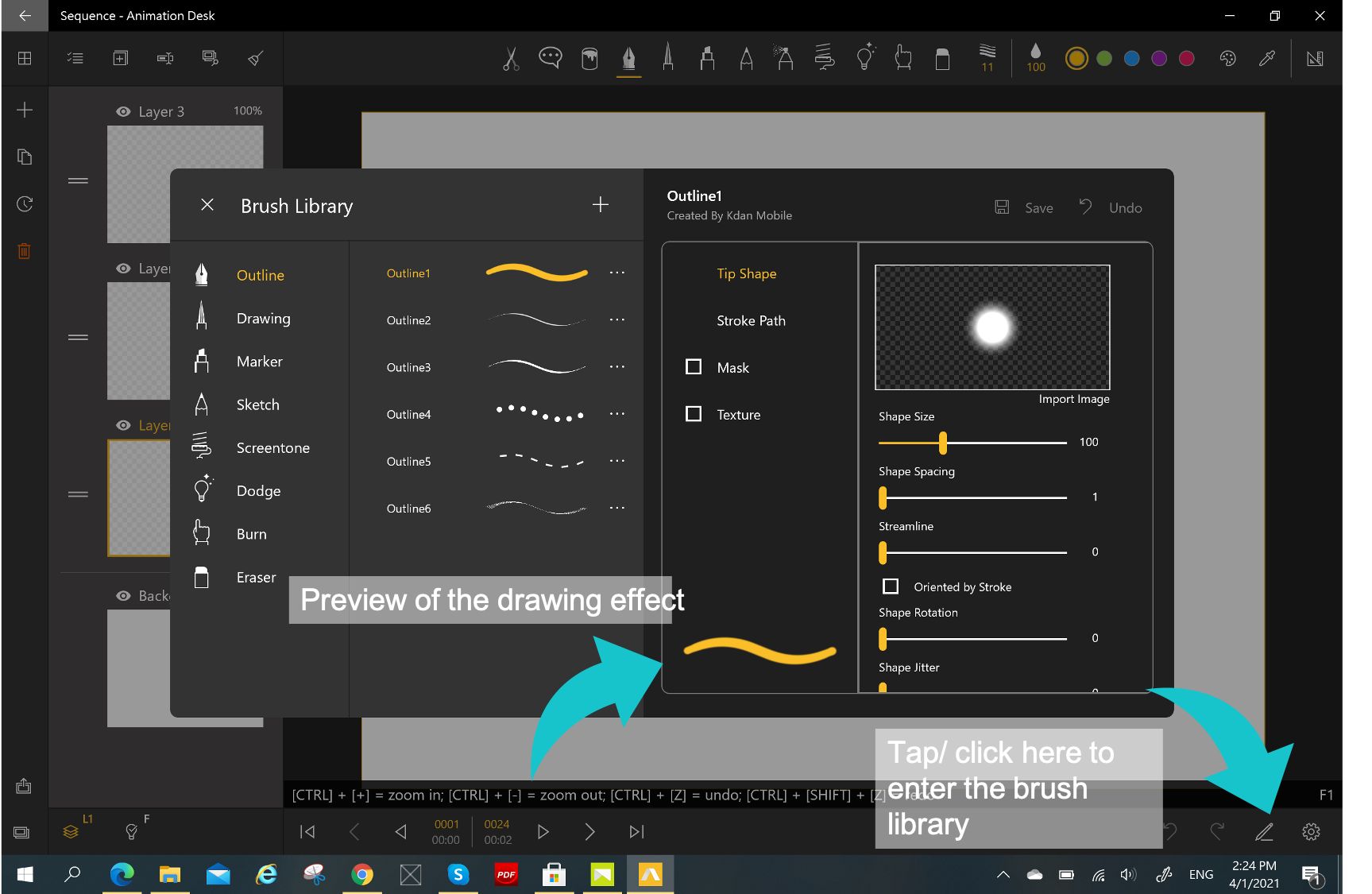
Tip Shape
Shape Size
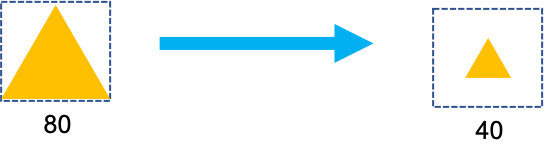
A line is composed of a sequence of shapes. You can adjust the size ratio. The bigger the value is, the thicker the line will be.
Shape Space
If you enlarge the line, you can see the shapes are aligning together. You can adjust the space between the shapes.

Streamline Jitter
"Streamline" value affects how shapes locate around your stroke. The value means the size of areas in which the shapes scatter around the drawing path.

Oriented by Stroke
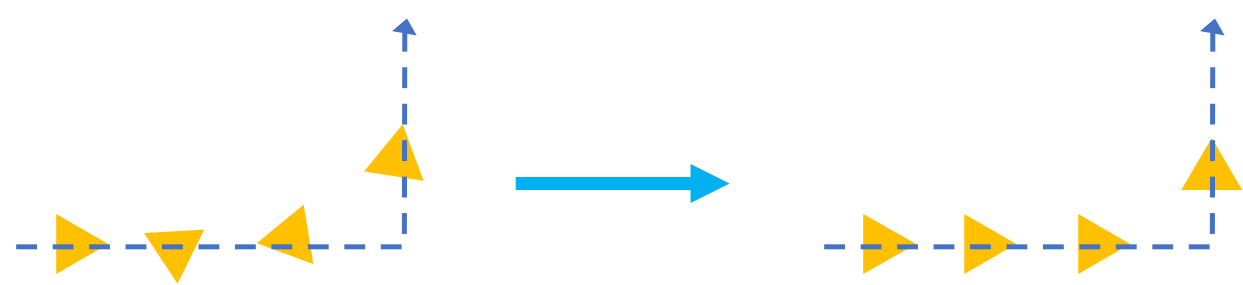
You can decide if the shape should follow your stroke flow. See the illustration below.
The left one shows how the shapes allocate when this option is not enabled.
The right picture is how the shape oriented when we enable "oriented by stroke".
Shape Rotation
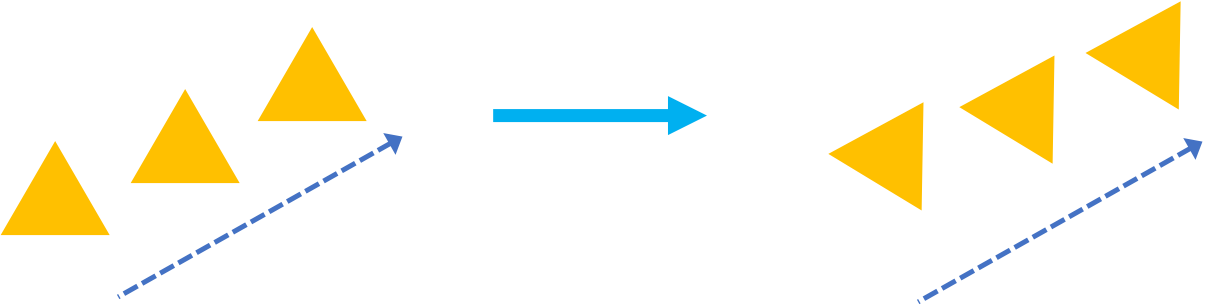
The name is very straightforward. In this setting, you can change the angle of the shape to create different strokes.
Shape Jitter
When you adjust the value of "Shape Jitter" the shape rotates randomly along the drawing path.

Stroke Path
In this category, you will find settings about the stylus.
Tilt for Size/ Opacity
Everyone has their drawing habit. Some grips their stylus higher, some lowers. In these settings, you can control the level of impact of stylus angle on stroke size and opacity. The bigger value means that the size and opacity are more sensitive to the angle of stylus grips.


Mask
Shape, Mask, Brush Tips
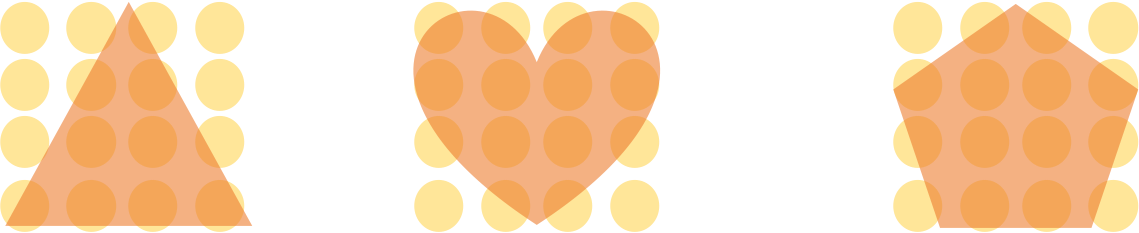
As previously explained the brush tips are composed of shapes. The shapes aggregate together and form the pattern for the brush tip.
After you design your brush and add a"Mask", only the parts that are covered by the mask will be shown as the brush tip.
Texture
Horizontal and Vertical Indentation
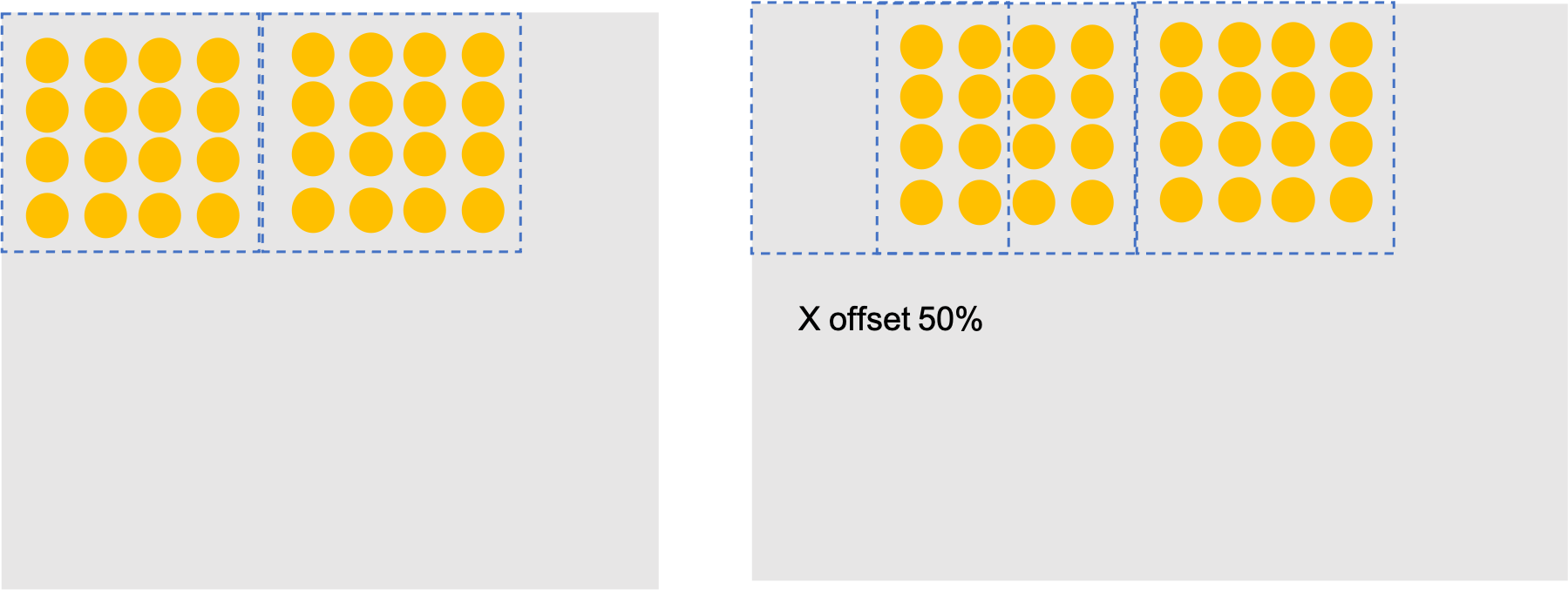
This value means the indentation for the starting point when you draw with a screentone brush.
In the pictures below, the gray area is the canvas. The left picture has the starting point at (0,0). The right picture is the result of 50% horizontal indentation.
You can overlay two types of screentone brush to create textures and shadow.
Horizontal and Vertical Padding
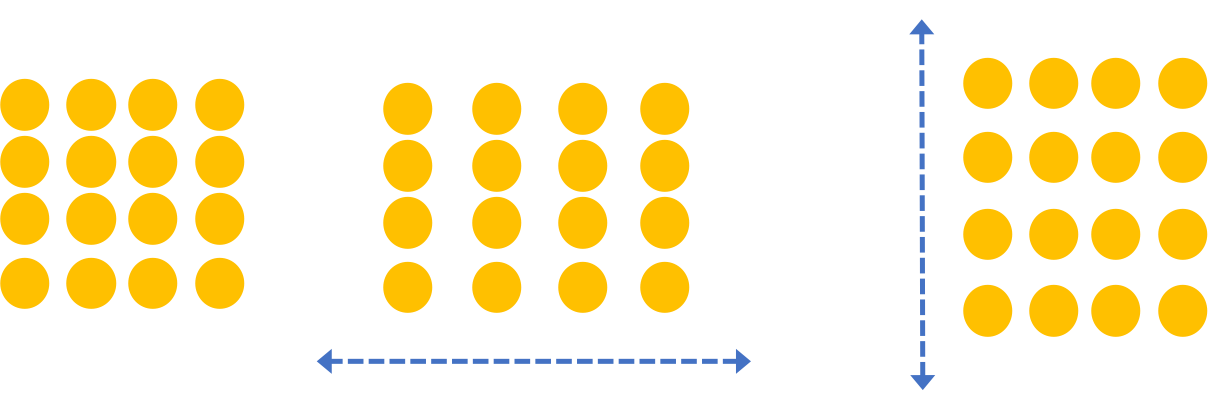
The padding adds space to the texture. Image from left to right refers to the original screentone, the screentone with horizontal padding, the screentone with vertical padding.
Pattern Rotation
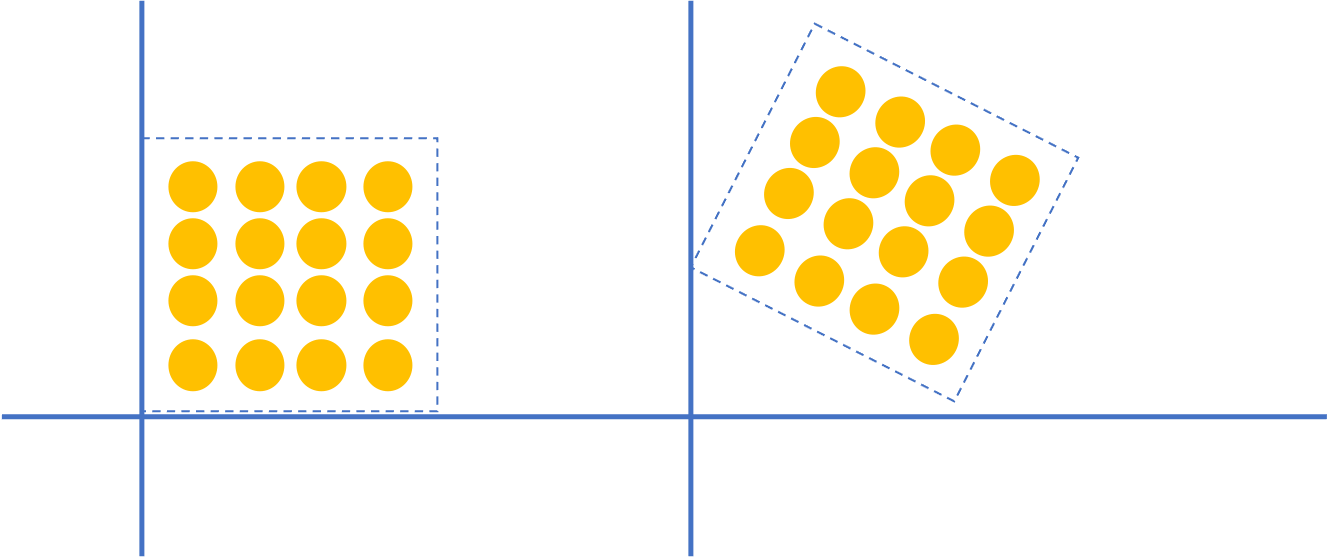
You can rotate the pattern as a whole. For example, you can create different types of chisel tips with these settings.
Updated
Comments
0 comments
Please sign in to leave a comment.