In our modern technological world, privacy online is more important than ever. NoteLedge provides two ways to lock your notes and keep them private.
Lock the NoteLedge app (*Premium Feature)
1. Go to Settings.
2. Turn on Password Lock.
- Set up a password.
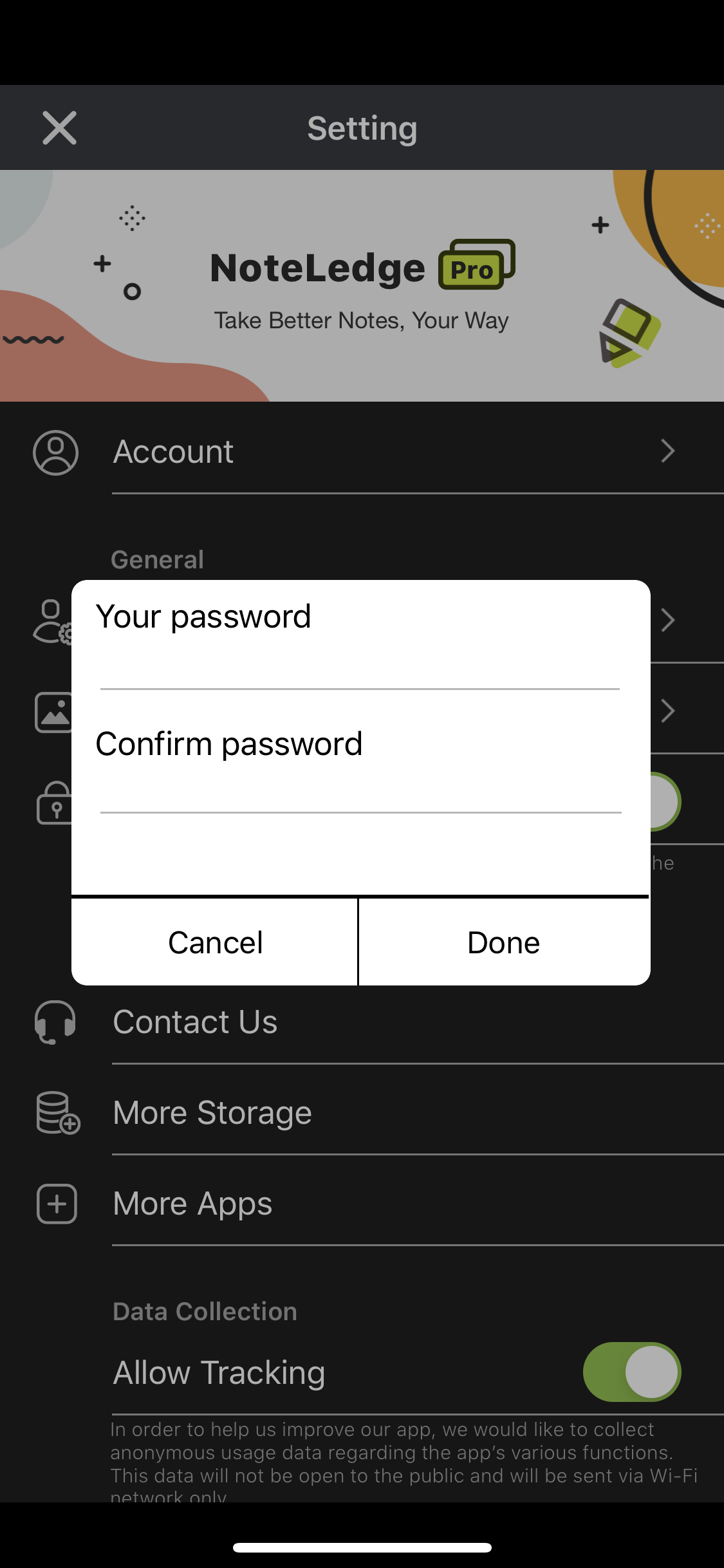
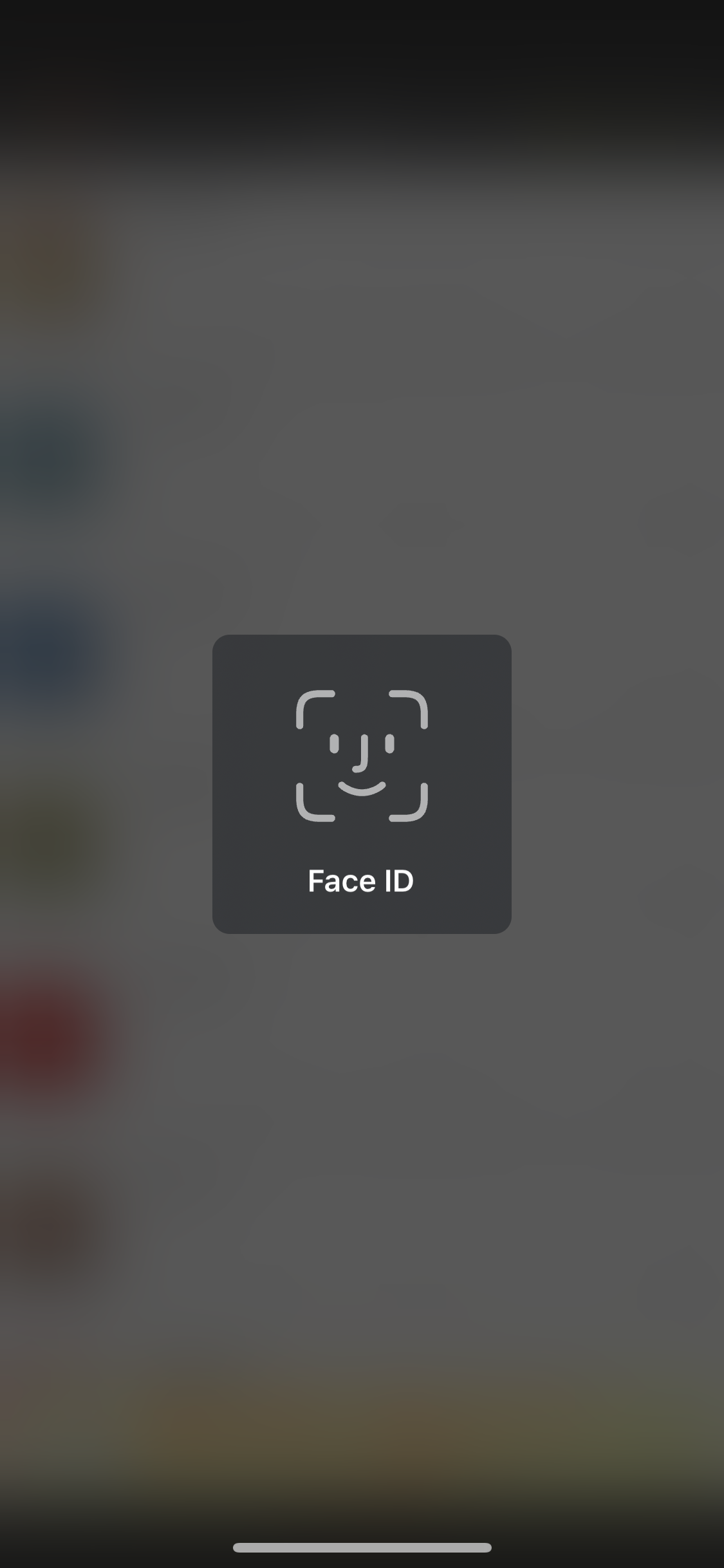
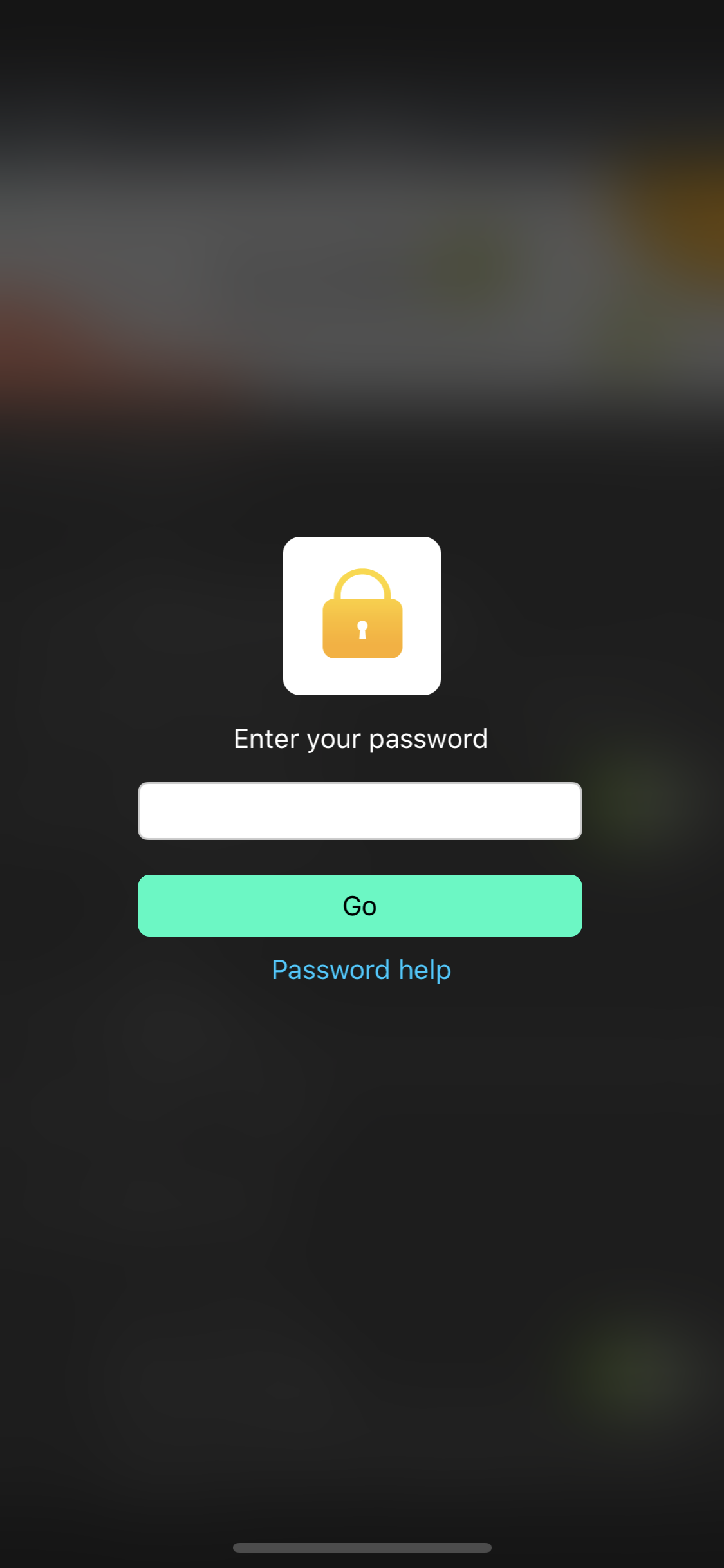
- To open the app, NoteLedge will require you to enter the password or use Touch ID/Face ID.
3. To remove App Lock, simply turn it off frm app settings.
Lock a Notebook in NoteLedge
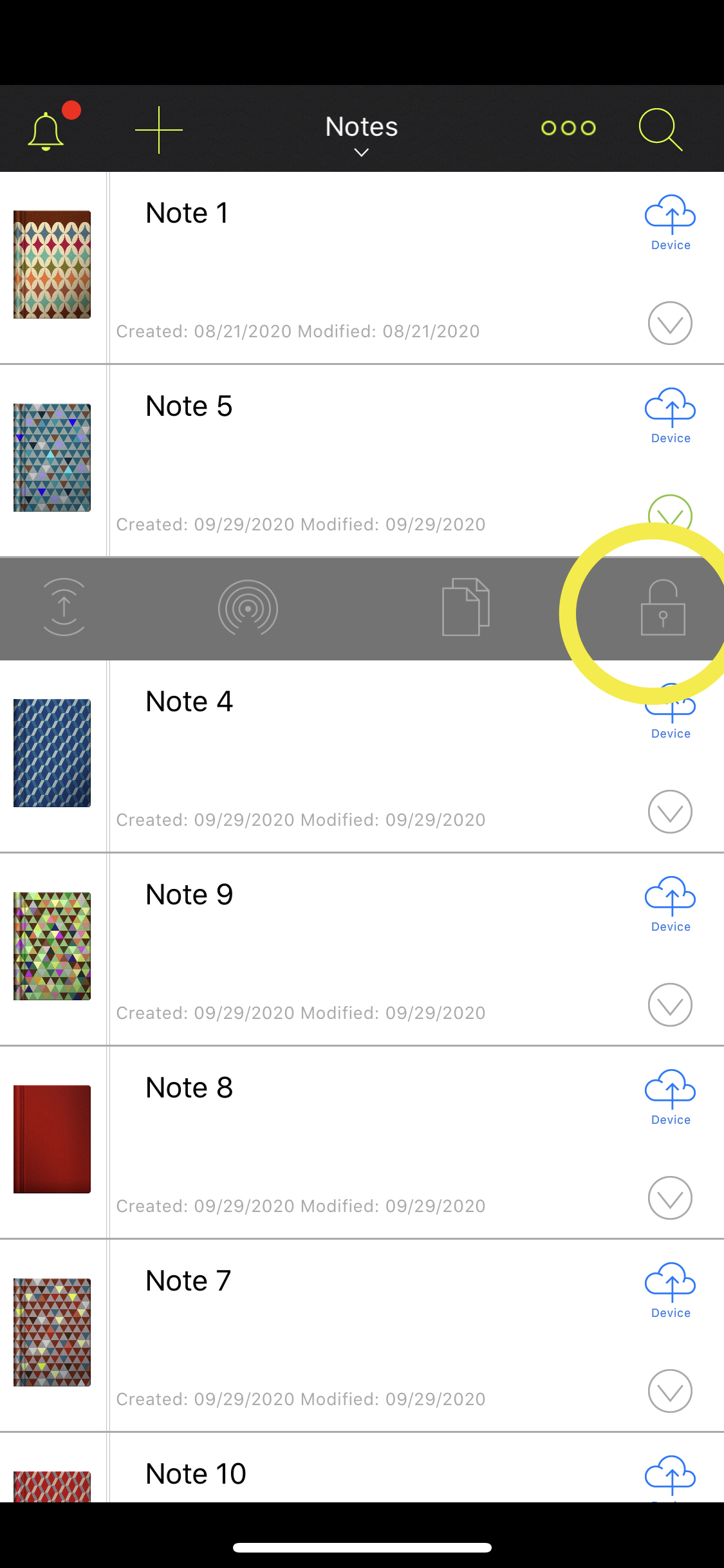
1. Select a notebook and tap the “Lock" icon to set up a password.
- To open the notebook, NoteLedge will require you to enter the password.
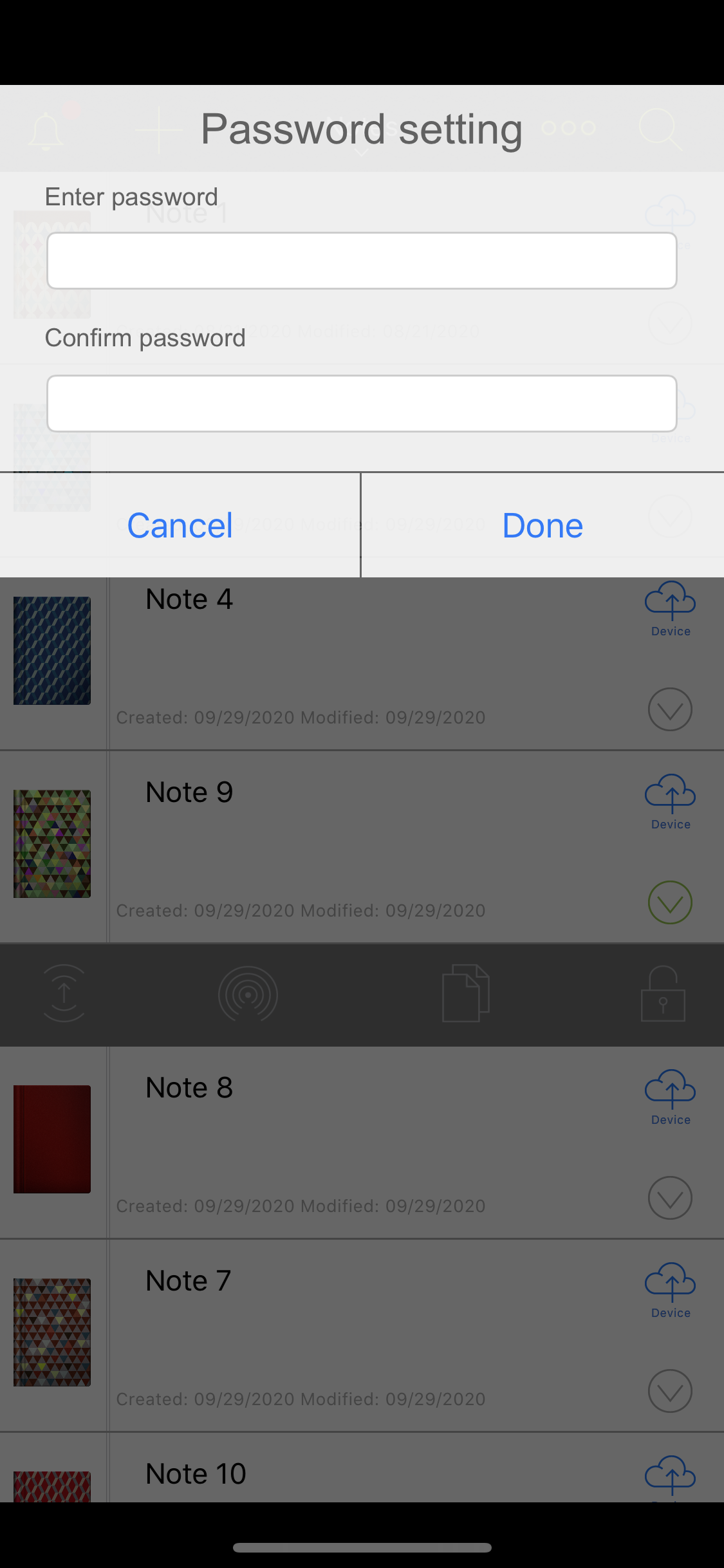
2. To remove the password, enter the current password to open the notebook. Then reset the password as blank.
To better protect the privacy of your notes, upgrade to NoteLedge Pro or Creativity 365 and enjoy all premium features.
Comments
0 comments
Please sign in to leave a comment.