Find yourself going back to the same websites and needing a handy shortcut? With Markup's newly updated bookmark feature, easily add, manage, and edit your web bookmarks in-app! Read on to find out how to utilize this convenient tool.
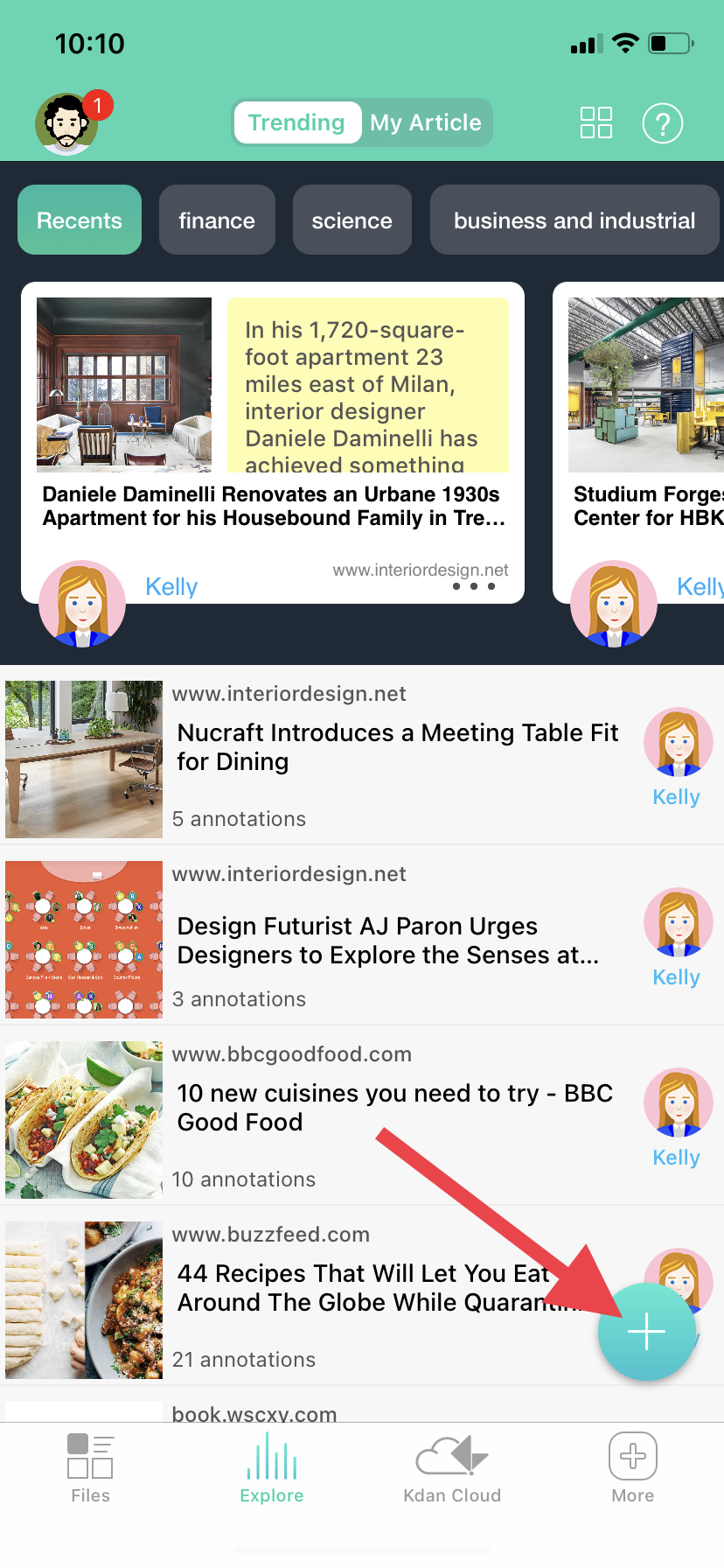
1. In the "Explore" tab, click the "+" sign in the bottom right corner.
2. You will see Markup's built-in browser.
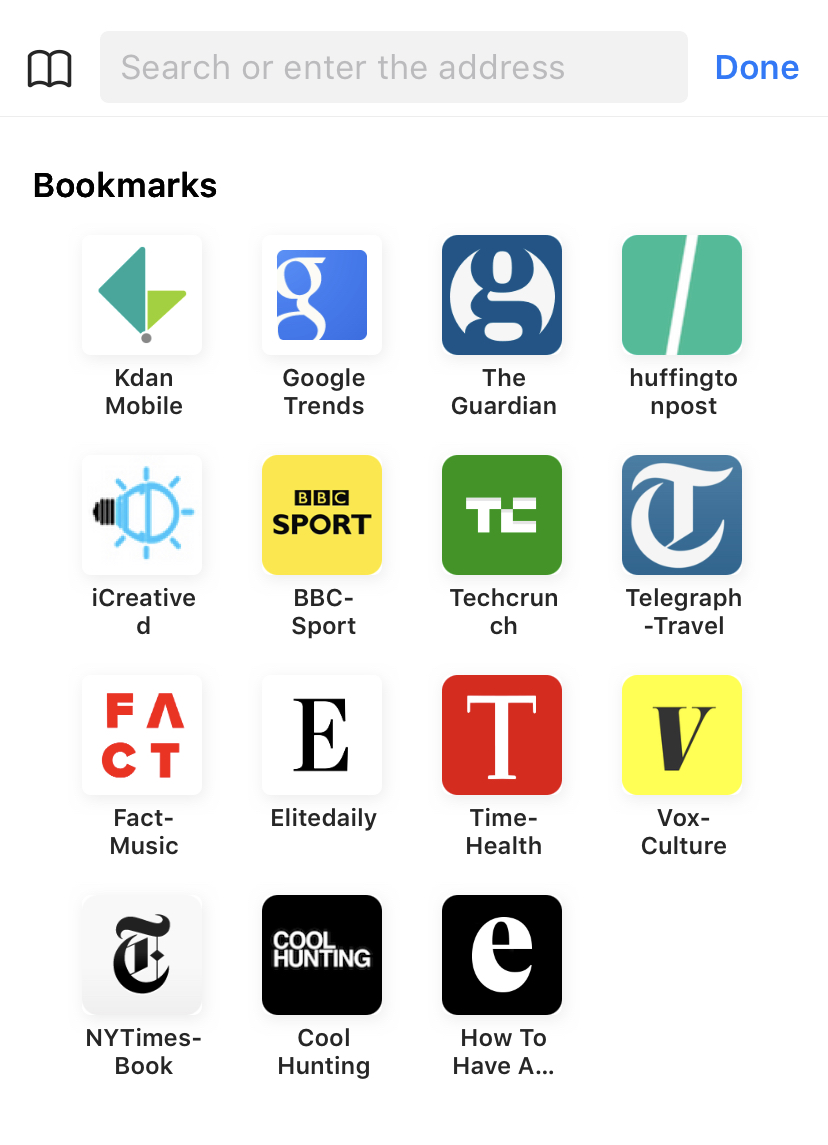
3. To add a bookmark, simply go to the website you would like to bookmark. Then, click the "Book" icon on the top bar, and you will have the option to "Add Bookmark."

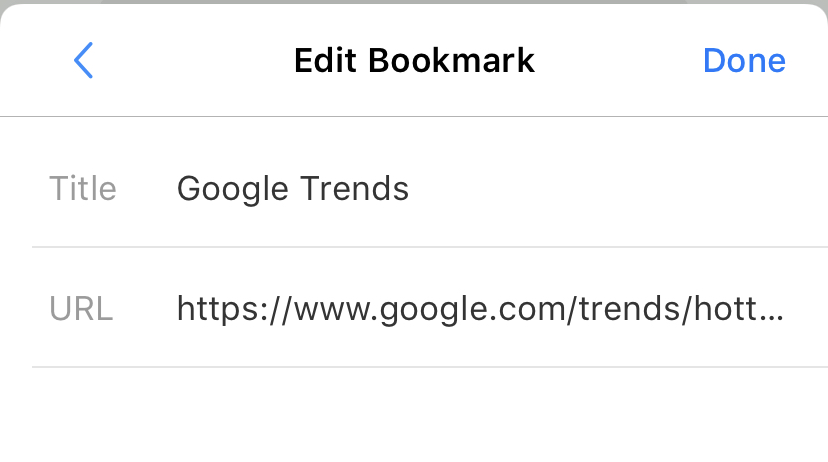
4. After adding the bookmark, you can edit the title to your liking.
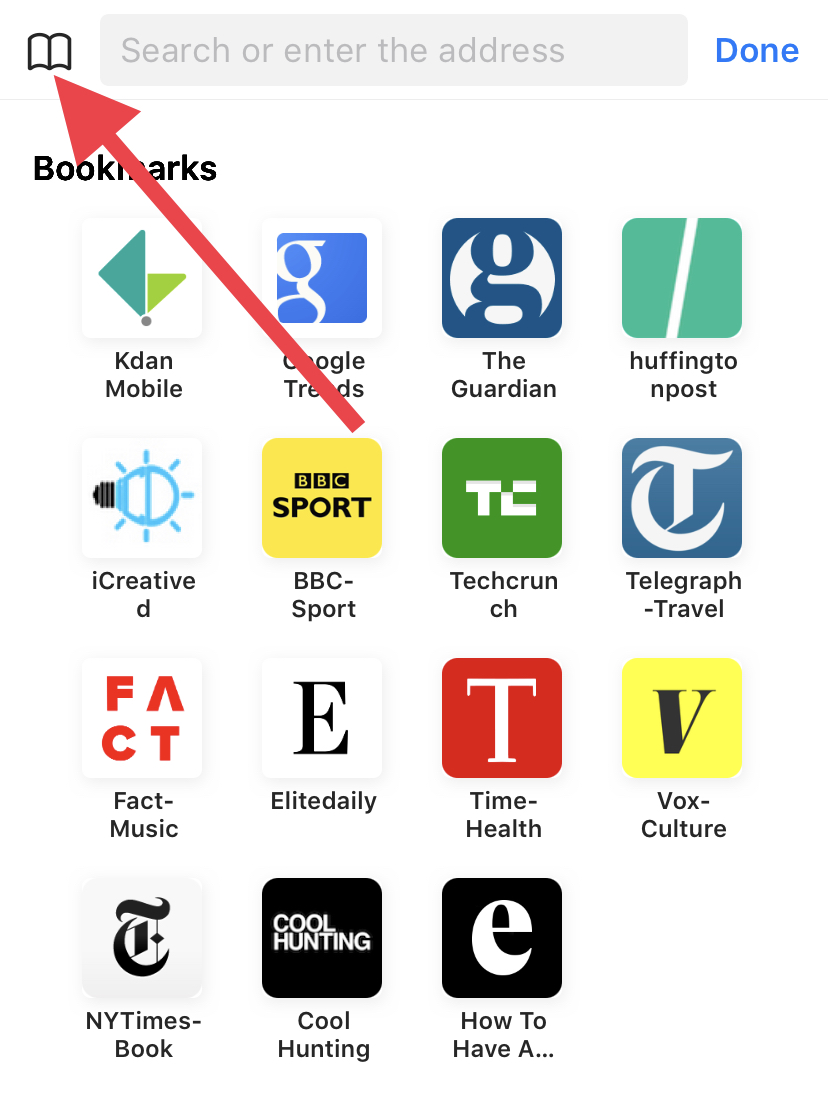
5. To manage your bookmarks, tap on the "Book" icon to get to your bookmarks.
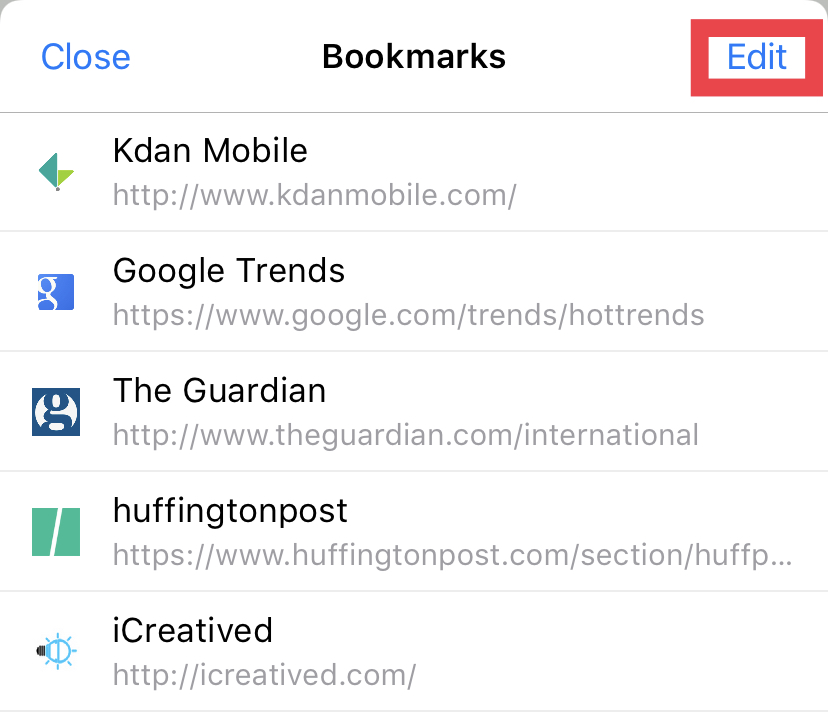
6. Click "Edit" from the top right corner of the Bookmarks pop-up, and you will see options to edit each bookmark.
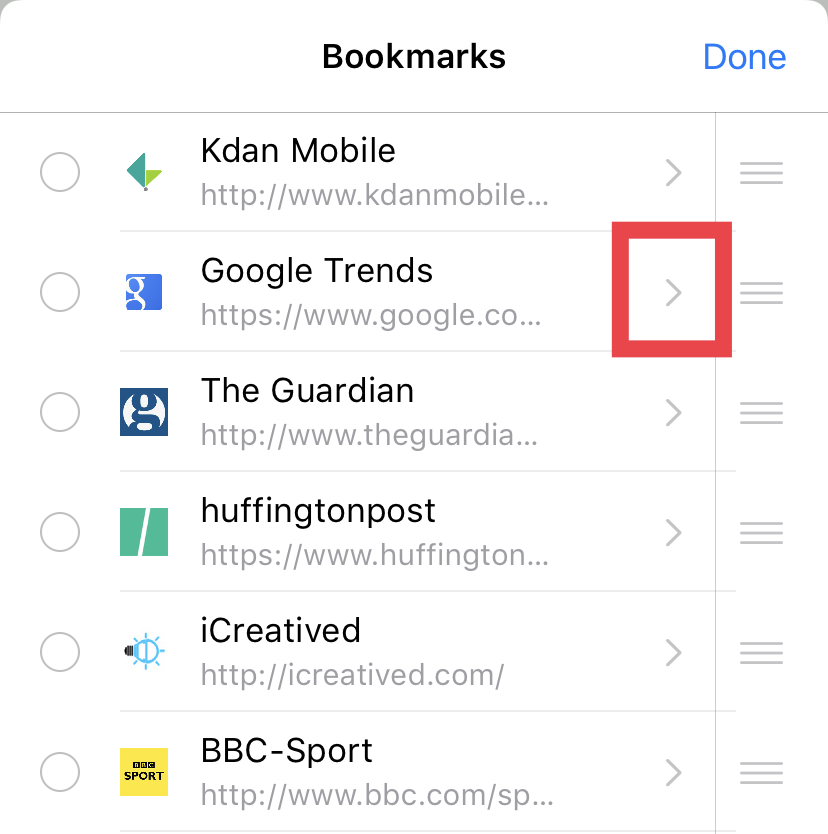
7. Click on the arrow next to a bookmark to edit its title.
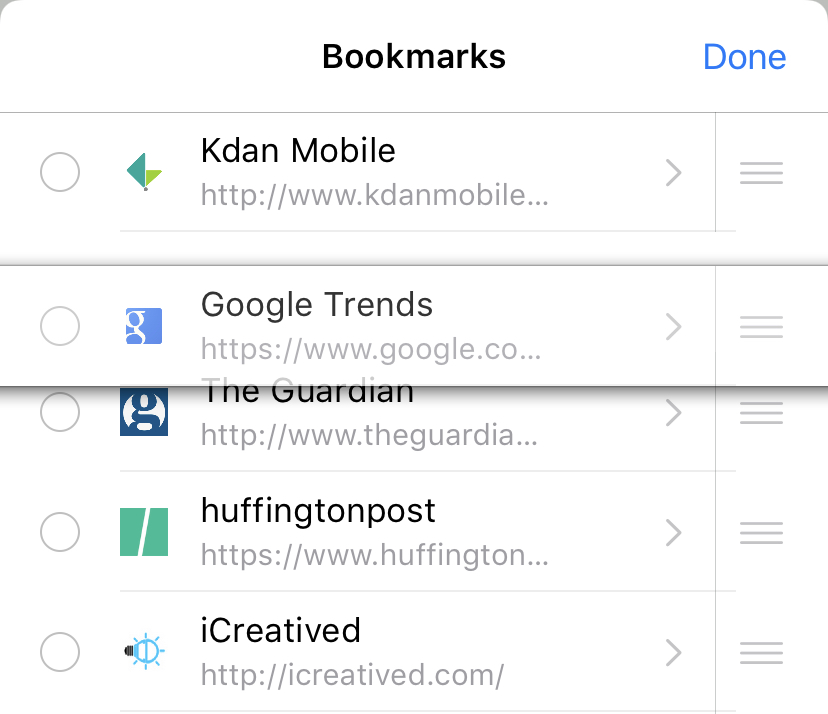
8. To rearrange the order of bookmarks, press and drag the three lines on the right of each bookmark.
9. To delete, simply check the bookmark you would like to delete and click the "Delete" button on the bottom of the pop-up.
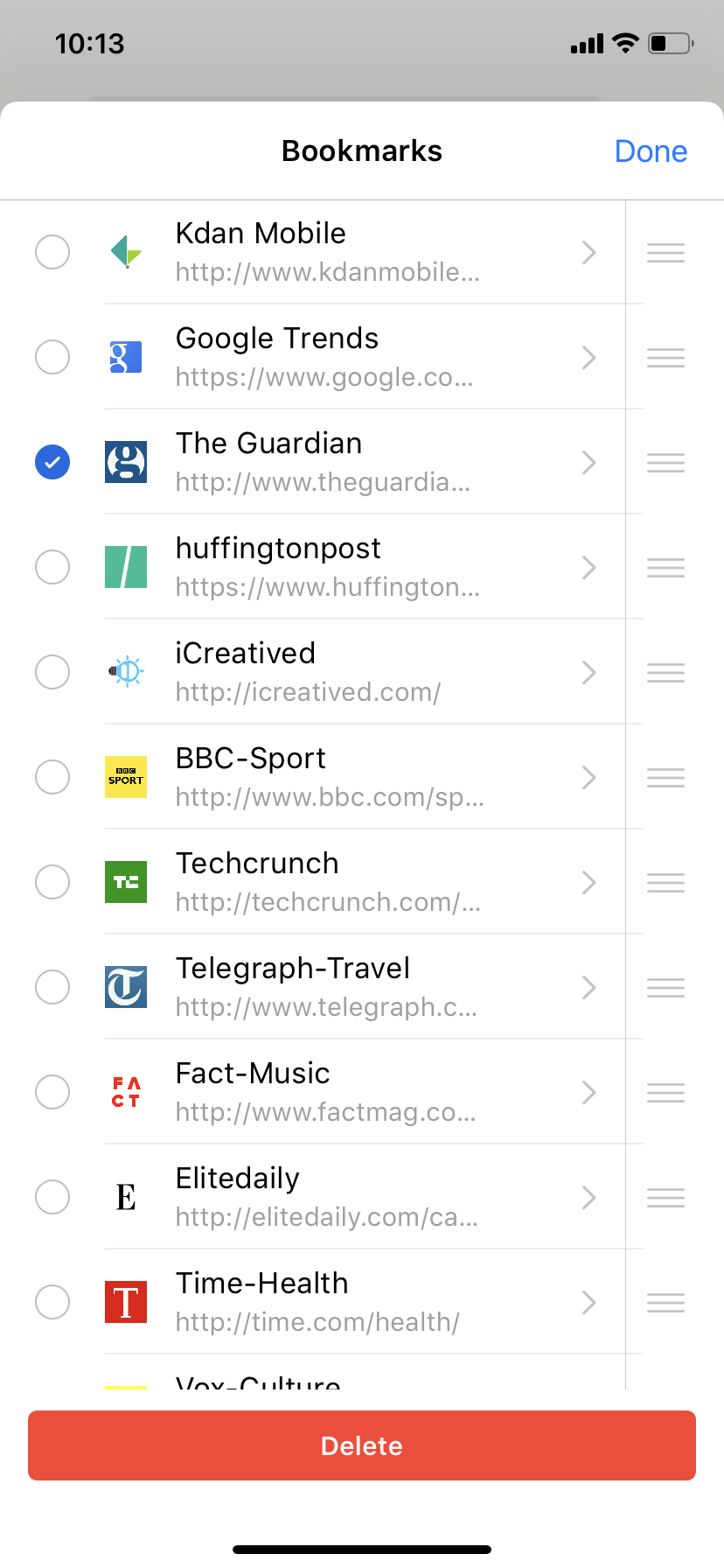
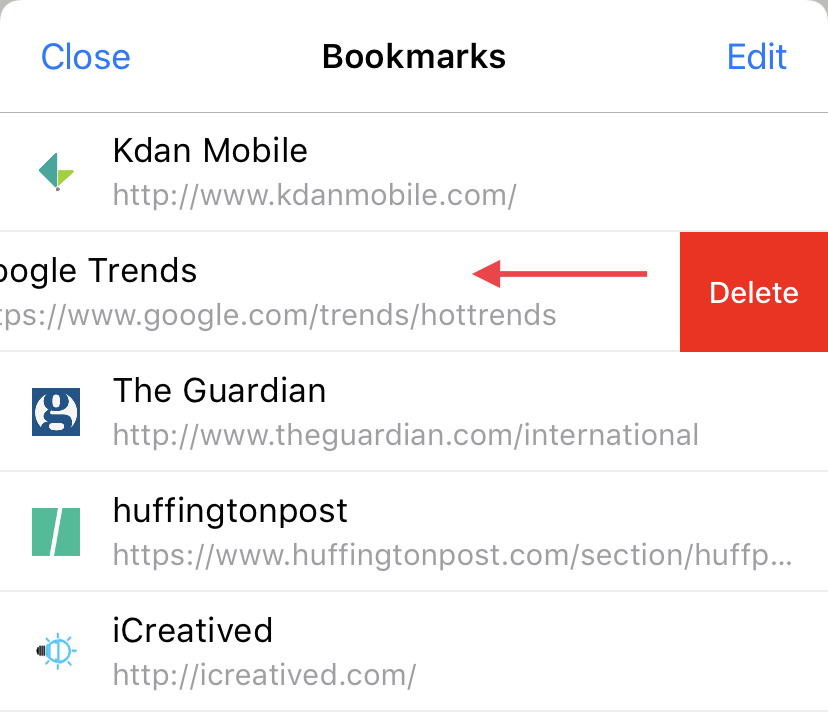
Alternatively, you can swipe left on a bookmark to reveal a "Delete" option.
Updated
Comments
0 comments
Please sign in to leave a comment.