First, you will use the selection tool (the second button above the canvas) to select the part you want to copy or cut.
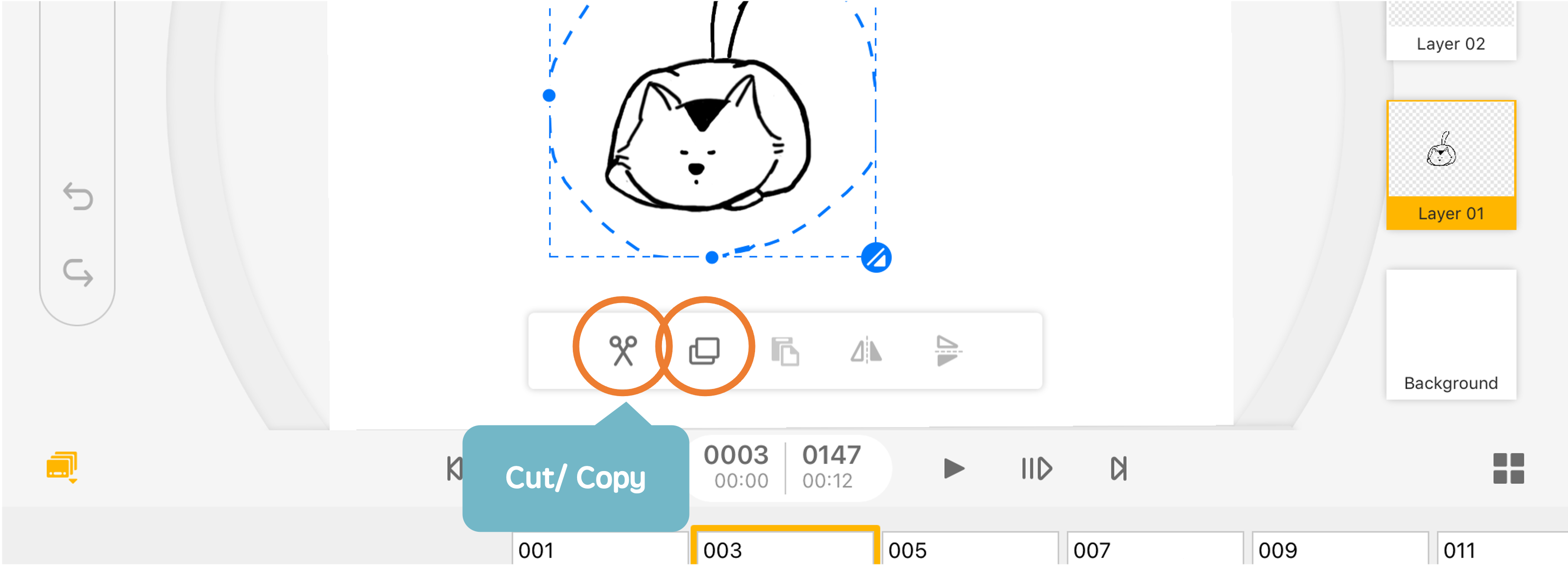
Select whether you want to "cut" or "copy." After cutting or copying, select where and how you would like to paste the selection. You can also choose to paste on different frames or layers.
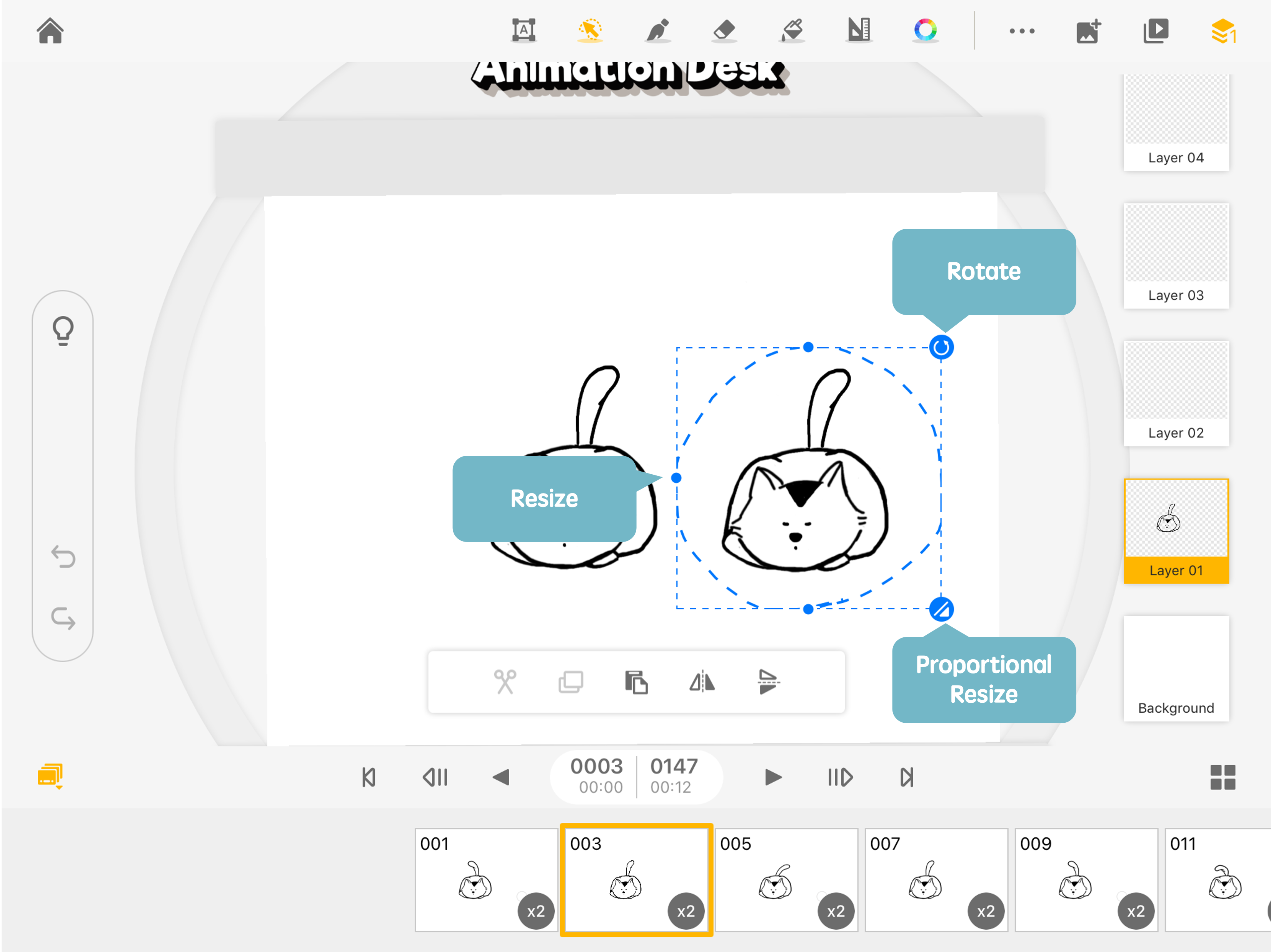
- Upper Right Arrow Button: press and drag to rotate the picture
- Lower Right Arrow Button: hold down and drag to zoom the picture proportionally
- Remaining Three Buttons: press and drag to transform the picture
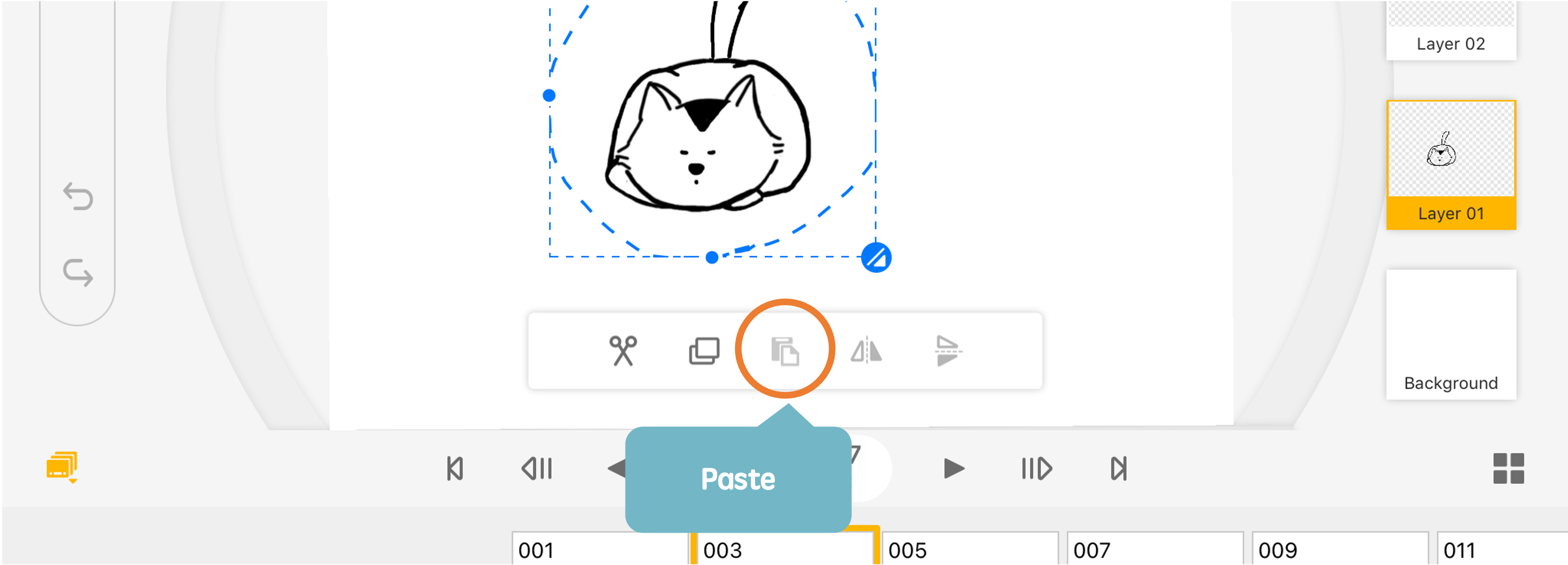
After adjusting the selected image, press "Paste" to paste the image.
Updated
Comments
0 comments
Please sign in to leave a comment.