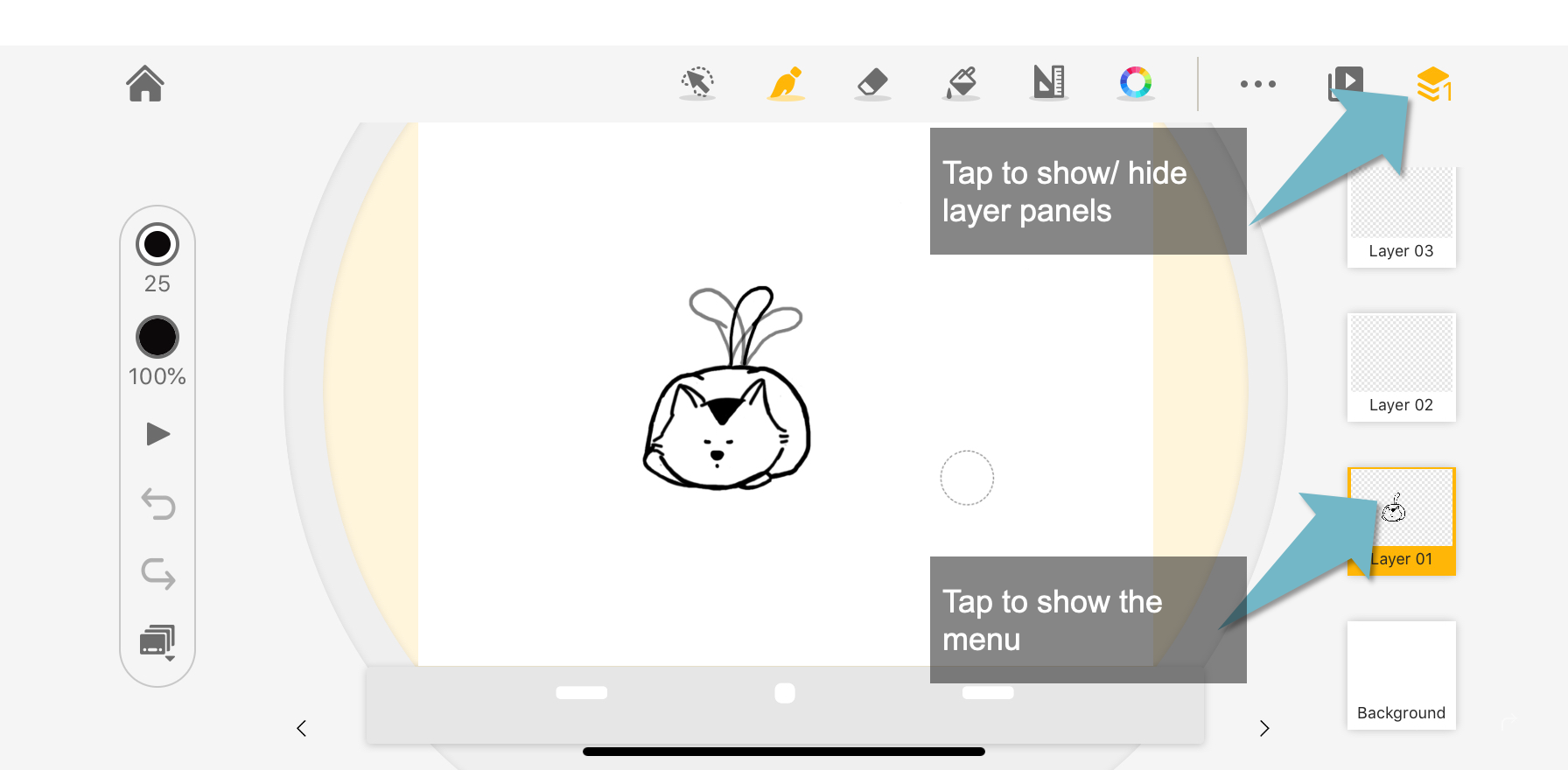
Tap the layer button at the top-right corner, if you can’t find the layers in the editing interface.
Tap on any layer to open a pop-up menu.
In the menu, you will find options to rename, clear, or remove the selected layer.
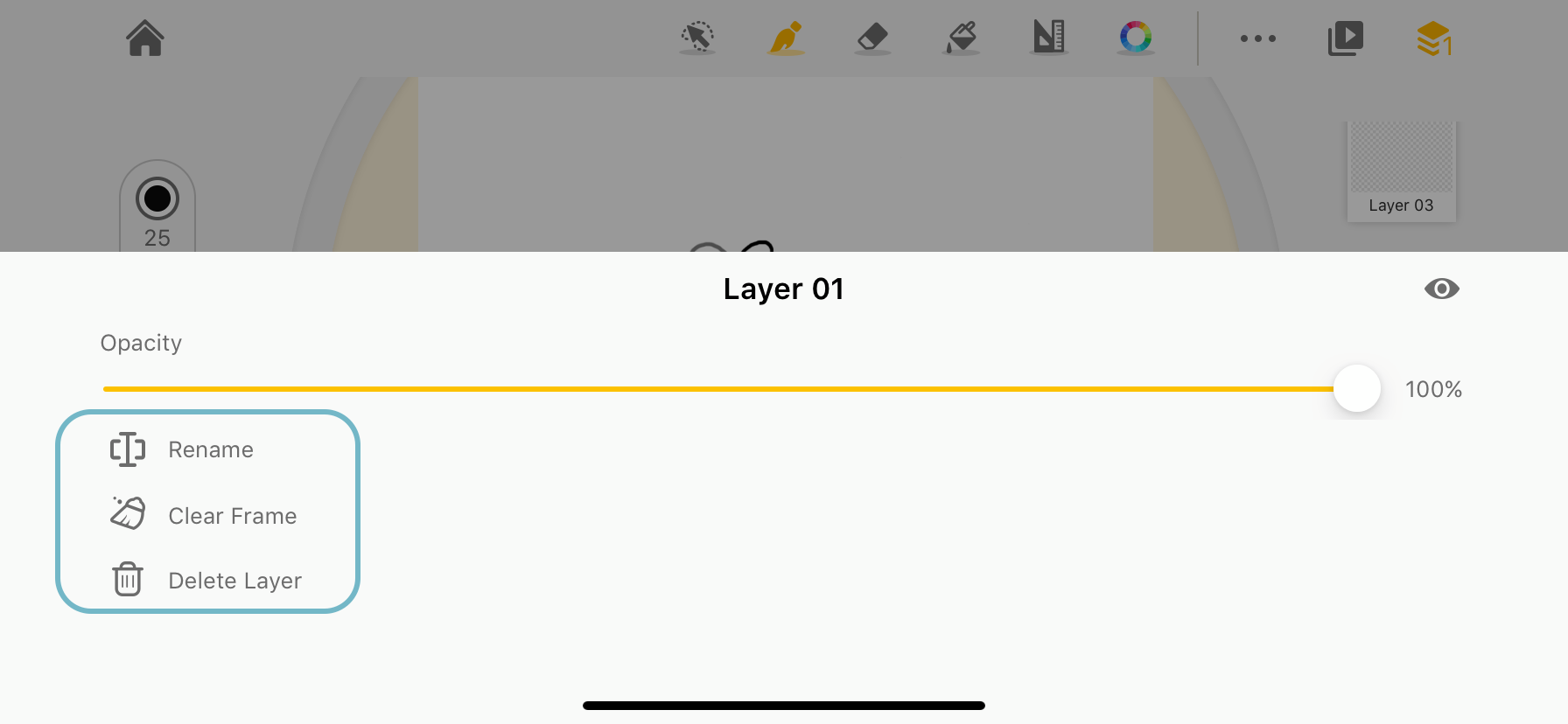
Rename: give a layer a new name
Clear: clear the content of the current frame of the selected layer
Remove: Remove the layer, the layer would be deleted permanently. Please make sure that you select the right layer.
Updated
Comments
0 comments
Please sign in to leave a comment.