Toolbar
1. Go to the file you would like to view and press the glasses icon on the side annotation toolbar.
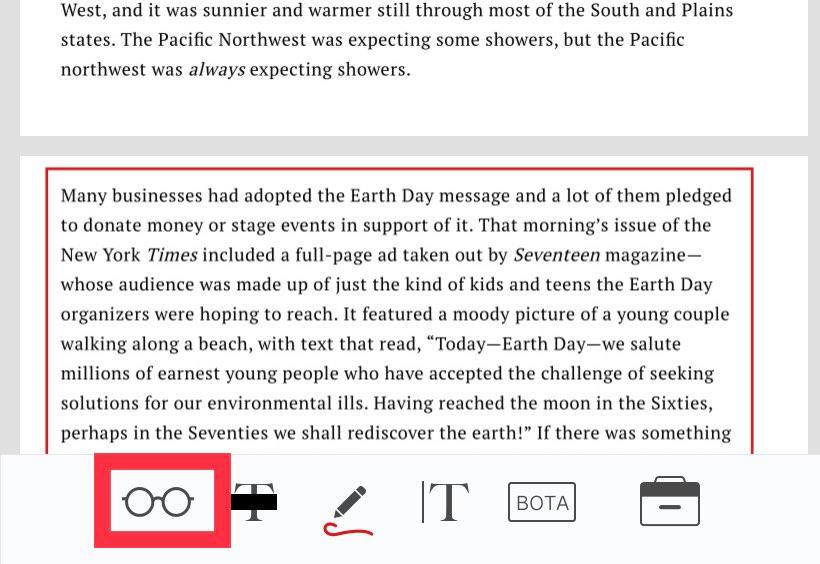
2. Move the slider to the page you would like to view.

BOTA Tab
1. Access the BOTA tab on the side by pressing the "BOTA" box in the bottom annotation bar.
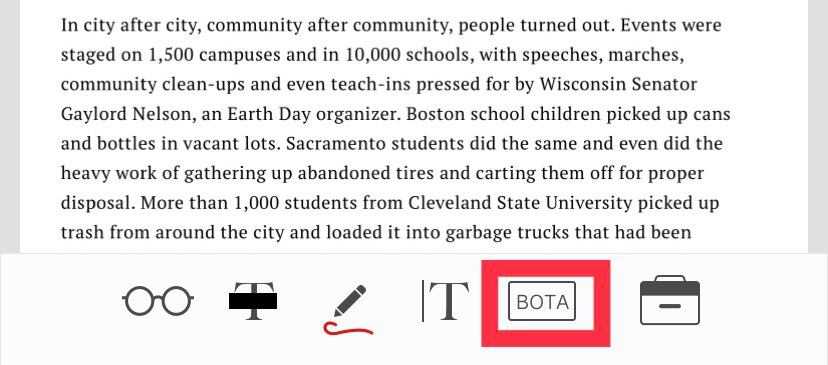
2. Press "T" (this stands for Thumbnail). This will take you to a preview of all the pages in the document.
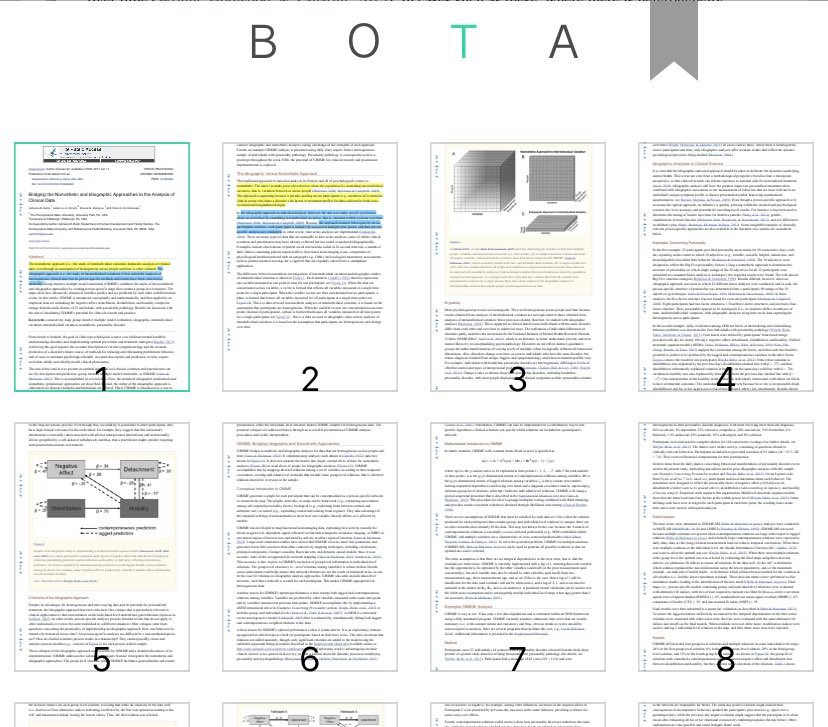
3. Select the page you would like to jump to.
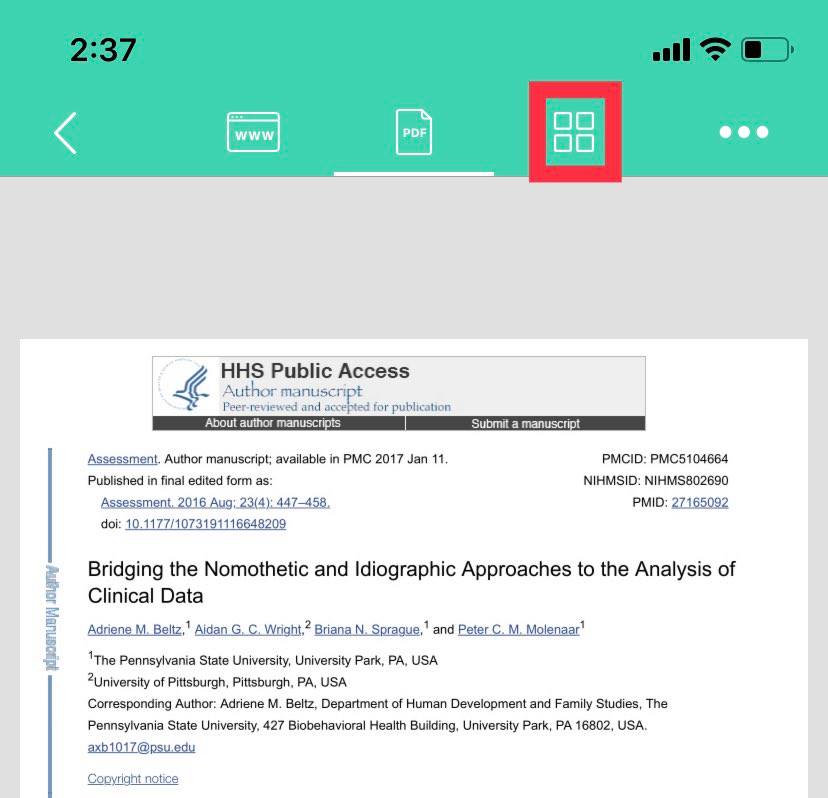
4. You can also click the four squares on the top tab to see the outline.
Comments
0 comments
Please sign in to leave a comment.