1. Open a file and go on the page that precedes the location you would like to add your blank page to. Tap the "Page Edit" icon at the top of the screen.
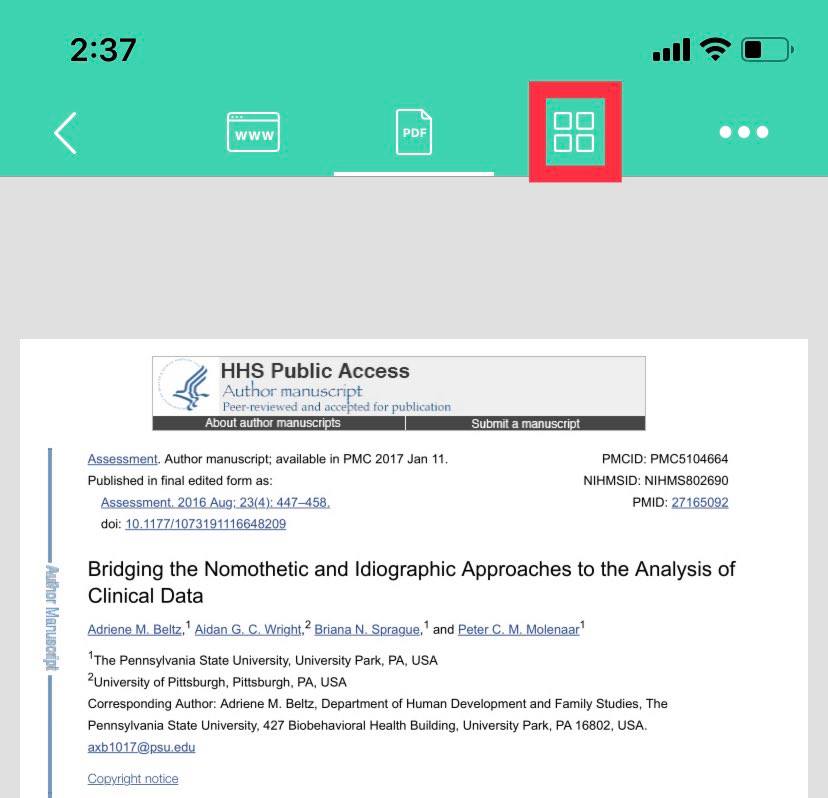
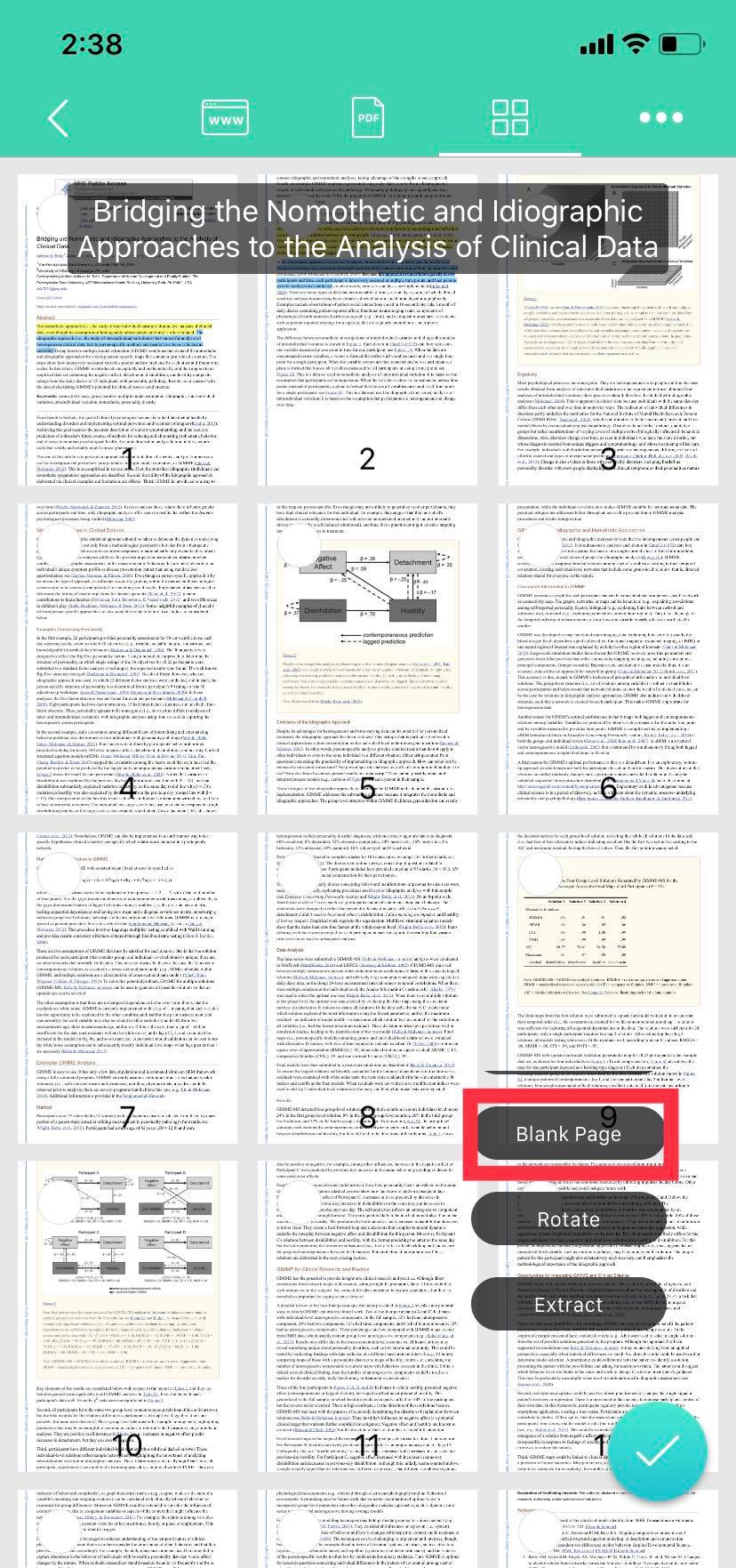
2. You will see page thumbnails of the PDF document you are currently reading.
3. Tap the "Edit" pen icon at the bottom right corner of the screen, and you will see a couple of actions. Scroll down until you see "Blank Page."
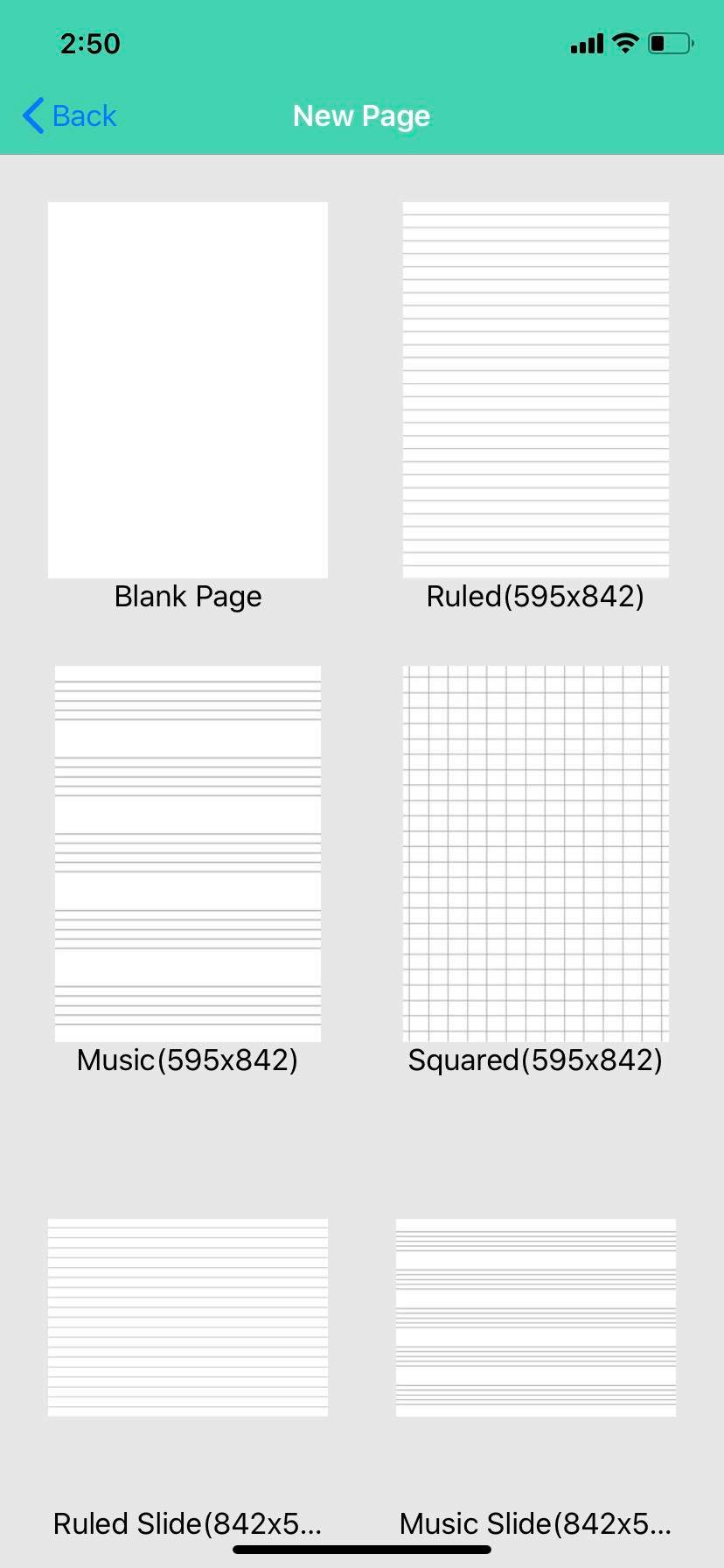
4. Select the type of page you would like to add.
5. The blank page should be added; easily move the page by dragging and dropping.
6. Click the checkmark in the lower right hand corner to finish.
Updated
Comments
0 comments
Please sign in to leave a comment.