Approach 1: Using Annotation Toolbar
1. Go to the page you want to add a text box and tap the "Text" icon  on the bottom annotation bar.
2. Tap an area on the page where you want to add a text box to and input your text.
3. You can tap and drag the text box to move it.
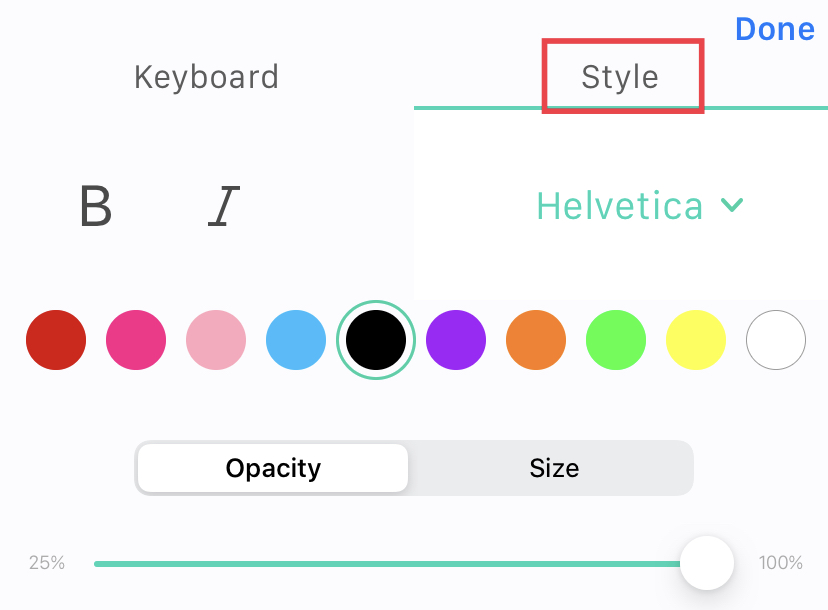
4. By tapping “Edit,” You can adjust the font style, size, color and opacity through the annotation toolbar.

Alternatively, you can directly click the "Style" tab to edit (bold, italics, font, color, opacity, and size).
5. To delete the markup, tap it and tap “Delete.”

Approach 2: Adding from Pop-Up Menu
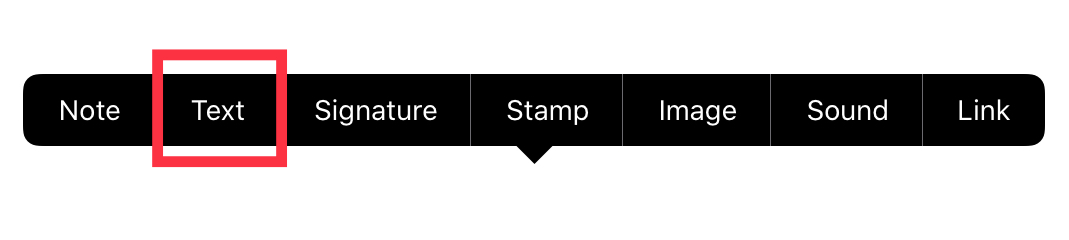
1. Tap the screen and hold it for 2 seconds. The pop-up menu will appear.
2. Tap “Text” to add a text box into the PDF page.
Comments
0 comments
Please sign in to leave a comment.