In dealing with digital documents, we all encounter unwanted pages. There is no simple solution for removing these pages from PDF files. With PDF Reader, you can delete the unwanted pages in a flash.
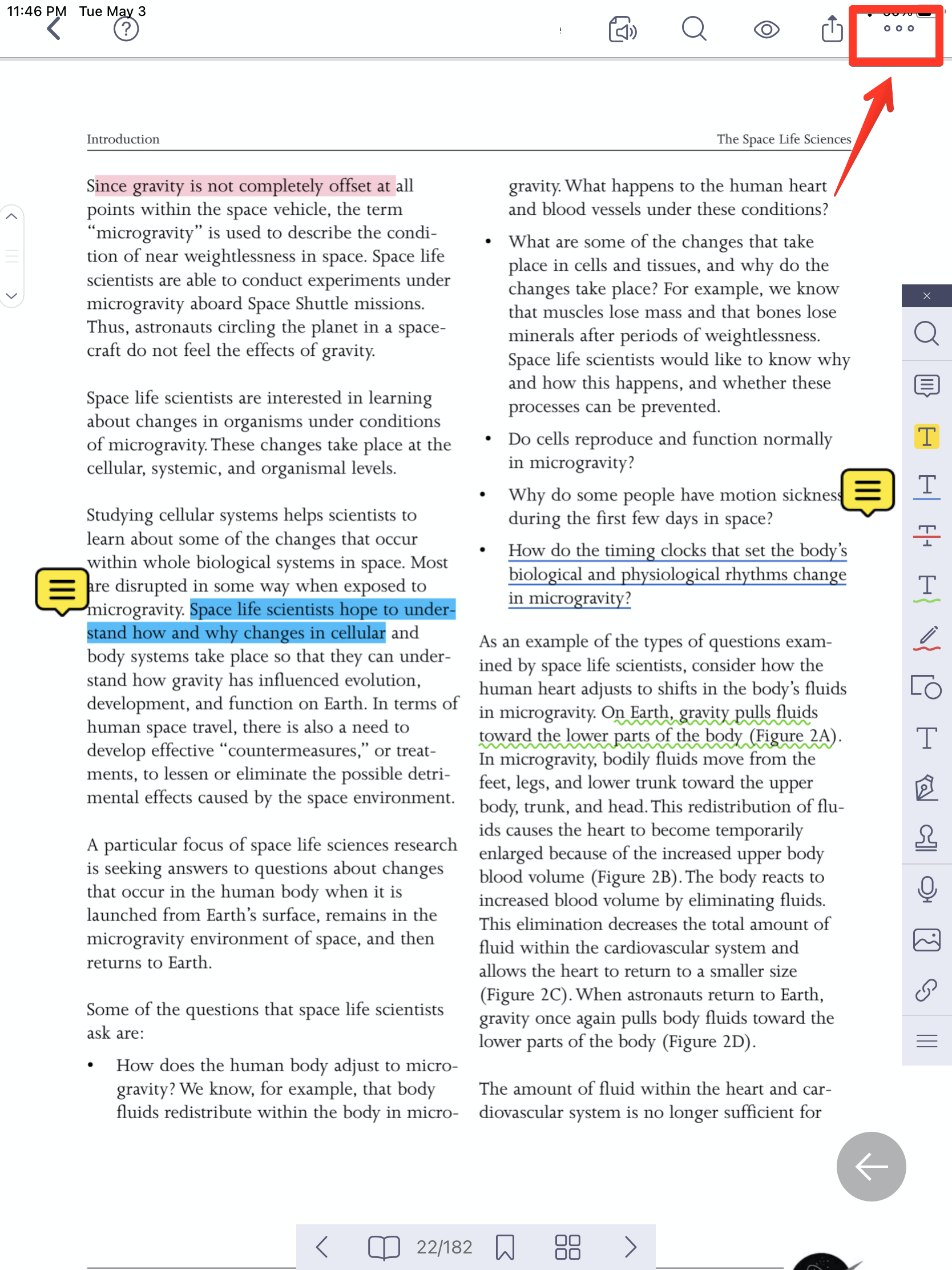
1. Open a PDF file and tap on the "more" button in the top right corner of the screen.
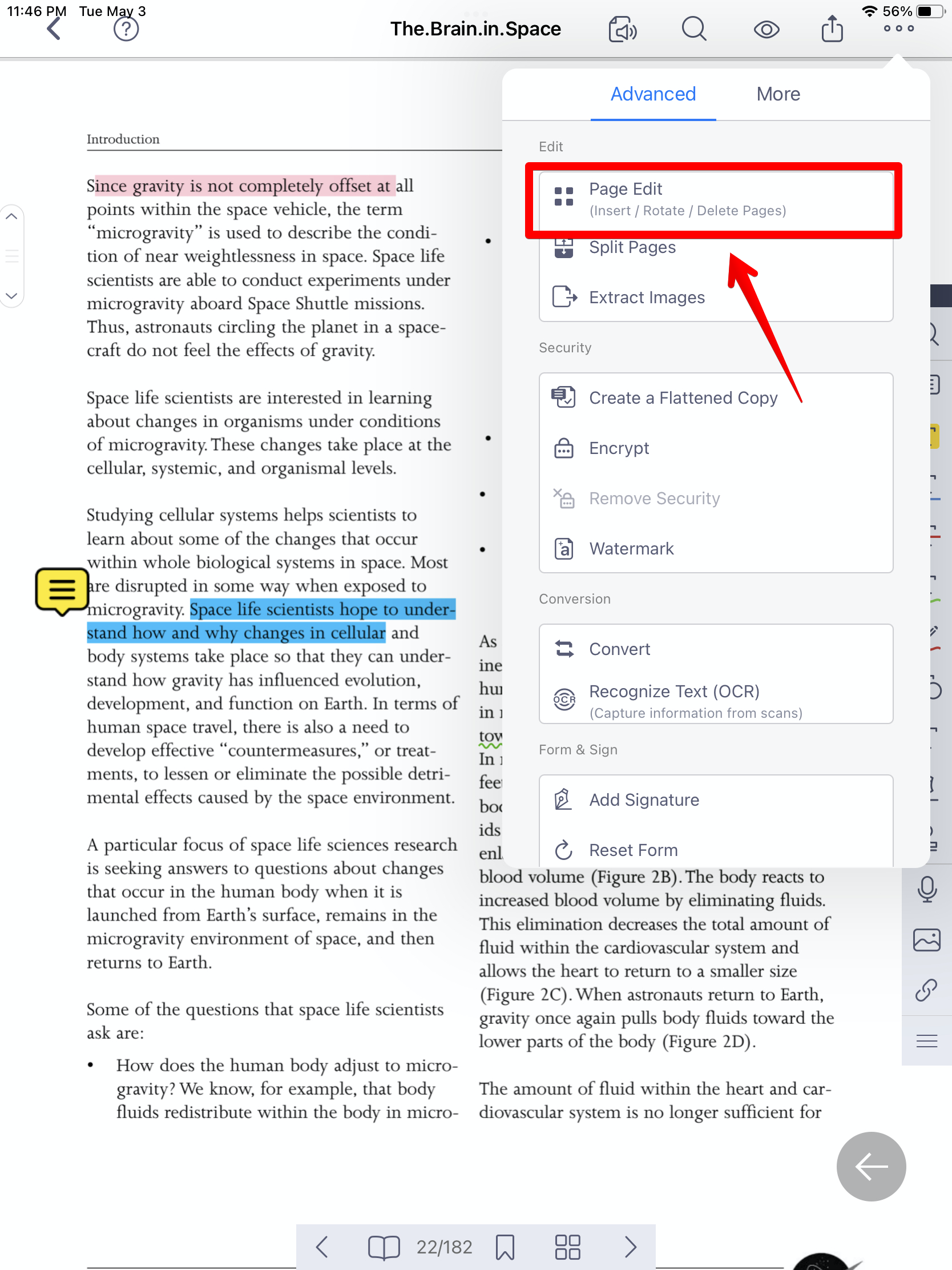
2. Select “Page Edit” under the Advanced section to enter page editing mode.
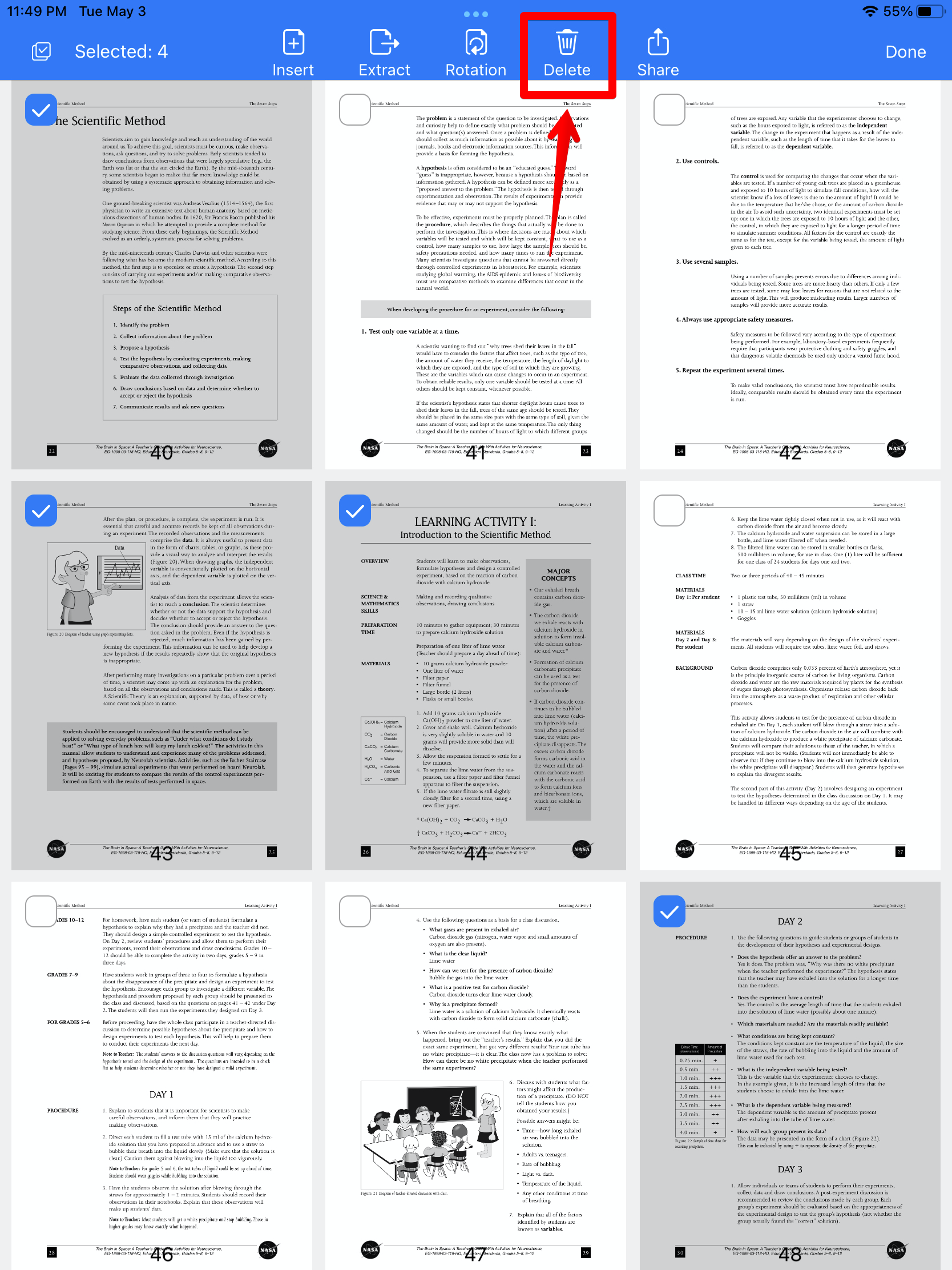
3. The PDF will display as page thumbnails. Then select page(s) you would like to remove by tapping on the page(s). (Once you select a page, you will see a blue checkmark appear).
4. Tap on the "Delete" button to remove the page(s) from the PDF.
Updated
Comments
0 comments
Please sign in to leave a comment.