You can append pages from another PDF to an existing PDF using PDF Reader. When inserting pages, you can select from an entire document or a range of its pages.
1. Open a PDF
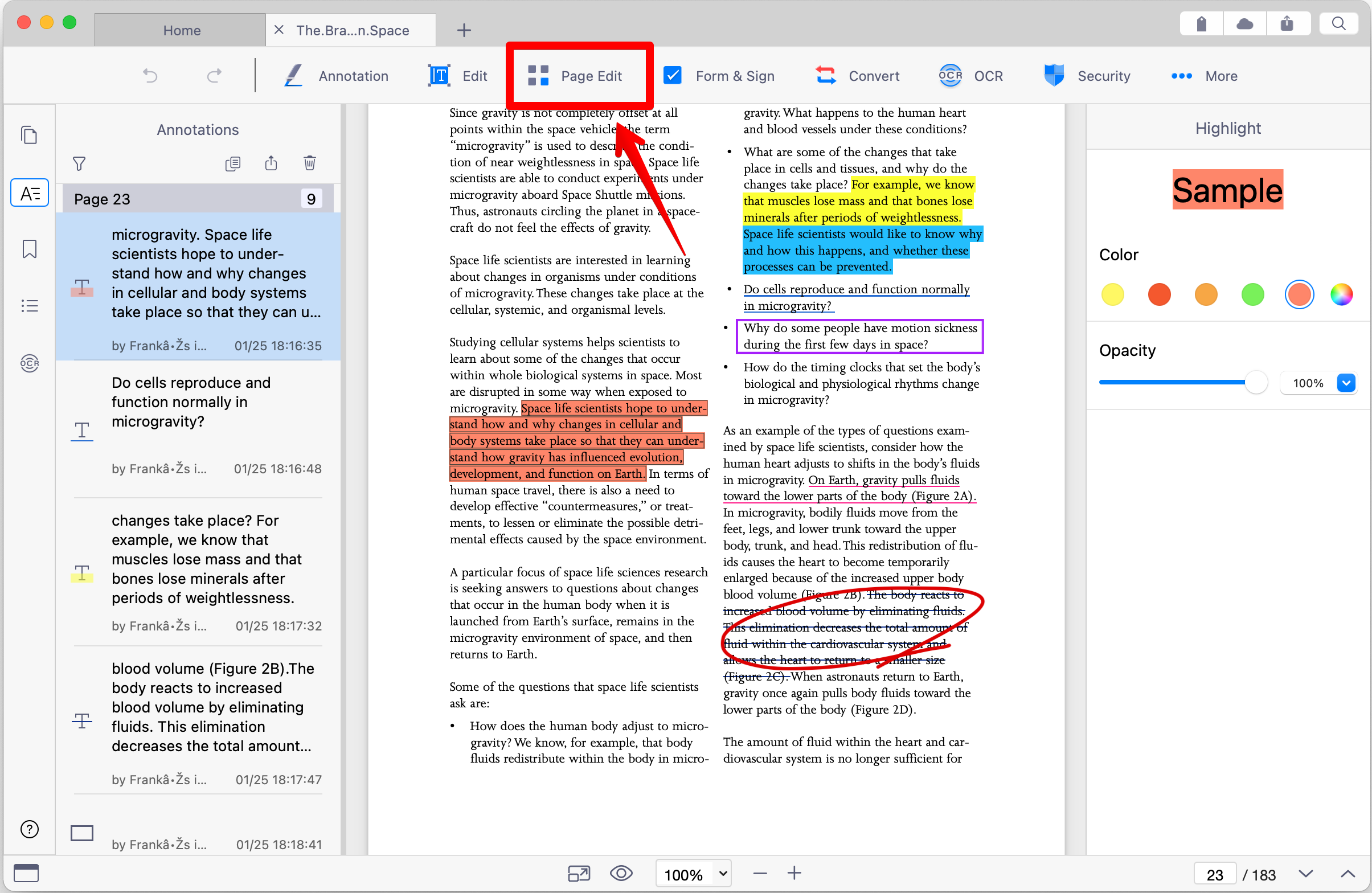
2. Click “Page Edit” from the top menu bar to enter page editing mode
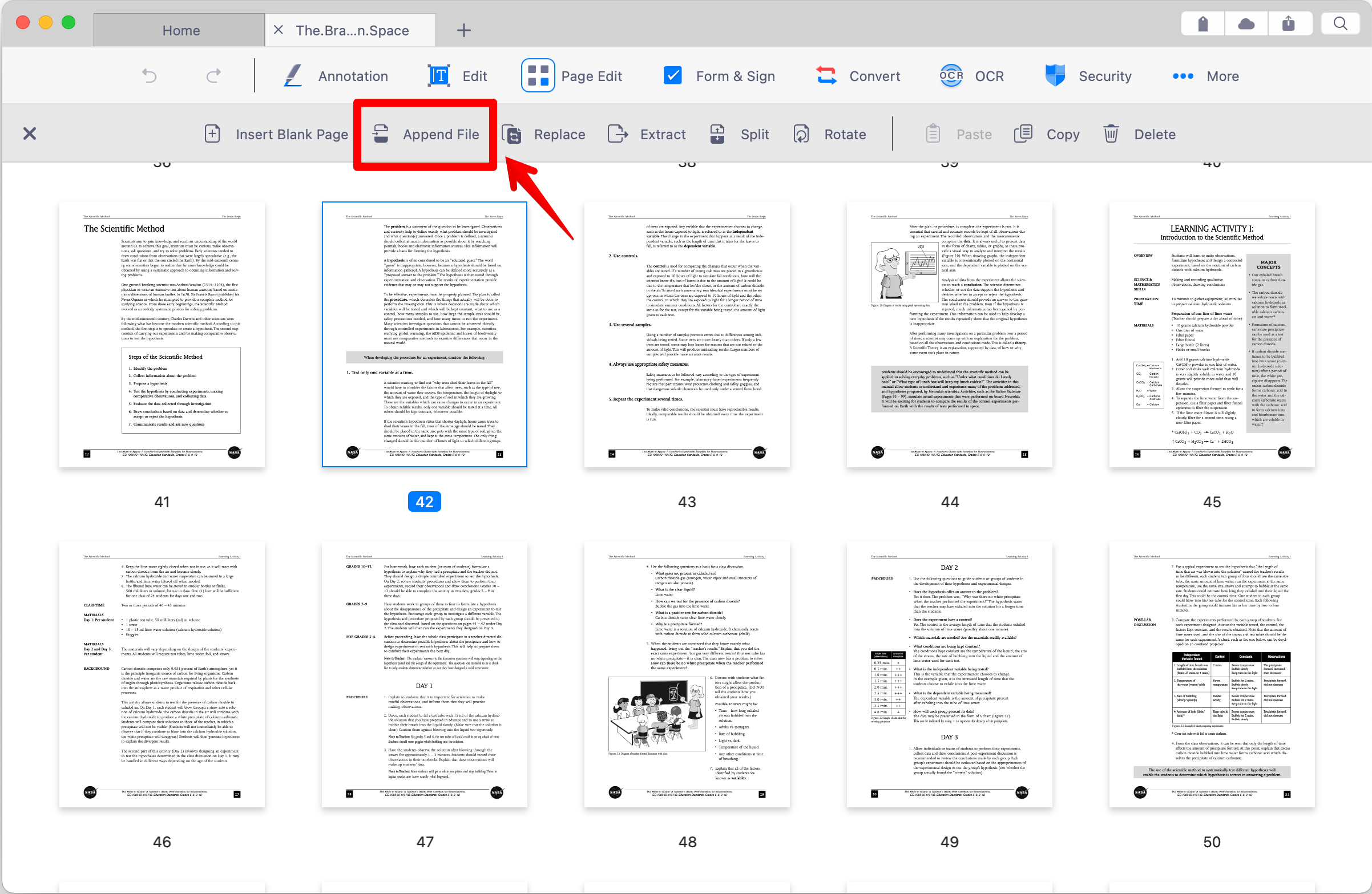
3. The PDF will display in page thumbnails. Then, click on one page where you want to insert page(s) and click “Append File”. (When the page is selected, a blue border will appear around it.)
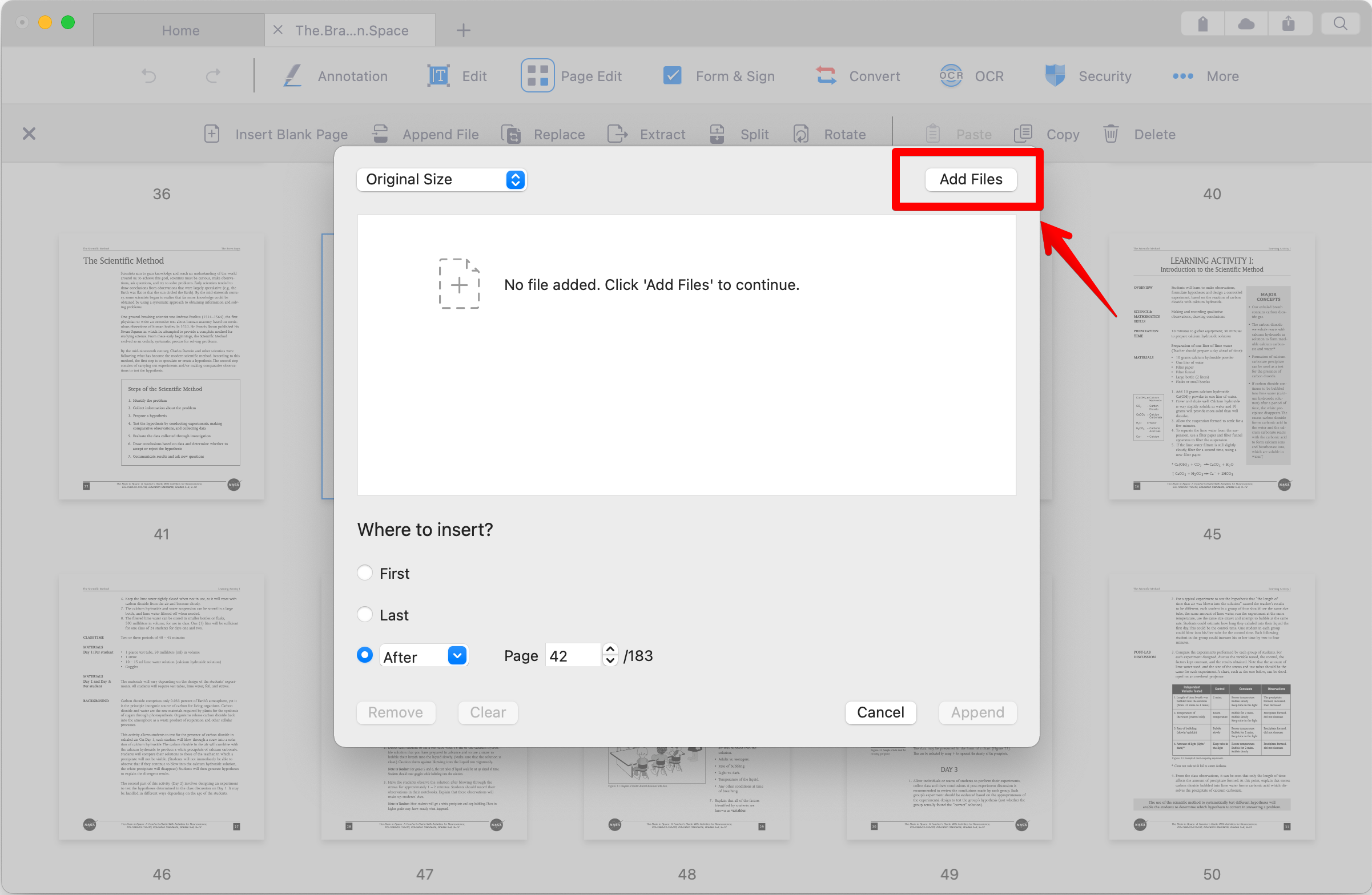
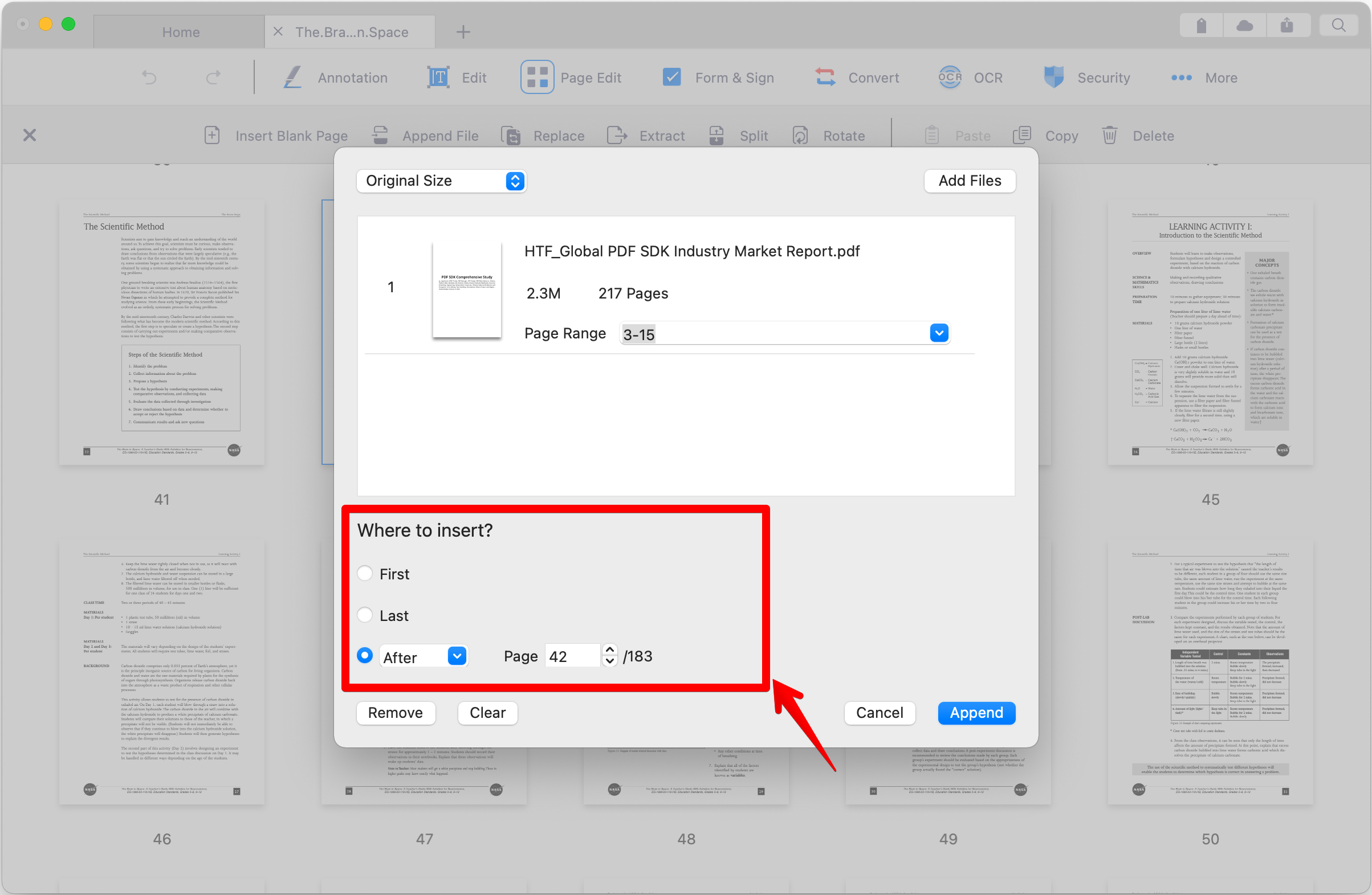
4. Click “Add Files” in the pop-up window and select one or more PDFs to append to the existing PDF
5. You can select specific pages by setting a page range for each file or append the entire document
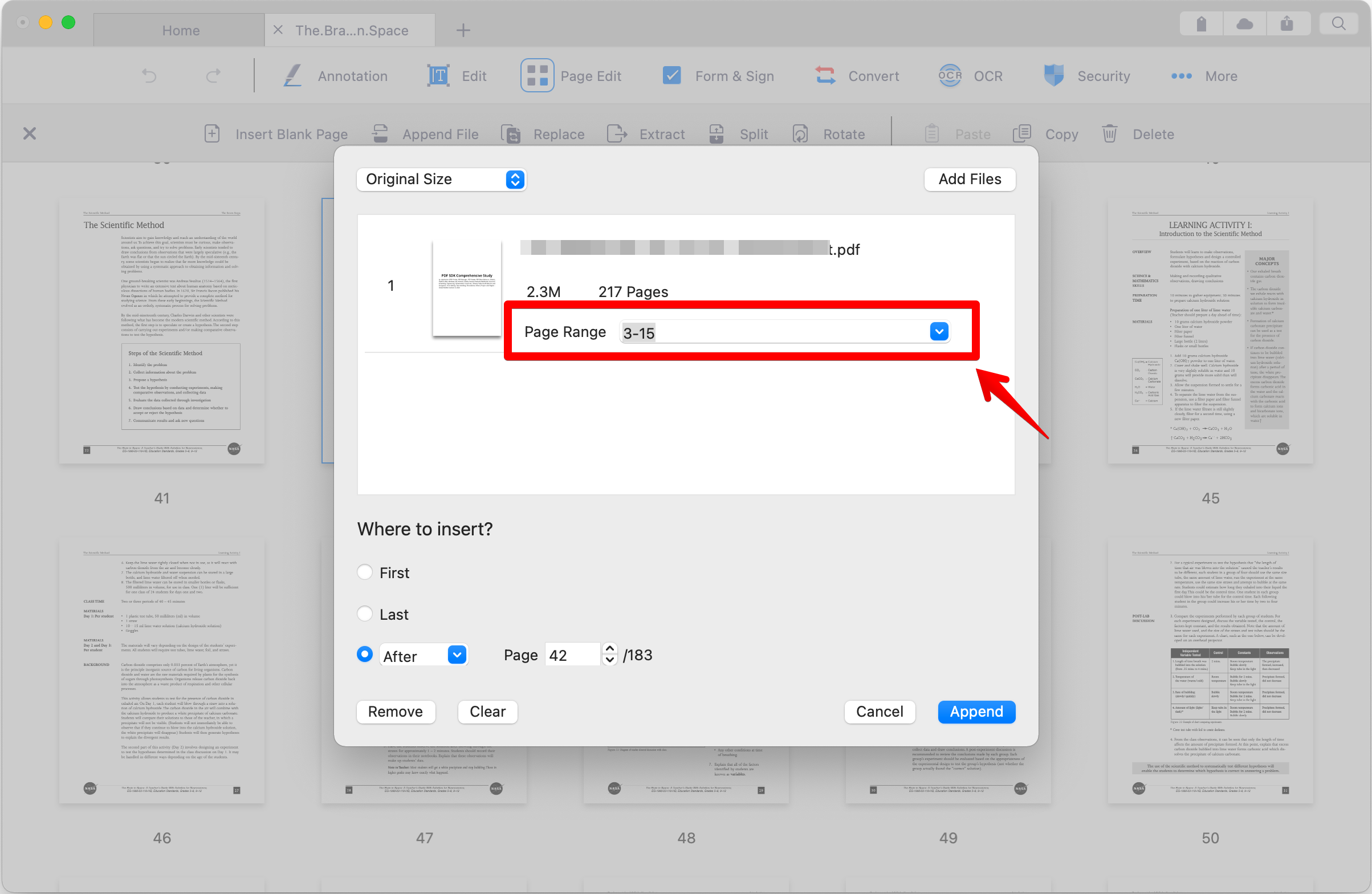
6. Choose where you want to append files to the existing PDF and then click “Append” to insert pages from another PDF
Updated
Comments
0 comments
Please sign in to leave a comment.