Tap the circle button adored at the edge to open the menu. In this menu, you can quickly adjust the brush size and opacity.
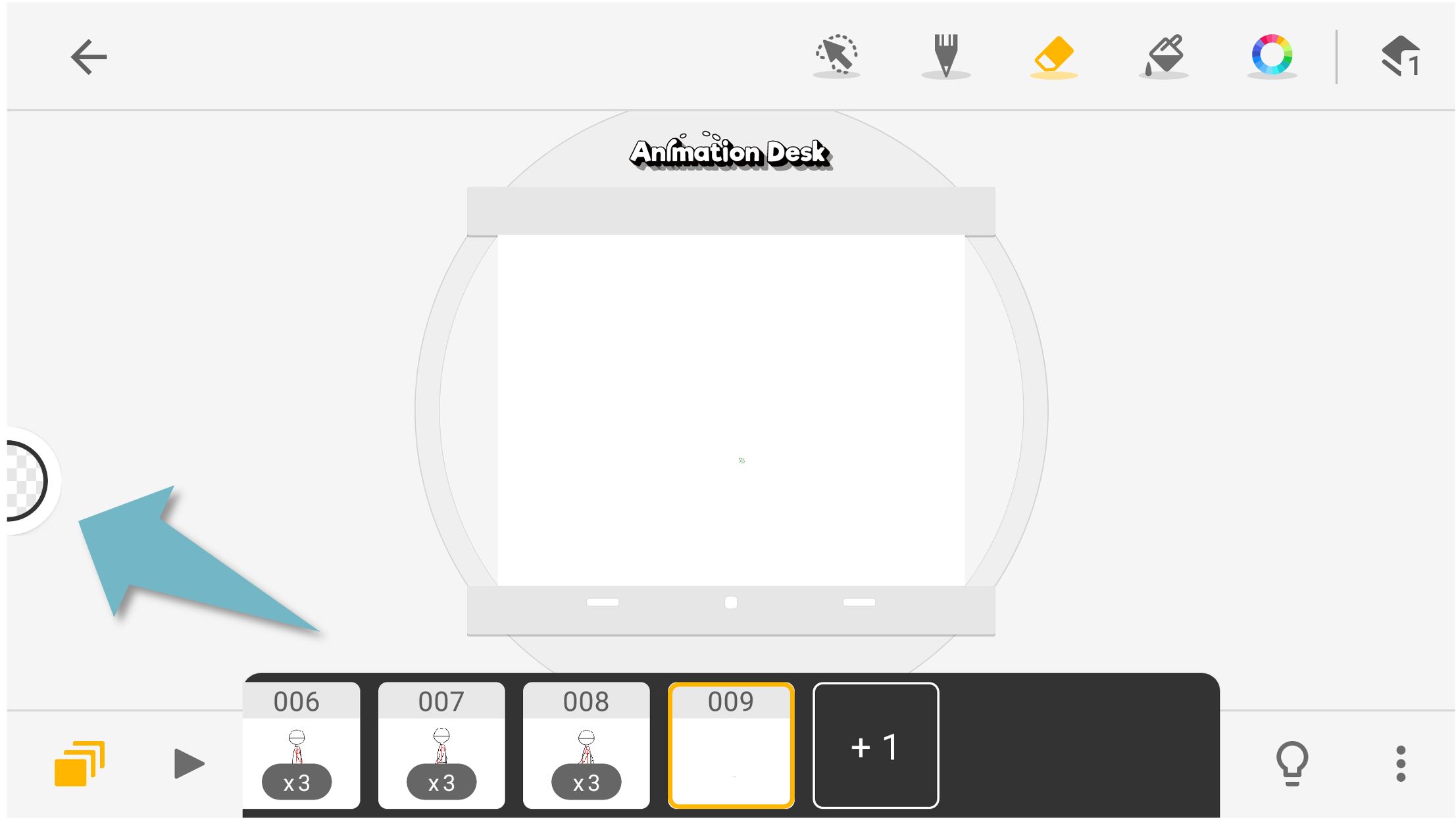
Tap the first button to change the brush size. Tap the second button to adjust the brush opacity.
Alternatively, you can also tap and hold these buttons, slide up or down to change the value.
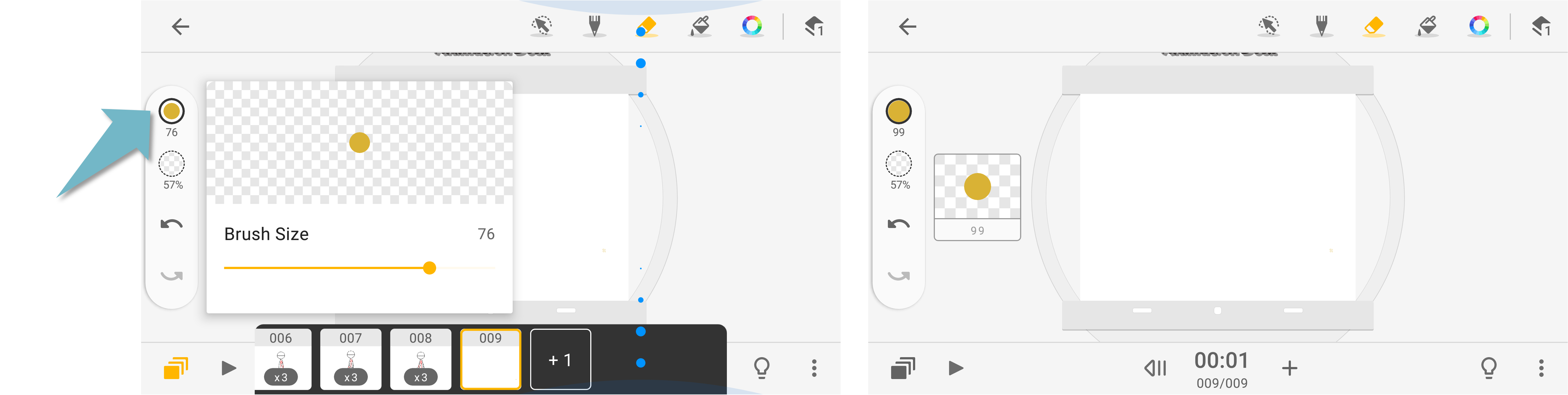
Left: tap the button to change the brush size
Right: Tap and hold the button. Slide up to increase brush size. Slide down to decrease the size.
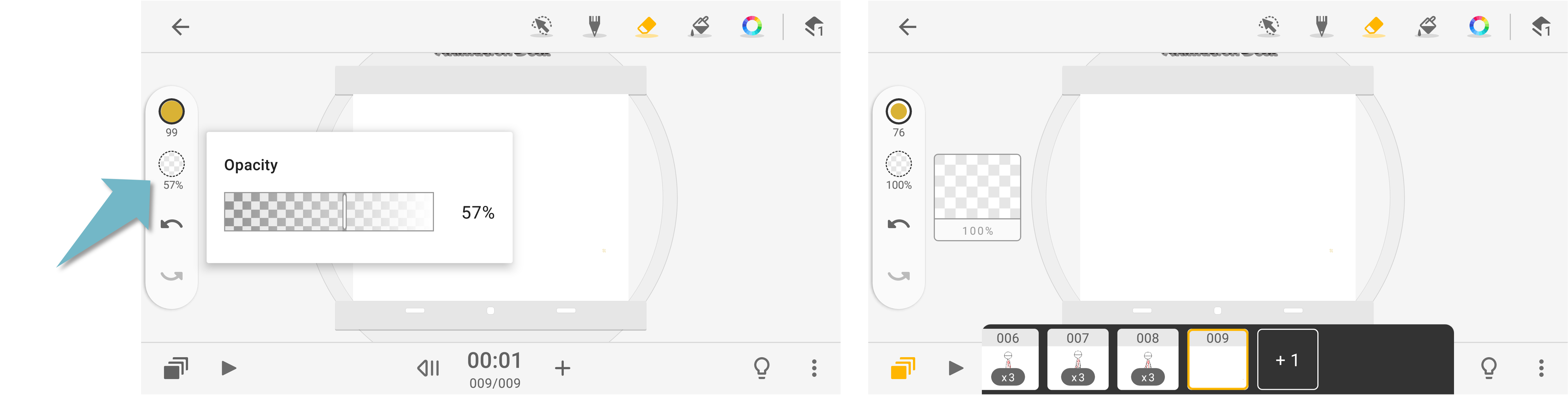
Left: tap the button to change the brush opacity
Right: Tap and hold the button. Slide up to increase brush opacity. Slide down to decrease opacity.
Besides using the undo and redo button on the menu, you can also use a two-finger double-tap to undo a stroke, and a three-finger double-tap to redo stroke.
Updated
Comments
0 comments
Please sign in to leave a comment.