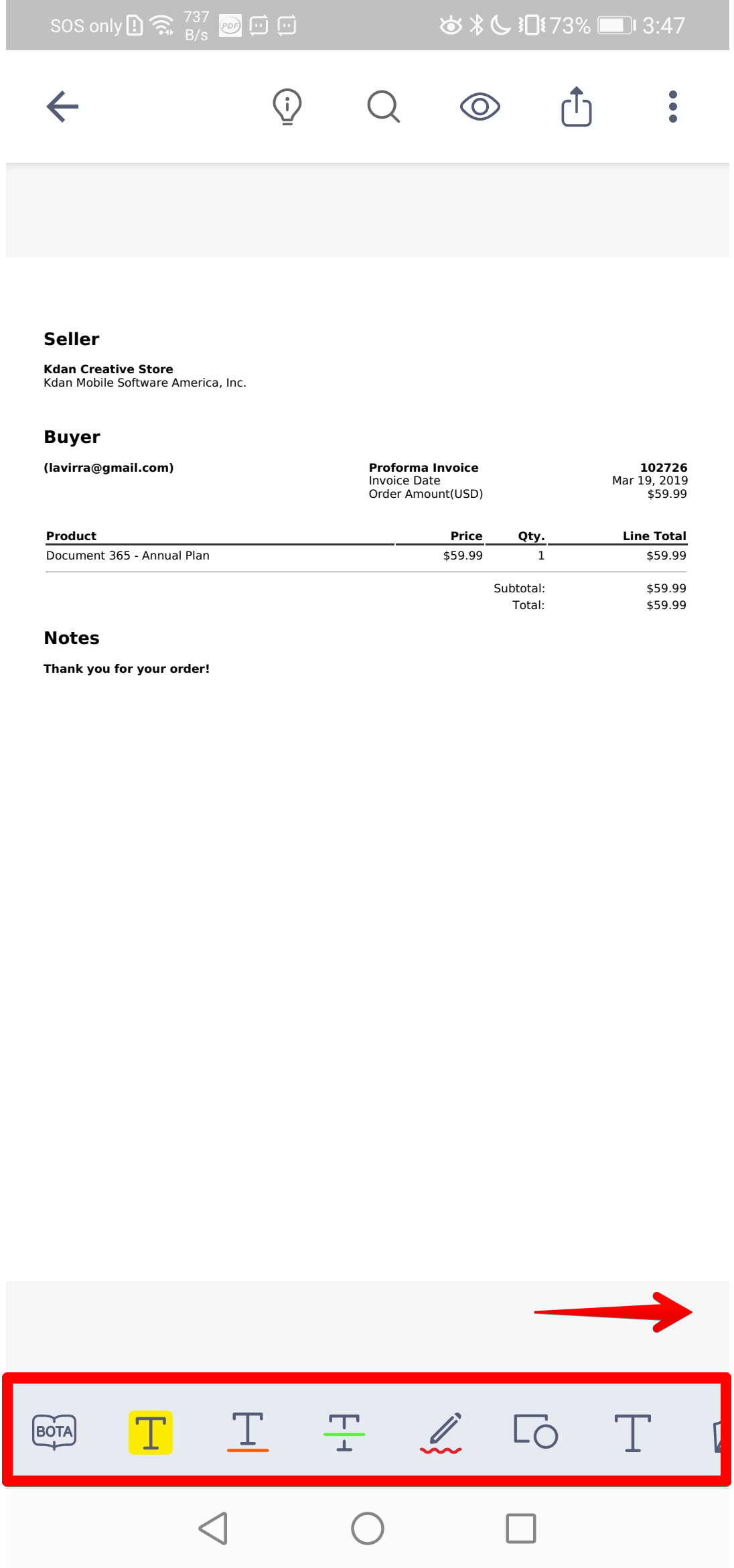
1. Open a PDF and you will see an annotation toolbar at the bottom of the screen. You can swipe left or right to see more annotation tools.
(Note: The new interface is available for version 3.37.1 and later)
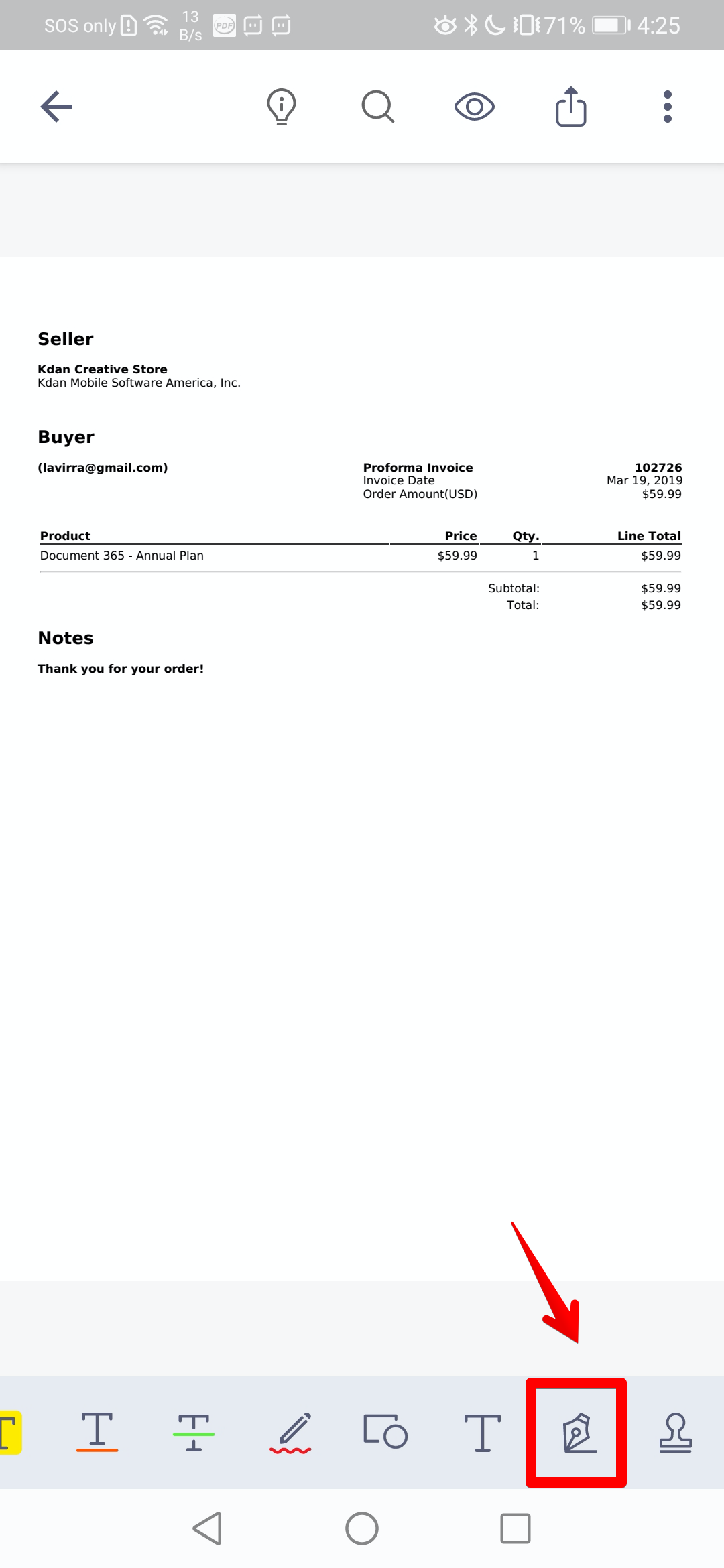
2. Tap the "Signature" tool on the annotation toolbar.
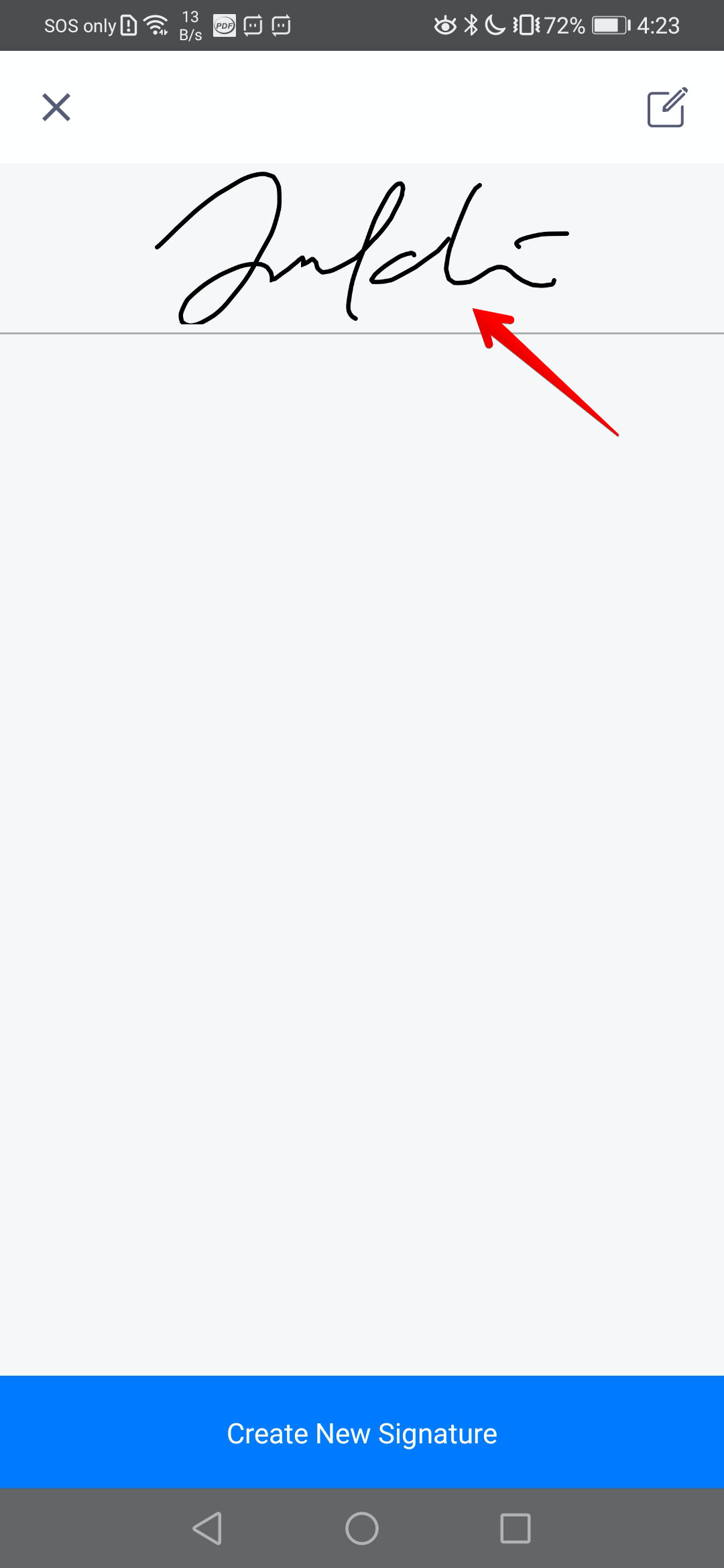
3. You will see a signature library that stores all the signatures you created. Simply tap one signature to add to the PDF.
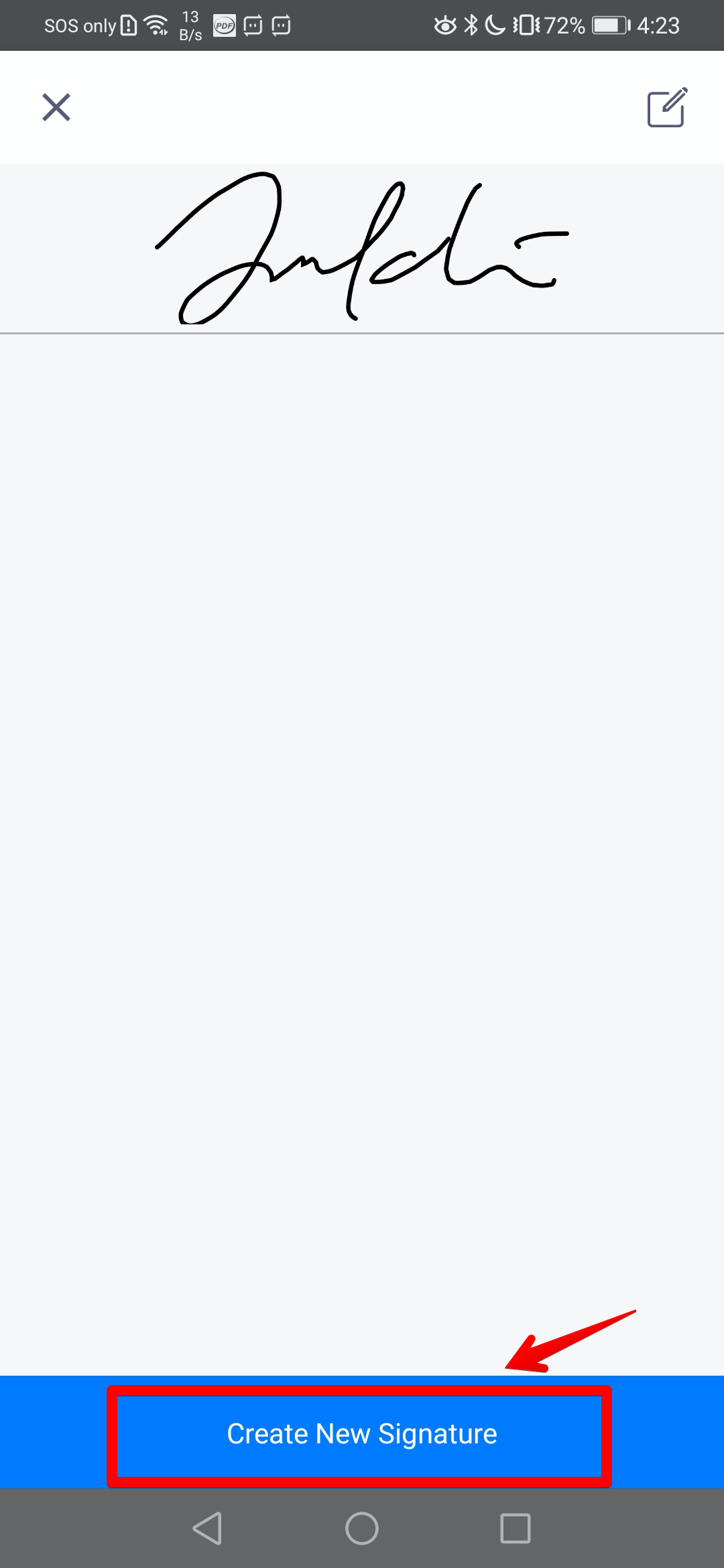
4. You can also create a new one directly.
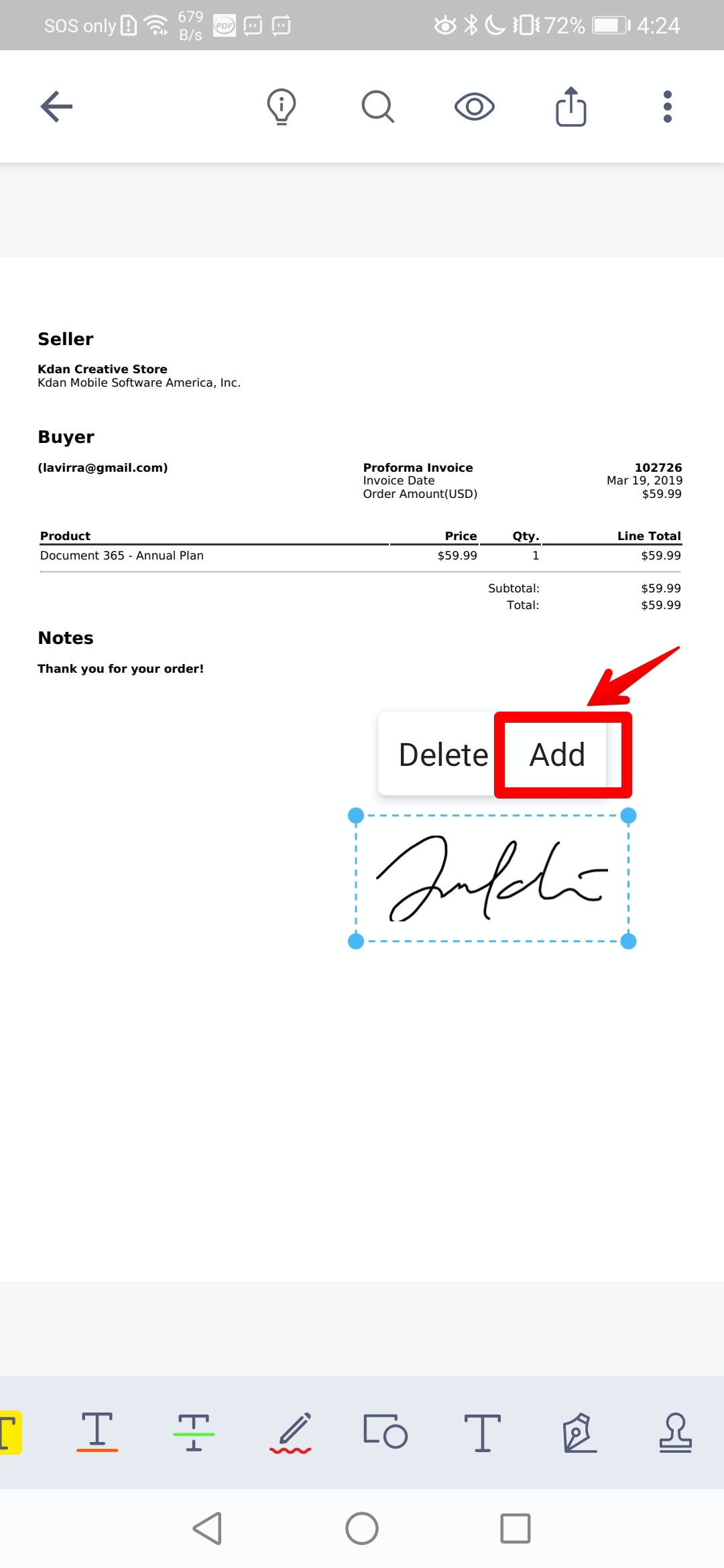
5. Drag and resize the signature and then tap "Add" to attach the signature onto the PDF.
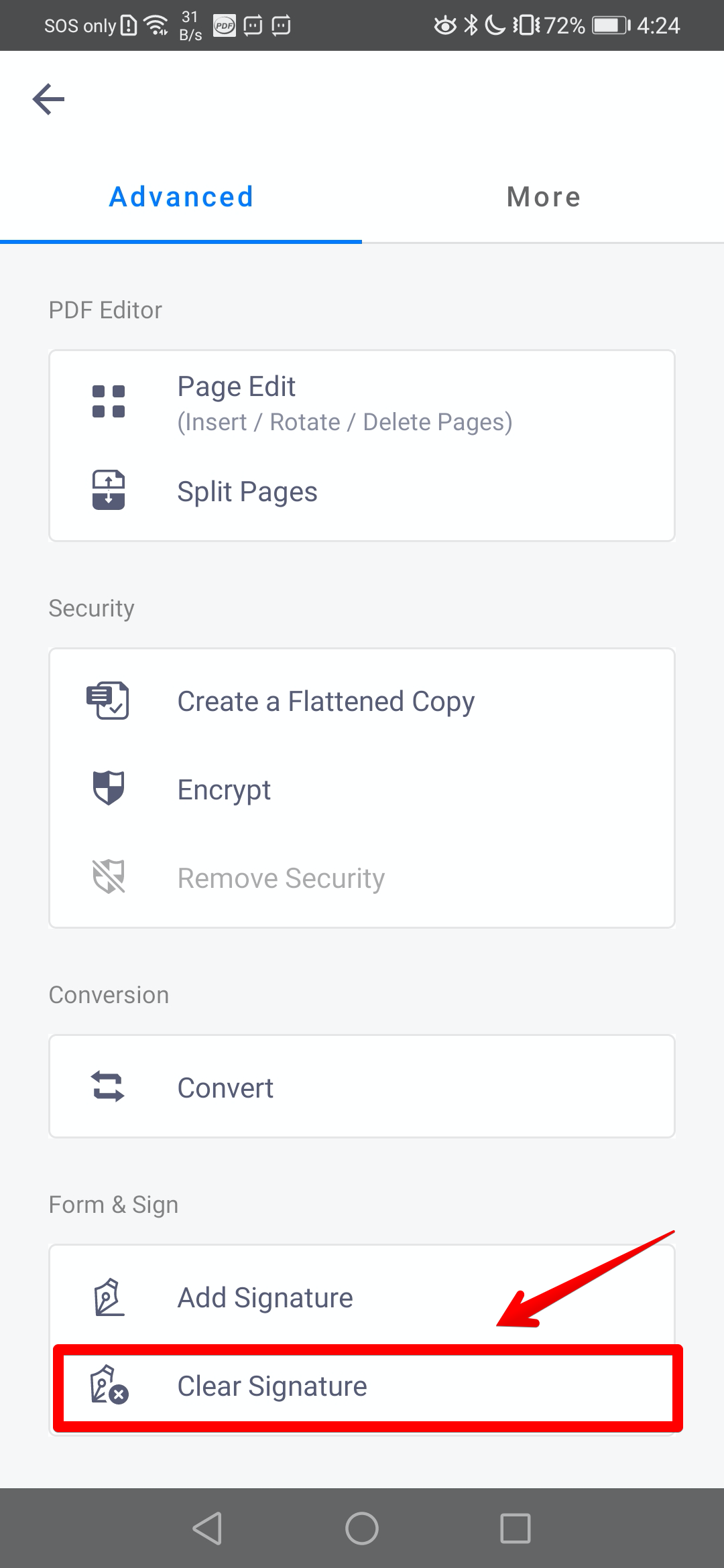
6. To remove the signature, you have to tap the "More" button in the top right corner. Choose "Clear Signature" to remove it from the PDF.
(Note: You can use DottedSign to request signatures from others)
Updated
Comments
0 comments
Please sign in to leave a comment.