1. Go to "Documents" tab and open a PDF
2. You will see an annotation toolbar at the bottom of the screen. You can swipe left or right to see more annotation tools.
(Note: The new interface is available for version 3.37.1 and later)
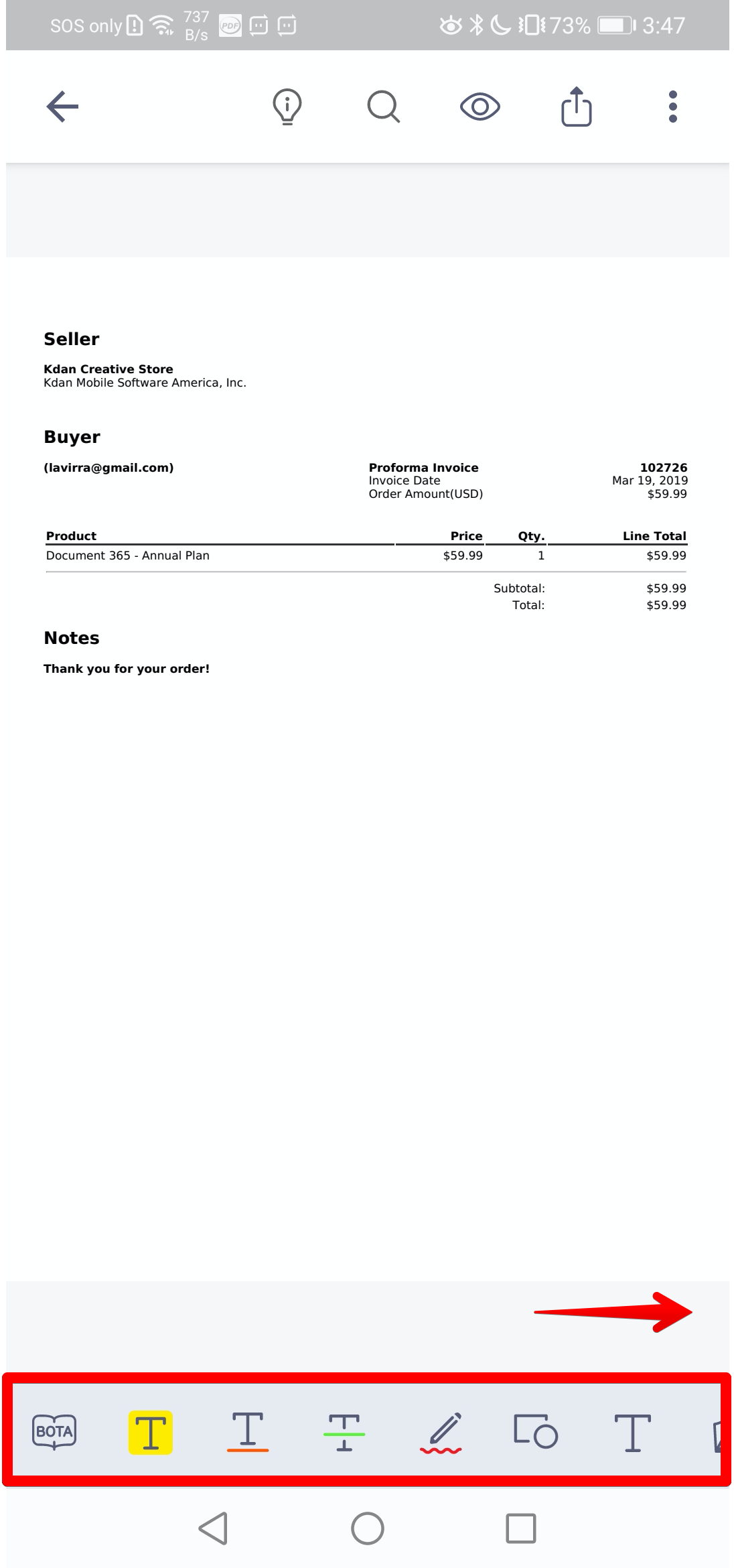
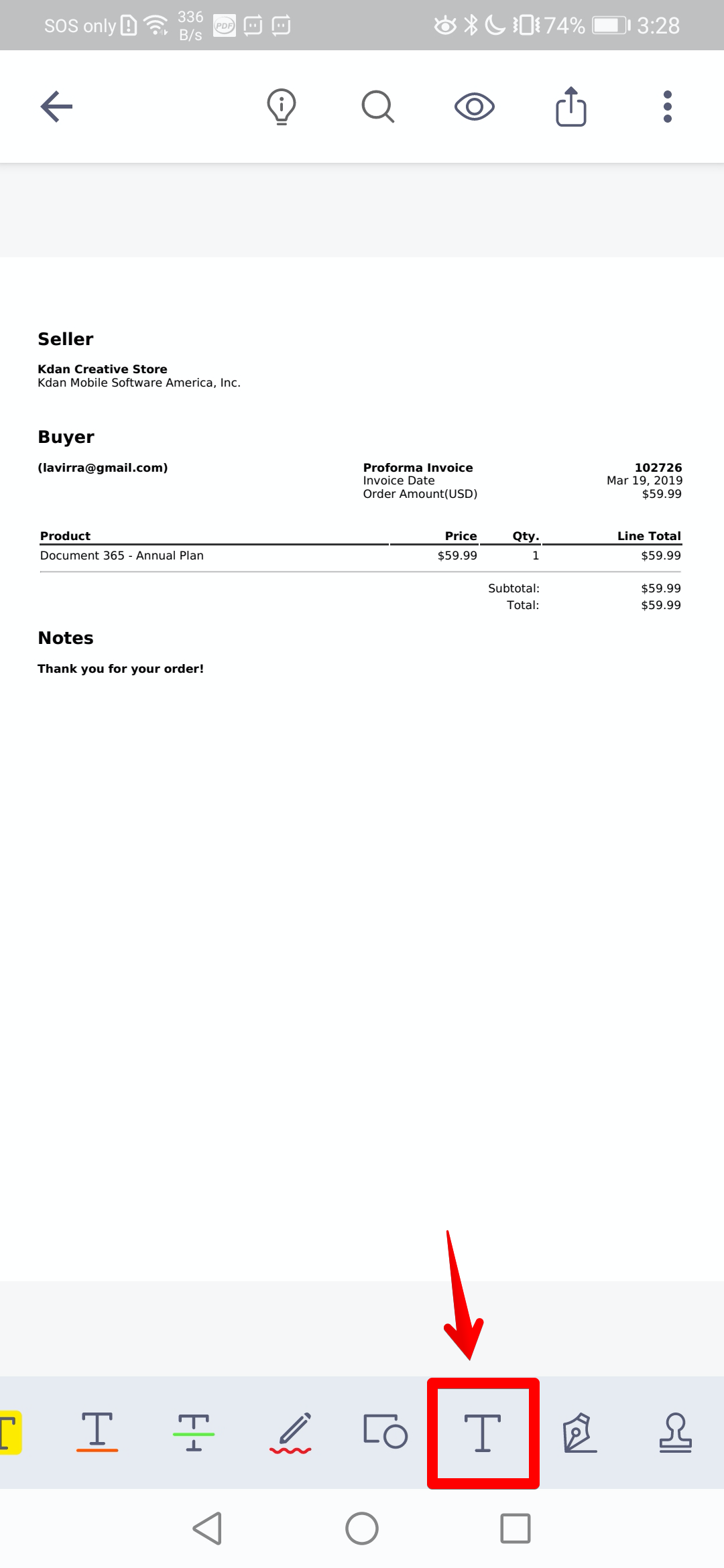
3. Tap on the "Text box" icon to turn on the feature (Tap again to turn it off)
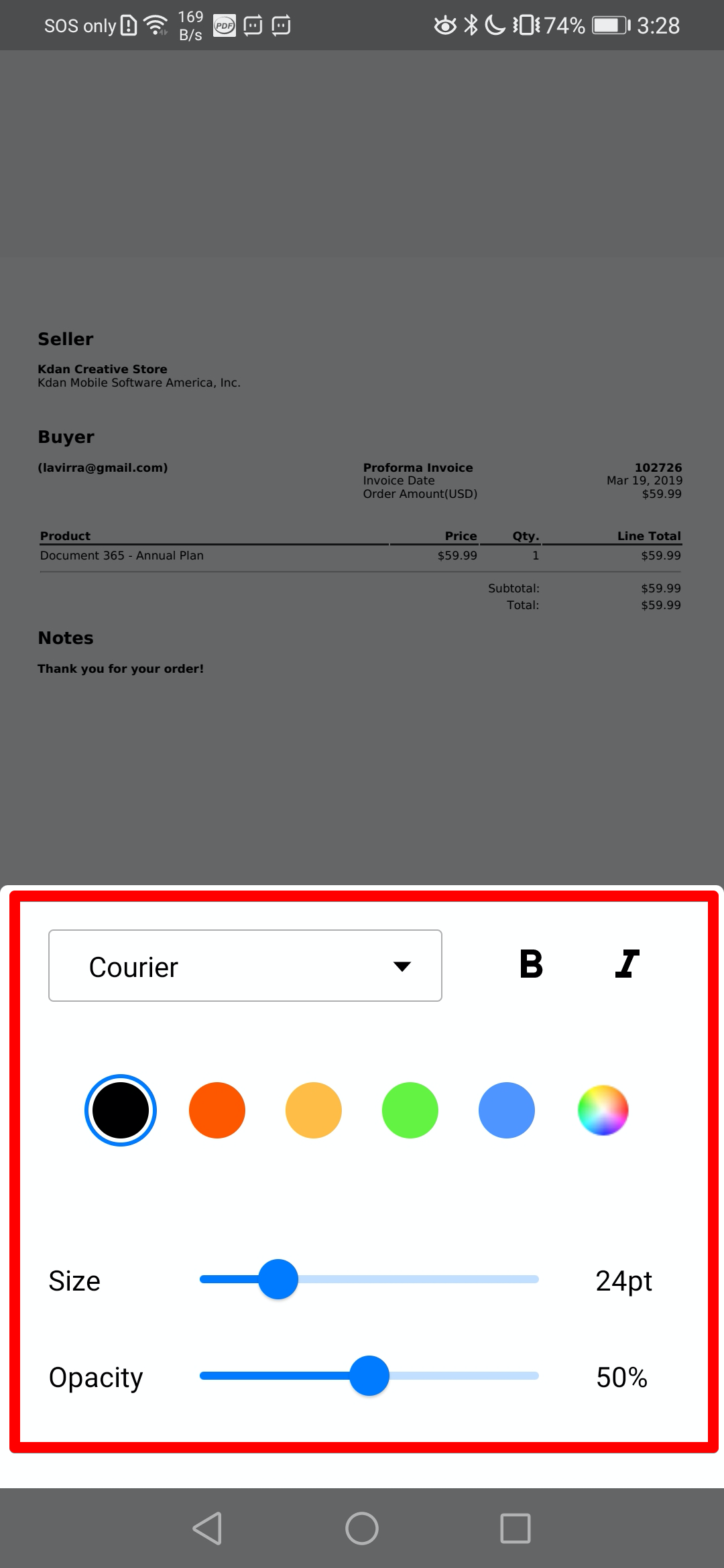
4. Simply long tap on icon to adjust the settings, including font, color, opacity, text size, and style
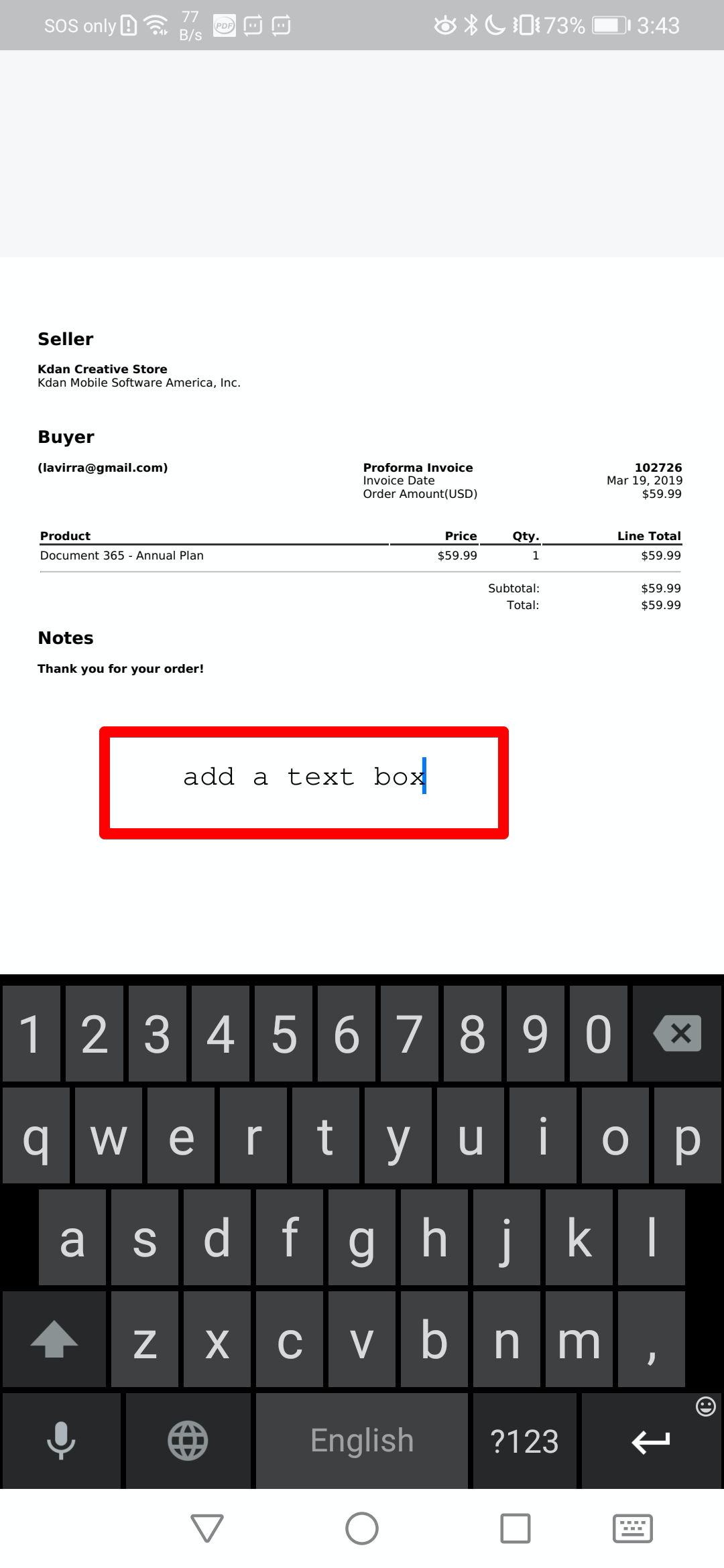
5. Tap an area on the page to key in text content
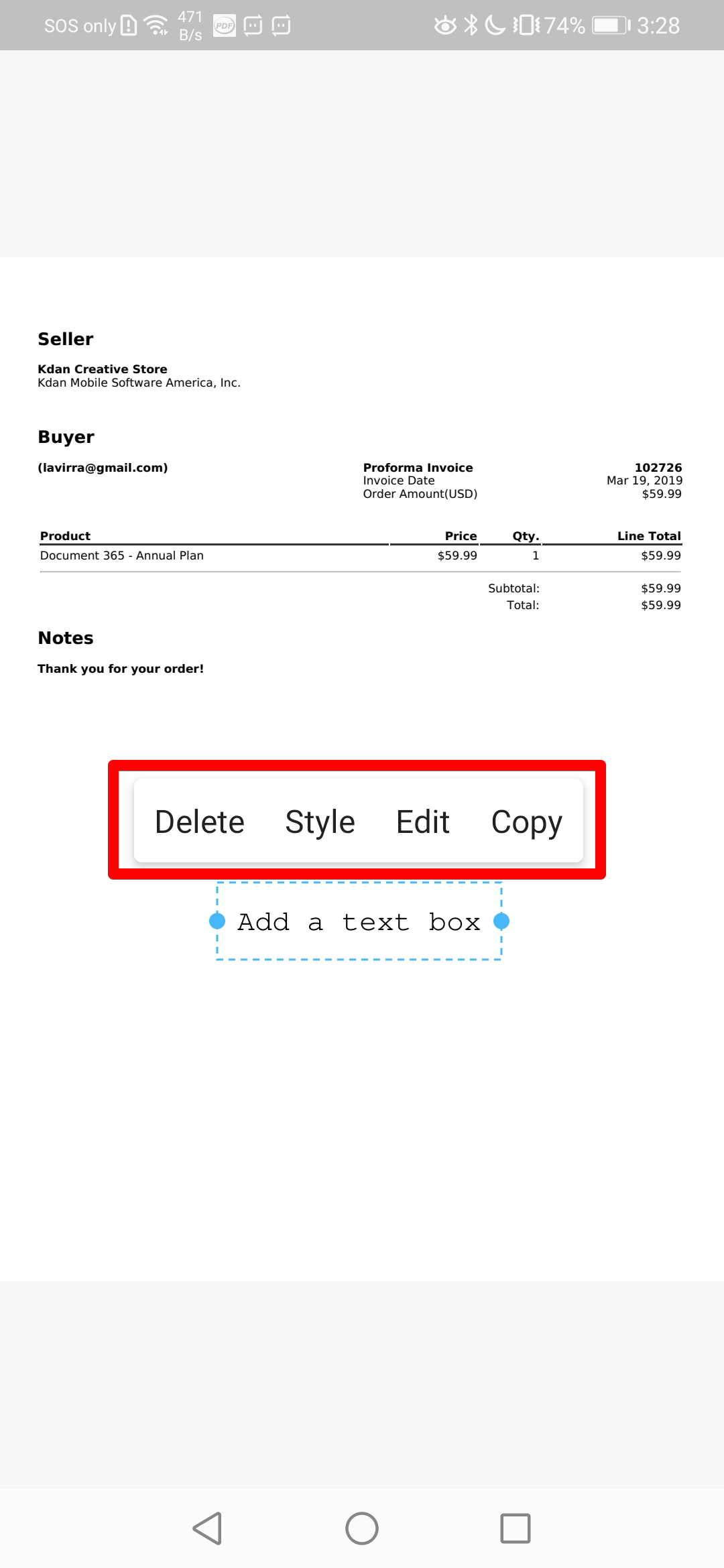
6. Simply tap on the text box to edit the text box
- Delete: Remove the text box
- Style: adjust the settings
- Edit: Edit the text content
- Copy: Copy the text content
Updated
Comments
0 comments
Please sign in to leave a comment.