Custom Brushes in Animation Desk work like most of the image editing software such as Photoshop, illustrator, or Procreate. A brushstroke is composed of a sequence of images. The custom brush allows users to set up the shape of the brush tip, and the image to fill in the tip.
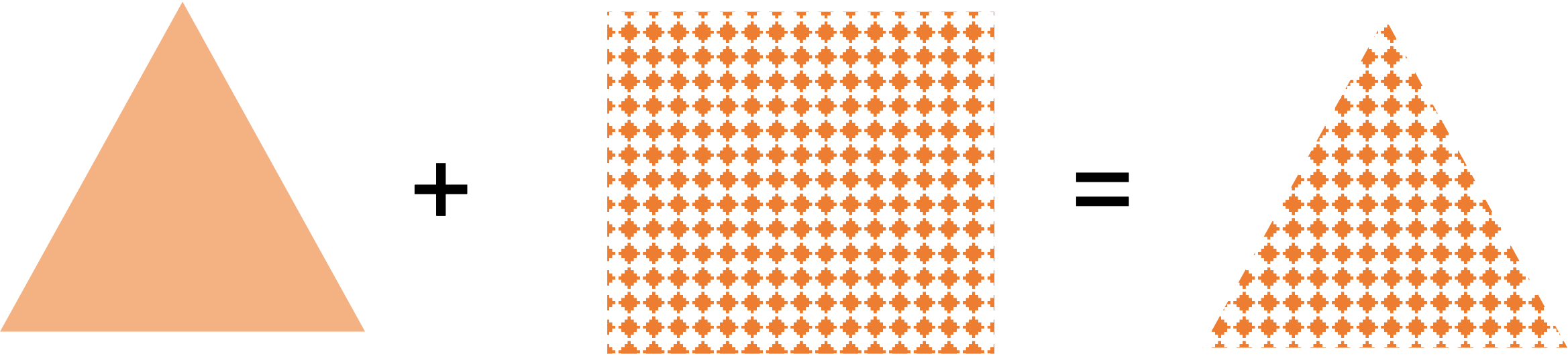
Shape + texture,
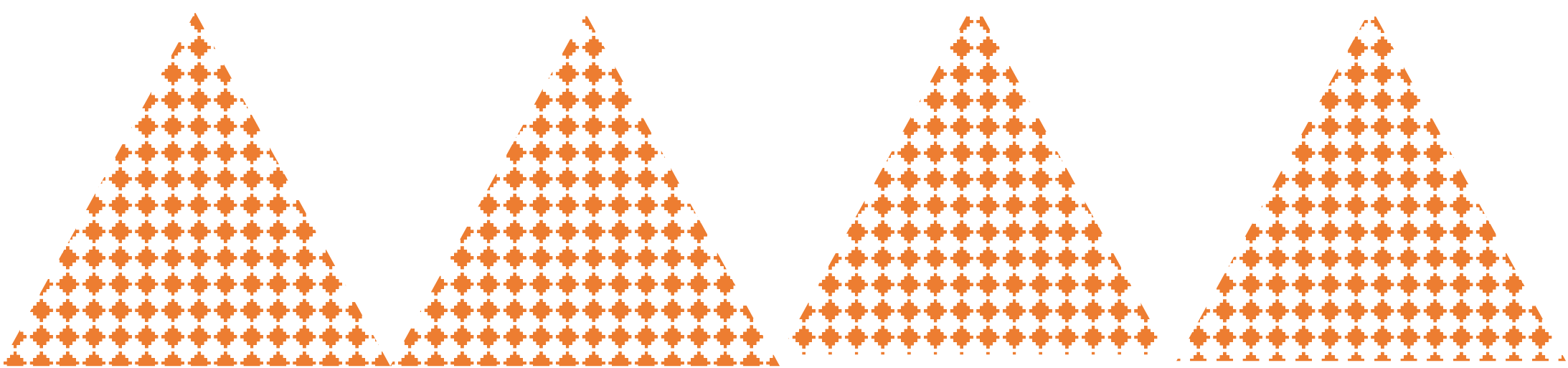
Brush Stroke
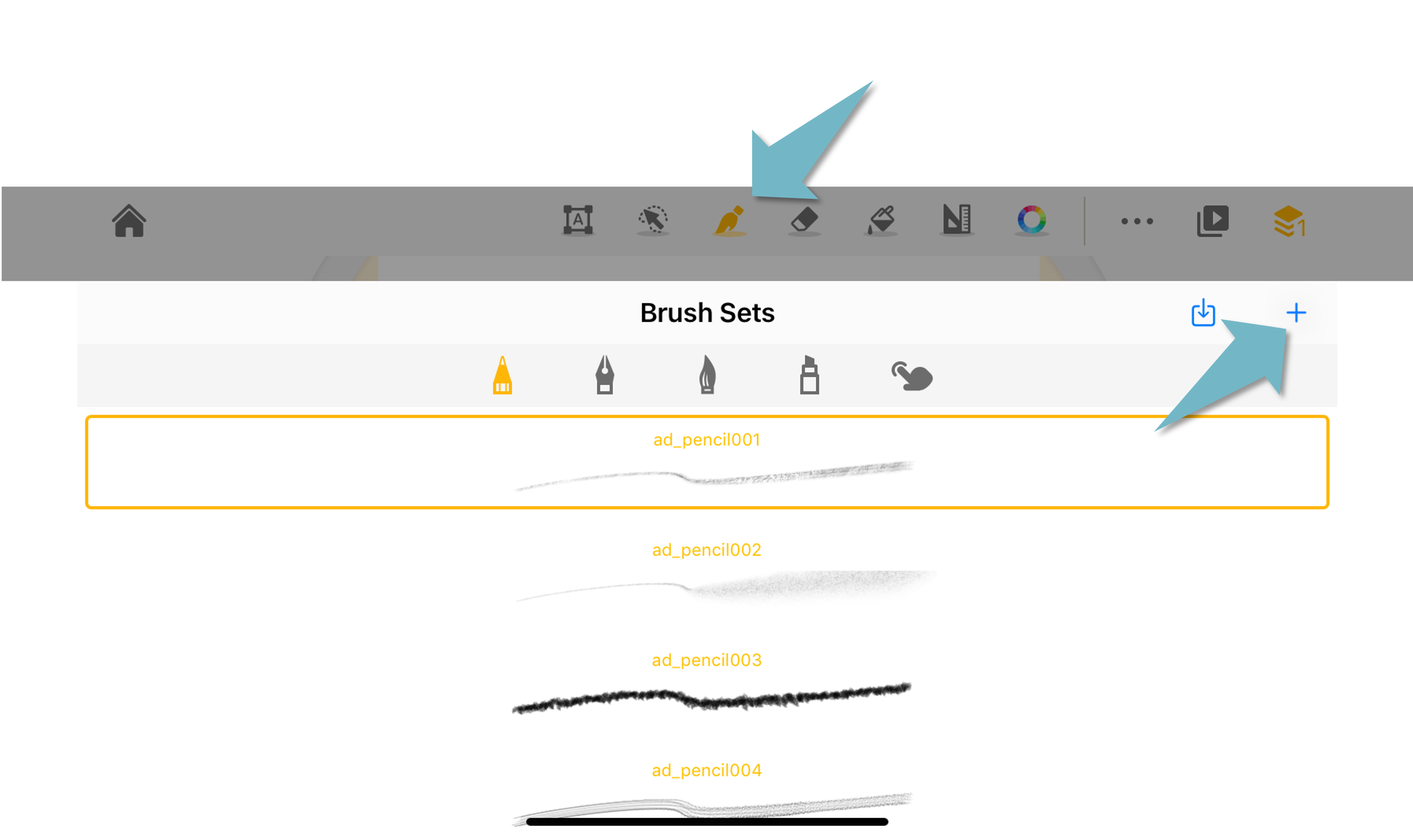
This tutorial explains the function of the brush settings. To start creating and modifying your brushes, tap the "+" button on the brush menu.
Tip Shape
In this section, you can pick a shape as the brush tip, and arrange the shape alignment or flow. Here are some explanations for the terms.
Rotate: rotate the brush tip
Roundness: change the aspect ratio of the tip shape
Spacing: the space between each shape when you draw a line
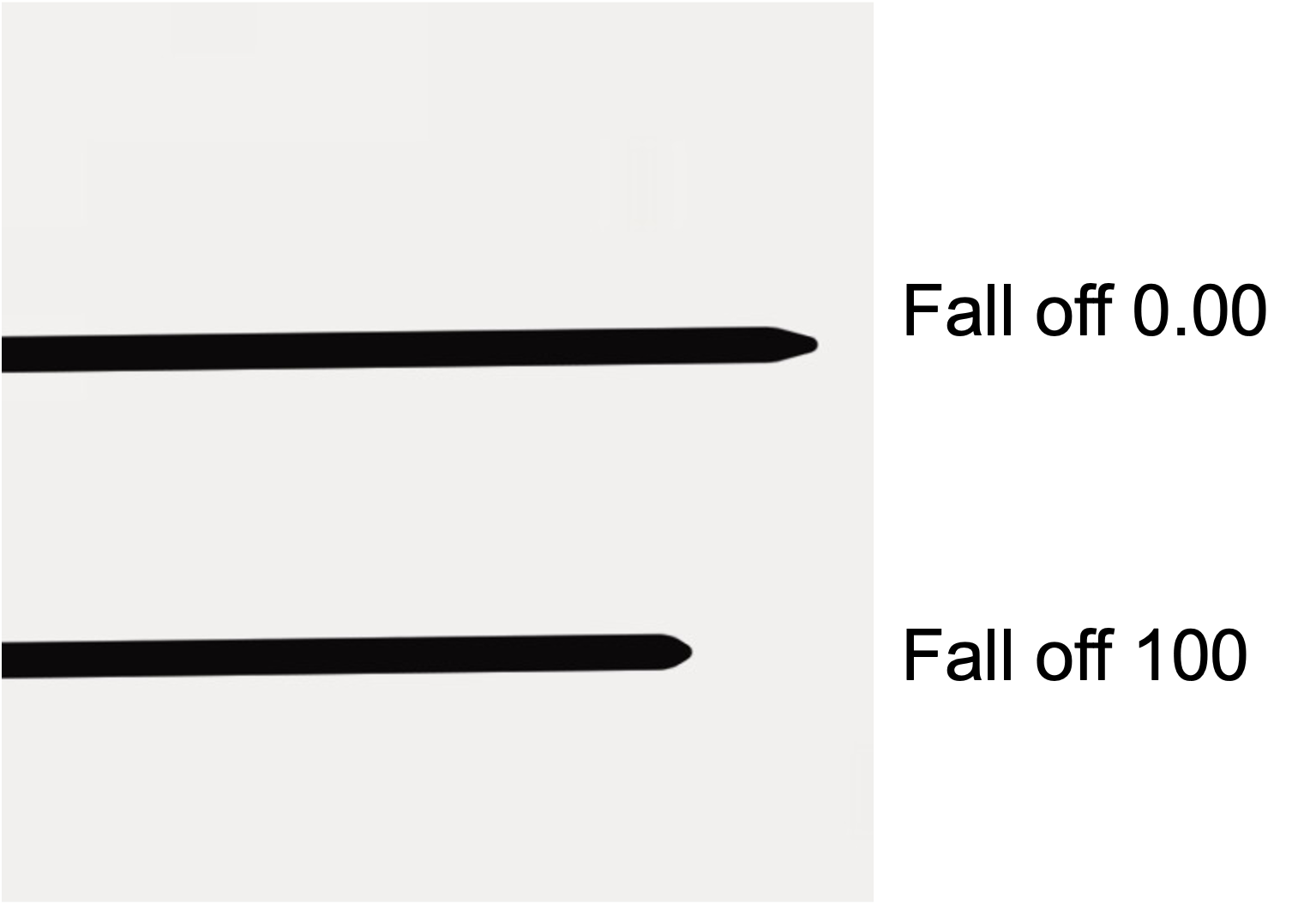
Taper Size: the size of the starting point and the endpoint of a stroke
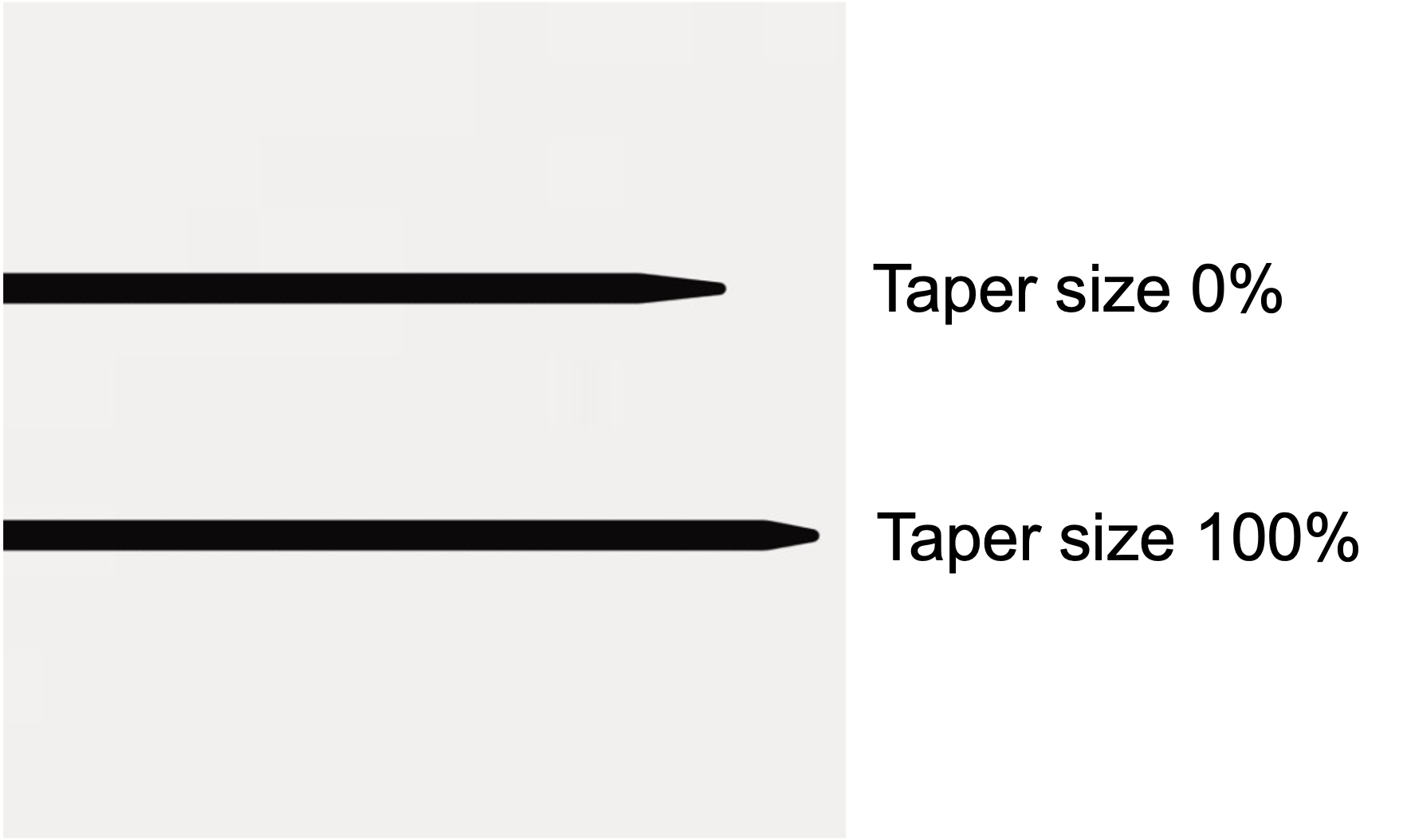
Fall off: the level of the decline of the shape counts as the stroke ends
Stroke Path
The drawing speed and force can change the brush effects. You can set up the responsiveness a brush responds to your drawing speed.
Adjust by Speed - Effect: How much speed can affect your brush sizes, opacity, and tip shape pattern.
Adjust by Speed - Sensitivity: How responsive your brush size, opacity, and tip shape pattern are to the drawing speed.
Brush Behavior: Besides the max. & the min. size, you can also set up the distribution patterns of the brush tip shape.
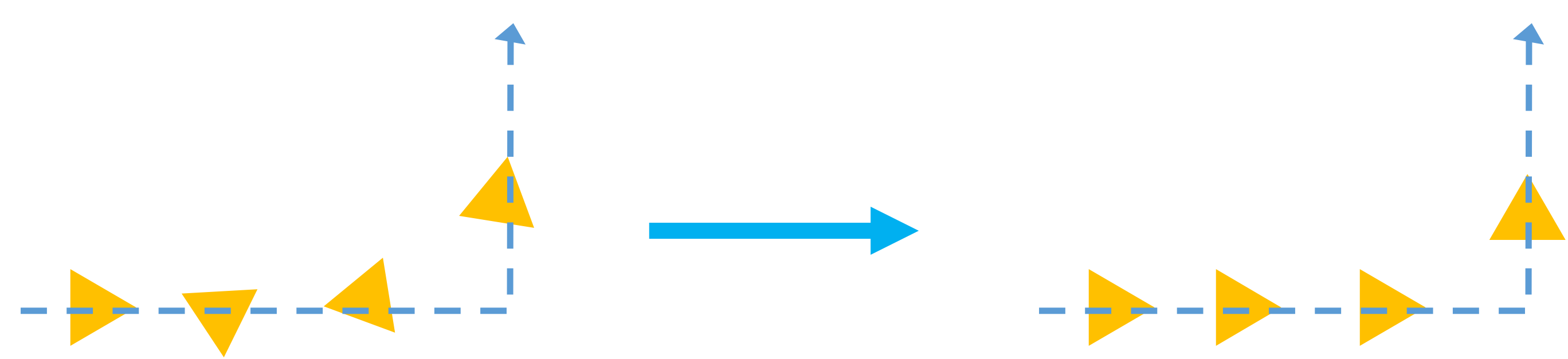
Shape Deviation: the level of brush tip shape deviates from the center. If your brush tip shape indicates a direction, for example, if the brush tip is a triangle), you can also decide whether or not the stroke direction should orient the shapes.
Jitter

Direction
Shape Duplication: Duplicate the shape along the stroke path in a specific area. A higher value will make the stroke a little heavier and thicker.
Stylus Control
The value indicates the impact of stylus pressure and tilt angle on brush stroke. These settings are effective only when you are using a Bluetooth stylus that is pressure sensitive.
Texture
After setting up the brush tip shape, you can further fill in the shape with texture. Import an image as the texture. You can arrange the alignment of the image to change the brush effect.
Updated
Comments
0 comments
Please sign in to leave a comment.