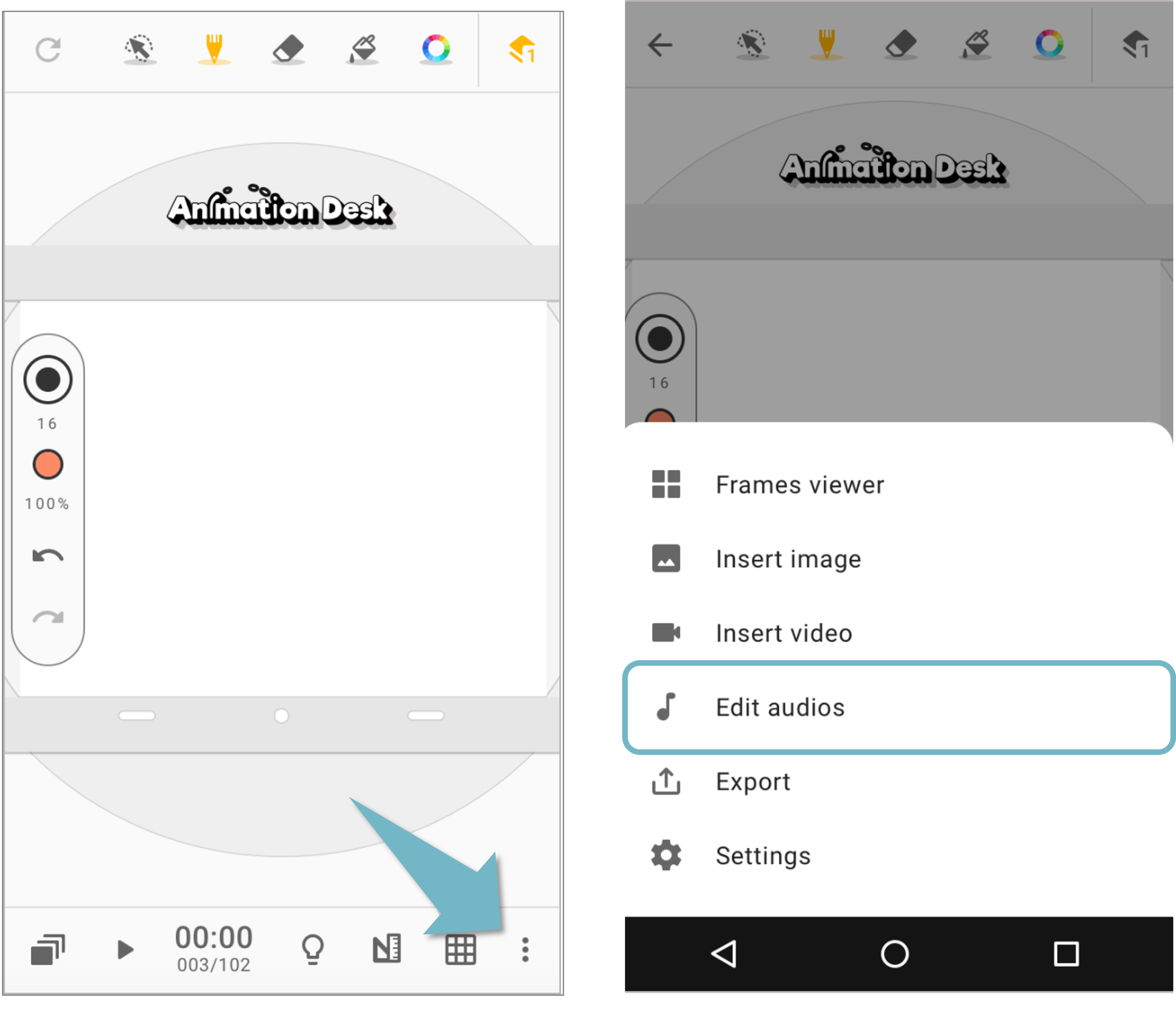
Please make sure you've allowed Animation Desk to access the media and microphone to start importing the audio. Tap the button at the bottom-right corner to enter the audio editing interface.
Interface Overview
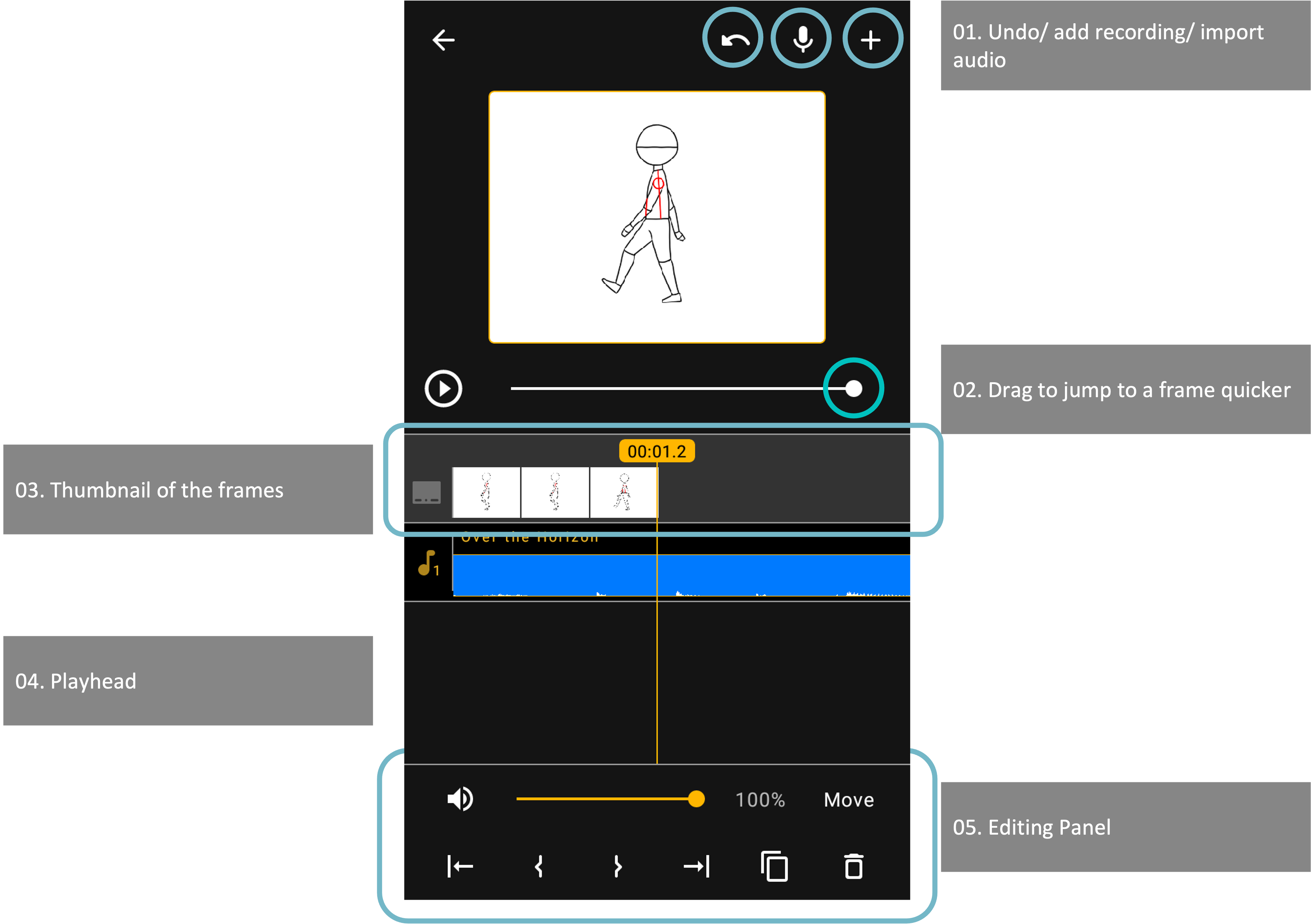
- Left to right: undo, add the recording, import audio
- Drag to jump to a frame quicker
- Thumbnail of the frame
- Playhead
- Editing Panel
How to Move the Audio Clips
Drag the audio clip and move to the point in time where you wish the audio starts playing. If you can move the audio clip, please tap the "Fade" button at the corner to switch between features.
What is a Playhead
The playhead is the vertical line that indicates the time point or frames on the timeline.
To better sync with audio with your animation, you can use the "Playhead" to identify the starting point.
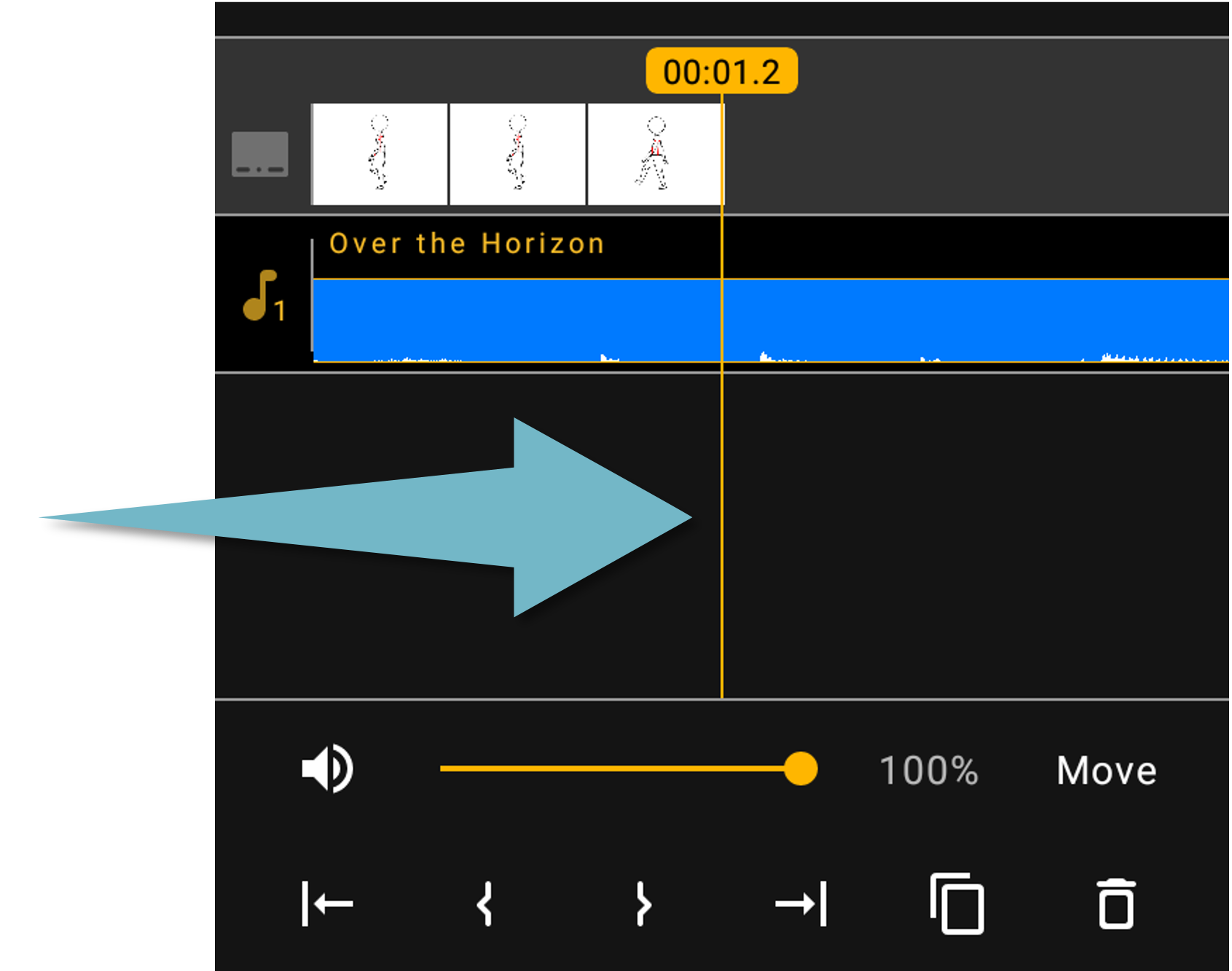
In Point Snap to Playhead
Swipe the frame thumbnail, and make the playhead stop on the time point that your wish to start playing the audio. Tap  , the audio clip will start playing where the playhead locates.
Out Point Snap to Playhead
On the other hand, you can move the playhead to where you wish the audio to stop. Tap  to snap the audio clip.
You can trim or extend the audio. Here is how,
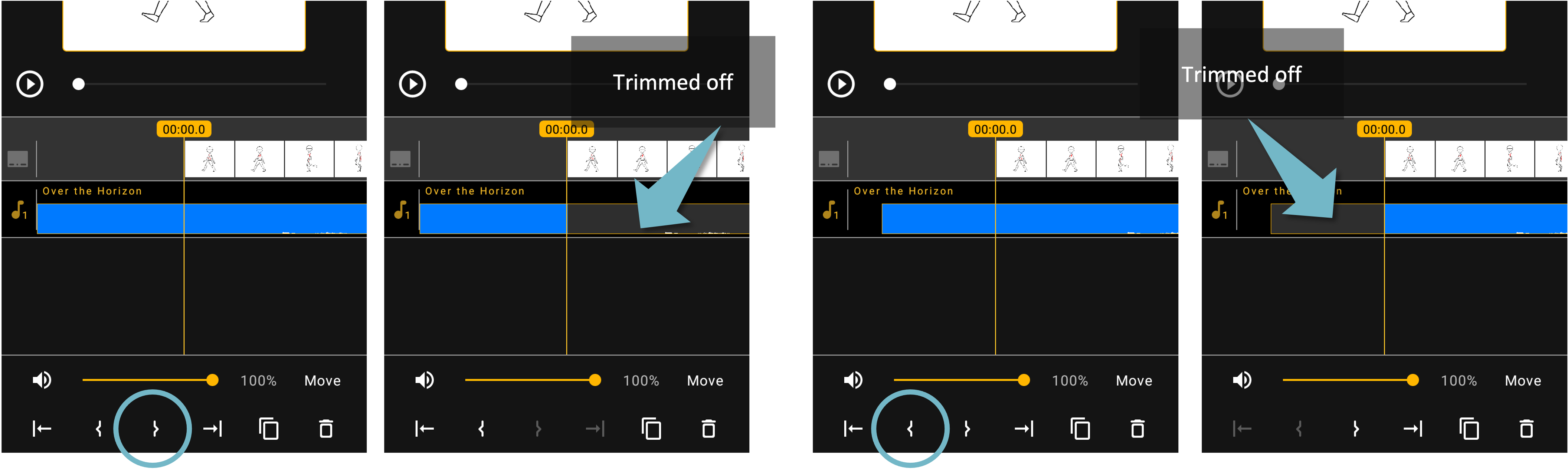
How to Trim the Audio
Move the playhead, tap  to trim the previous audio off. Tap
  to trim the parts after the playhead.
Extend Edits
If there is a gap between the starting point or endpoint of the audio and the playhead, tapping the following buttons will extend the audio clip.
: Extend to left
: Extend to right
Tap the extending button and the app will repeat the audio clip to fill in the gap between the playhead the audio clip.
Updated
Comments
0 comments
Please sign in to leave a comment.