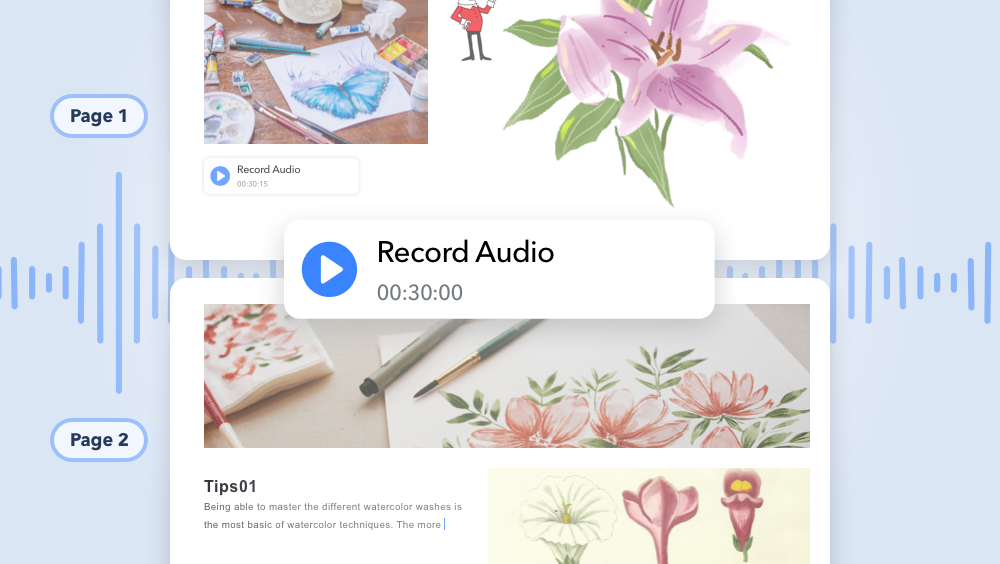
NoteLedge offers the function to record multiple audio clips and add tags to organize audio clips with relevant content. You can continue recording while you take notes or turn pages. This feature is especially useful in speech classes, or to practice giving an oral presentation.
1. Press the "Audio" icon in the editing tab on the bottom to add a recording.
2. Tap on the inserted box to record audio. Make sure NoteLedge has access to your microphone by going to Settings > Privacy > Microphone.
3. Rename an audio clip by pressing once and pressing "Rename."
4. You can also flip pages while continuing your audio recording. If you're on a separate page, you'll see a red recording button on the top. Tap to stop recording.
Updated
Comments
0 comments
Please sign in to leave a comment.