An important part of online notebooks is the scrolling feature. With NoteLedge, scroll vertically to turn pages, scroll to the bottom and release to add a new page, and use the scroll bar to quickly navigate through the notebook and get to the page you're looking for.
1. Scroll up and down to turn pages
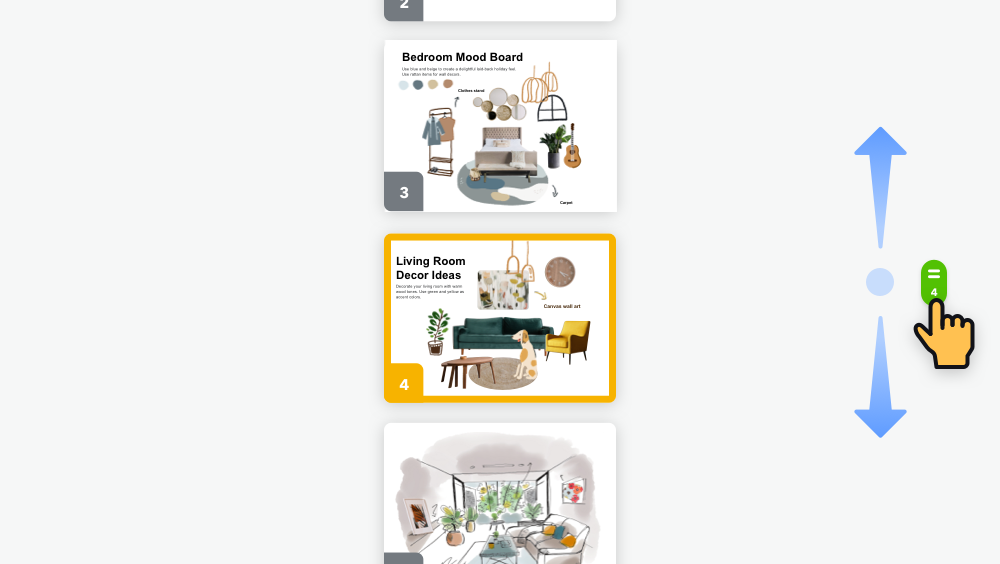
2. Hold the scroll bar on the right to quickly glance through all the pages, and move to the page you're looking for.
3. To add a new page, tap the "+" icon on the top. Alternatively, you can also drag upward on the last page, and release to add a new page.
Updated
Comments
1 comment
How do I do a continuous scroll so I can see two partial continuous pages.
Please sign in to leave a comment.