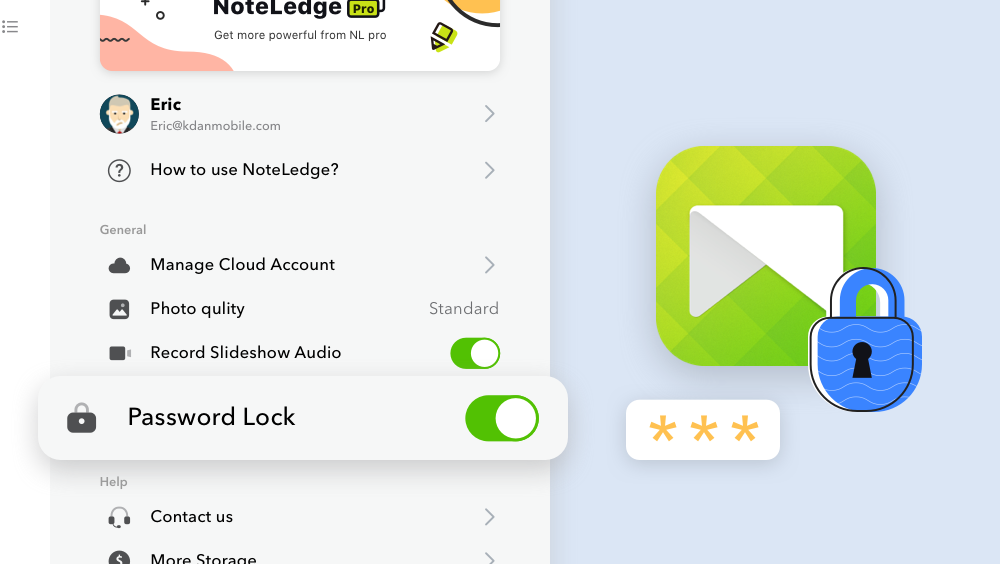
Security is important, no matter what notes you are taking. NoteLedge offers the use of passwords, Touch ID, or Face ID to control access to the app and protect the privacy of all of your notes.
Note: This is a Premium feature; it comes with NoteLedge Pro or a Creativity 365 subscription.
1. Go to settings by pressing the setting icon in the top right-hand corner.
2. Locate the "Password Lock" function, and toggle it on.
3. Set a password that is secure and memorable. Confirm the password, and click "Done."
4. Now, when you open your NoteLedge app, it will prompt you to enter your password.
5. You can also enable Touch ID or Face ID to control access to the app.
6. To disable password lock, simply toggle the "Password Lock" function off.
Updated
Comments
0 comments
Article is closed for comments.