With this premium feature, automatically sync and back up notes to multiple cloud services at once, including Kdan Cloud, iCloud, Dropbox, Google Drive, and OneDrive. Read on to find out how!
Note: This is a Premium feature; it comes with NoteLedge Pro or a Creativity 365 subscription.
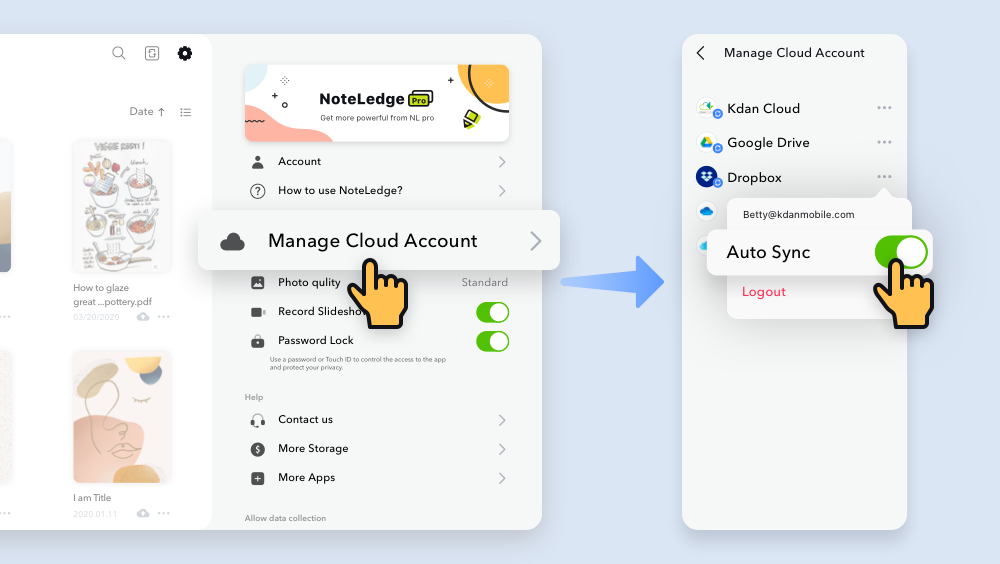
1. Click the Settings icon in the upper right-hand corner of the homepage.
2. Click "Manage Cloud Accounts."
3. If you have logged in to your various Cloud accounts, the three dots icon will show up. NoteLedge supports Kdan Cloud, Google Drive, Dropbox, OneDrive, and iCloud. Click the three dots, and toggle the "Auto-Sync" on.
4. Once you've turned it on, go back to the file manager and tap the cloud icon to check the auto-sync status on each cloud service platform.
Updated
Comments
0 comments
Article is closed for comments.