With any cloud storage application, sharing folders and files is quintessential. Kdan Cloud's sharing settings are simple and effective. Follow the instructions to share files or folders, set up specific permissions, and stop sharing.
You can share a link to a file or folder publicly or with password protection. People who receive the link will be able to view or download the files.
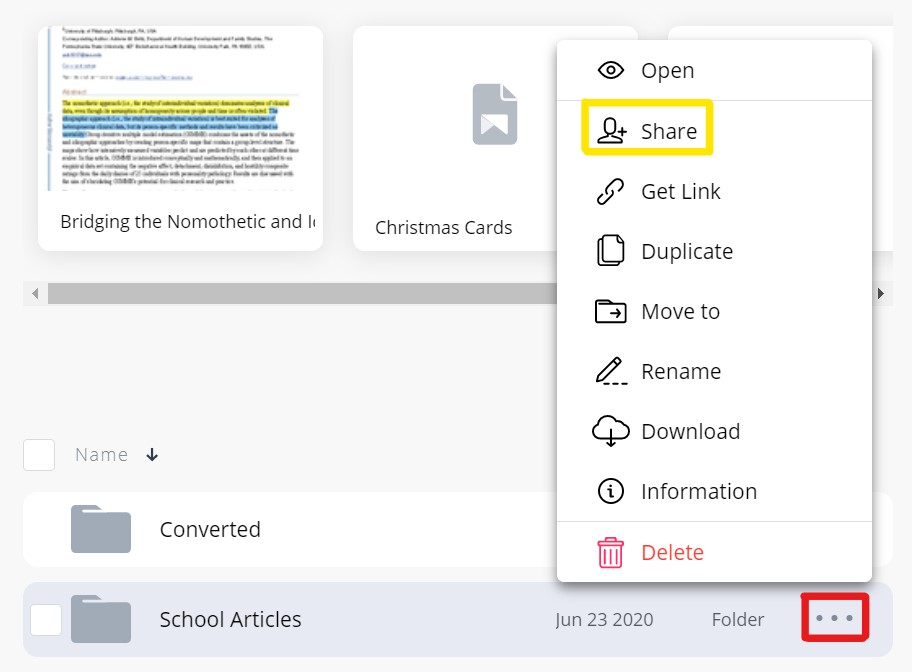
1. Select a file or folder and click "..." next to it. Choose "Share" from the menu.
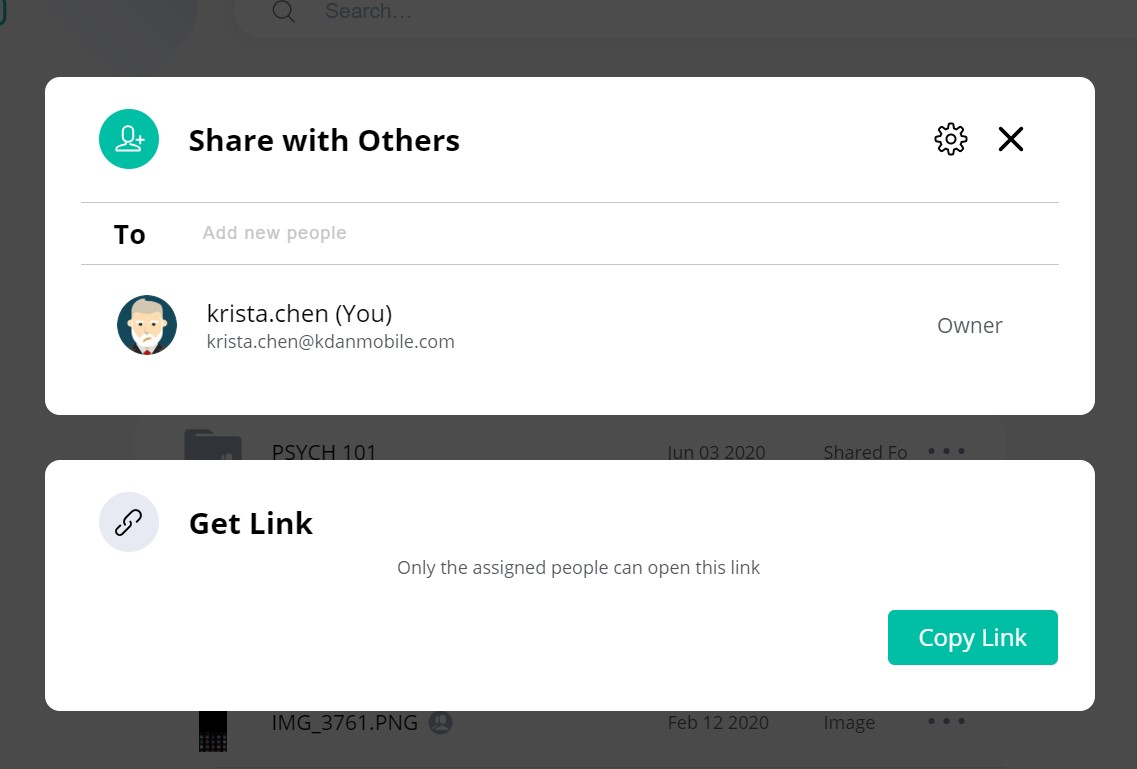
2. You will see this pop-up.
Sharing via Email
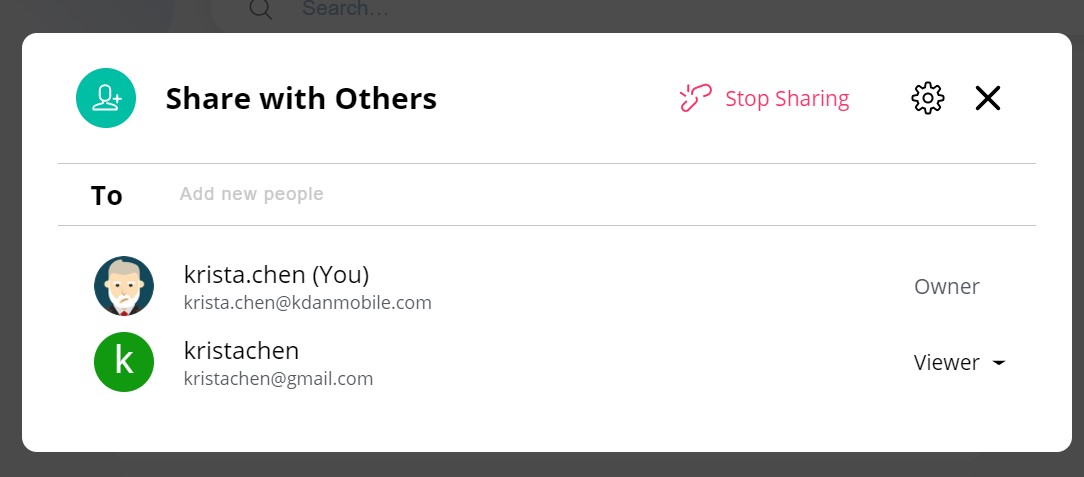
3a. If you would like to invite / share your file via email, simply enter your desired recipients' email(s). You can also attach a message.
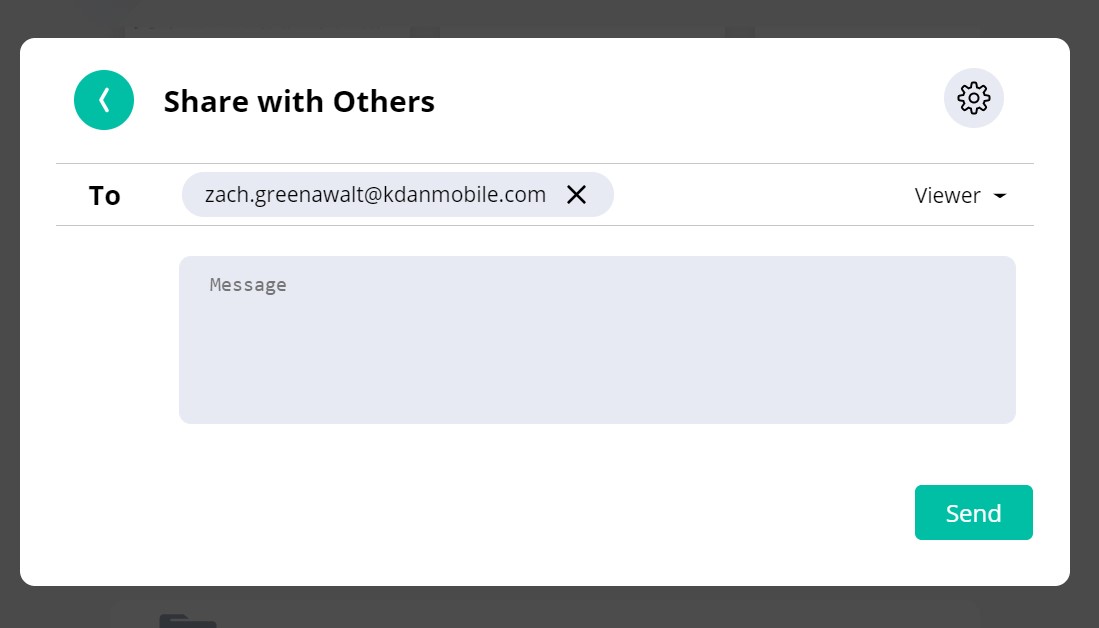
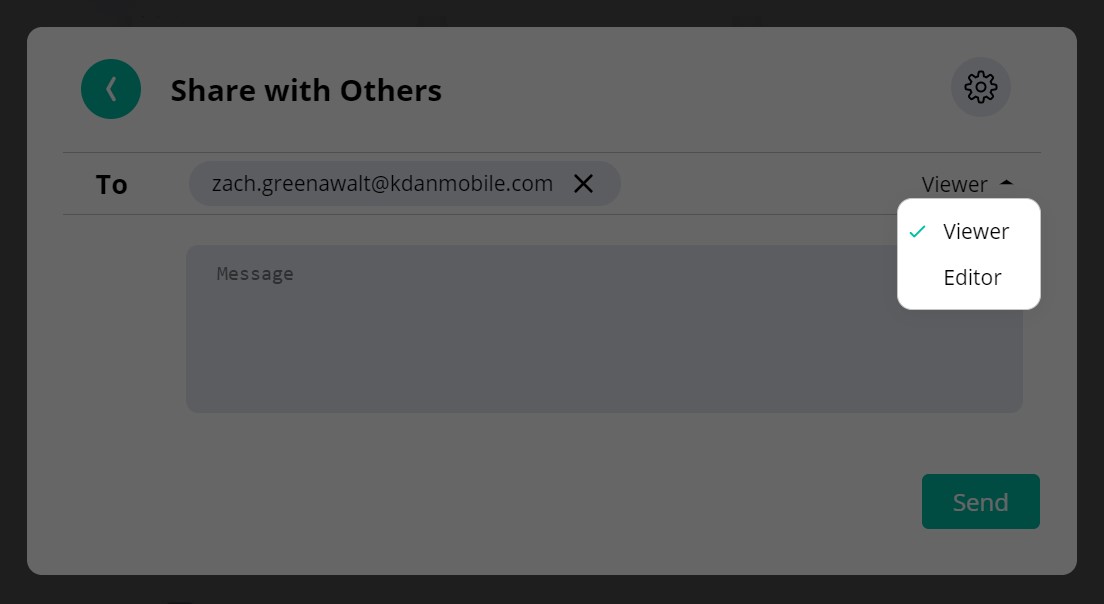
4a. To assign their viewing or editing permissions, click the "Viewer" button and designate whether you would like them to view or edit the file or folder.
Sharing via Link
3b. If you would like to share your file or folder via link, click "Copy Link" to get the link. Then, you can freely send this link to your desired recipients.
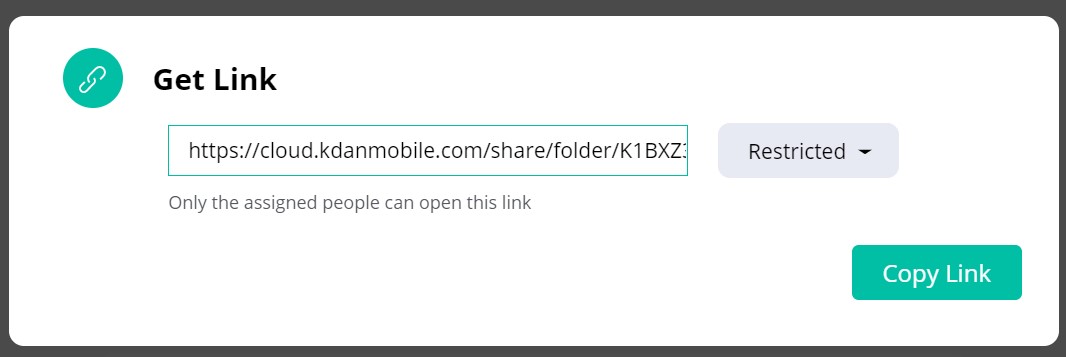
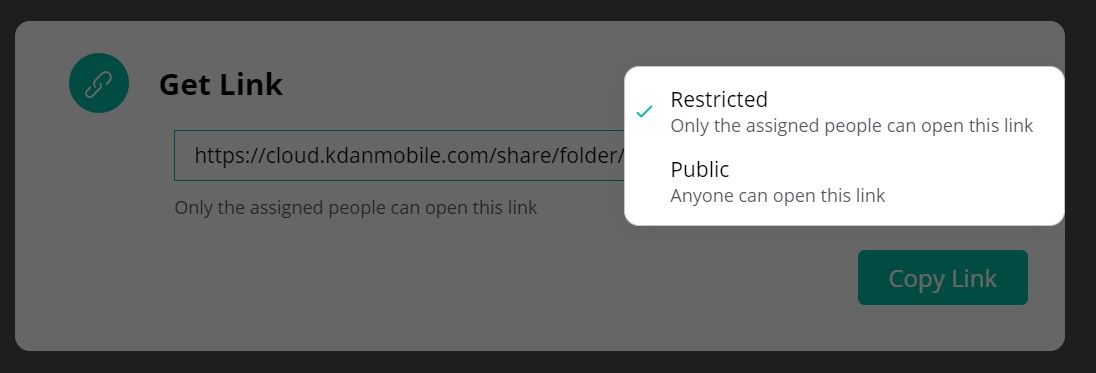
4b. To set up specific sharing permissions, click the "Restricted" button next to the link. You will then be able to designate who is allowed to view the file or folder via the link.
5. If you would like to stop sharing, simply go back into the sharing view and click "Stop Sharing."
Updated
Comments
1 comment
Unlimited Free anything else please
Please sign in to leave a comment.