Hi,
There are so many kinds of love and so many ways to share it! Sending a greeting card has become a popular way to express your feeling to someone special. In this love-filled Valentine month, we’re going to teach you how to make simple yet personalized greeting cards using PDF Reader.
Create a PDF Using Scanner
- Find one postcard as a template.
- Tap “Drawer” on the top left corner and tap “Scanner” to start scanning.
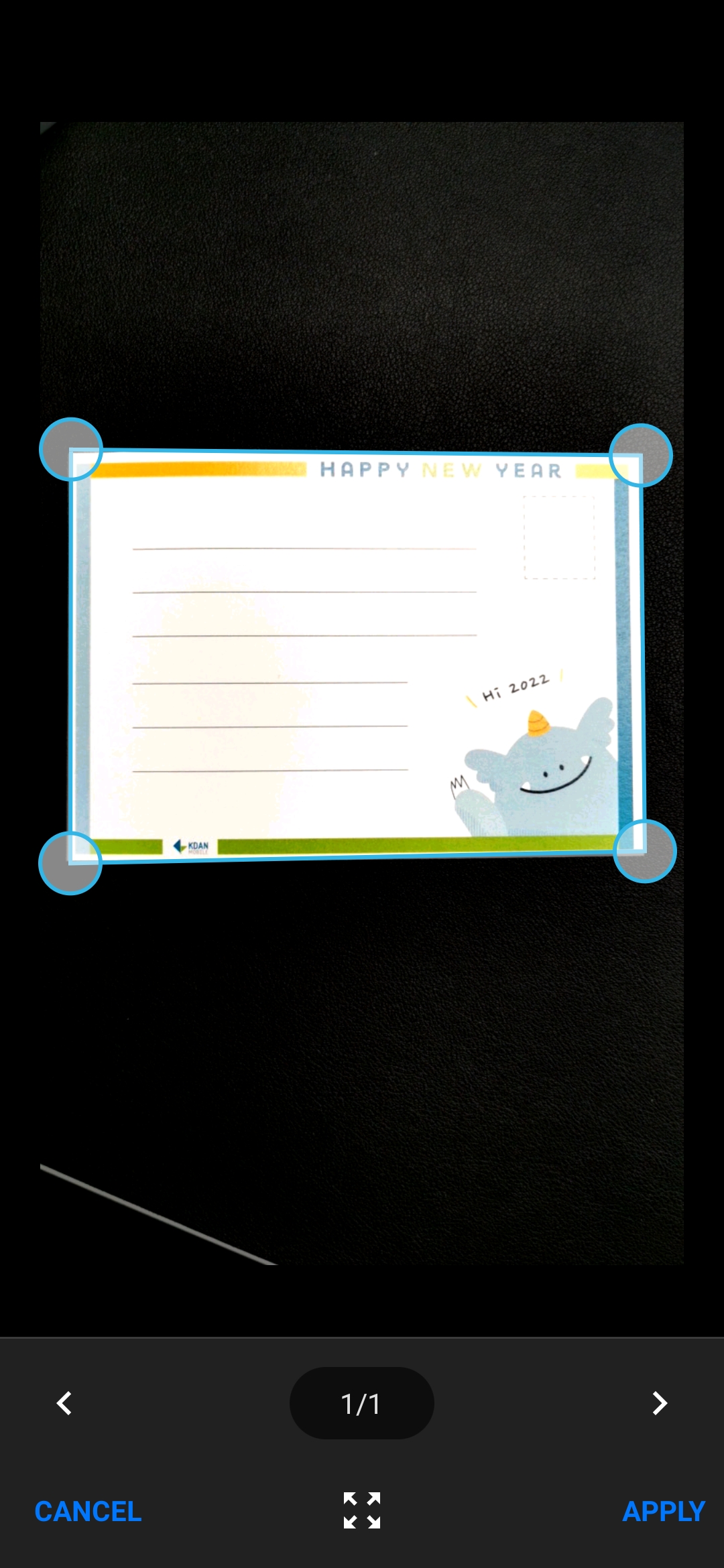
- Remove unwanted parts from the scan using the crop tool.
- Tap the “Share” button and directly open the PDF after conversion (See detailed tutorials here).
Express Your Love with Text Messages
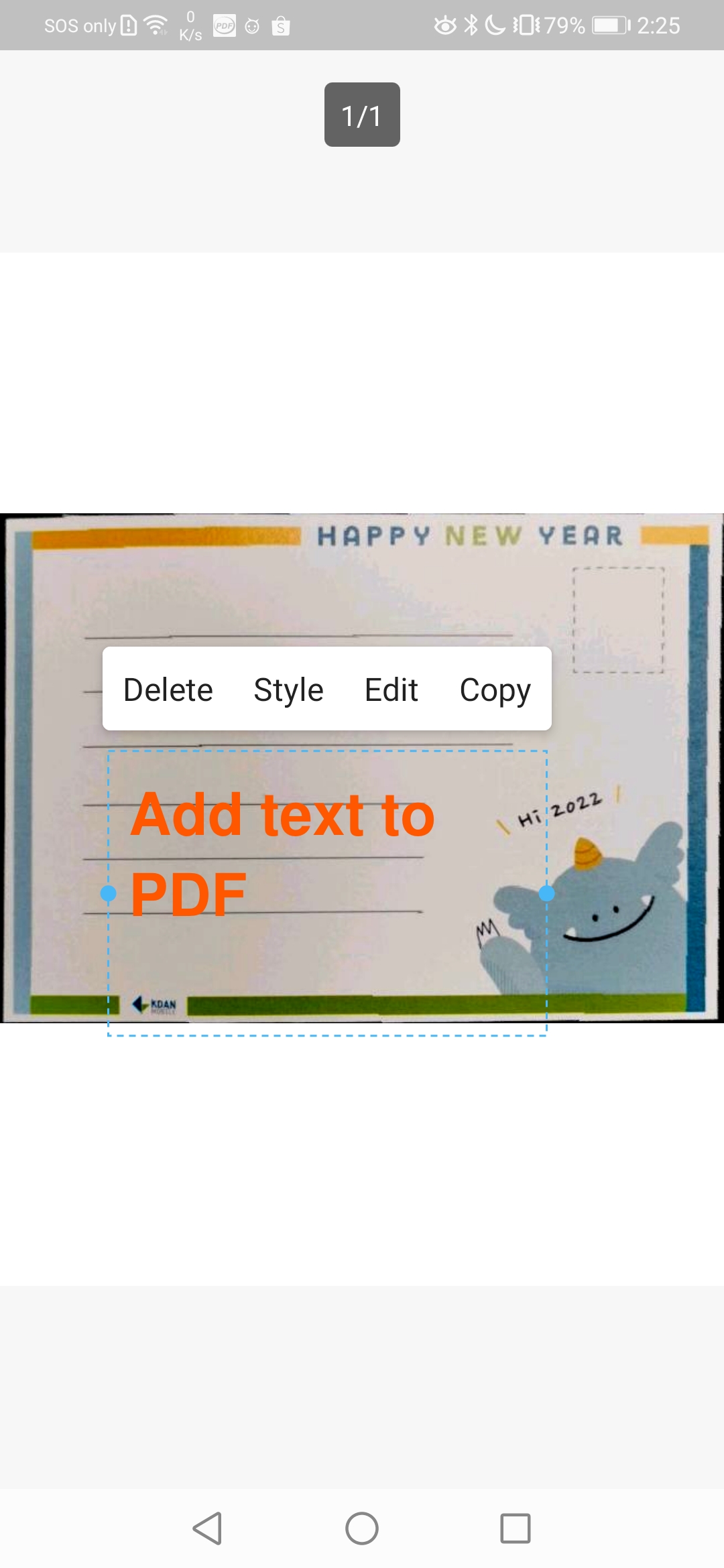
- Tap on the “Text box” tool fom the annotation toolbar.
- Then tap on screen and start typing.
- You can adjust the font, color, or style afterward.
- Drag and relocate the textbox to where you would like it to be (See detailed tutorials here)
Add Your Signature to Make It More Personal
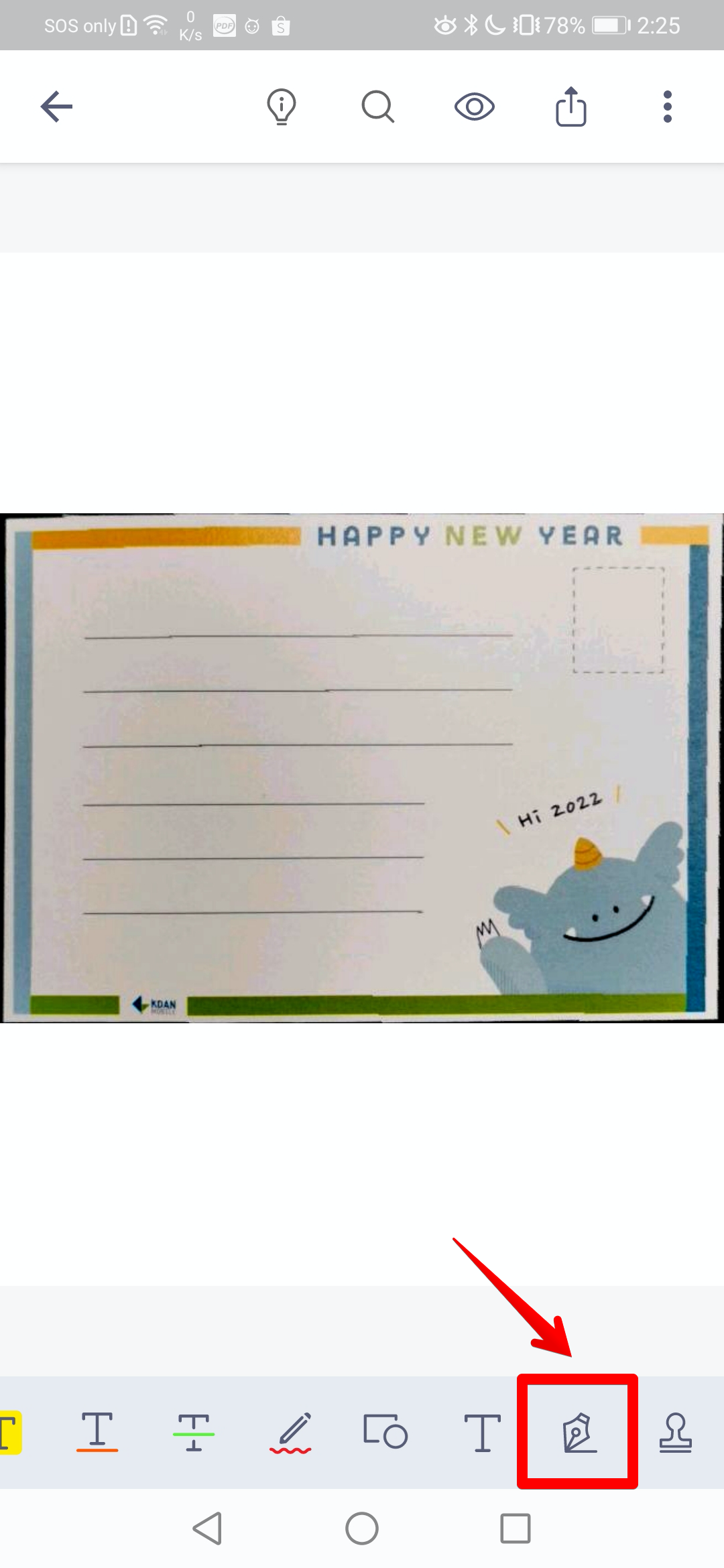
- Tap on the “Signature” tool
- You will see a signature library that stores all of your signatures
- Choose one signature or tap “Create New Signature” to create a new one
- Then tap an area on the page to insert your signature to the eCard (See detailed tutorials here)
Send out Your Wishes
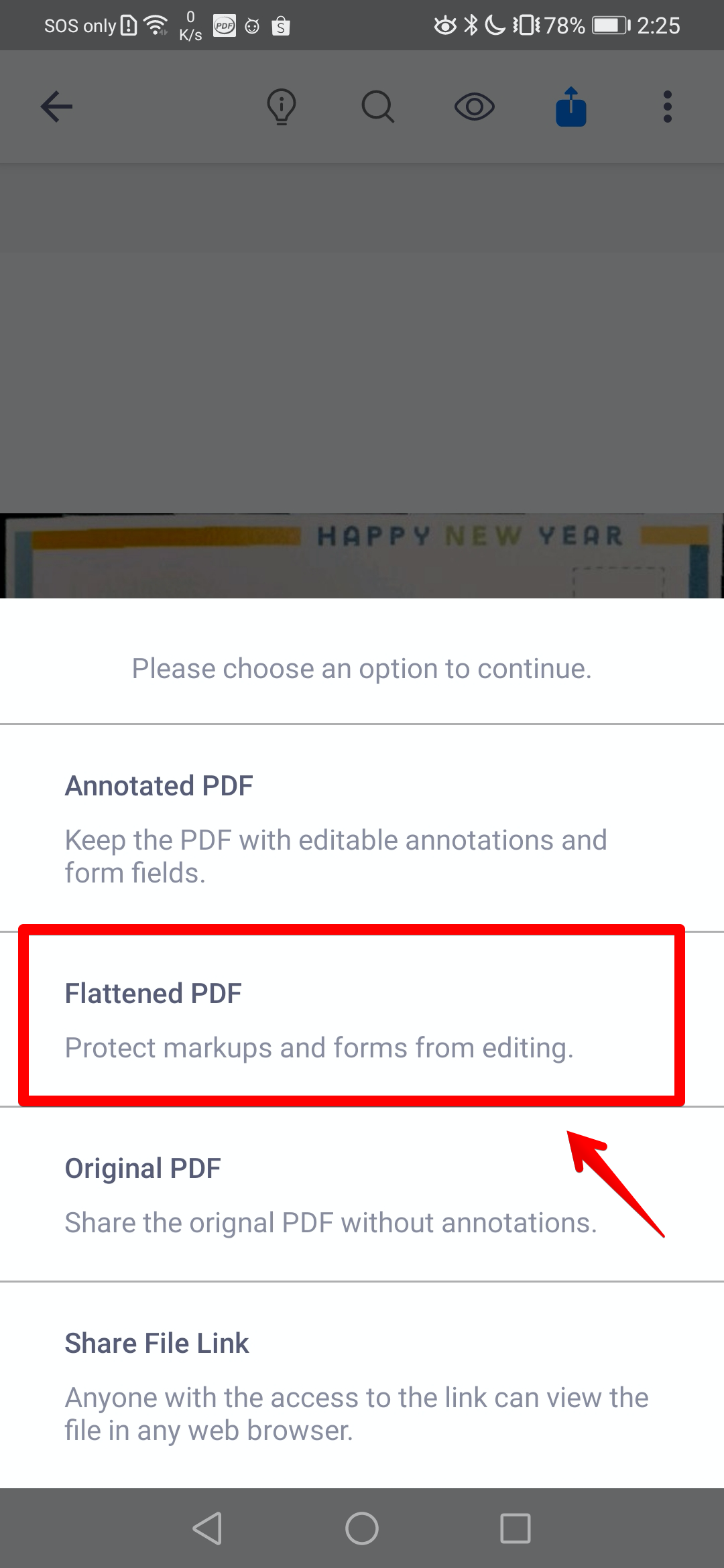
- Tap on the “Share” button on the top menu bar.
- Choose “Flatten PDF” to flatten all annotations to the PDF to prevent it from being edited (See detailed tutorials here)
Updated
Comments
0 comments
Please sign in to leave a comment.