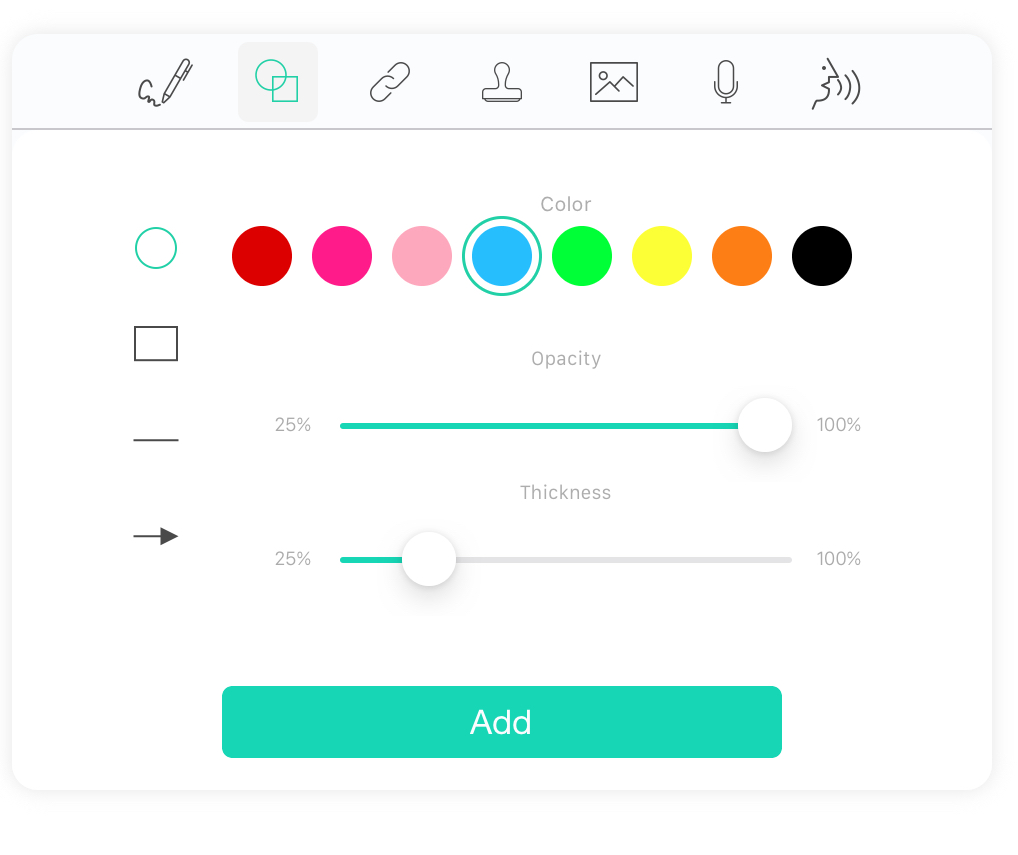
1. Go to the " " on the right side navigation bar, then click the "Shapes" icon
  on the top.
2. You can set the color, shape (circle, square, line, arrow), opacity, and thickness of the markups. Then, click "Add."
3. Tap an area on the page and the preset shape will be immediately added to the spot you just tapped.

4. You can adjust the size and position of the shape by tapping the markup. You can also choose to delete it.

5. Tap the "" icon again to exit shape mode.
Updated
Comments
0 comments
Please sign in to leave a comment.