If you want to share your edited or signed PDF file with others, make sure you share the "flattened copy". Flattened copies will save all your highlights, annotations, and signatures, and make all content unchangeable. So you can share your files freely without worrying it will be altered!
1. Open a PDF file.
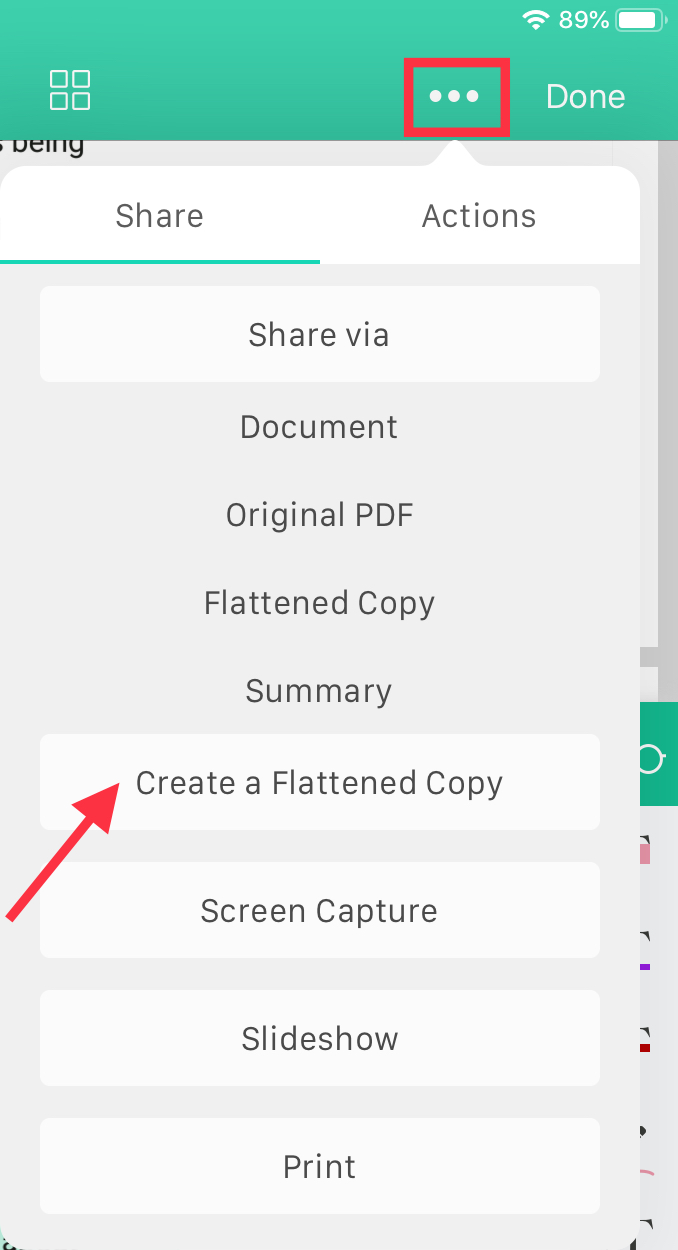
2. Tap the  icon on the top right and you will see a drop-down menu.
3. Select “Create a Flattened Copy” under “Share” to enable the flatten process automatically.
4. The flattened copy will be saved to the files management pages or in the folder your original file is in.
△ Attention: Please notice that the annotations in the flattened copy can no longer be edited or moved. This is designed to protect your important information, such as digital signatures.
Open your Markup and try this feature!
If you are a new user, subscribe to enjoy 30% off and experience the power of smart-reading right away!
Updated
Comments
0 comments
Please sign in to leave a comment.