Want to concentrate on reading? Markup's auto flow function automatically scrolls for you, letting you easily read without touching the screen.
1. Tap the three dots  icon in the upper right corner.
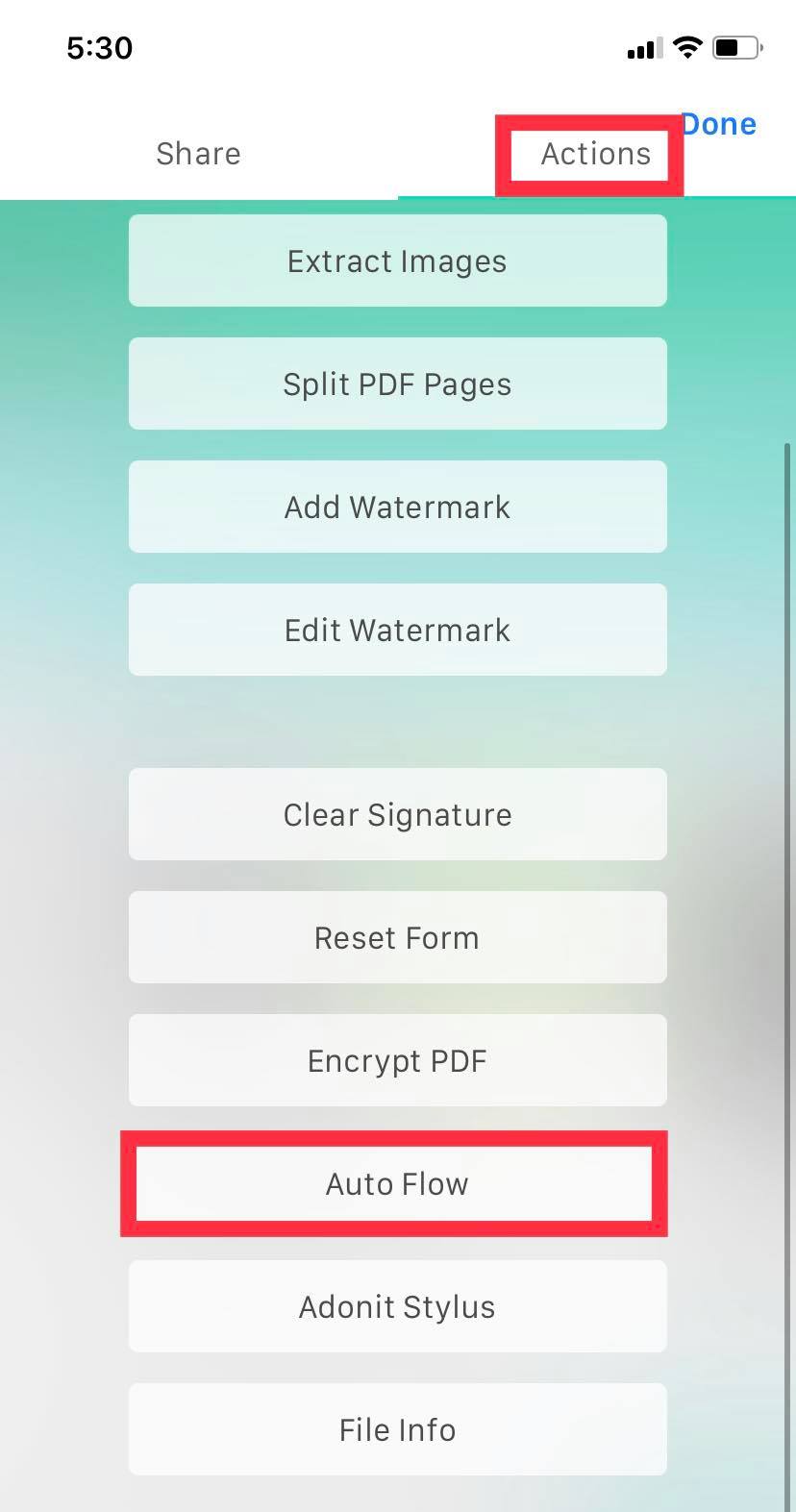
2. Tap "Auto Flow" under “Actions” in the menu.
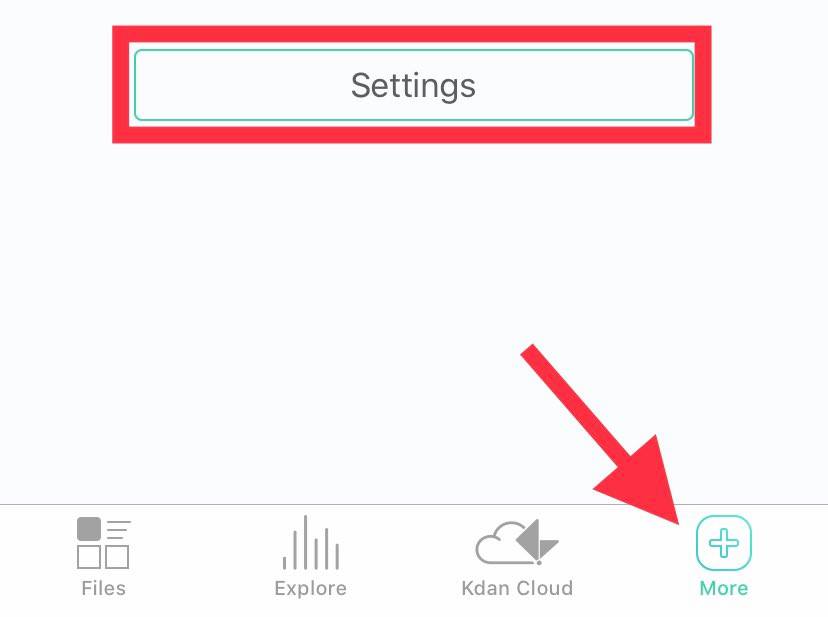
3. You can adjust the speed of Auto Flow by going to "More" then "Settings."
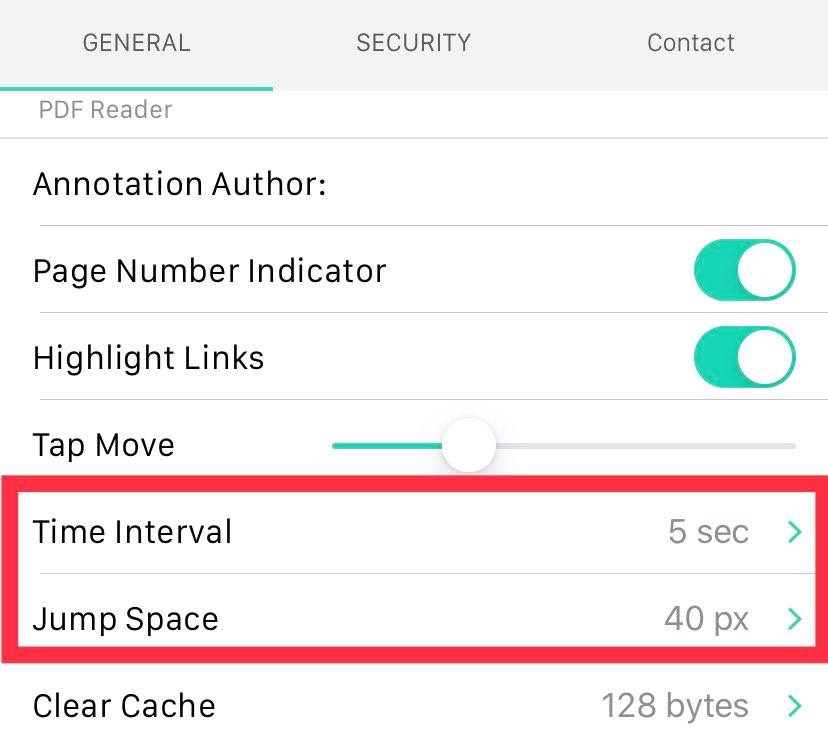
4. Then, adjust time interval (how long between each automatic scroll), and jump space (how much each scroll moves the screen).
Updated
Comments
0 comments
Please sign in to leave a comment.