To share download links, please make sure that you've logged into your Kdan account.
1. Sign in with your Kdan ID from within PDF Reader (Kdan Cloud offers 2 GB of free space when you sign up)
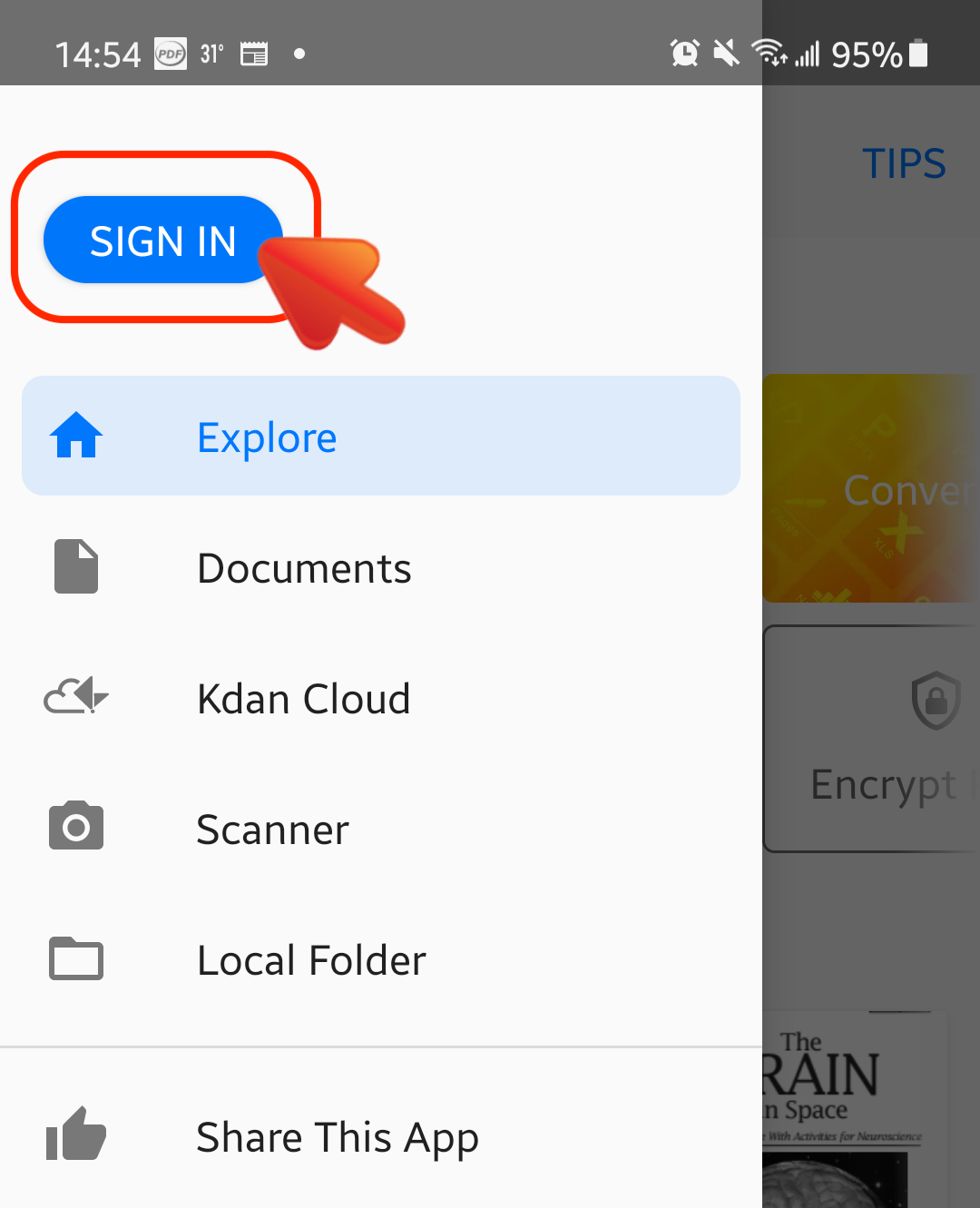
2. To create a link to share your file with others, tap the "Cloud" icon beside the file you want to share.
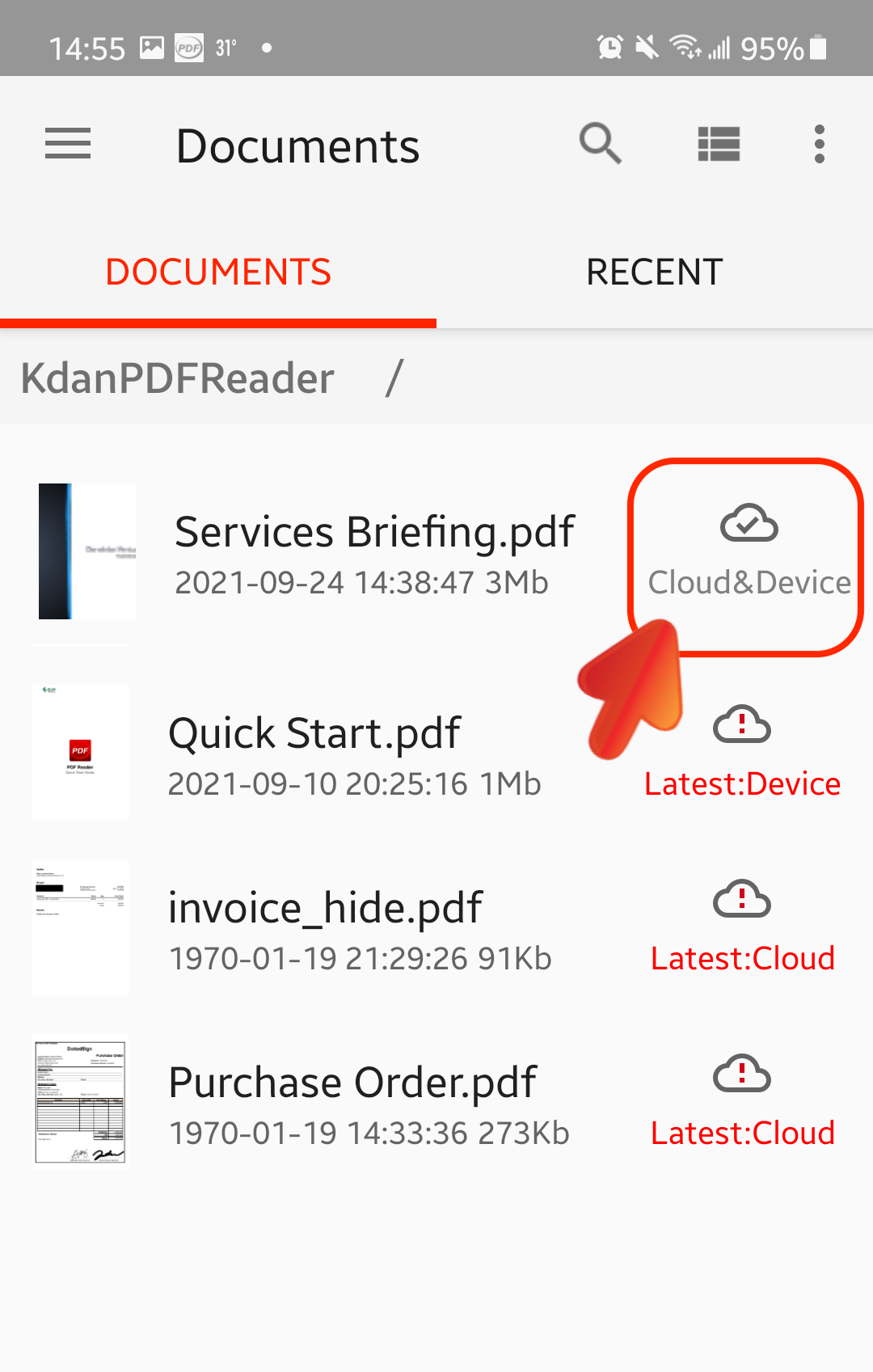
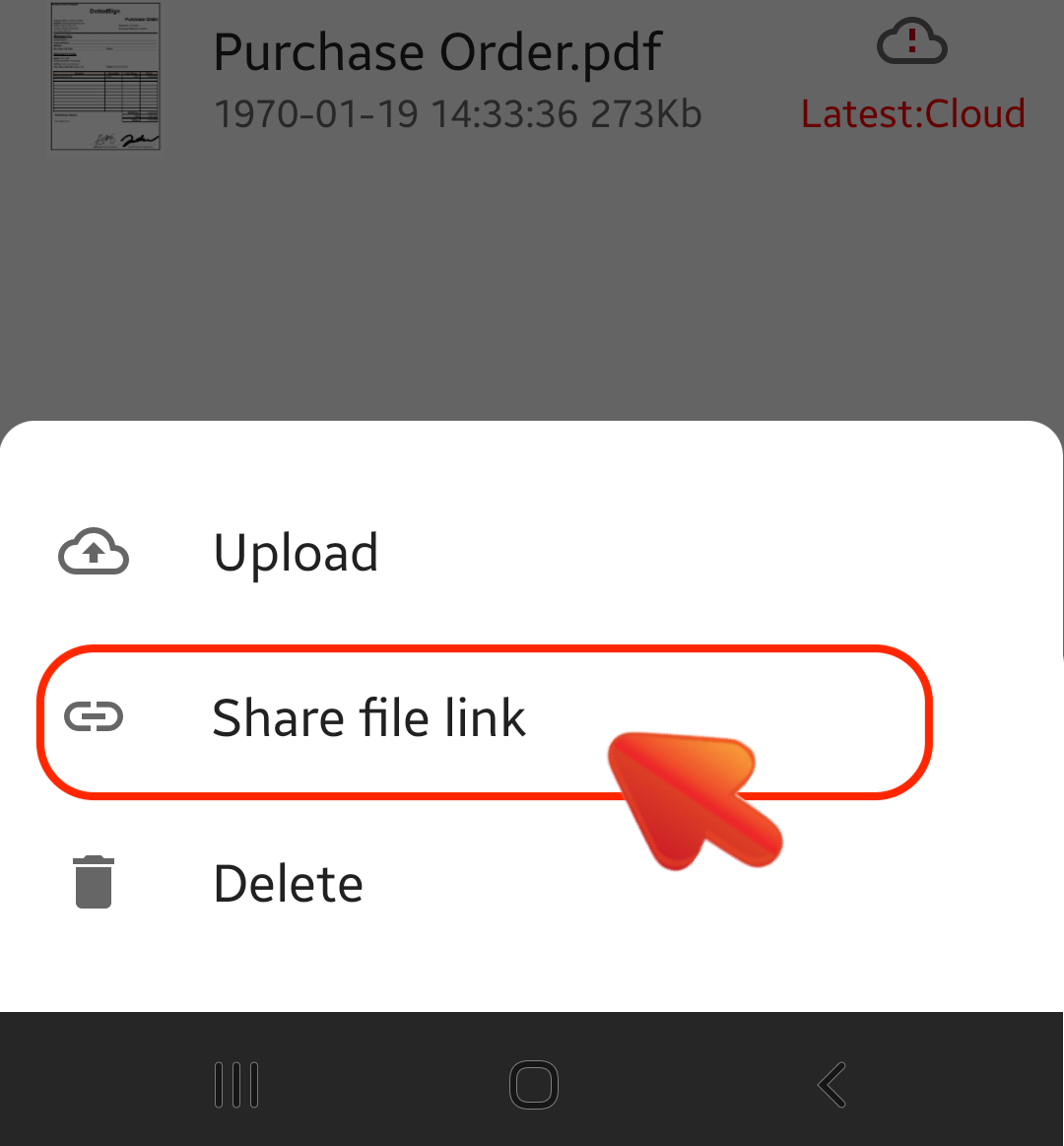
3. Tap on the “Share file link” button, and PDF Reader will generate a download link to the file.
(Note: If you can not see the "Share file link" option from the pop-up yet, you need to upload the file to Kdan Cloud first.)
4. You can choose to send the download link by copying the link, Messages, Mail, etc. Those who receive the link can preview the file(or download it) directly from within the web browser.
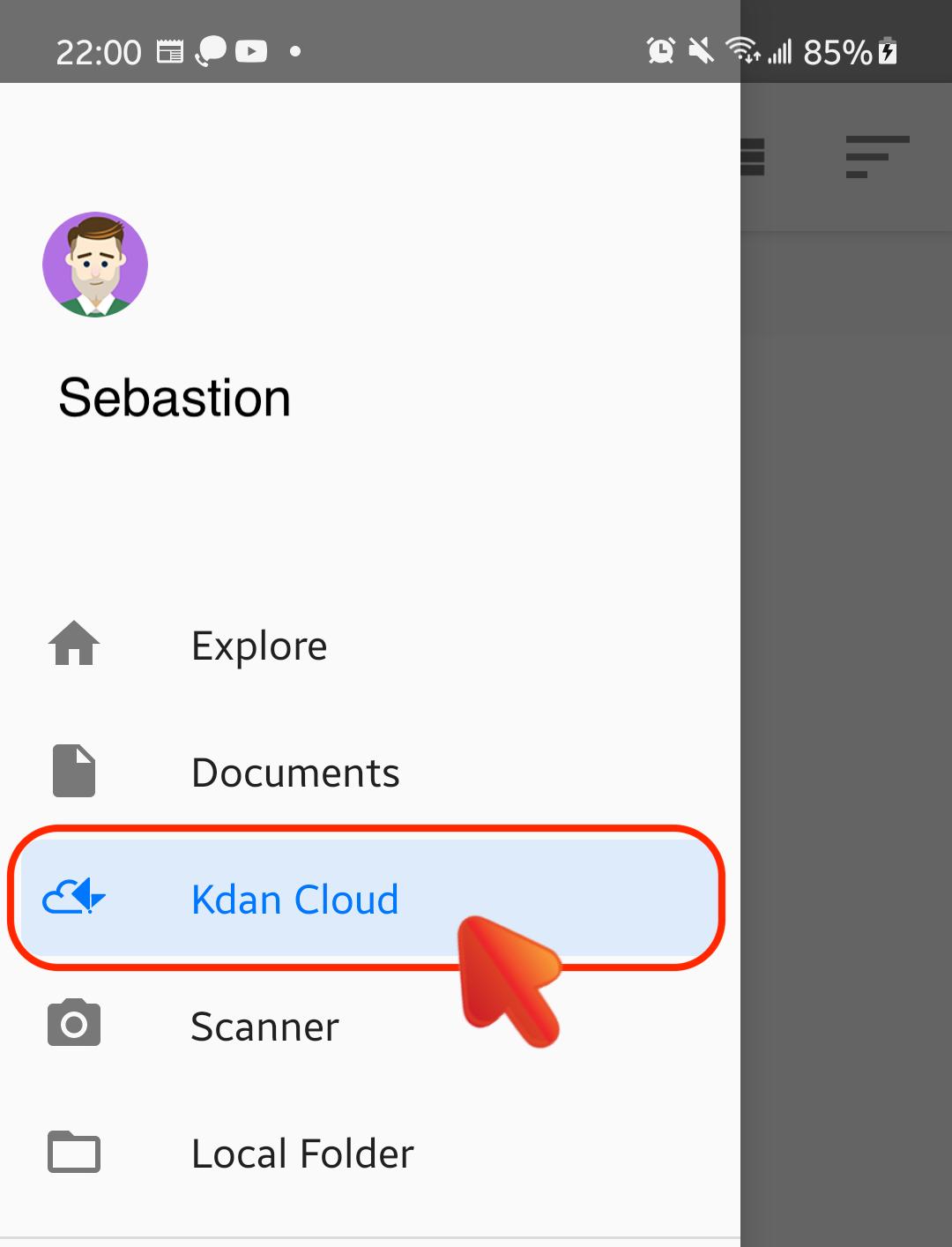
5. Or you can switch to "Kdan Cloud" tab to generate download links to the files on Kdan Cloud directly.
Updated
Comments
6 comments
Good
Thank you! <3
Wonderfully Easy To Do! Thank You for making it so User Friendly and Easy to Access! Love it and Helps Alot Every Day
TERMS & CONDITIONS Payment is due within 15 days Public Bank:Acc no:6821514025 Nama:Darwis Bin Dalle Hp/012-818-8324
Hello Lisa Gale,
Thank you for your lovely comment! We love to hear you are enjoying our app. :D
Hello Darwish Bro Atco,
For cancelation your subscriptions, please refer to the instructions in the following link,
https://support.kdanmobile.com/hc/en-us/articles/236031328-How-do-I-manage-my-subscriptions-
If this is not your case, please feel free to contact us at helpdesk@kdanmobile.com with your invoice and the email address under the purchase, thank you.
Please sign in to leave a comment.