Please make sure that you have signed in with your Kdan ID from within the PDF Reader app.
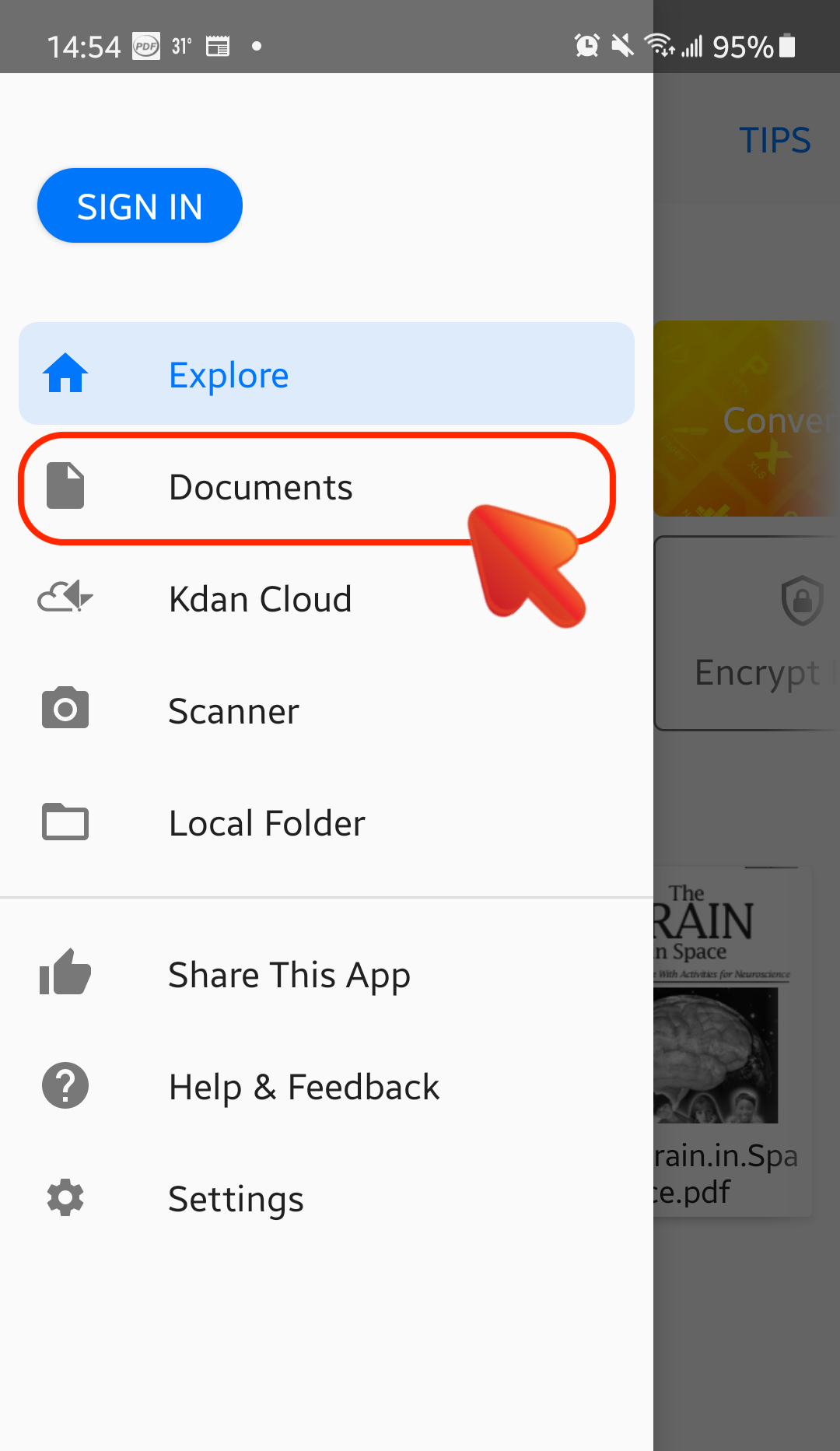
1. Launch PDF Reader app and switch to the "Documents" tab
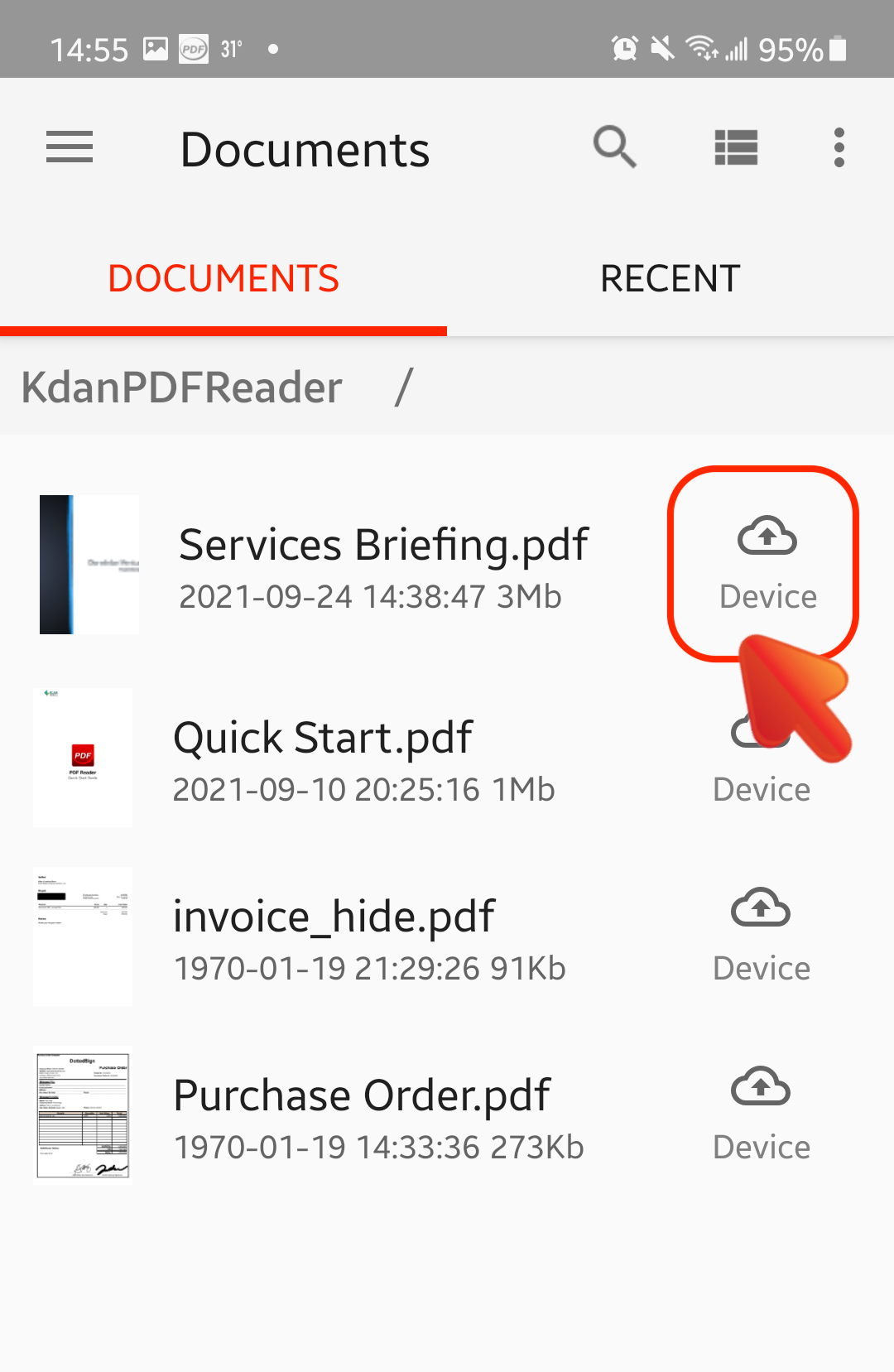
2. Locate your PDF File, and you will see a Cloud icon beside its file name. (If you display files in thumbnails, you will find the dropdown menu under it)
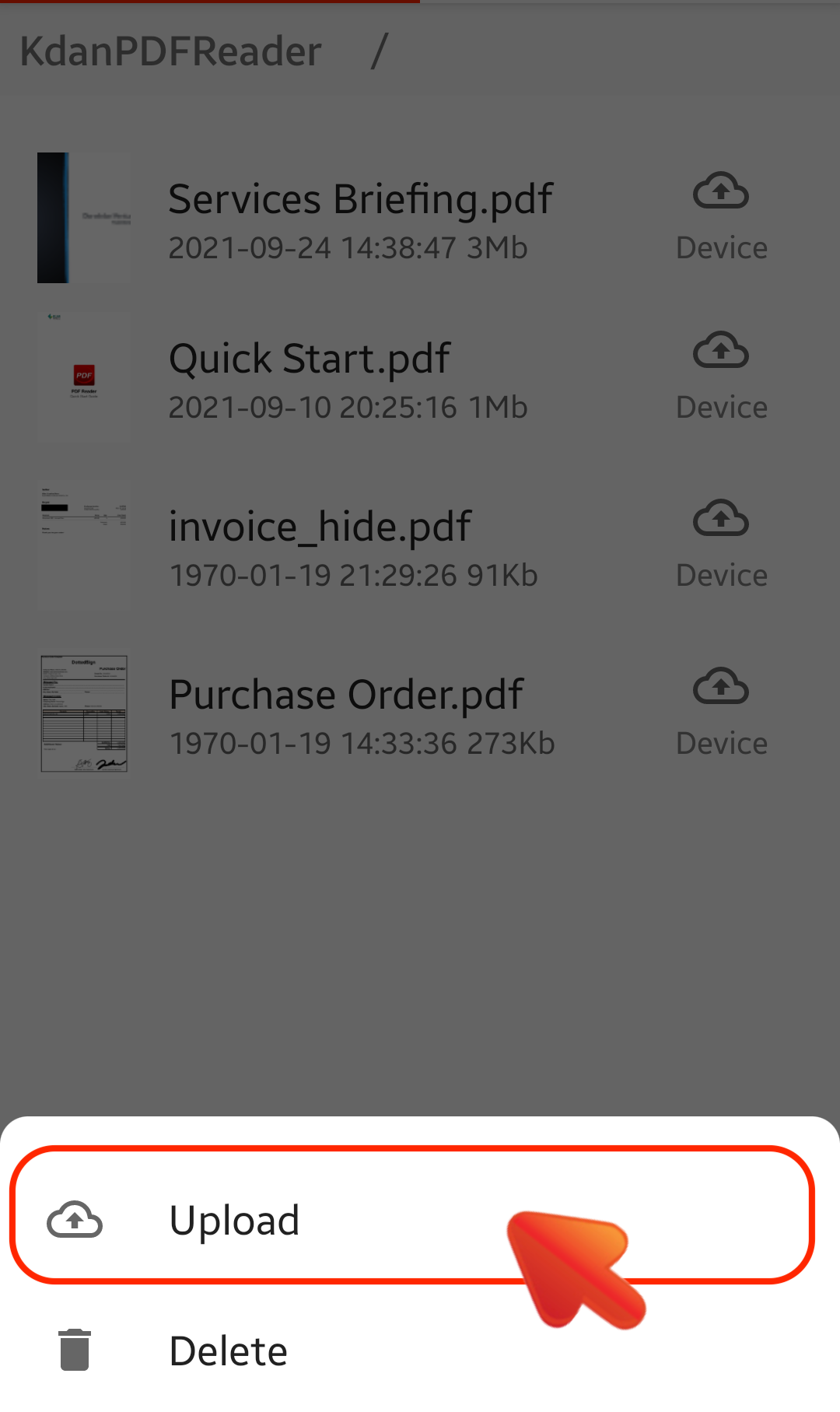
3. Tap the Cloud icon and choose "Upload" to upload the file to Kdan Cloud directly
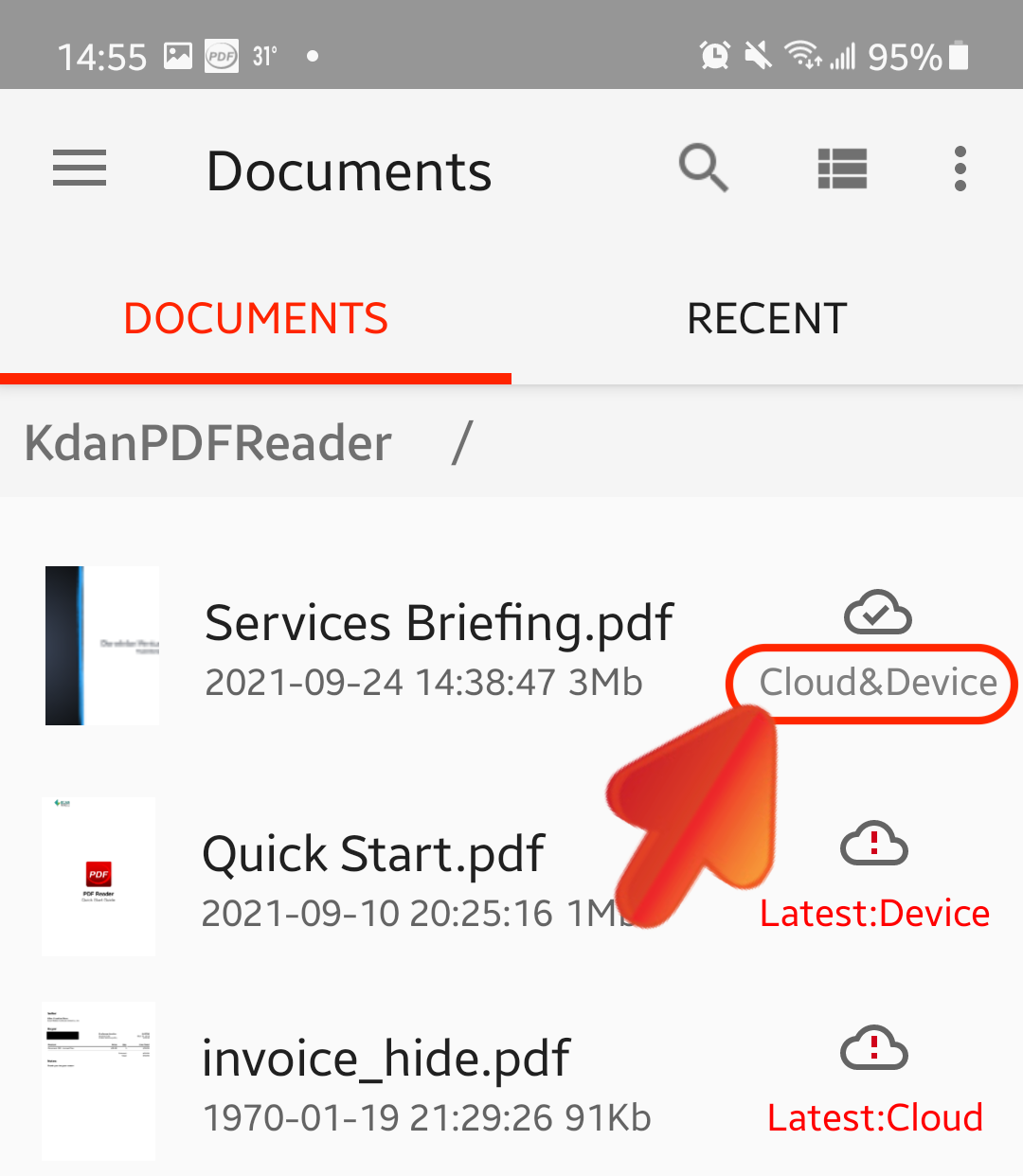
4. Once you see the Cloud icon shows "Cloud & Device", it means the file uploading is completed. You can find the synced files from within the "Kdan Cloud" tab or through the Kdan Cloud web page.
Updated
Comments
4 comments
Good
Chuah ko gia
Misty fincher signs all
Kool app
Please sign in to leave a comment.