1. Tap + in the bottom-right corner of the note and choose table icon.
2. Tap and drag to create a table.
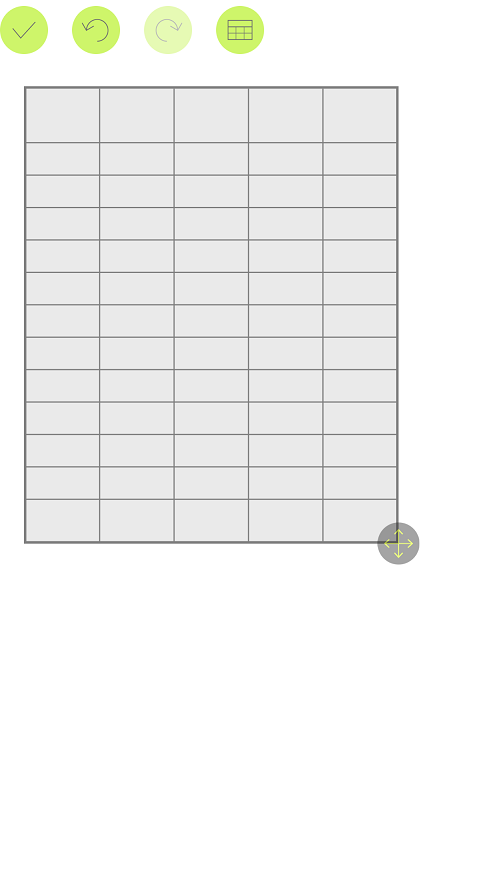
3. To change the size of the table simply drag the arrows to add or delete rows and columns.
4. Click inside the cell to add the text.
5. Click on ⟲ to transpose the rows and columns.
6. Click on √ to add table to your note.
Comments
1 comment
Hi, I downloaded NOTELEDGE in my windows Laptop and I'm trying to create a table but in my app there isn't option to do this. In the bottom right corner only there are 3 points and inside there are this options: Add new white page, remove current page, adjust screen, stylus, share, double page. clean page and template
Could you help me?
Thank you
Please sign in to leave a comment.