You can duplicate, delete, repeat animation frames in the timeline or the frame viewer.
Using the Timeline
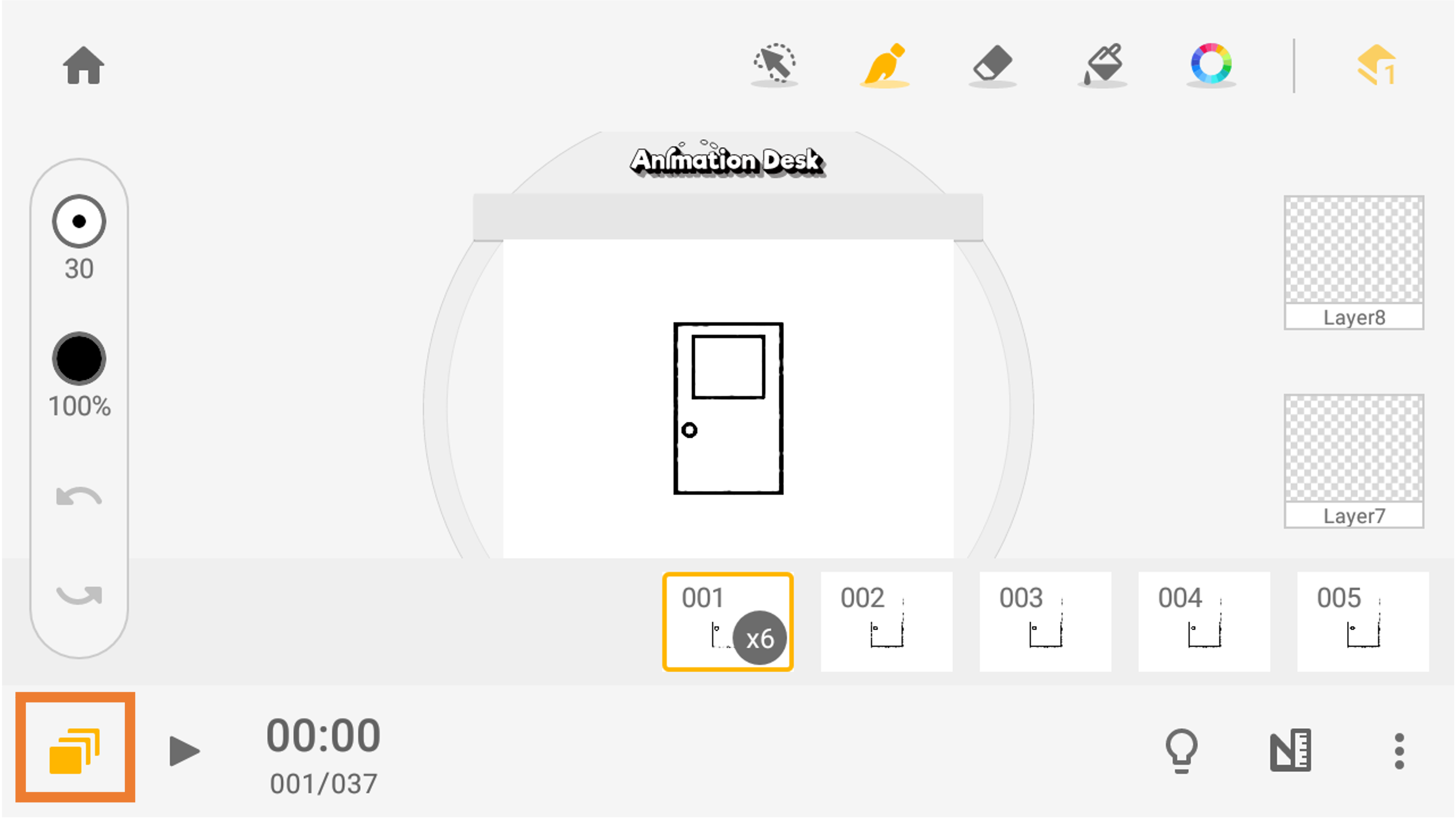
1. Click the "Timeline" icon at the bottom of the toolbar to expand or hide the frame timeline.
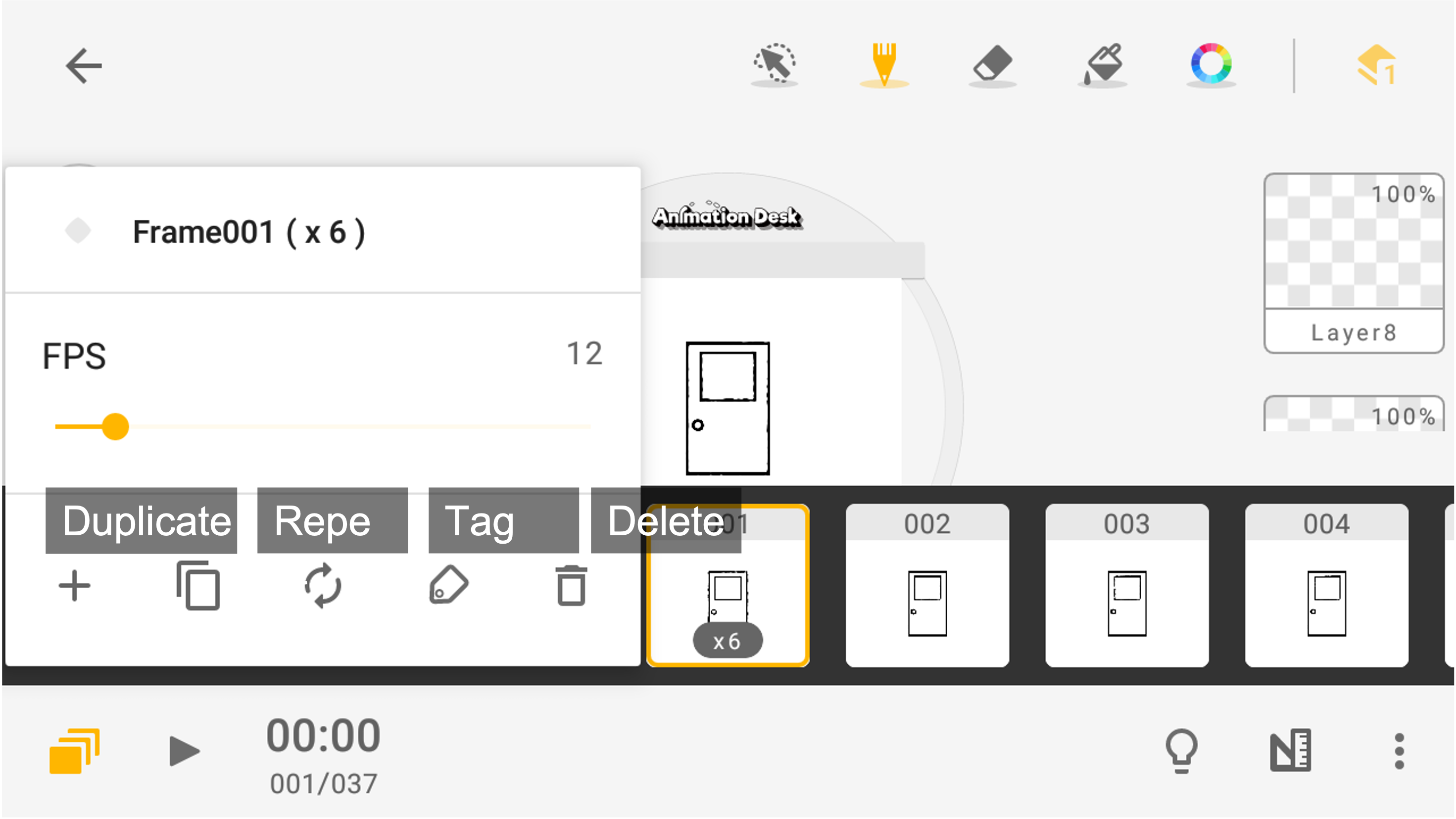
2. Click any frame on the timeline to copy, repeat, tag, or delete it.
Using the Frame Viewer
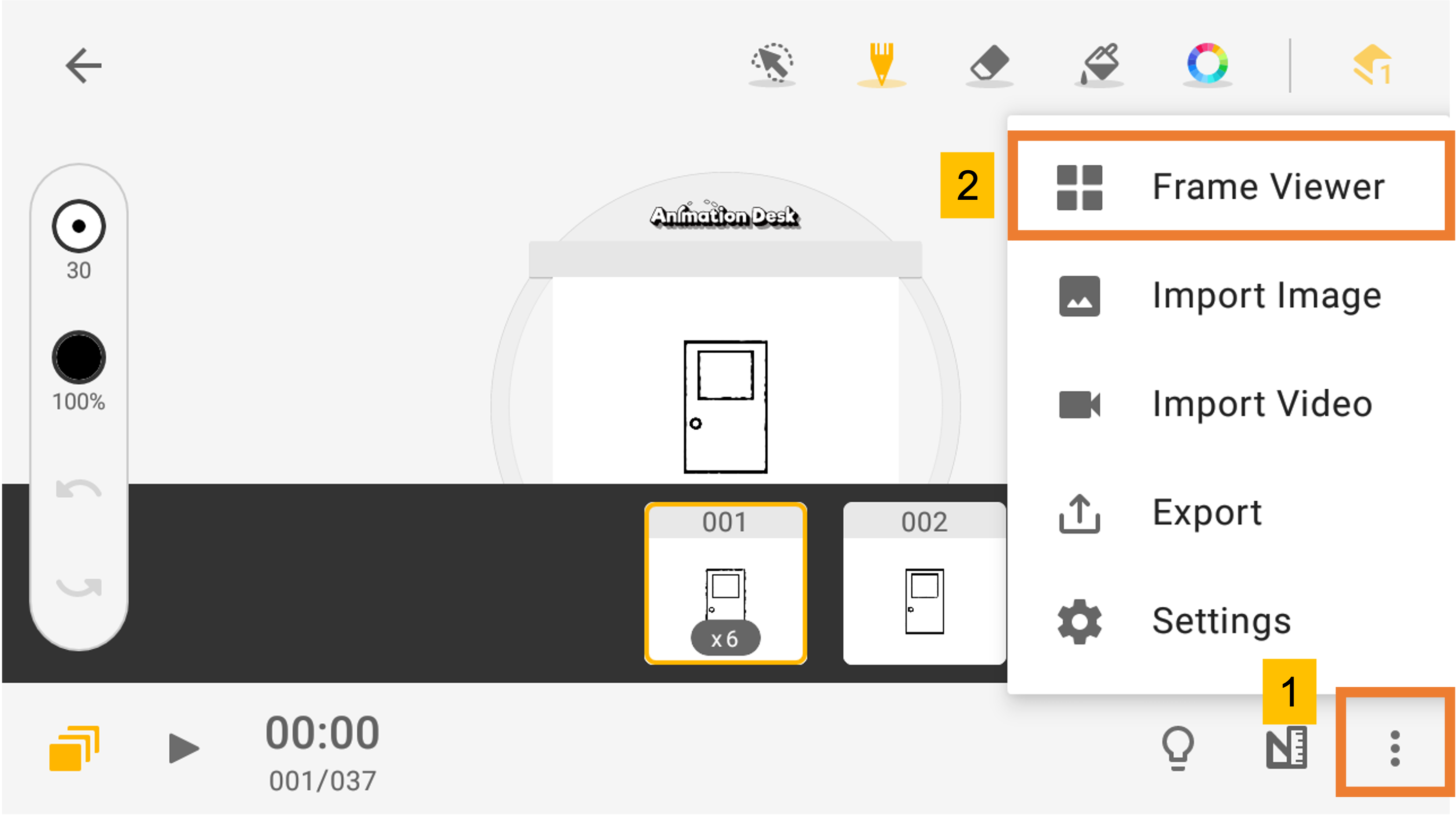
1. Click the button with three dots at the bottom right to expand the menu, and select "Frame Viewer" to enter the frame overview.
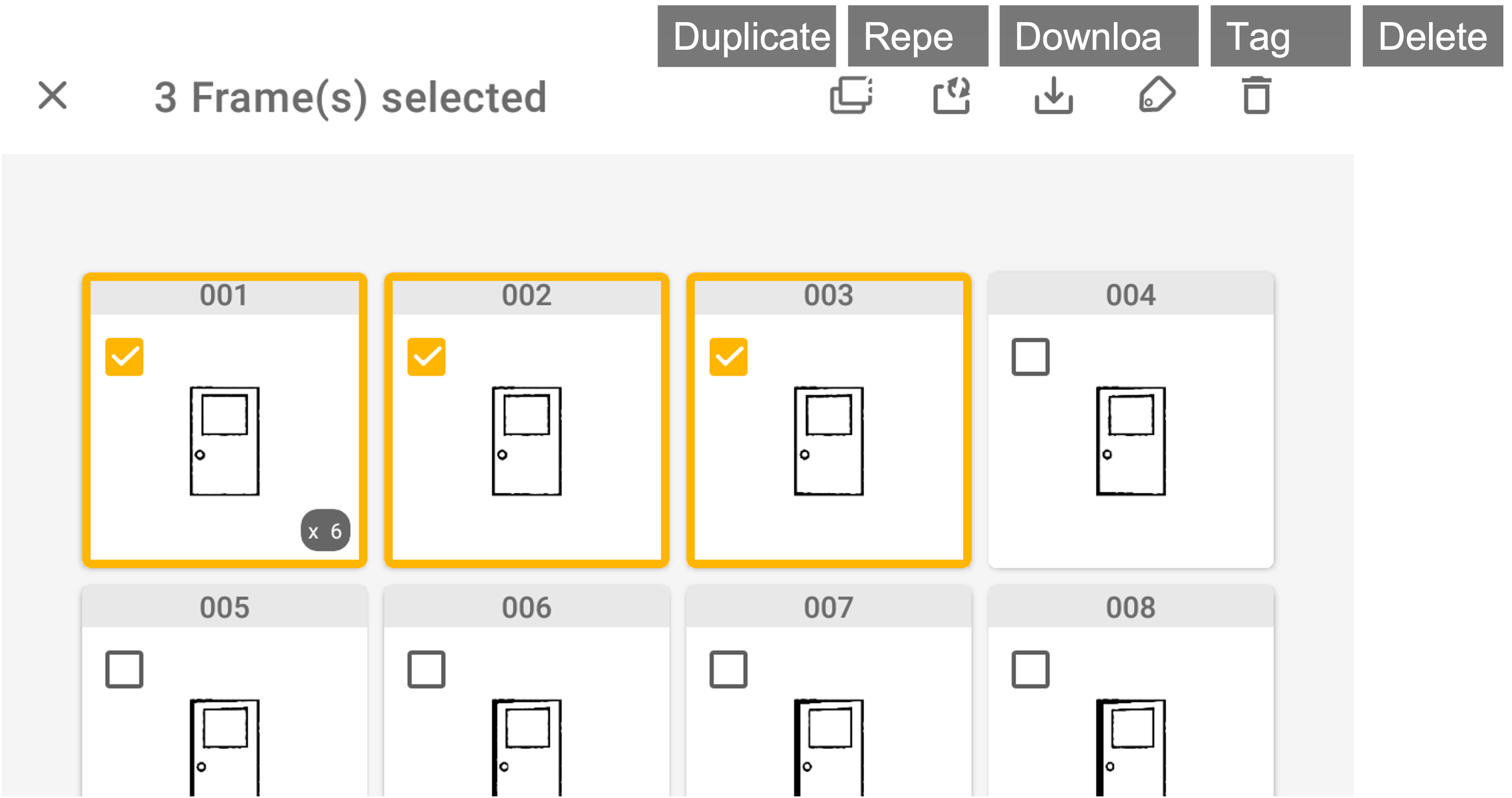
2. Click the checkboxes of the frames you would like to select and edit.
3. After selecting, you can click the icons in the upper right corner for more actions (duplicate/copy, repeat, download, tag, delete).
Note:
Duplicate: You can duplicate the frames and edit them individually. When you duplicate frames in row (eg. Frame A1, B1, C1), the app generates the same sequences of frames following the original ones. That means you get a sequence like A1, B1, C1, A2, B2, C2. It’s useful for creating animation loops.
Repeat: When you want to move to remain longer or slower, you can repeat the frames. It’s a helpful technique to control time and movement.
Delete: When a frame is deleted, it’s deleted permanently. Please make sure that you don’t delete the wrong frames.
Updated
Comments
1 comment
Nice
Please sign in to leave a comment.