PDF Reader provides 4 options for you to insert blank pages into PDF with ease.
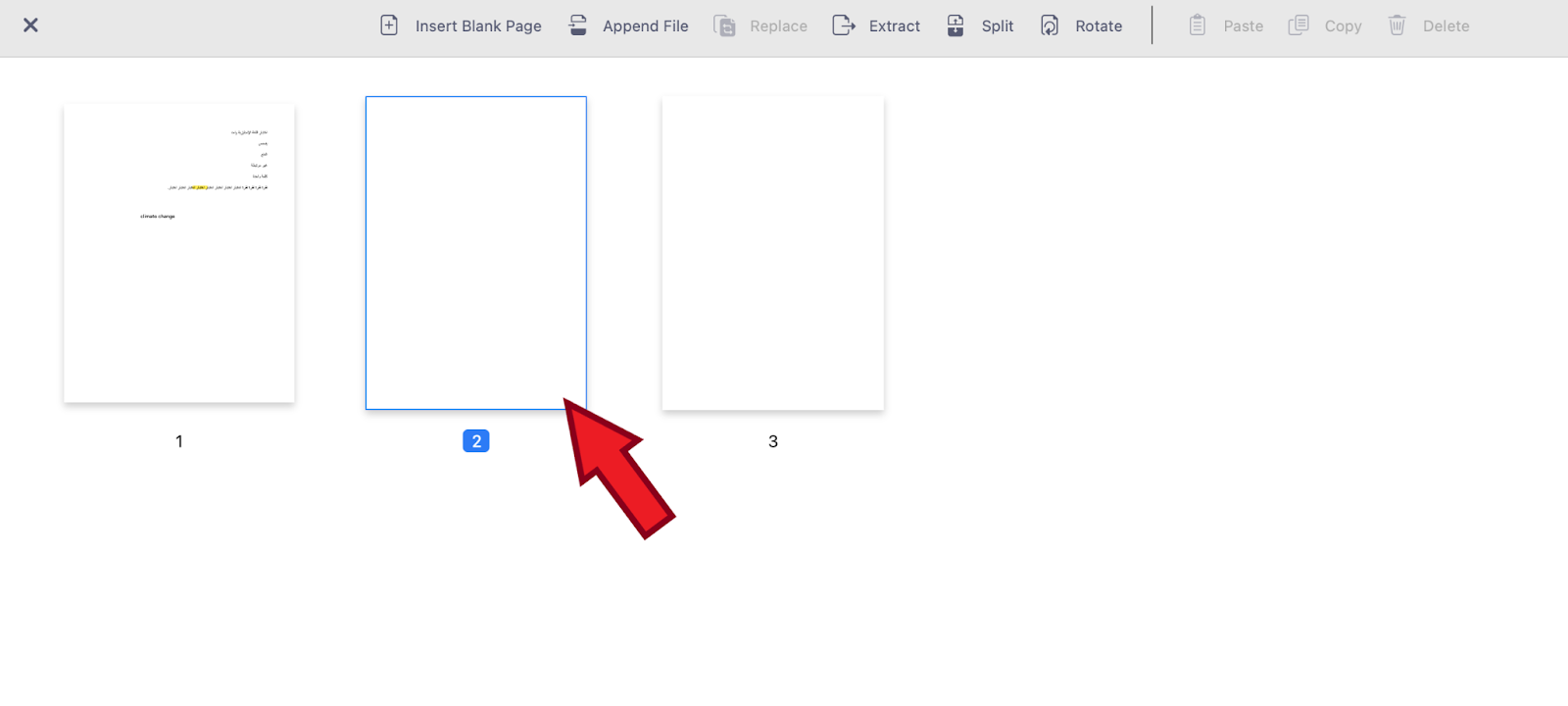
Option 1 - From the Page Editor
1. Open the PDF and click to switch to page thumbnails

2. Click on the "Insert Blank Page" button from the upper menu list

3. Specify the location (After / Before) where you want to insert the blank page

4. Click "Insert" to add a blank page to the PDF
Option 2 - Use the Right-Click Menu
1. Open the PDF and enable the page preview on the left side of the screen
2. Right-click on the page where you want to insert a blank page
3. Select "Insert" from the right-click menu

Option 3 - From the Top Menu
1. Open the PDF and click “Edit” from the top menu
2. Select "Insert Blank Page" and then a blank page will be added to the PDF
3. You can drag the page from within the page preview pane to change the page order

Updated
Comments
0 comments
Please sign in to leave a comment.