PDF Reader enables you to import your favorite local folders to PDF Reader as shortcuts. By connecting with local folders, you can easily access files without launching the Finder app.
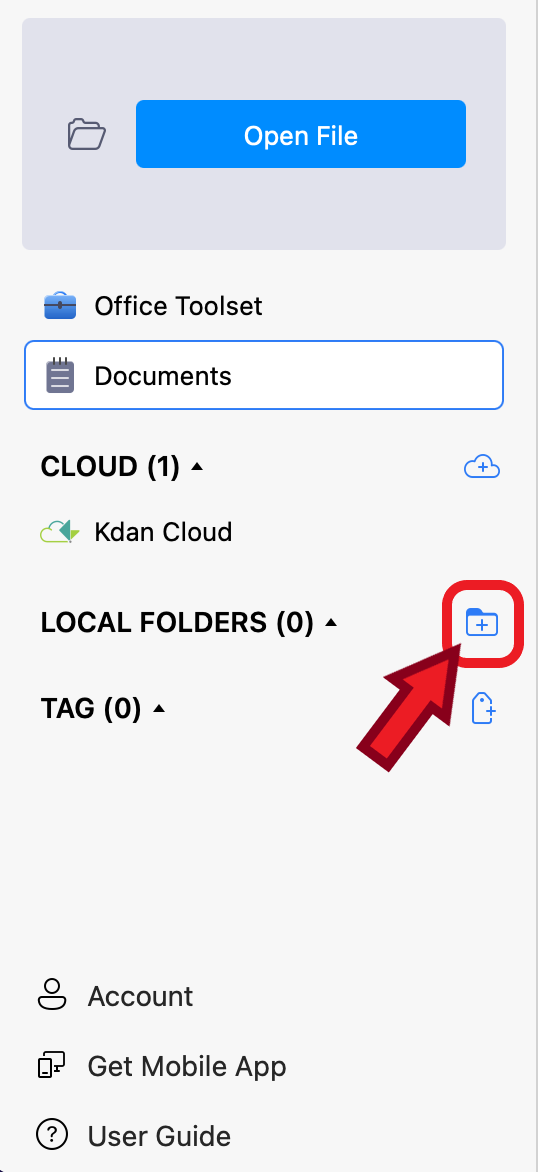
1. Tap the “Import Folder” icon on the left sidebar
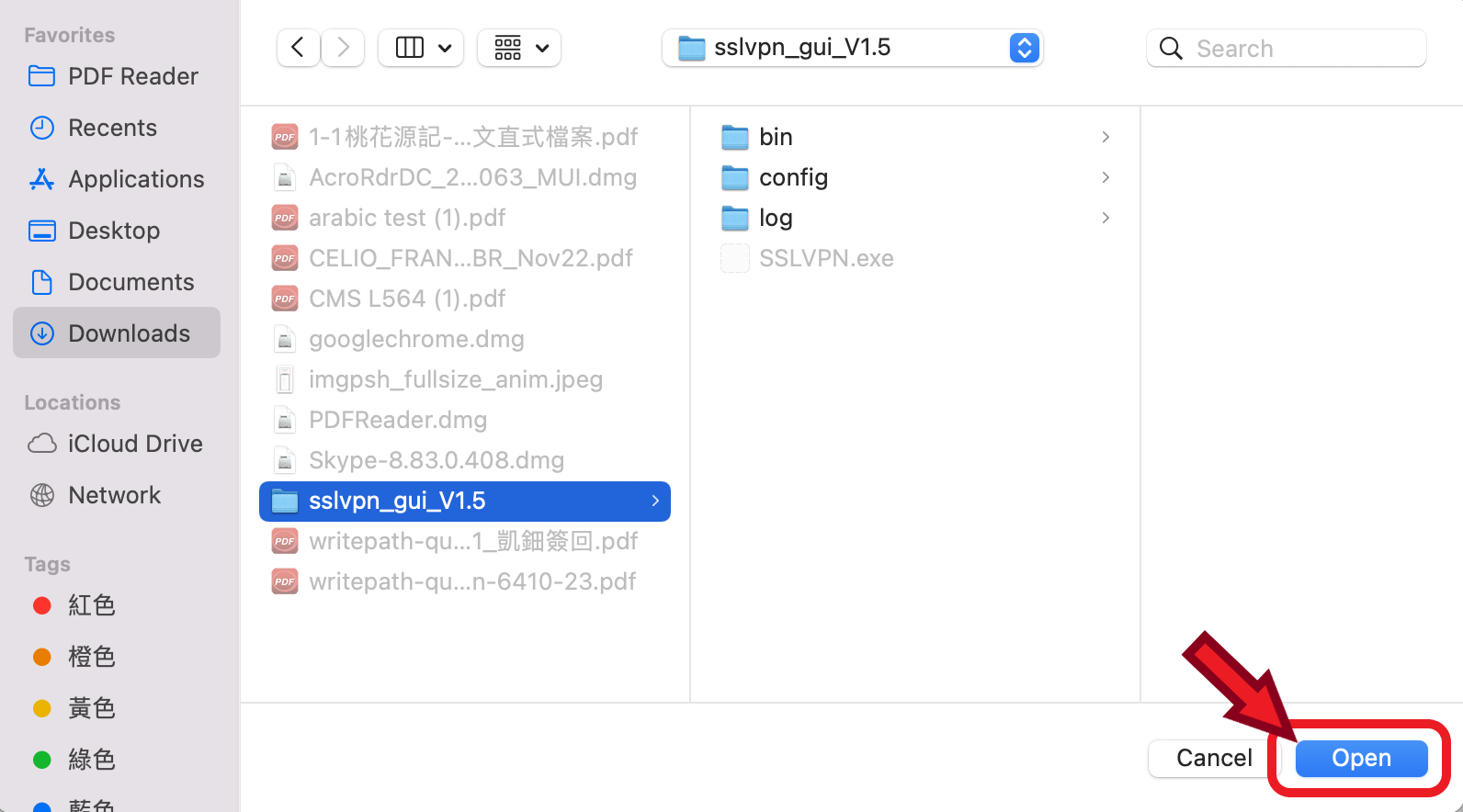
2. Find the particular folder you want to import and click “Open.”
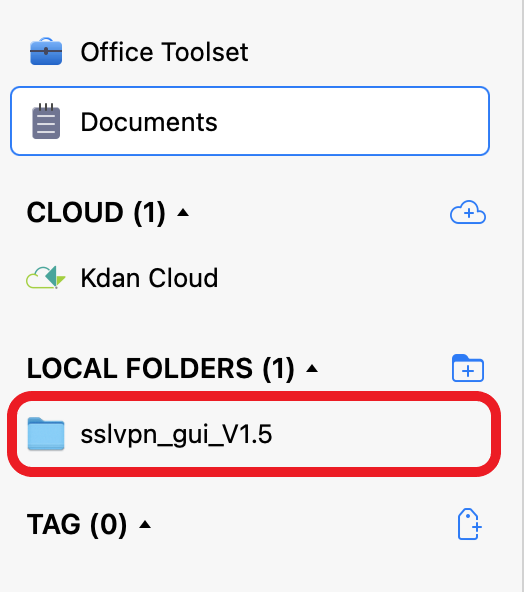
3. Then the assigned folder will be saved under the "LOCAL FOLDERS" section. Simply click the folder, and all the PDF files within it will display as a file list on the right side of the screen.
Updated
Comments
0 comments
Please sign in to leave a comment.