PDF Reader turns your iPhone and iPad into a portable scanner.
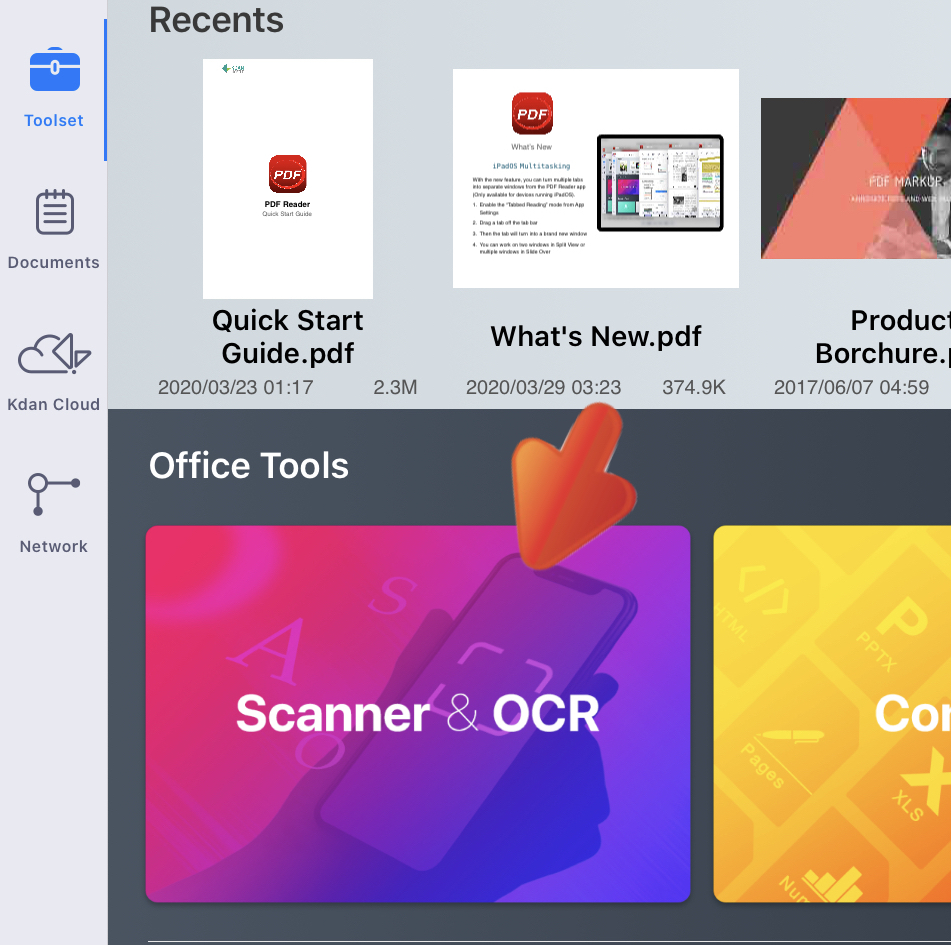
1. Switch to the “Office Toolset (  )” tab
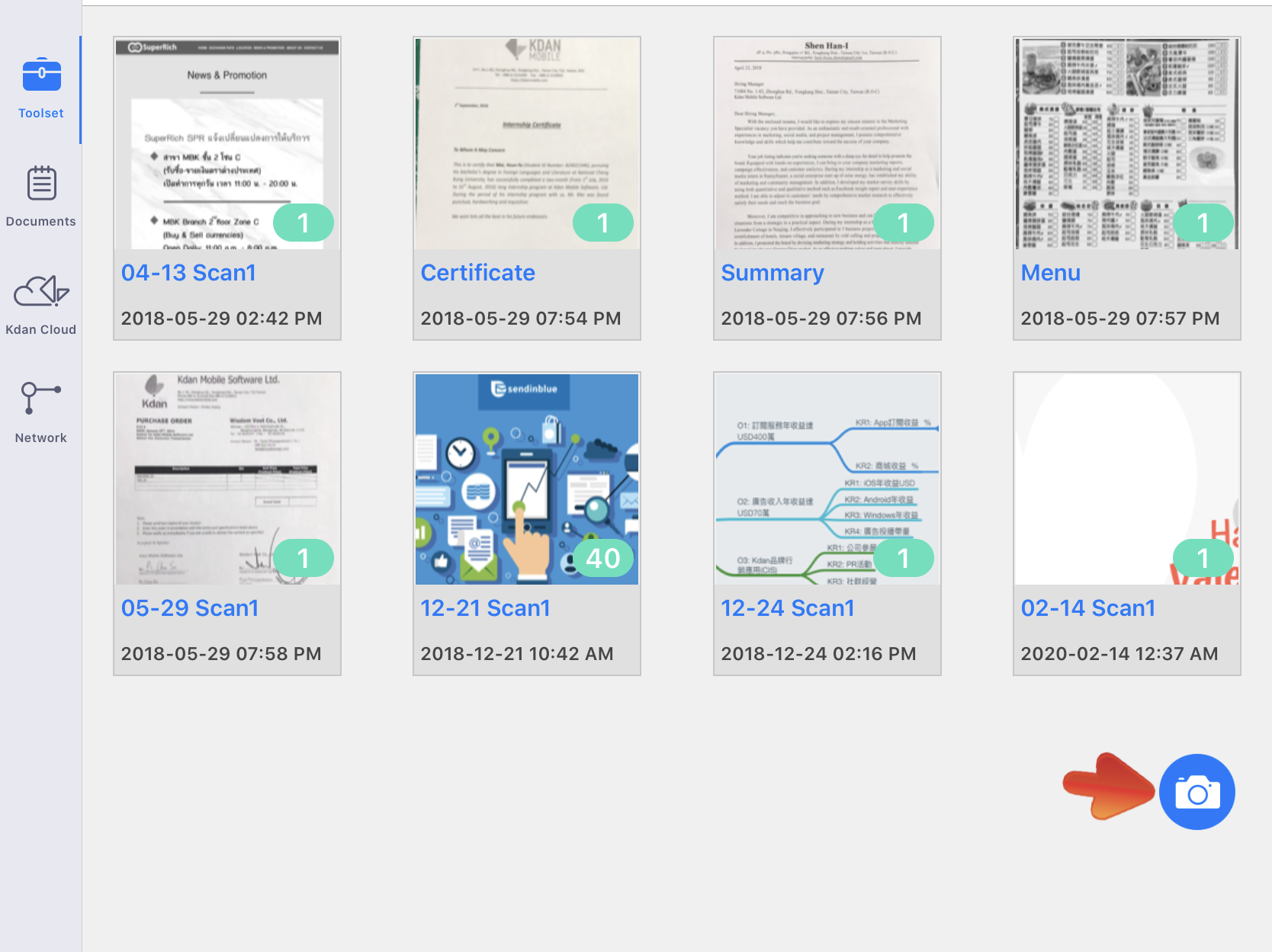
2. Tap the “Scanner & OCR” entrance, and you’ll see all the scanned projects
3. Tap the “Camera” button on the bottom to start scanning
4. In the top right corner, there is a menu you can pick: RGB/BW mode, Auto-detection on/off, Gird on/off.
- RGB/BW mode - create scans as color photos or black & white photos
- Gird on/off - turn on/off the grid lines for assistance.
5. Choose “Scan” and snap photos by tapping the Shutter button (or you can import images from Photo Library)
6. Toggle on the "Border" option to automatically detect the border of the scanned object
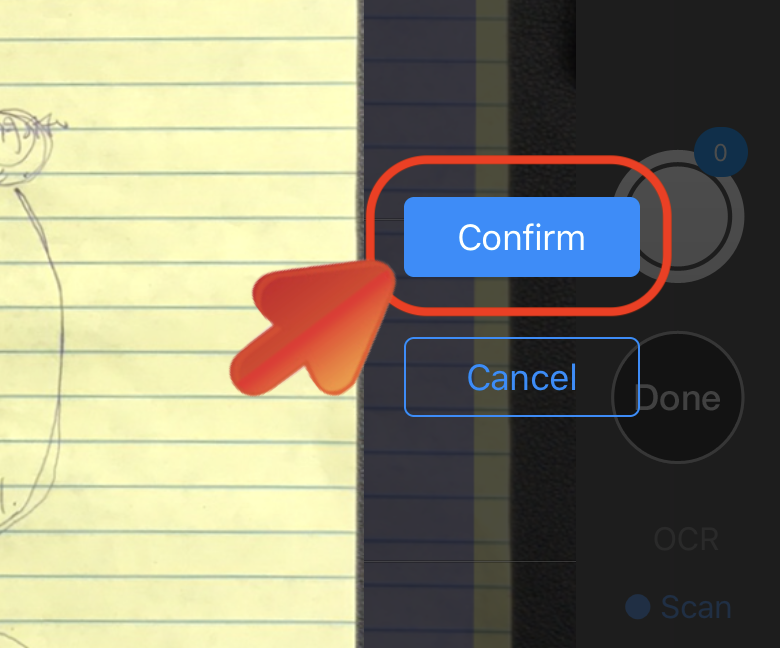
6. Then tap “Confirm” if you're satisfied with the scan. You can take continuous scans by tapping the Shutter button
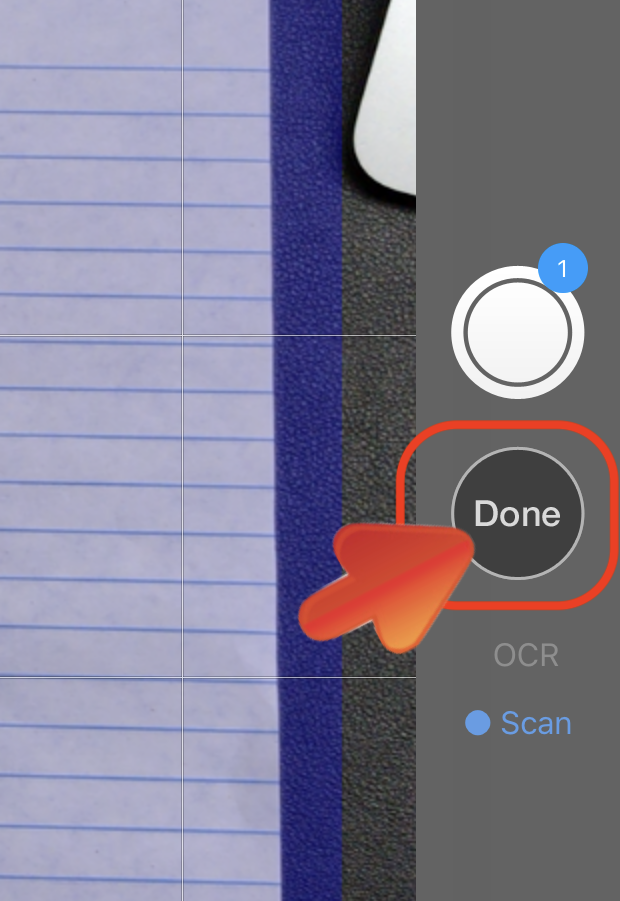
7. Then tap “Done” when you finish scanning
8. Then the scans will be saved as one scanned project. Tap the “PDF” button to turn it as one PDF, and it will be saved to your file library in the "Documents" tab.

For more details on how to make good use of PDF scanner, please refer to our pro tips of how to plan a trip with PDF Reader.
Updated
Comments
0 comments
Please sign in to leave a comment.