Please make sure that you have signed in with your Kdan ID.
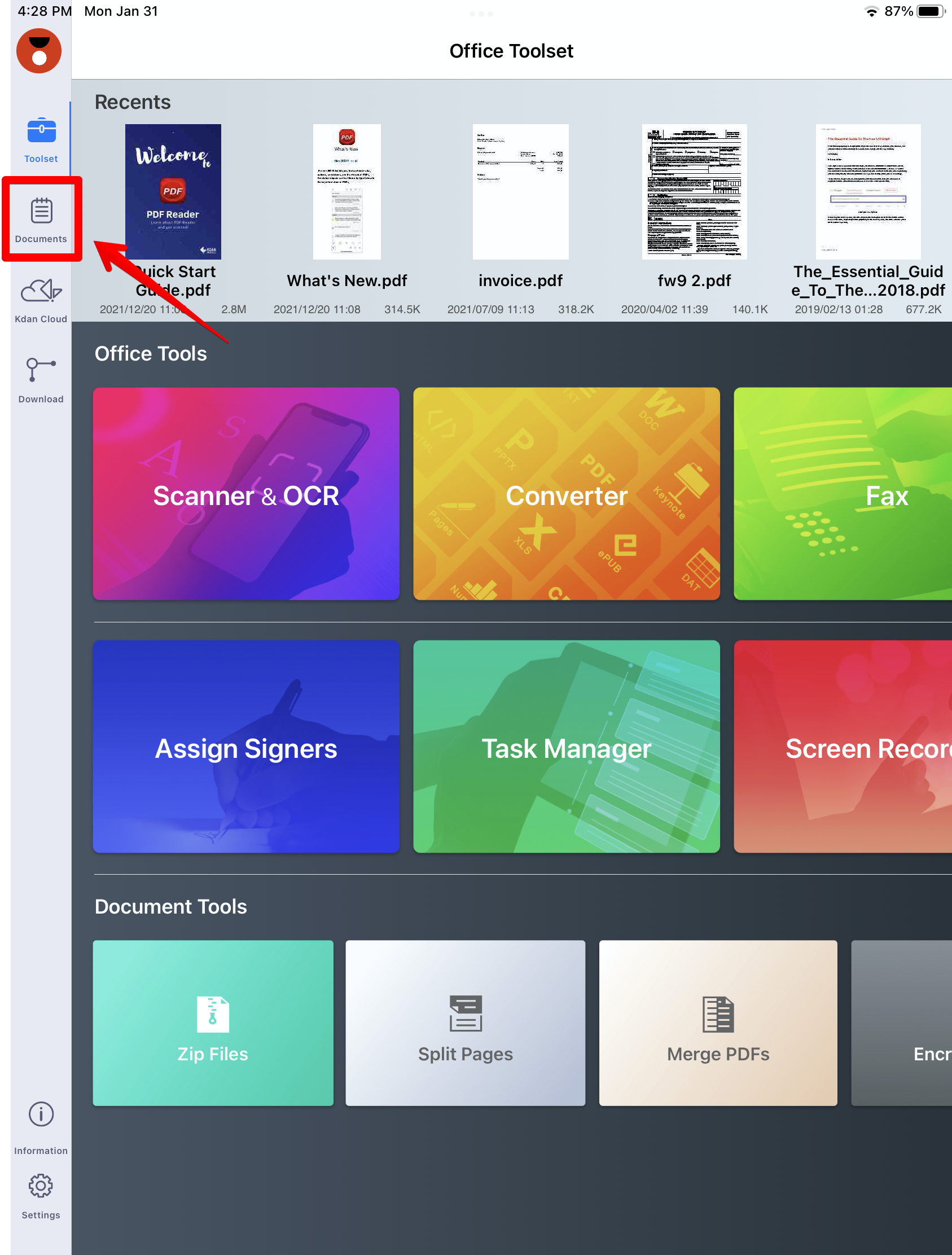
1. Launch PDF Reader app and switch to the "Documents (  )" tab
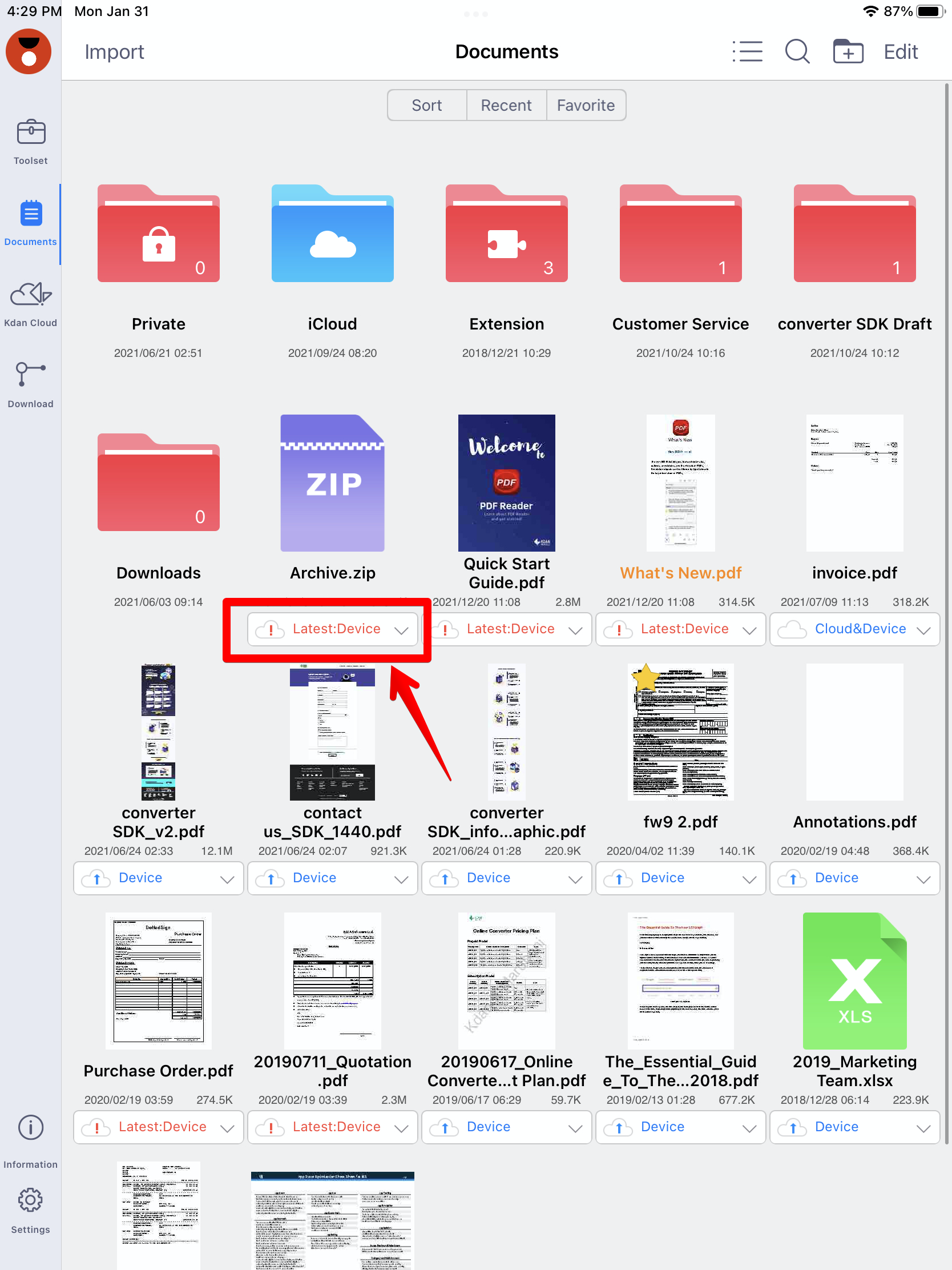
2. Locate your PDF File, and you will find the dropdown menu under it
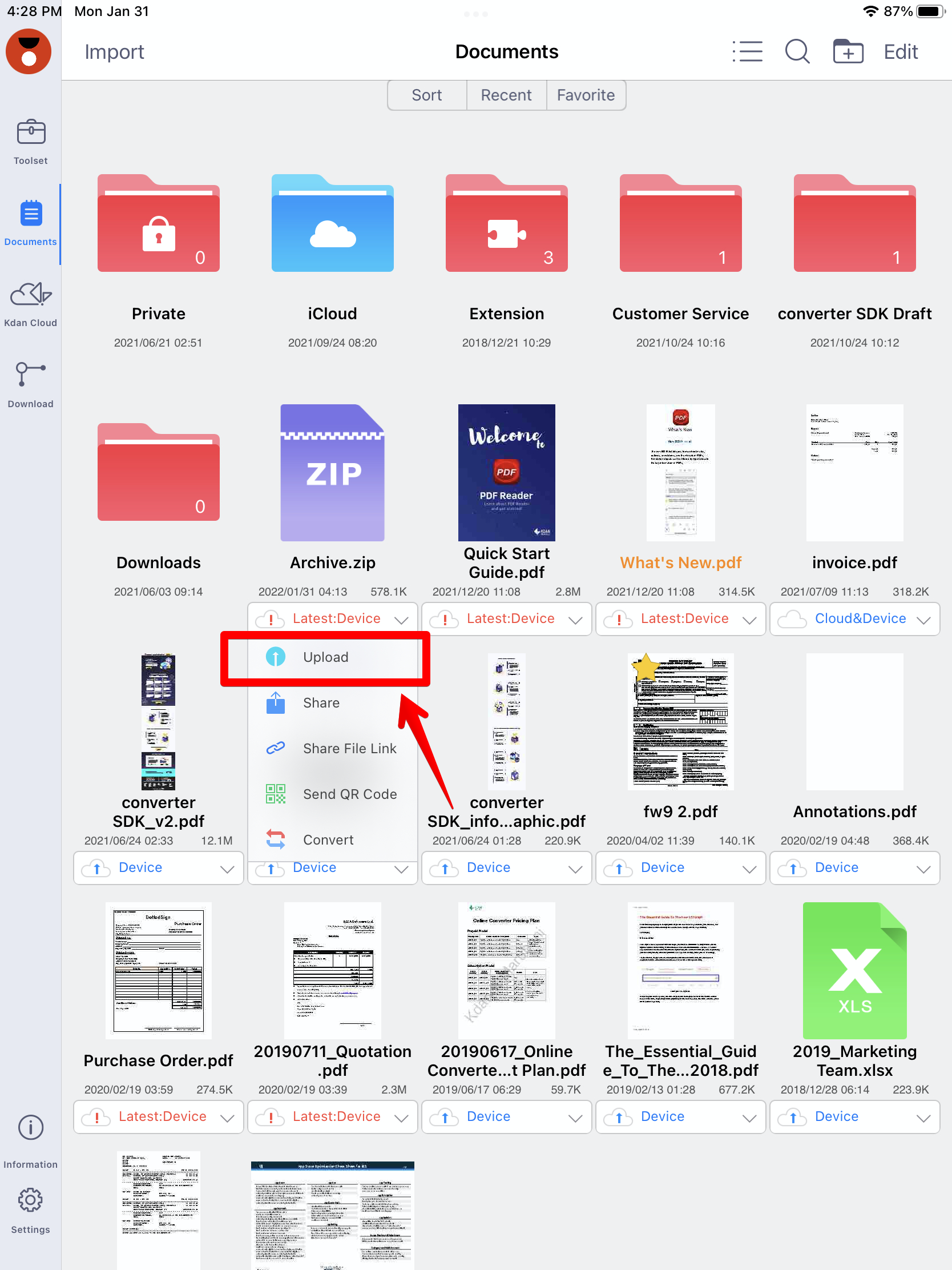
3. Tap "Upload" to upload the file to Kdan Cloud directly
4. You can find the synced files from within the "Kdan Cloud ( )" tab or through the Kdan Cloud web page
Updated
Comments
0 comments
Please sign in to leave a comment.