By adding shapes to PDFs, it helps you to annotate documents, highlights passages, and draw attention to an object or a section inside the PDF.
1. Open a PDF in PDF Reader and go to the page where you want to add shapes
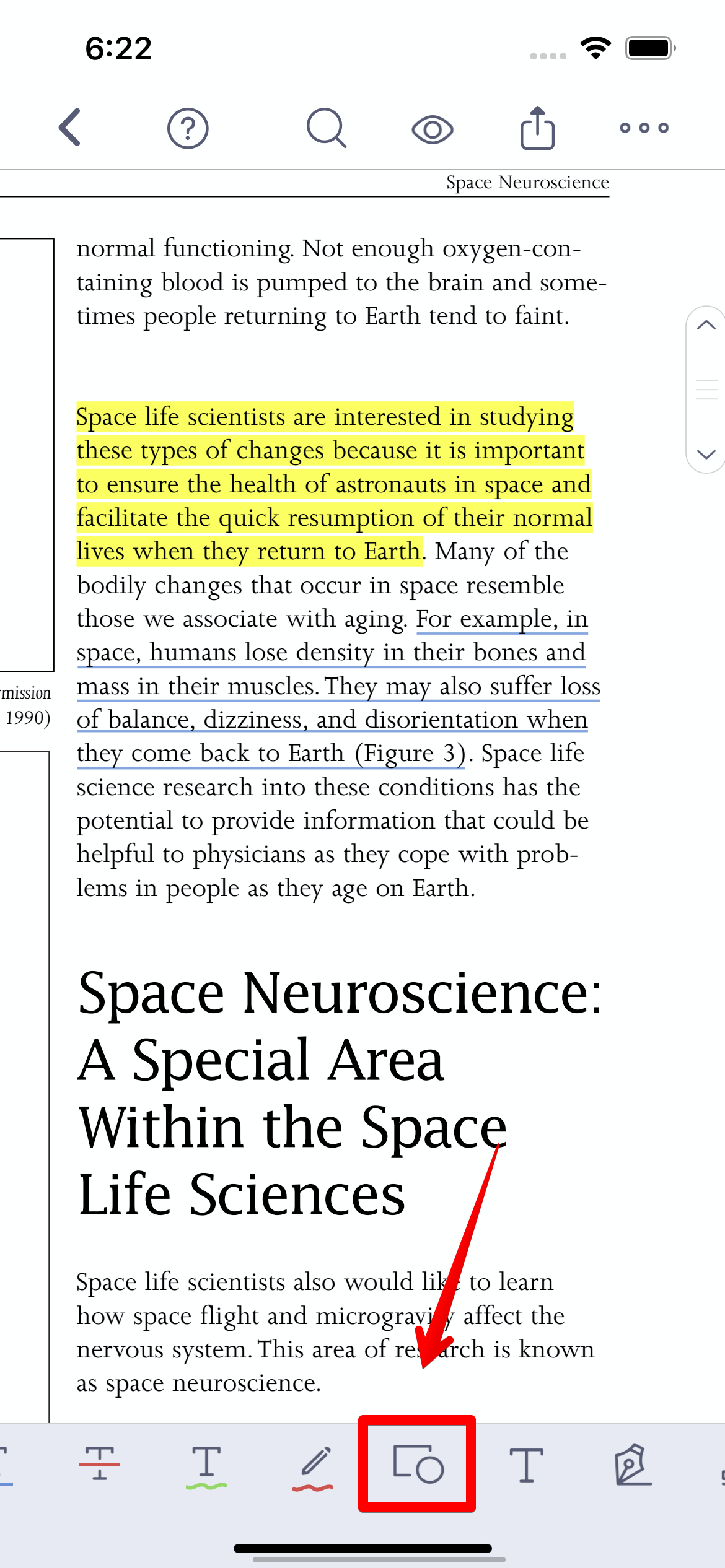
2. Choose the "Shape" icon on the bottom menu bar
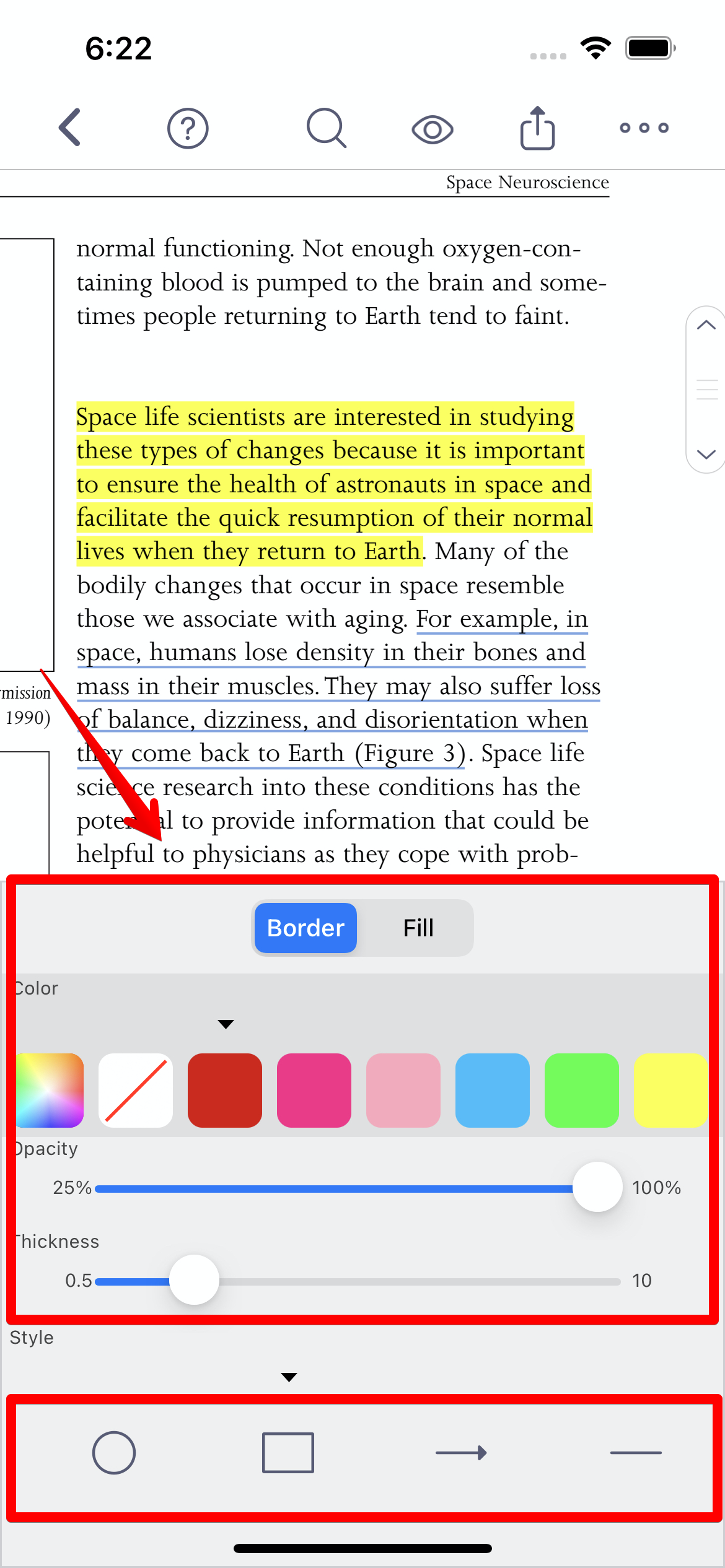
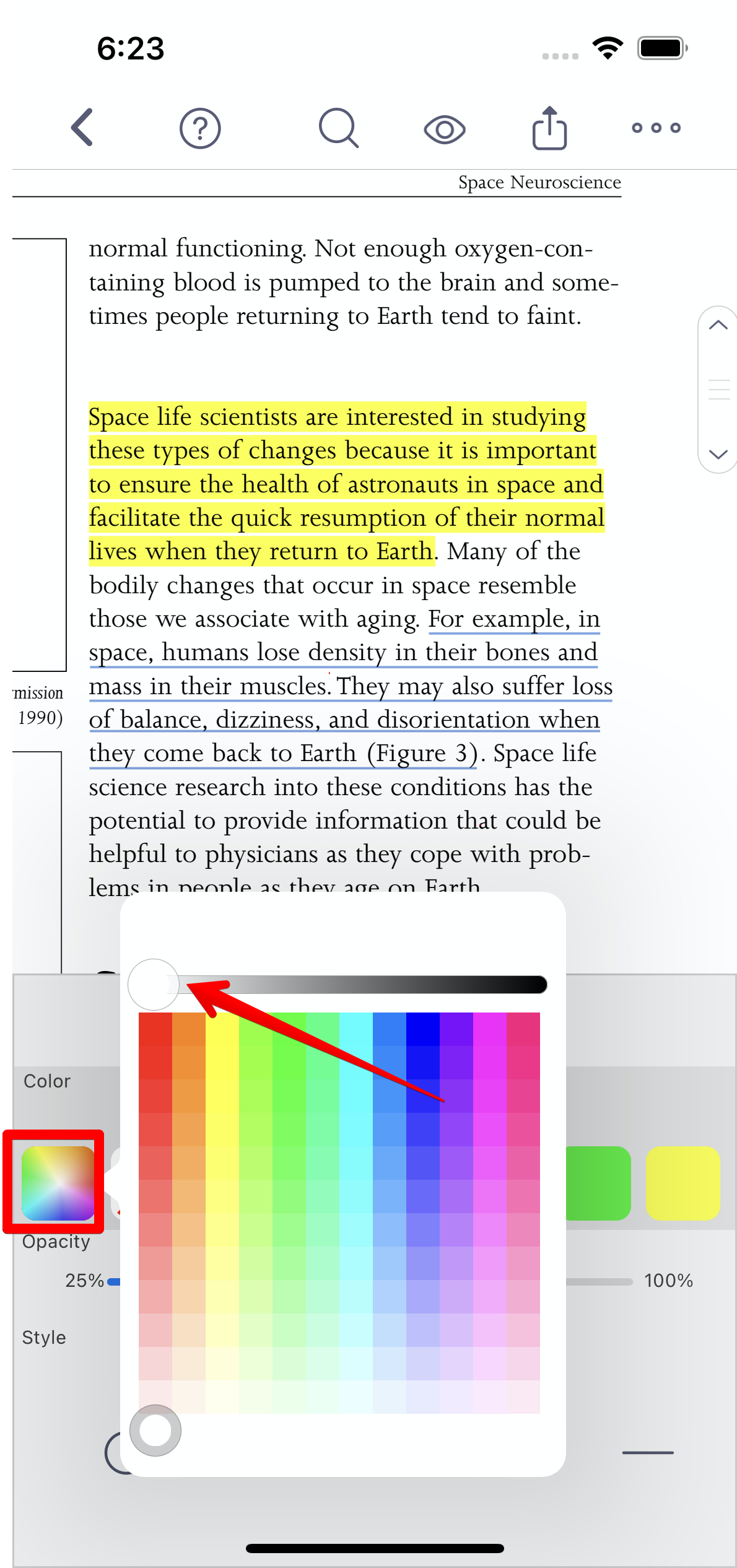
3. You can set the color (Border and Fill), opacity, thickness, and the shape (Line, Arrow, Square and Circle) of the markups at the same time.
4. Then tap on an area where you would like to insert a shape, and the preset shape will be immediately added to the page.
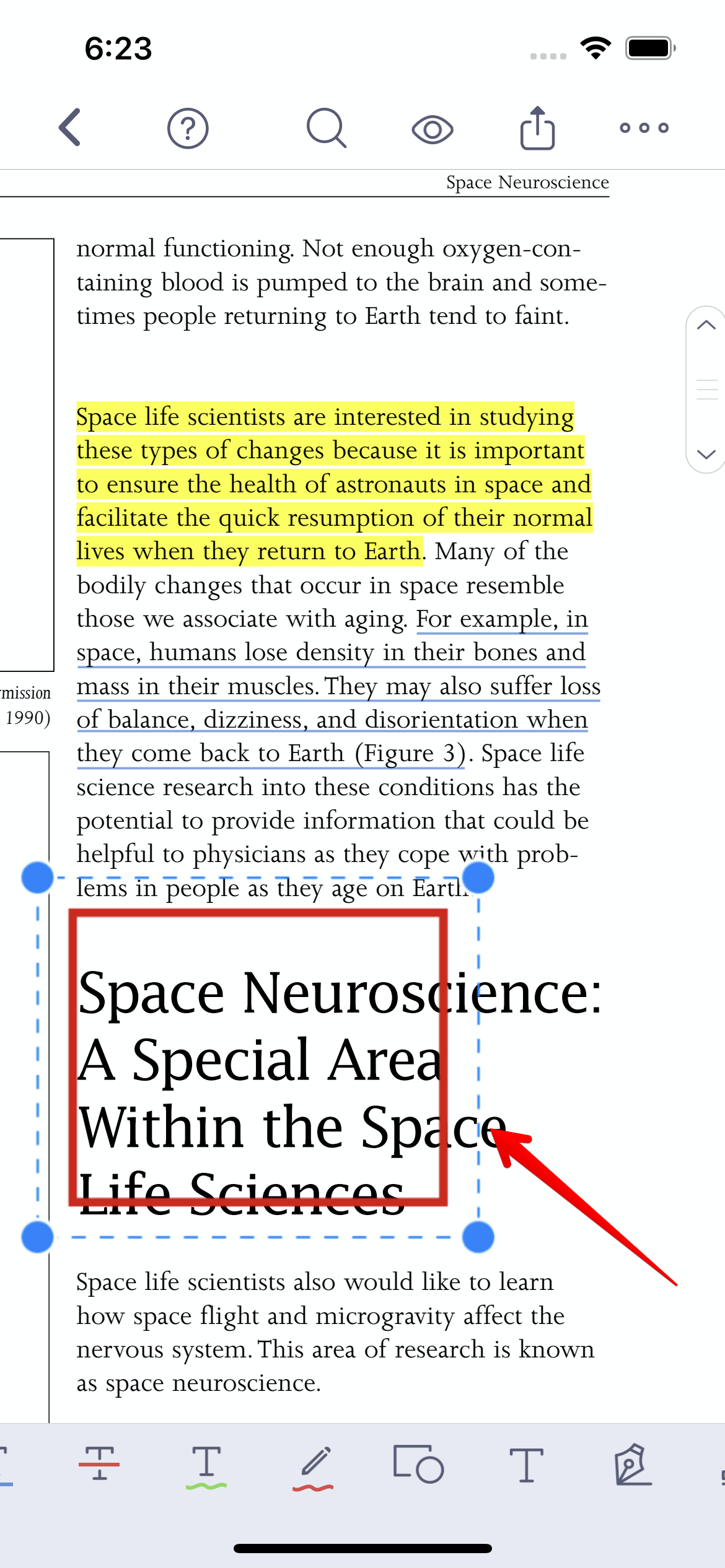
5. You can adjust the size and position of the shape by tapping the markup. You can also choose to delete it.
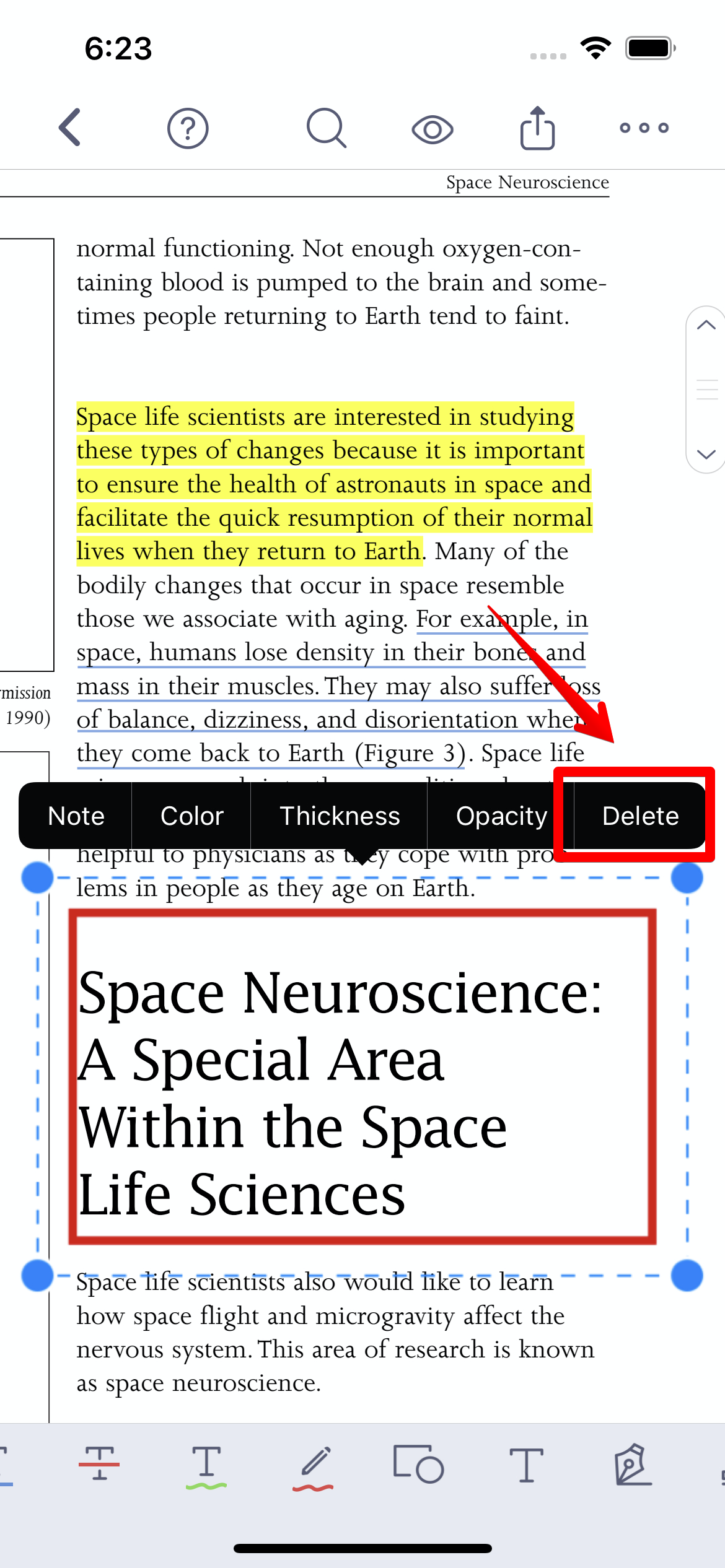
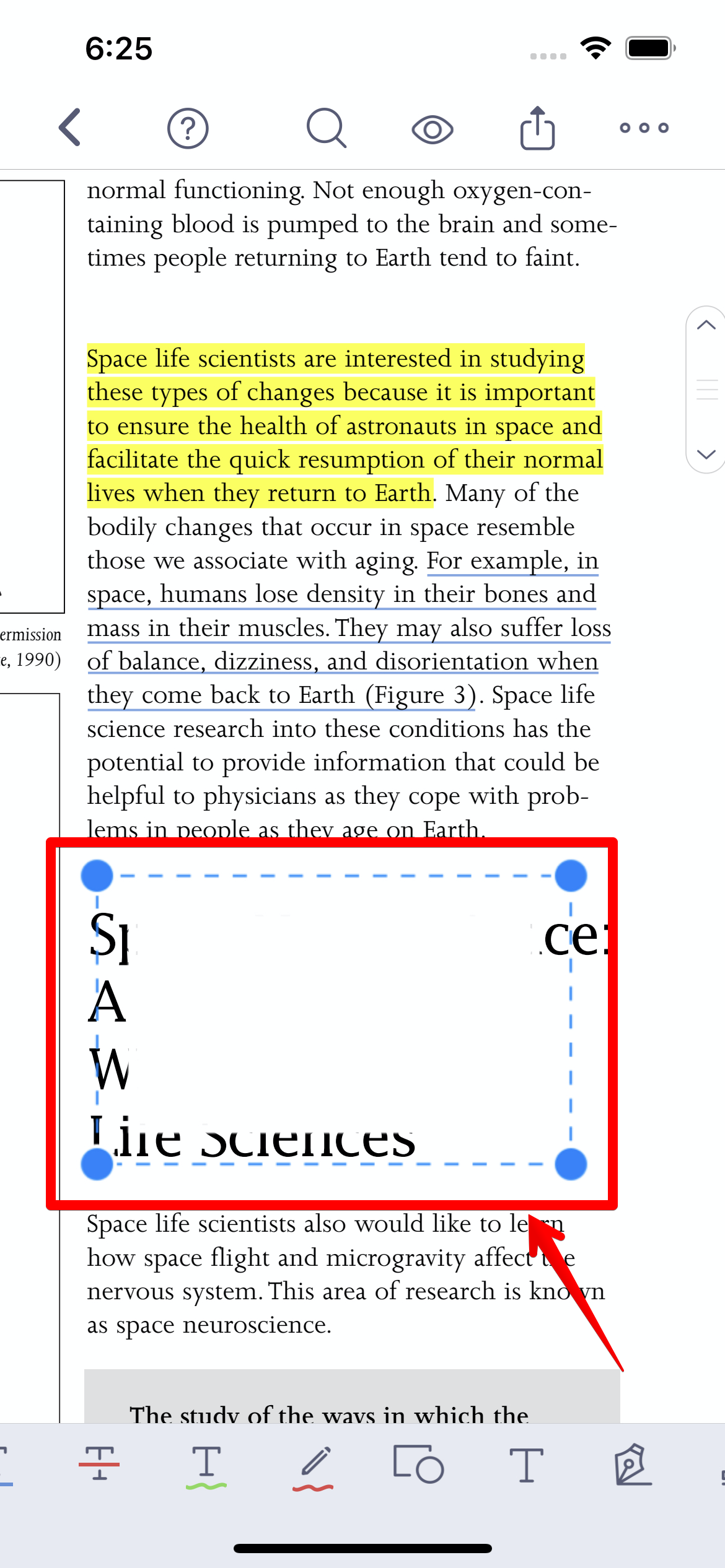
6. Furthermore, you can select the "Rectangle" shape if you want to hide information from a PDF (such as the answers to a textbook when preparing for an exam). Then set the border and fill color to "White" or "Black" to temporarily hide key information
7. Tap on the text that you want to cover, and a rectangle will appear covering the text.
Updated
Comments
0 comments
Please sign in to leave a comment.