1.Tap the  sign on the bottom of the note and select Recording.
2.A  will appear in your note.
3.Tap the microphone and select Record to start recording.

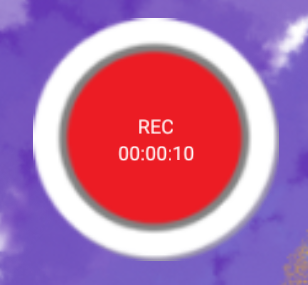
4.Tap on it again to stop recording.
5.After recording is done, the icon will be ready to play. 
6.Tap on the icon anytime to delete, copy, or cut. 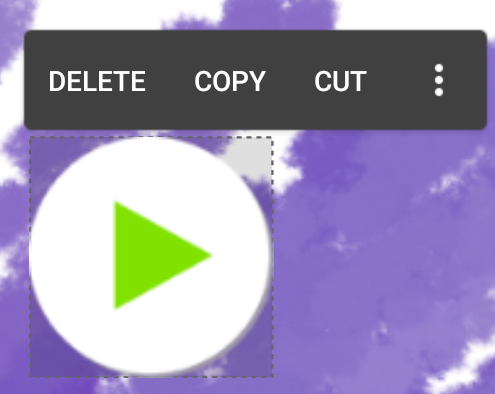
7.You can add text box next to the recording to indicate the content of the recording. ([link] See 1.3 on how to insert text box)
* You may be asked to allow NoteLedge to have access to the microphone on your device if this is the first time you use audio recording on NoteLedge.
Updated
Comments
0 comments
Please sign in to leave a comment.