- Tap on the
 on the upper-right toolbar and select “Recording” in the drop-down menu.
 - A
 will appear in your note.
 - Tap the microphone and start recording.
- Tap on
 again to stop recording.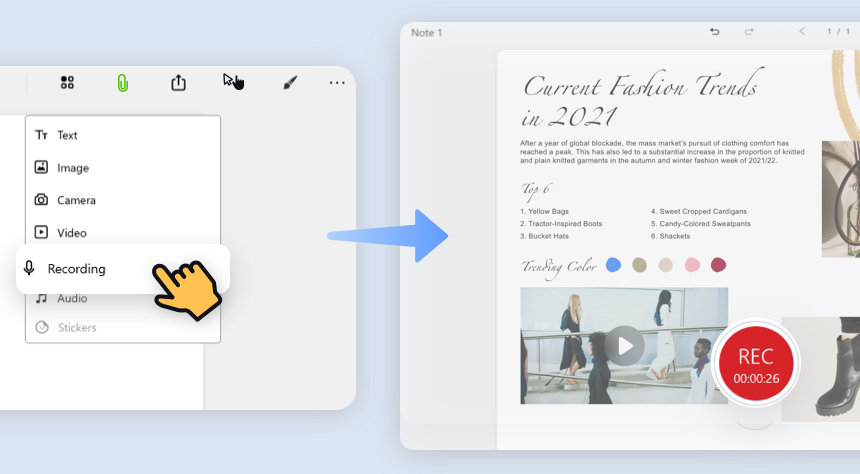
- When the recoding is done, the icon
 will be ready to play.
 - Right click (long press if you are using a tablet) on the icon anytime to delete, copy, cut, or adjust layer setting.
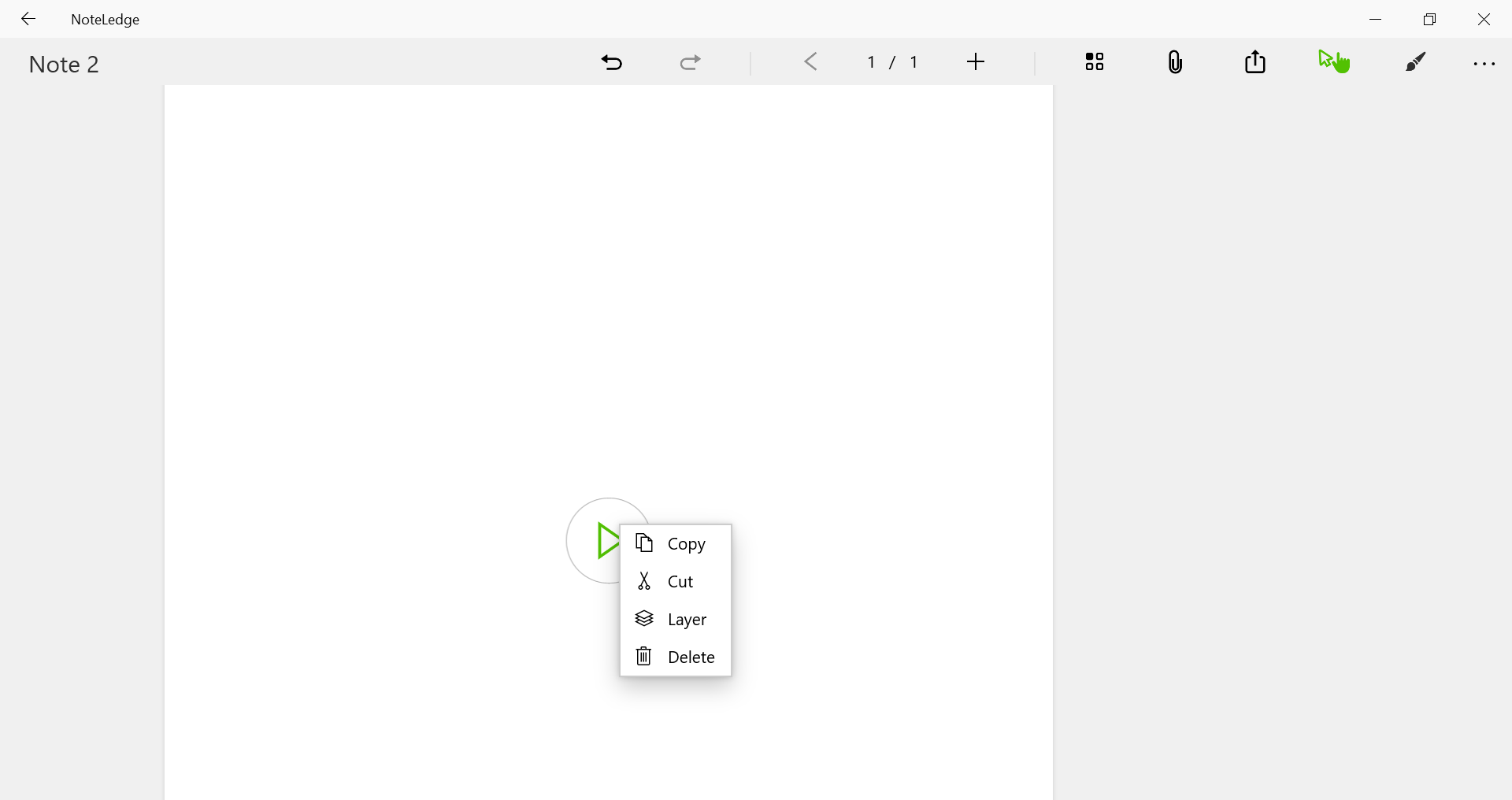
- You can add text box next to the recording to indicate the content of the recording. (See how to insert text box.)
* You may be asked to allow NoteLedge to have access to the microphone on your device if this is the first time you use audio recording on NoteLedge.
Updated
Comments
0 comments
Please sign in to leave a comment.