Build your image stock. Pick, tweak, and import the images in different animations with ease.
Terms
- Stock Collection: a stock collection is a collection of images that you can use in all your animations,
- Unit: A unit is a set of images in the stock collection. You can delete or export images from a unit.
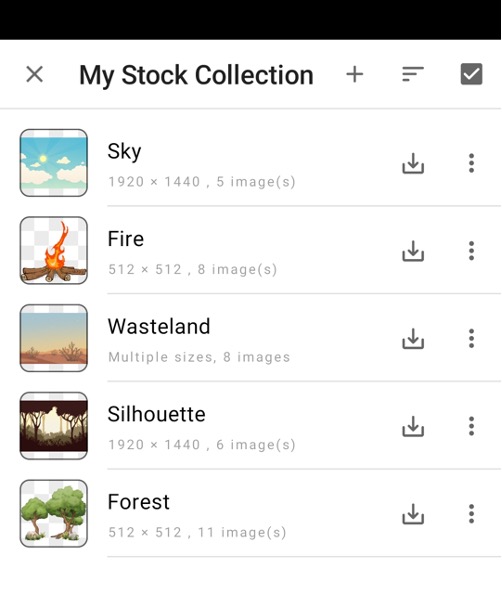
A list of units.
Add New Unit to Stock Images
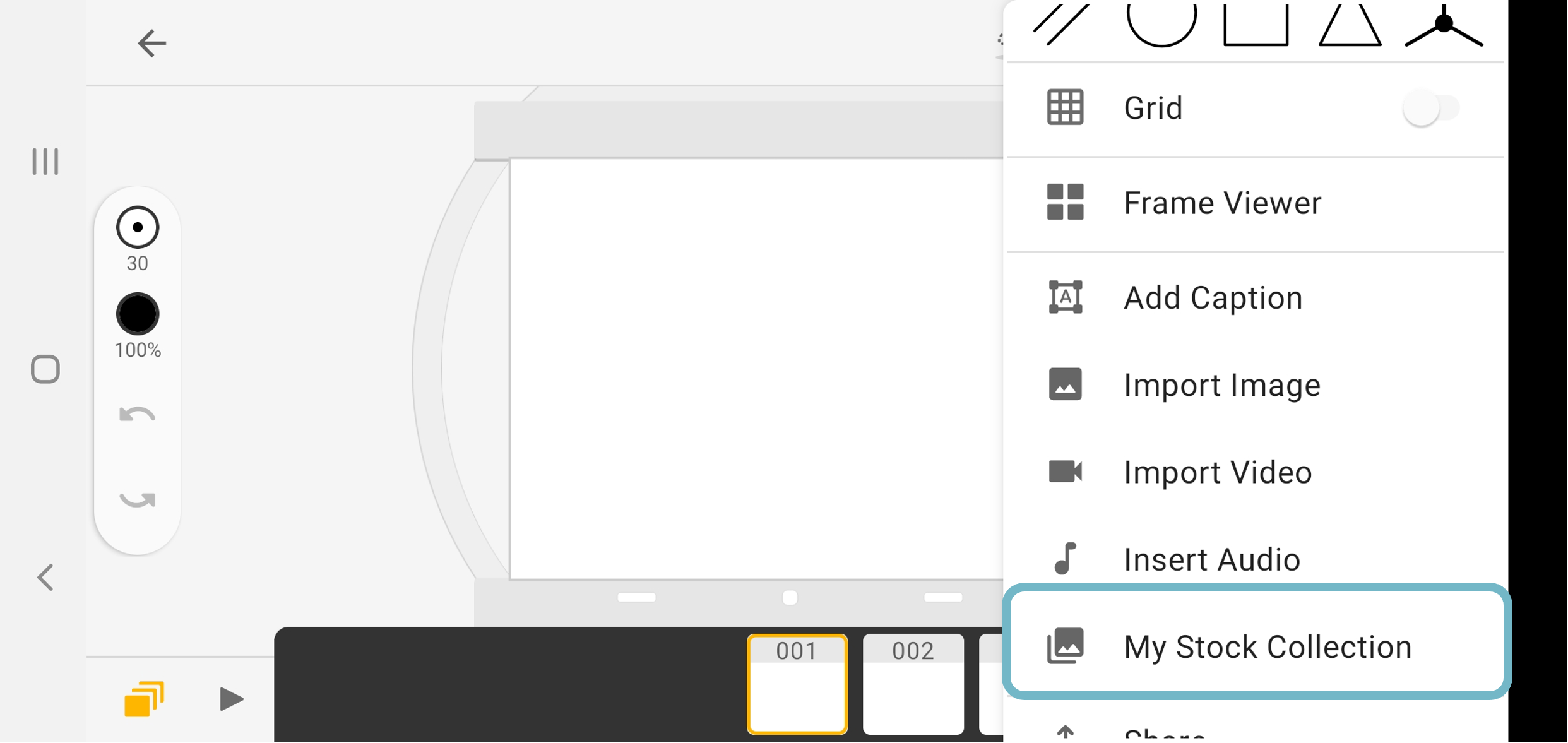
Open the menu in the lower right corner, and select "My Stock Collection"
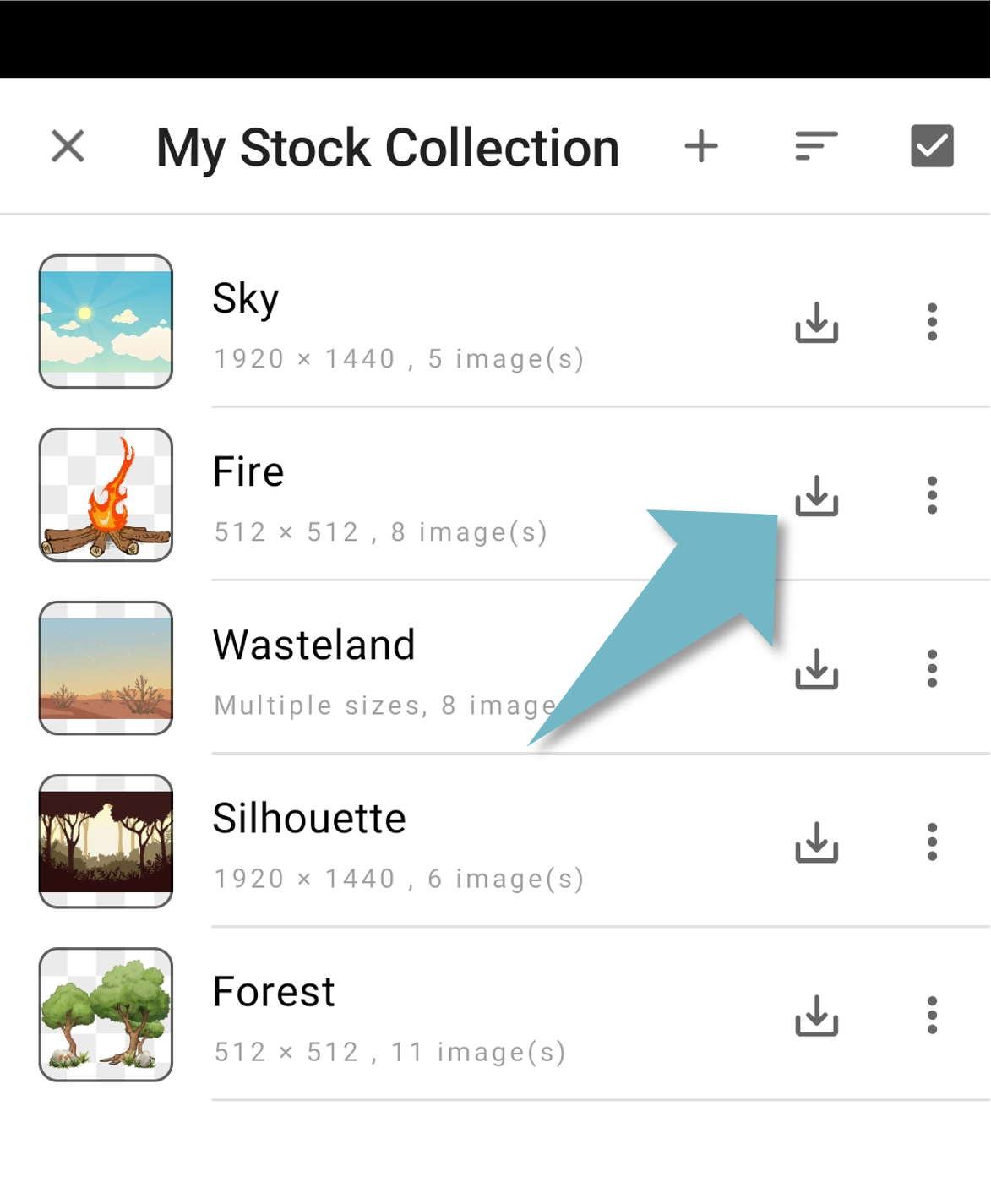
There are several preinstall units that you can use. If you wish to create your own, please tap the "+" button at the upper right and import the images to the app.
Import Images From Stock Collection to Your Animation
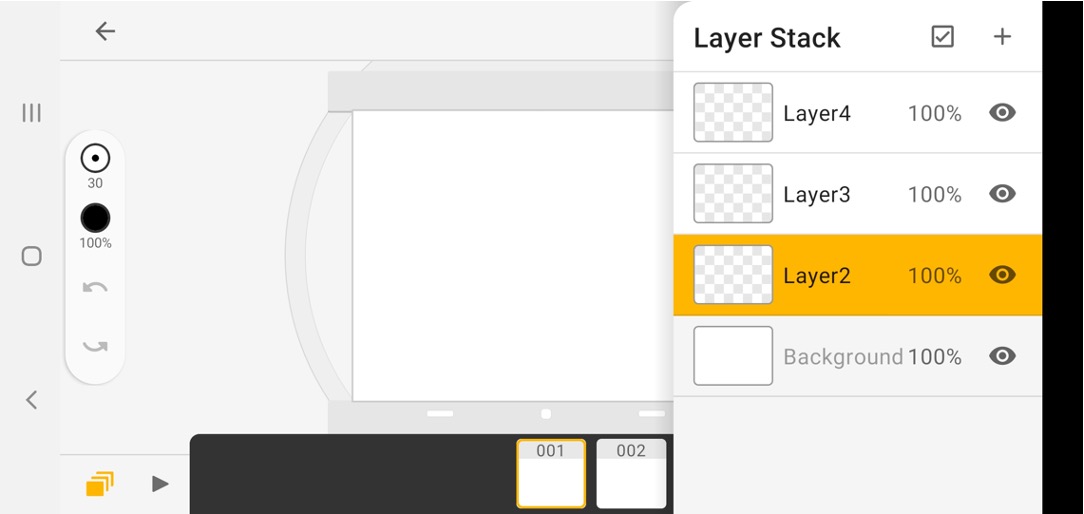
Select the layer and frame in which you wish to import the image, and open "My Stock Collection"
Import the material. You can import a single image or image sequences. Here we will use the image sequence as an example.
Back to the canvas, tap the screenshots to view the image sequence.
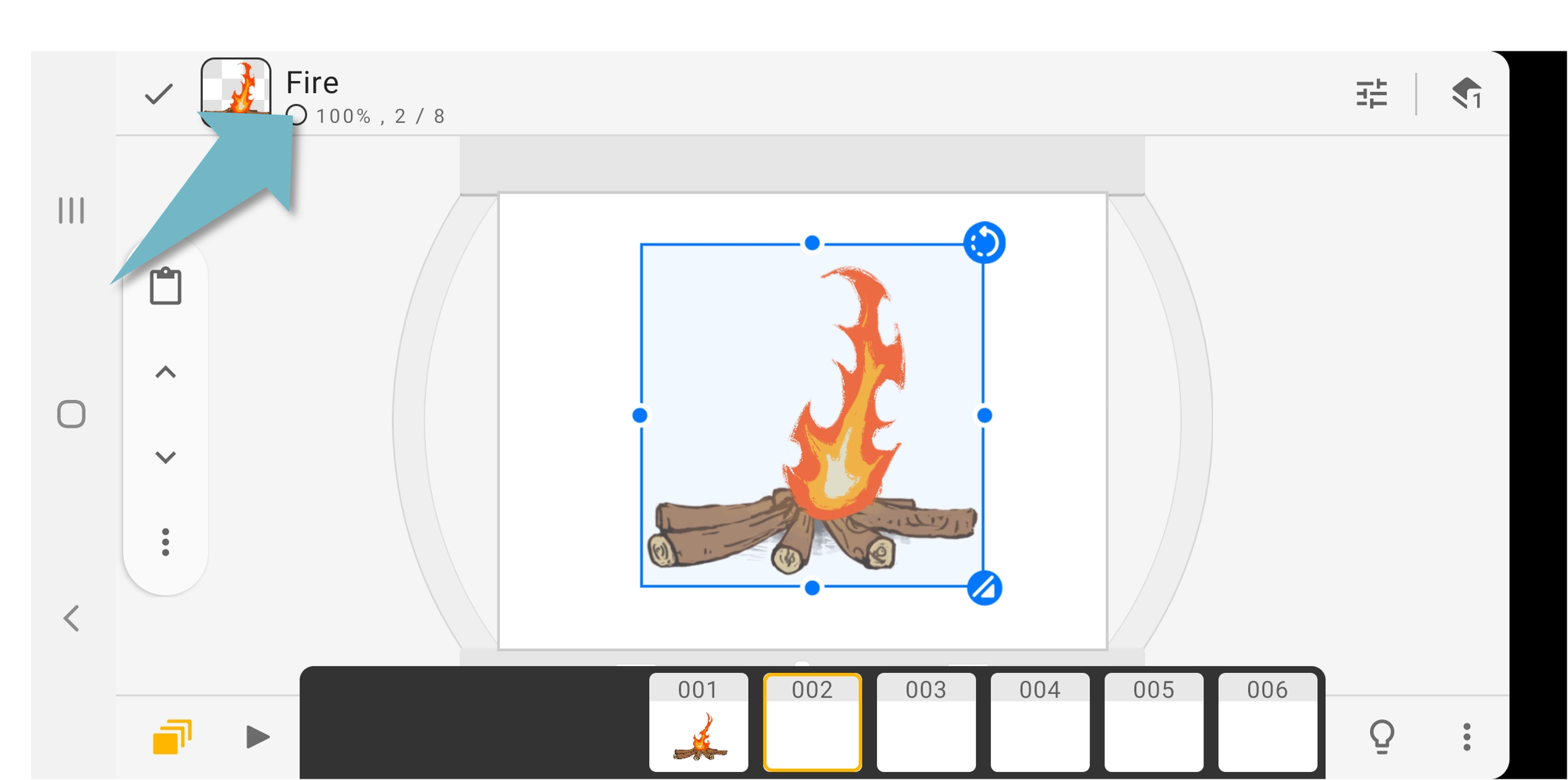
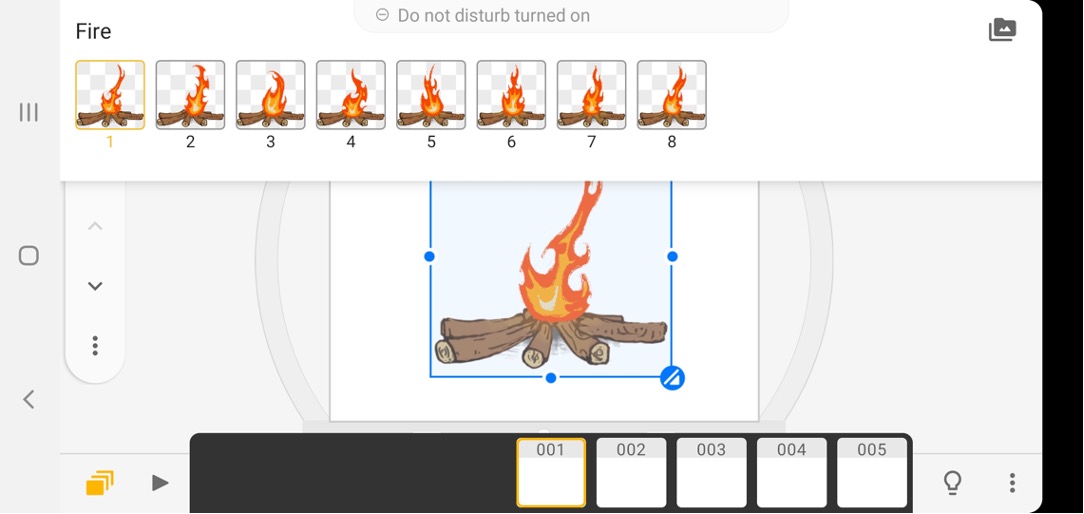
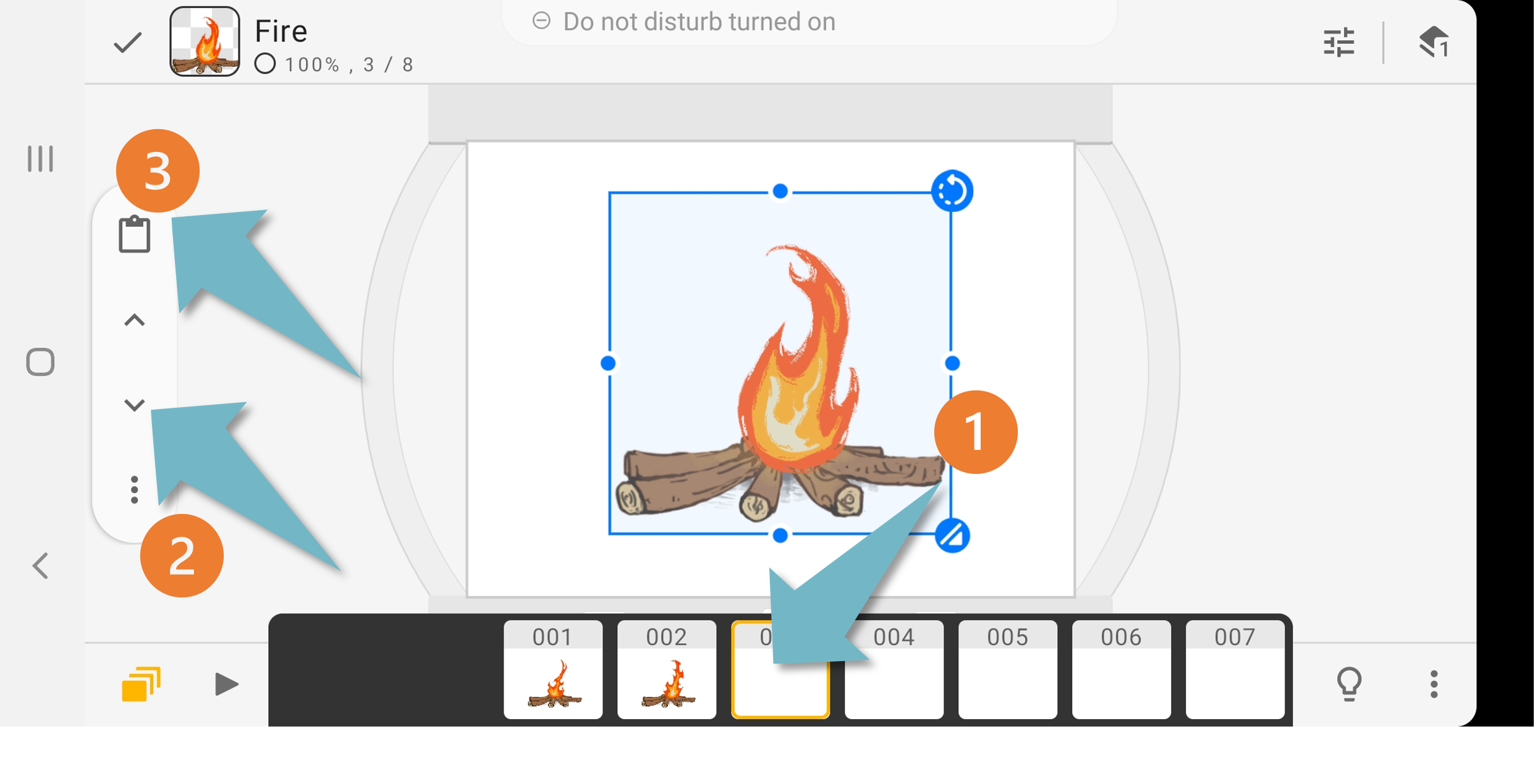
Paste the first image. Switch to the next frame and switch to the next image. Tap the "Paste" button again. Repeat this until you paste on all the images.
Color Correction
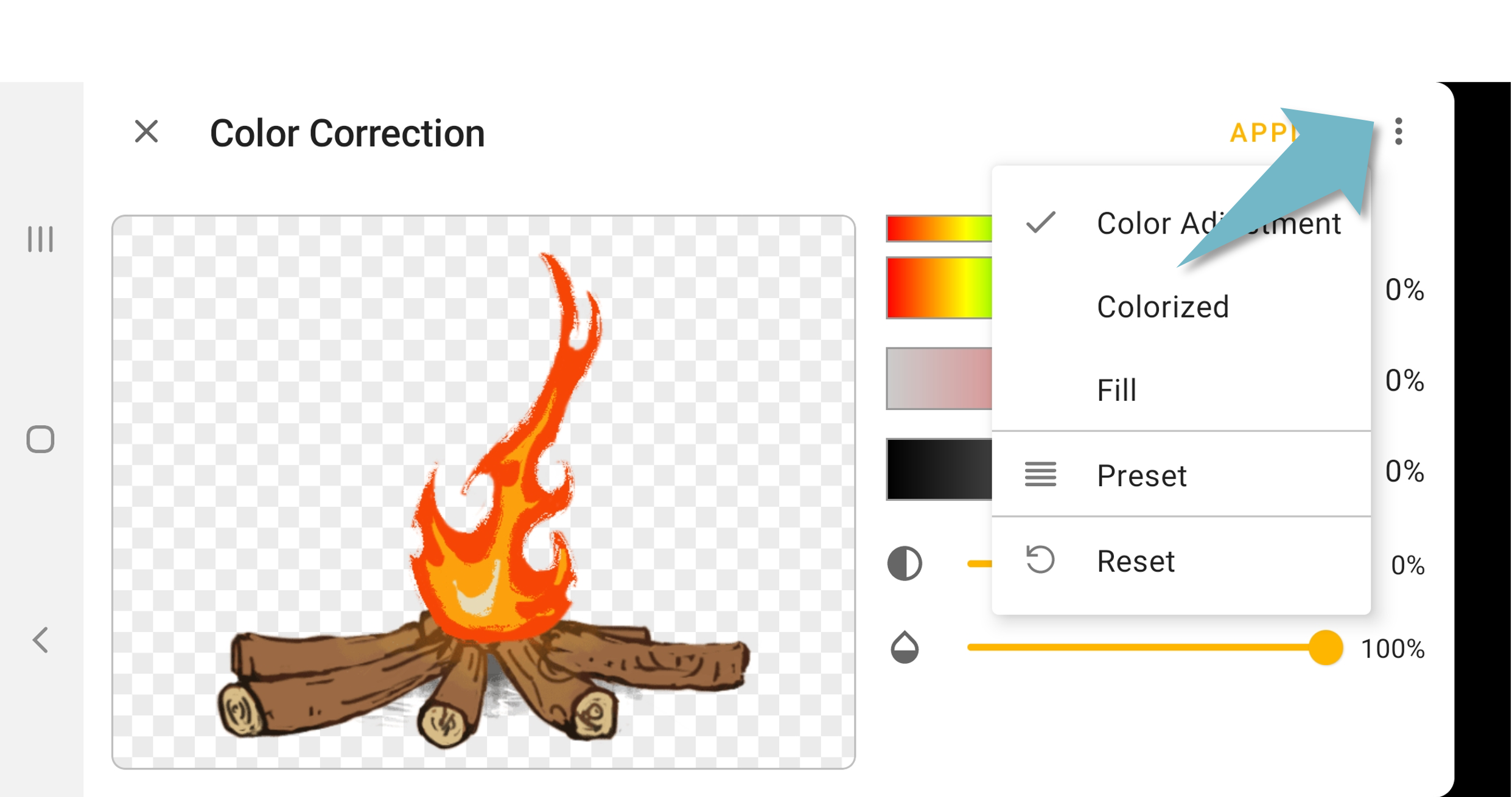
Enter the color correction window. In the menu in the upper right, there are three options,
- Color adjustment
- Fill
- Colorize
Below are some sample effects of each setting.
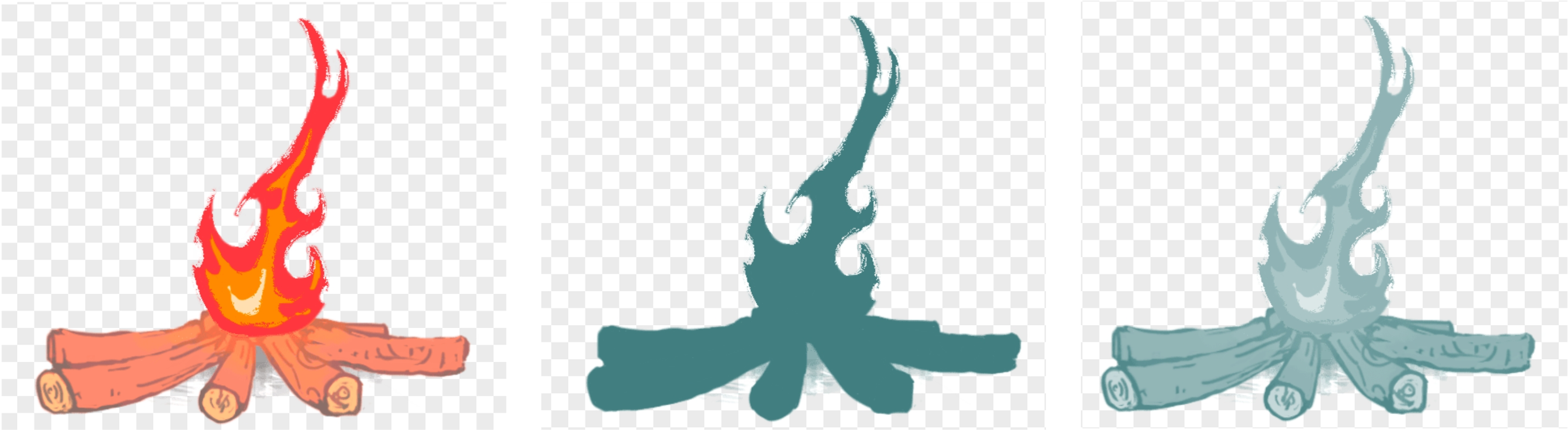
Left to right: color adjustment, fill, colorize
Edit a Unit
Split a Unit
You can split the unit into splits to extract what you need. Tap the 3-dot button in the stock collection, and select "Split unit".
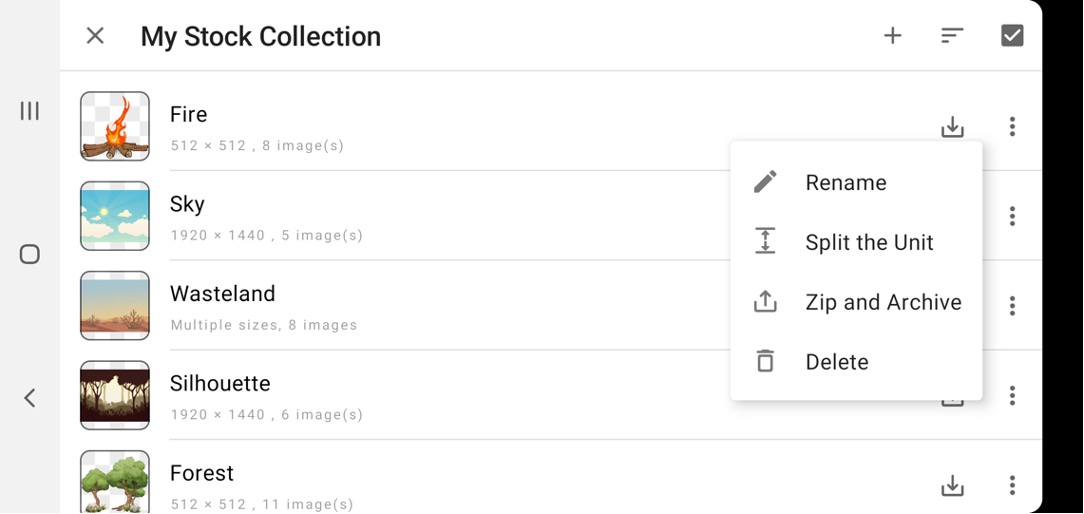
You can decide how many split to create; or how many images to be included in one split.
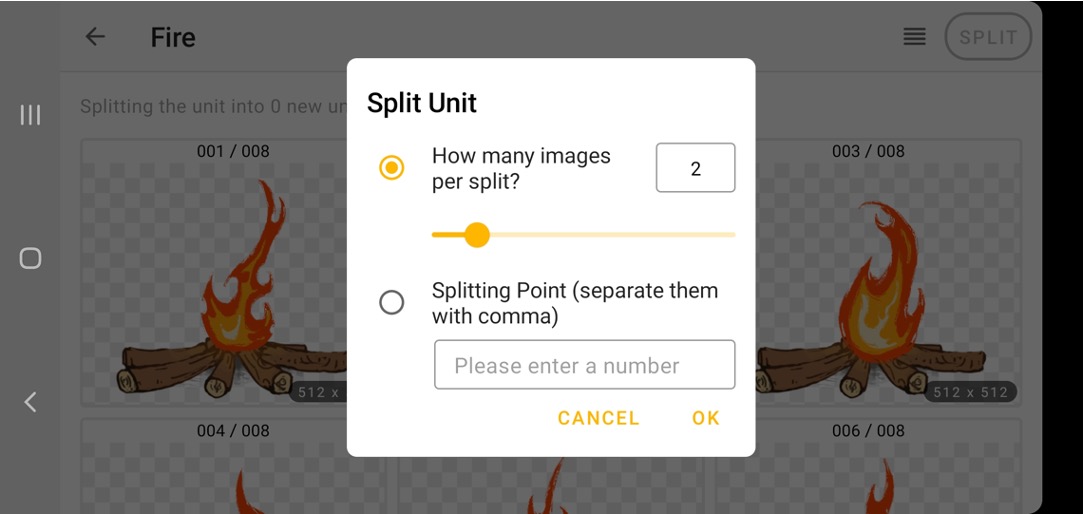
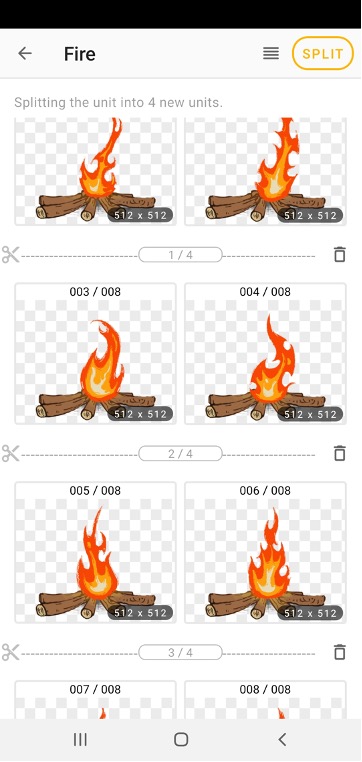
Export or Delete Images from a Unit
A unit may consist of many images. Enter the unit, and tap the "v" button on the upper right to enter the selection mode. Select the image(s) that you wish to export or delete. Tap the export or delete button at the upper right.
Updated
Comments
0 comments
Please sign in to leave a comment.